How I Create a Searchable Knowledge Base for Clients
A client knowledge base fails when the answer is there, but hidden. I build one so clients can solve common issues without opening a ticket. That matters for agencies, SaaS teams, and service businesses, because every repeated question stea...

A client knowledge base fails when the answer is there, but hidden. I build one so clients can solve common issues without opening a ticket. That matters for agencies, SaaS teams, and service businesses, because every repeated question steals time from real work.
The fix starts long before I publish the first article. It starts with structure, plain language, and search that feels obvious.
Start with the questions clients already ask
I begin with ticket logs, chat transcripts, onboarding calls, and sales notes. The pattern is usually loud and simple, even when the wording changes.
The self-service focus in knowledge base best practices for self-service matches how I build help content. I want clients to find the answer before they feel stuck.
I also ask support reps what they repeat most. If the same issue shows up ten times, it becomes a knowledge base article before it becomes a bigger support drain.
Design the information architecture first
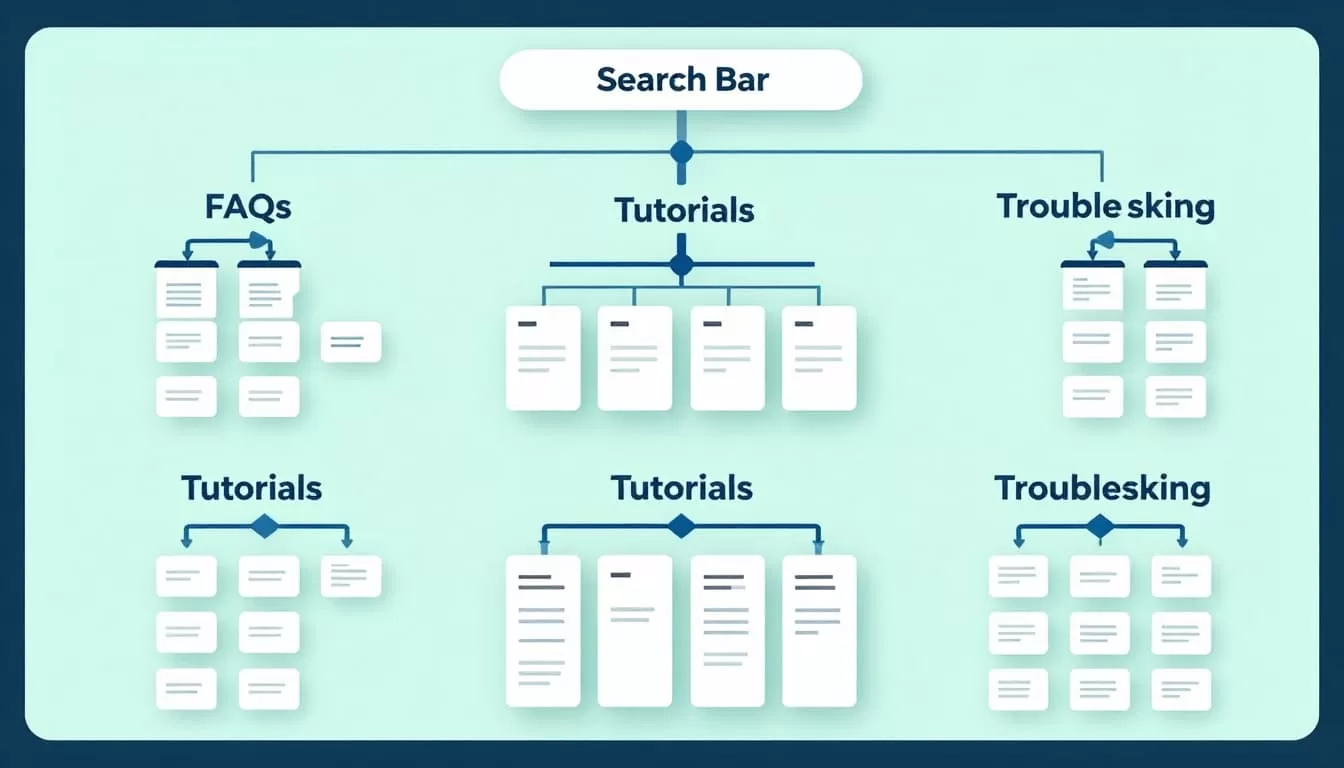
A searchable knowledge base needs a map. I build that map around client tasks, not my internal teams.
Categories that mirror tasks
I keep categories broad and practical. For most service businesses, that means things like onboarding, billing, access, usage, and troubleshooting.
Here’s the rule I follow when I set up structure:
| Layer | What I use it for | Example |
|---|---|---|
| Categories | Main paths | Billing, Login, Integrations |
| Tags | Extra filters | Agency, admin, API, urgent |
| Article titles | Searchable phrases | How to reset a client password |
| Collections | Guided journeys | Onboarding, setup, troubleshooting |
Categories should narrow the maze. Tags should add shortcuts. If a label needs explanation, I rename it.
Tags that catch details
I use tags for things clients may not type as a category. Product line, client type, region, and platform all work well. Tags also help when one article belongs in more than one path.
I keep naming simple. I avoid internal jargon like “account provisioning” if clients say “set up a login.” Plain language wins because people search with the words they already know.
Write articles around search phrases
I write each article for one job. That keeps the page focused and gives search a clear target.
The title should sound like the question in a support email. The opening line should answer it fast. Then I add steps, screenshots, and a fallback path if something goes wrong.
I also like the structure in SaaS knowledge base best practices. It reinforces the same idea I use in my own docs, one article, one purpose, one clear result.
When I write, I keep this pattern in mind:
- I use the client’s words in the title.
- I answer the main question in the first paragraph.
- I keep each step short and active.
- I close with what to do if the fix does not work.
That format makes articles easier to scan. It also helps support teams reuse content inside tickets and onboarding emails.
Make search feel forgiving, not fussy
Search is the front door. If clients can’t find the door, the library doesn’t matter.

I look for search tools that handle typos, synonyms, and partial matches. “Login,” “sign in,” and “access account” should lead to the same result. A good help center also shows related articles and recent searches.
If a client needs three searches to find one answer, I fix search before I write another article.
I also watch for empty results. Those searches tell me what clients wanted but could not find. That data is gold because it shows missing content and weak naming at the same time.
Helpful features include search analytics, article aliases, related-article blocks, and filters by product or plan. In support tools, docs platforms, and help center software, those features matter more than fancy design.
Onboard clients so they actually use it
A knowledge base works best when I introduce it early. I place the link in the welcome email, the client portal, and the kickoff deck.

During onboarding, I point clients to the three or four tasks they will need most. That might be billing, account access, setup, or reporting. I also name the space in plain terms, like “Client Help” or “Support Library.”
A short walkthrough helps too. I show where the search bar lives, how to open related articles, and what to do when the answer is not there. That small tour cuts confusion fast.
Keep ownership and governance tight
A knowledge base ages fast. New features, policy changes, and workflow shifts can break old answers.
I assign each article an owner and a review date. I also check search terms, low-click pages, and repeated tickets every month. If clients keep searching for something that doesn’t appear, I either write the article or rename the old one.
I also merge duplicates. Two weak pages create more confusion than one strong page. When content changes, I update the title first, then the body, then the screenshots.
The teams that keep support content useful treat it like living product documentation, not a one-time project.
The best help center feels invisible
A good searchable knowledge base does its job without making a scene. Clients type a few words, see the right answer, and move on with their day. Support teams get fewer repeats, and onboarding feels lighter.
When I build for the words clients already use, the whole system becomes easier to trust. That is the real goal, a knowledge base that feels calm, obvious, and ready the moment someone needs it.
