How I Set Up Google Workspace Email Aliases for Teams
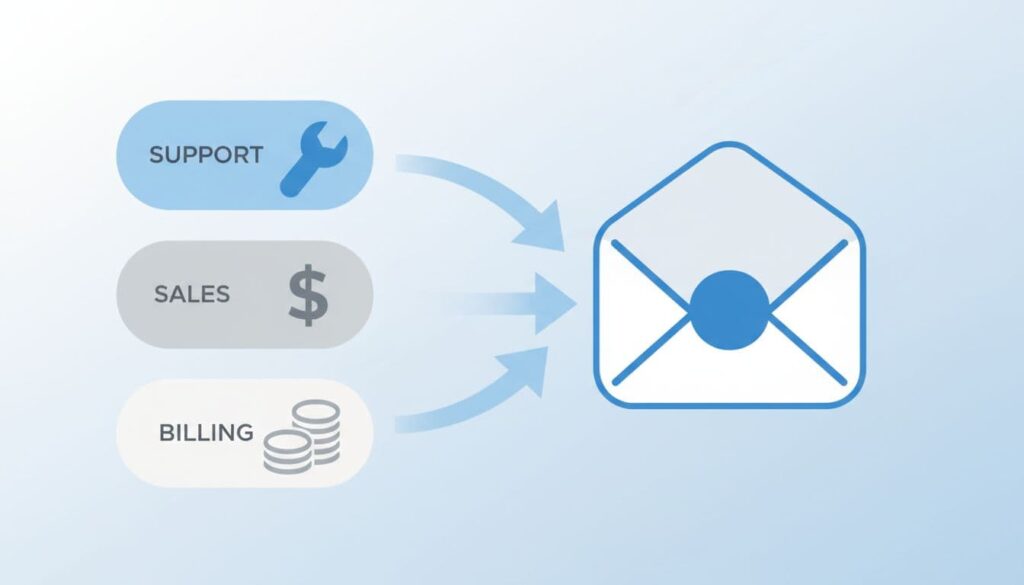
Google Workspace email aliases let one mailbox receive mail under several addresses. A founder can publish support@, sales@, and billing@ while reading everything in one inbox. No extra paid seat is required. The setup takes a few minutes....

Google Workspace email aliases let one mailbox receive mail under several addresses. A founder can publish support@, sales@, and billing@ while reading everything in one inbox. No extra paid seat is required. The setup takes a few minutes. The wrong choice, however, creates reply confusion when several people need the same address.
This guide explains what an alias does, how to add one in the Admin console, how to send from an alias in Gmail, and when to choose a Google Group or a collaborative inbox instead. Every limit below comes from Google documentation. Confirm current details on the official help pages before you roll out changes.
What a Google Workspace email alias is
An alias is an alternate address attached to one user. Mail sent to the alias lands in the main inbox of the owner. The alias is not a Google Account. You cannot sign in with an alias to reach Drive, Calendar, or other services.
Think of an alias as a second label on the same door. The room behind the door does not change. The owner sees all messages in one place, and the sender sees the alias address.
Google states you can add up to 30 aliases for each user at no extra cost. Google also states only one user can receive mail sent to an alias. Read the details in the official email alias help article.
User aliases and domain aliases
Google Workspace supports two kinds of alias. Each one solves a different problem.
- User alias: an extra address for one person, such as support@ pointing to a founder.
- Domain alias: a second domain name attached to the account. Every user receives mail at the same name on the second domain.
A domain alias applies to all users. You cannot remove a domain alias for one user only. You must remove the domain alias itself. A user alias is removed from the user page.
Most small teams need user aliases. Domain aliases help when a company owns two domain names and wants both to work for every employee.
When an alias is the right tool
Use an alias when one person owns the work. Typical cases include:
- A solo founder who wants support@ on the website and hello@ on business cards.
- A sales lead who wants a clean public address without exposing a personal name.
- A finance lead who receives invoices at billing@ and already works from a normal inbox.
- A team member who needs a short address for a campaign or a landing page.
Aliases cost nothing extra and take minutes to set up. Each alias also removes easily when the campaign or role ends. This makes aliases a good fit for small businesses with a clear owner for each address.
How to add an alias in the Google Admin console
Finish the base domain work first. The guide to complete Google Workspace email setup covers MX records and mail authentication. After Gmail works for the domain, follow these steps.
- Sign in to the Google Admin console with an account holding the User management privilege.
- Open Directory, then Users.
- Open the account page of the user who should receive the mail.
- Under the name of the user, click Add Alternate Emails.
- Click Alternate email and type the part before the at sign.
- Optionally, select a secondary domain from the list.
- Repeat for more aliases if needed, then click Save.
Send a test message to the new address after you save. Confirm the message reaches the primary inbox of the user. Google notes changes can take up to 24 hours, but they usually apply sooner.
Check spelling and ownership before saving
A typo in an alias creates a silent failure. Mail goes nowhere and nobody notices. Read the address aloud before you click Save.
Also record the owner of each address. Aliases age badly when nobody remembers why they exist. A simple sheet with the alias, the owner, and the purpose solves this problem.
Names matching existing accounts
Google blocks an alias with the same name as an existing Google Account in your organization. Pick a different name or rename the conflicting account first.
How to remove an alias
Return to the same section on the user page and click Remove next to the alias. Then click Save. If no Remove option appears, the address is a domain alias. Remove the alias at the domain level instead.

How to send mail from an alias in Gmail
Receiving mail at an alias is one step. Replying as the alias is a second step. Without the second step, the user answers from the main address and the customer sees a different sender.
Google explains users send from an alias by setting up a custom From address in Gmail. Admins cannot see this setting in the Admin console. Each user completes the setup in their own account.
- Open Gmail as the user who owns the alias.
- Click the gear icon, then See all settings.
- Open the Accounts and Import tab.
- Find Send mail as and click Add another email address.
- Enter the alias address and follow the prompts.
- Choose whether to treat the address as an alias, based on your needs.
Google notes multiple users can send from the same alias if each one sets up a custom From address. The Treat as an alias box may need a change in this case. Test a reply to a personal address before launch and confirm the From line shows the alias.
Alias limits to know before rollout
Aliases are simple, so the limits are few. Each one still matters when a team grows.
- One receiving user: Only one user receives mail sent to an alias. Two people cannot share the same alias.
- No sign-in: An alias is not a Google Account. Nobody can log in with the address.
- No privacy: Aliases are not private. A Gmail search for the address of a user may also return messages sent to the alias.
- Thirty per user: Google allows 30 aliases for each user. More addresses require another account.
- Delay: Changes can take up to 24 hours to apply.
Alias, group, or collaborative inbox
The main risk with aliases appears when a team grows. Three people chasing one customer message wastes time and creates duplicate replies. Compare the options before you choose.
| Option | Best for | What you get | Main limit |
|---|---|---|---|
| Alias | One person owning support@ or sales@ | Free extra address on one inbox | Only one user receives the mail |
| Google Group | Several people need the same address | Mail goes to many members | Replies can feel loose without rules |
| Collaborative inbox | Busy support or sales teams | Assignment, status, and resolution | Needs Groups for Business turned on |
Google describes collaborative inbox features in its Google Groups help. A group owner or manager turns the features on for a group. Members can then assign a conversation to themselves or another member. Members can also mark a conversation complete, no action needed, or duplicate. Each action depends on the permissions you grant.
For shared addresses where several people read and reply, Google recommends Gmail delegation in its alias article. Delegation gives a second person access to the mailbox without sharing a password.

A simple decision rule
Use one rule when you plan team mail. If one person owns the work, use an alias. If several people must see the same thread, use a group or a collaborative inbox. If the team needs reports, response times, or service level tracking, evaluate a dedicated help desk tool.
Plan for growth as well. A team starting with one owner often has three owners within a quarter. Broader admin planning belongs in your Google Workspace email hosting for teams setup.
Manage aliases with scripts
Admins who manage many users can automate alias changes. Google publishes a Directory API alias guide with the methods to list, add, and delete user aliases. Scripts help during onboarding and offboarding, because a departing employee often owns several public addresses.
Review aliases when someone leaves. Reassign each address to a new owner or remove the address. An abandoned alias still receives mail, so customers can write to a mailbox nobody reads.
Best practices for team aliases
- Name addresses by function, such as support, sales, and billing, not by person.
- Keep a written list of every alias with its owner and purpose.
- Test both receiving and replying before you publish an address.
- Review the list every quarter and remove unused aliases.
- Move to a group or collaborative inbox when a second person needs to reply.
- Never use an alias as a login name for another service without checking the rules of the service.
FAQ
Do Google Workspace email aliases cost extra?
No. Google states each user can have up to 30 aliases at no extra cost. Check the current terms on the official help page.
Can my whole team use support@ as one inbox?
Not with a plain alias. Only one user receives the mail. Use a Google Group, a collaborative inbox, or Gmail delegation for shared coverage.
How long does an alias take to work?
Google states changes can take up to 24 hours. Many aliases work sooner. Send a test message after you save.
Can a user reply from the alias?
Yes. The user adds the alias as a custom From address in Gmail. Admins cannot see this setting in the Admin console, so each user completes the step in their own account.
Can I sign in with an alias?
No. An alias is not a Google Account. Sign in with the primary address of the user.
What if the alias name matches an existing user?
Google blocks the alias. Choose a different name or rename the existing account.
Conclusion
Google Workspace email aliases work best when one person owns the address and the team wants a professional public label. They cost nothing extra, take minutes to add, and remove cleanly. Choose a group, a collaborative inbox, or delegation as soon as a second person needs to read and reply. Test receiving and sending before launch, and confirm current limits on the official Google help pages.
