How I Add Email Aliases in Google Workspace
You run a small business. Emails pile up for roles like support or sales. One person handles multiple jobs. A Google Workspace alias fixes that fast. It forwards mail to the right inbox without extra accounts. I set these up weekly for my t...
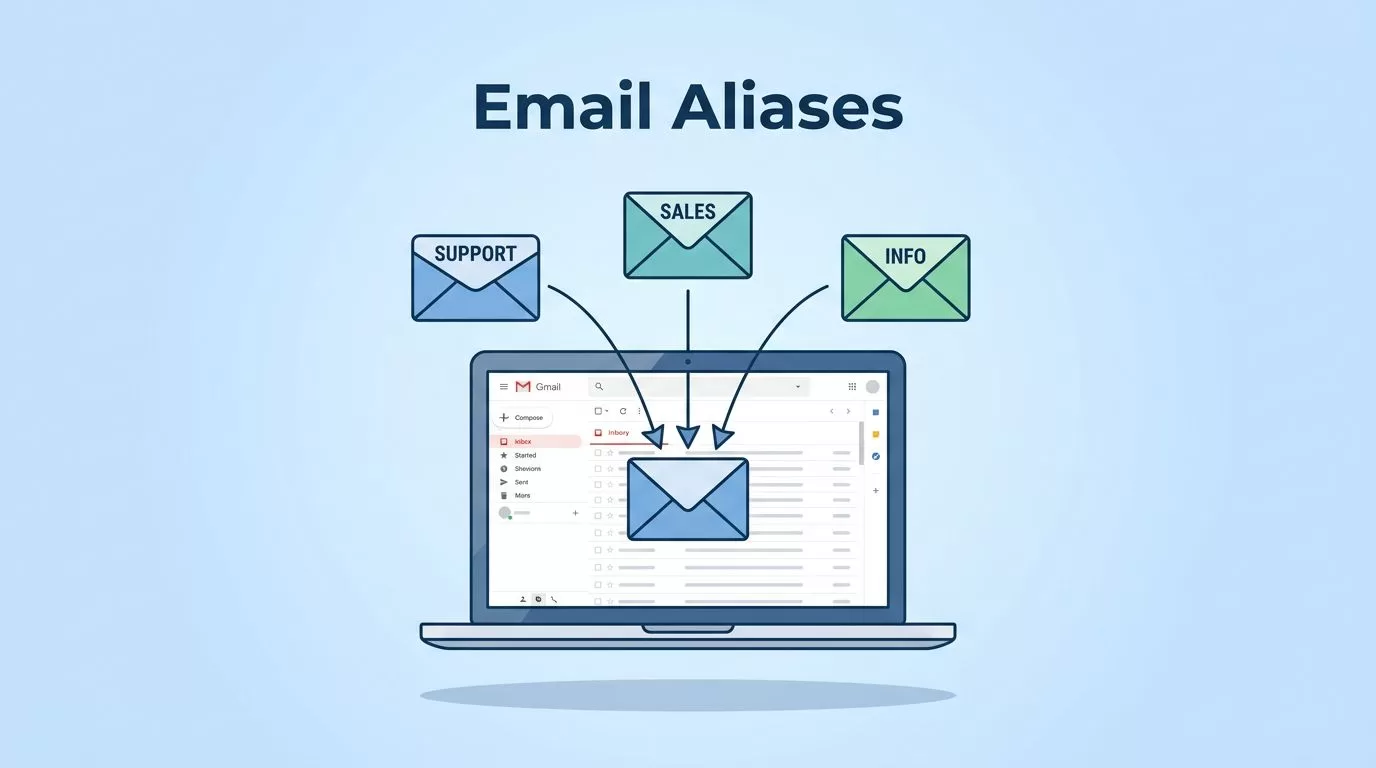
You run a small business. Emails pile up for roles like support or sales. One person handles multiple jobs. A Google Workspace alias fixes that fast. It forwards mail to the right inbox without extra accounts.
I set these up weekly for my team. No cost beyond your plan. Up to 30 per user. Saves time and keeps things simple. Let’s walk through it.
What a Google Workspace Alias Does for Your Team
I remember the chaos before aliases. Customers emailed info@ or billing@. No one checked those boxes. Messages got lost.
An alias is a forwarding address tied to one primary inbox. Send to support@yourdomain.com. It lands in jane@yourdomain.com‘s Gmail. Jane replies from it too. All automatic.
Small teams love this. Owners grab hello@ and ceo@yourdomain.com. No need for paid seats. Google counts it as one user.
Aliases beat free forwards. They integrate with Gmail search and labels. I filter alias mail into folders. Team stays organized.
Check Google’s official steps for details on adding or deleting alternate email addresses. They match what I do.
Primary domains work best. Secondary ones too. Limits keep spam down. Each alias must be unique across your org.
For my setup guide on complete Google Workspace email setup, see how it fits domain verification first.
User Email Aliases vs. Group and Domain Alternatives
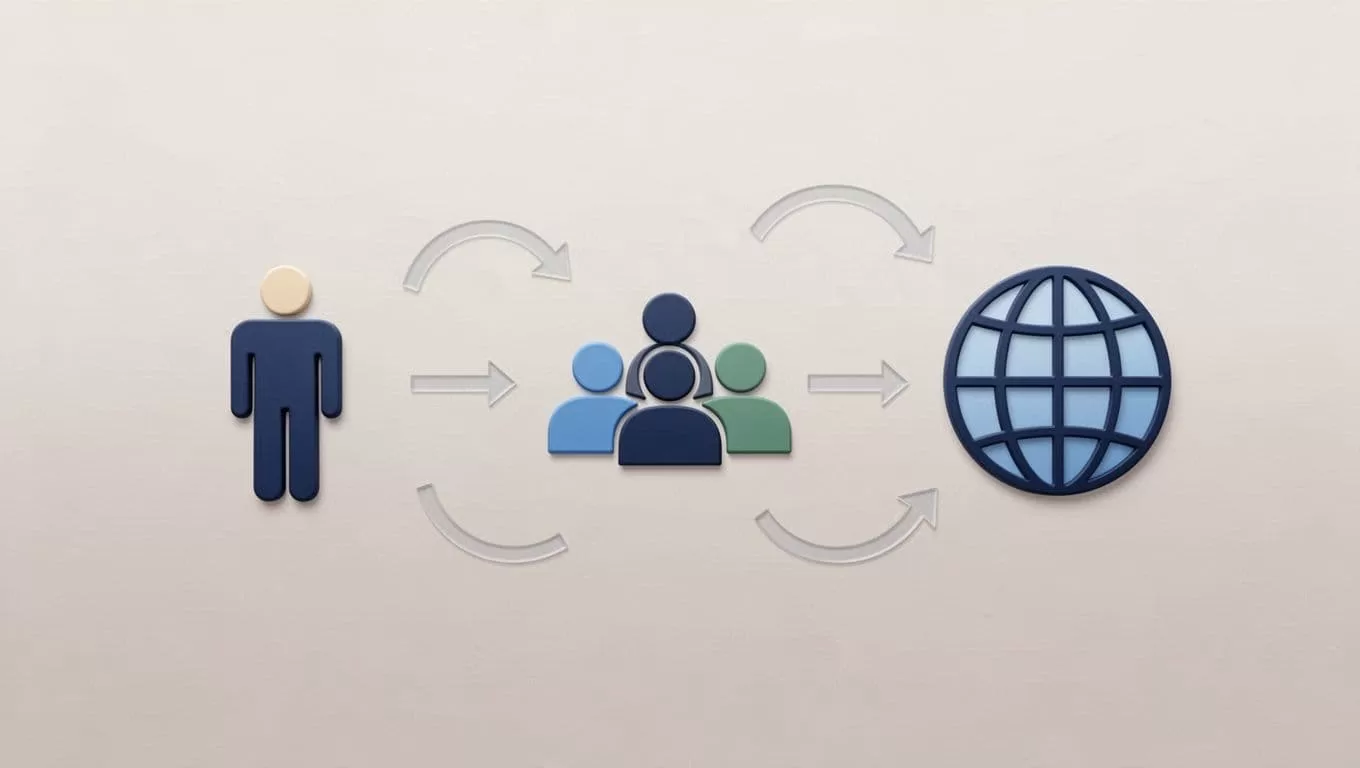
New admins mix these up. I did at first. User aliases suit solo roles. Groups share mail. Domains scale big.
User aliases link one extra address to one inbox. Jane gets sales@ and jane@. She manages both.
Groups create shared inboxes. Add members to support@. Everyone sees replies. Great for teams.
Domain aliases mirror your whole setup. Add company.net as alias domain. Every user gets john@company.net too. No per-user adds.
Here’s a quick comparison:
| Type | Best For | Limit | Setup Location |
|---|---|---|---|
| User Alias | Single person, multiple roles | 30 per user | Directory > Users |
| Group Email | Team sharing | Unlimited members | Directory > Groups |
| Domain Alias | Company-wide mirrors | One per domain | Account > Domains |
User aliases stay private. Groups spark reply chains. Domains need DNS changes.
Read the overview of additional email addresses for limits. I use user aliases most. Groups next.
Step-by-Step: Adding a User Alias
I log in mornings for this. Admin console feels like home now. Steps work in May 2026. Menus shift sometimes. Verify yours.
- Go to admin.google.com. Sign in as super admin.
- Click Directory. Then Users.
- Search the user. Click their name.
- Find User information. Click Email aliases.
- Hit Add an alias. Type the name before @. Pick domain if secondary.
- Save. Test with an outside email.
Alias activates in minutes. Up to 24 hours worst case.

Example: My marketer, alex@team.com, needs promo@team.com. I add it. Alex sends from promo@ in Gmail. Click From dropdown. Add alias there first.
Users send from aliases after setup. Gmail > Settings > Accounts > Send mail as.
For team setups, check my post on Google Workspace email aliases setup.
Watch this quick video on adding a user alias. Visuals help.
Need privileges? Super admin or user management role. Delegate if needed.
How I Set Up Group Alternate Emails
Groups handle shared needs. Support@ goes to three inboxes. No alias confusion.
Steps differ from user aliases. Go Directory > Groups. Click Create group.
Name it support. Set email support@yourdomain.com. Add owners and members.
Emails hit all members. They reply as group or personal.
Alternate emails on groups? Add them post-creation. Group settings > Add another email address.
Up to 10 alternates per group. Like support-team@.
I use groups for sales@. Four reps see leads. They claim replies.
Test it. Send from personal Gmail. Check all inboxes.
Groups archive better than aliases. Search history stays.
Adding Domain Aliases for Full Coverage
Scale hits. One domain won’t cut it. I added a short one for marketing.
Go Account > Domains > Manage domains. Click Add a domain.
Enter newdomain.com. Pick User alias domain.
Verify ownership. Add TXT record at DNS host.
Activate Gmail post-verification. Users get mirrors automatic.
Example: team.com primary. team.net alias. john@team.net forwards to john@team.com.
DNS propagates in hours. Test all.
See steps to add a user alias domain.
Limits: One alias domain per primary. More needs enterprise.
My business email setup with Google Workspace covers MX too.
Troubleshooting Common Issues
Aliases fail sometimes. I chase ghosts in coffee-fueled nights.

No mail? Propagation delay. Wait 24 hours. Resend test.
Duplicate address? Delete old one first. Scan Directory.
Can’t send from alias? User adds it in Gmail settings.
Admin rights gone? Check roles in Admin roles page.
Spam folder traps it. Train filters.
Domain unverified? Fix DNS. Tools like dig check TXT.
Console changed? Search “add alias” in help. Matches these detailed user alias steps.
Log out, clear cache. Works 90% time.
Short names avoid issues. No specials.
Conclusion
Google Workspace aliases streamline your email flow. I rely on user versions for roles, groups for teams, domains for growth.
Pick based on needs. Test every setup. Your team thanks you.
Aliases cut costs and clutter. Start with one today. Check console if paths differ.
