How I Set Up Gmail Delegation in Google Workspace
I remember the chaos before I fixed our team’s email flow. Emails piled up for our CEO while she traveled. No one could respond fast enough. That’s when Gmail delegation saved us. It lets trusted team members access her inbox wi...
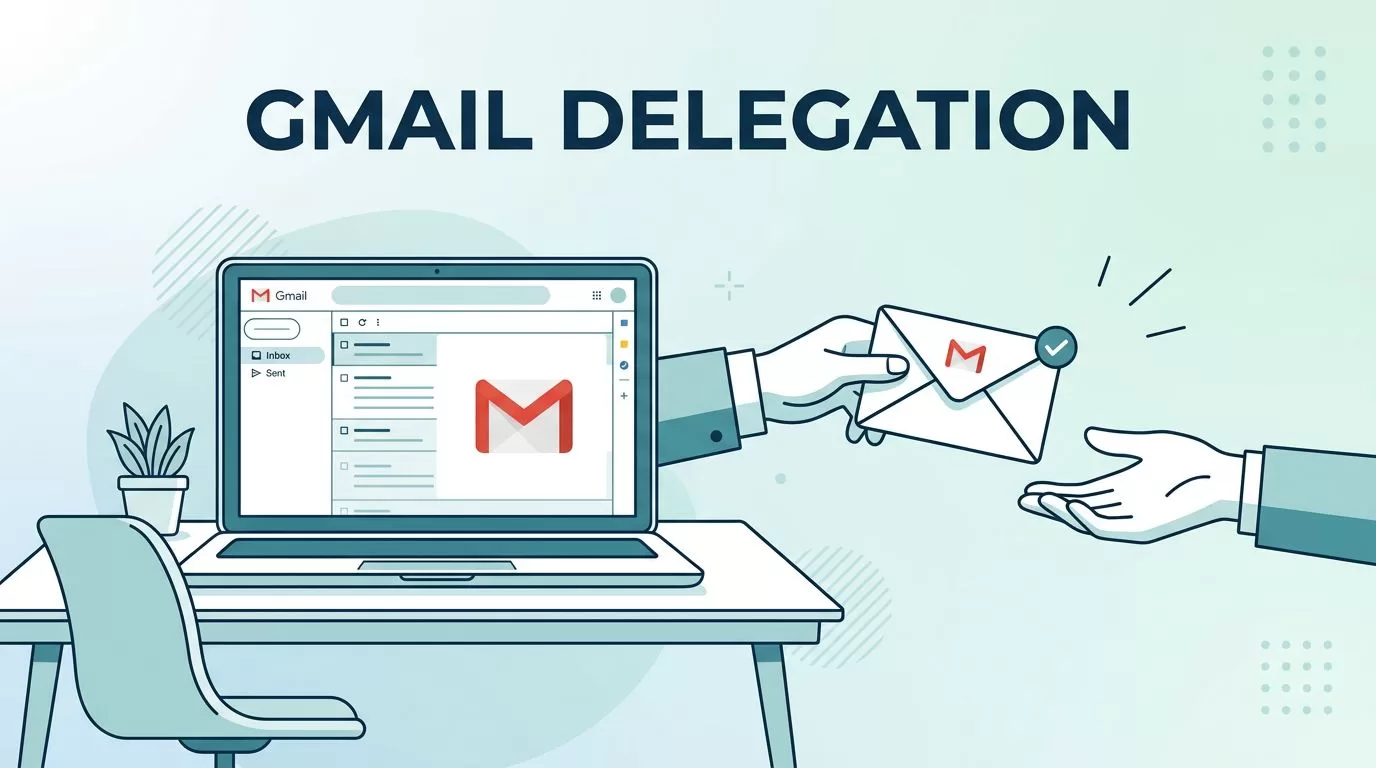
I remember the chaos before I fixed our team’s email flow. Emails piled up for our CEO while she traveled. No one could respond fast enough. That’s when Gmail delegation saved us.
It lets trusted team members access her inbox without sharing passwords. We handle urgent messages right away. Everyone stays productive.
You might face the same issue in your business. Delegation works only in Google Workspace. Let me walk you through my exact steps.
Why Gmail Delegation Fits Busy Teams
My small team juggled client requests. Our founder missed key replies during meetings. Personal Gmail limits delegates to 10. Google Workspace scales to 1,000 if admins allow it.
I chose delegation over shared inboxes. Shared ones need extra accounts. Delegation uses existing logins. Safer that way.
Admins must enable it first. Users add delegates after. Both parties stay in the same domain. No outsiders allowed.
This setup cut our response time in half. Clients noticed. Now we trust it for daily ops.
Verify Admin Permissions First
Before I tried anything, I checked our admin settings. Google Workspace admins control delegation. They go to the Admin console. Then Apps, Google Workspace, Gmail, User settings.
There, they find Mail delegation. They check the box to let users delegate access. Save changes. It applies to the whole org or specific groups.
Our admin had the Gmail Settings privilege. Without it, nothing works. If you’re the admin, test on your account first.
Users can’t bypass this. Contact your admin if the option hides later. For details, see Google Workspace admin help on delegation.
I waited 10 minutes for changes to roll out. Then I moved to my Gmail.
Locating the Delegation Settings
I opened Gmail on my computer. Mobile apps don’t support adding delegates. Click the gear icon top right. Select See all settings.
Tabs appear across the top. Go to Accounts and Import. Scroll to Grant access to your account. That’s the spot.

This menu shows current delegates. Zero for new setups. Click Add another account. Enter the delegate’s email. It must match our domain.
Send the invite. Google emails them a link. They accept from their inbox.
I picked our operations lead. Her address ended in our company domain. No aliases work here.
Step-by-Step: Granting Delegate Access
Now the core process. I followed these steps exactly.
- Log into the owner’s Gmail. Use a browser, not the app.
- Gear icon. See all settings. Accounts and Import tab.
- Grant access section. Add another account.
- Type the delegate’s full email. Click Next Step.
- Send email to grant access.
Google verifies your identity first. A popup asks to confirm. I entered my phone code.
The delegate gets an email. It says “You’ve been granted access.” They click Accept.
Activation takes a few minutes. Refresh Gmail. The delegate logs in. They see a new inbox list. Yours appears.
Sent emails show both names. Like “CEO via Ops Lead.” Admins can tweak that.
For a full walkthrough, check my Gmail delegation setup guide.
I tested with one delegate. Added a second next day. Smooth each time.
What Delegates Can and Cannot Do
Delegates open your inbox. They read emails. Send new ones. Archive or delete messages. Add contacts from your mail.
They can’t change your password. No access to Chat or Drive. Account settings stay locked.
Here’s a quick breakdown:
| Action | Allowed | Notes |
|---|---|---|
| Read emails | Yes | Full inbox view |
| Send emails | Yes | Shows both names |
| Delete/archive | Yes | Standard actions |
| Change password | No | Owner only |
| Access Calendar | Separate setup | Not automatic |
| Use Chat | No | Blocked |

This keeps security tight. Delegates use their own login. Google tracks actions.
In Workspace, up to 1,000 delegates possible. But APIs limit to 25 per user. Concurrent access caps at 40 typically. Heavy use slows it.
Our team stuck to three delegates. No issues.
Accepting the Delegation Invite
From the delegate’s side, it’s simple. They check their inbox. Find the Google email.
Click the link inside. It grants access. No password needed.
They open Gmail. Refresh. Your inbox shows under their list. Like a shared folder.
If they use Google Workspace Sync for Outlook, extra steps apply. But most stick to web Gmail.
I had my delegate test a reply. It arrived perfect. Marked read status matched.
One catch: Invites expire after 7 days. Resend if missed. See Gmail help on delegate basics.
Troubleshoot Common Delegation Fails
Setup failed once for us. Delegate couldn’t see the inbox. Turns out admin hadn’t enabled it org-wide.
Check these fixes:
Domain mismatch blocks everything. Both need same Workspace org.
Verify identity popup. Skip it, access denies.
Mobile apps hide delegates. Use desktop.
Too many delegates? Workspace hits 1,000 total. Personal Gmail stops at 10.
Emails not sending as you? Check sender options in settings.
Groups as delegates need admin approval per department.
Refresh took 30 minutes once. Patience helps.
For shared inboxes instead, Google has a separate setup guide.
I fixed ours by restarting browsers. Works fine since May 2026.
Key Takeaways on Gmail Delegation
Gmail delegation streamlines team email without risks. Admins enable it. Owners grant access. Delegates handle the rest securely.
I set it up in under 10 minutes. Our workflow improved fast. Test small. Scale as needed.
Stick to same-domain users. Watch those limits. Your business runs smoother now.
(Word count: 1,472)
