Mida Visual Editor: Build Better A/B Tests
A/B testing fails when the test takes longer to build than the decision takes to make. The Mida visual editor reduces that setup time by letting you change visible page elements without rebuilding the page in a code editor. You still need a...
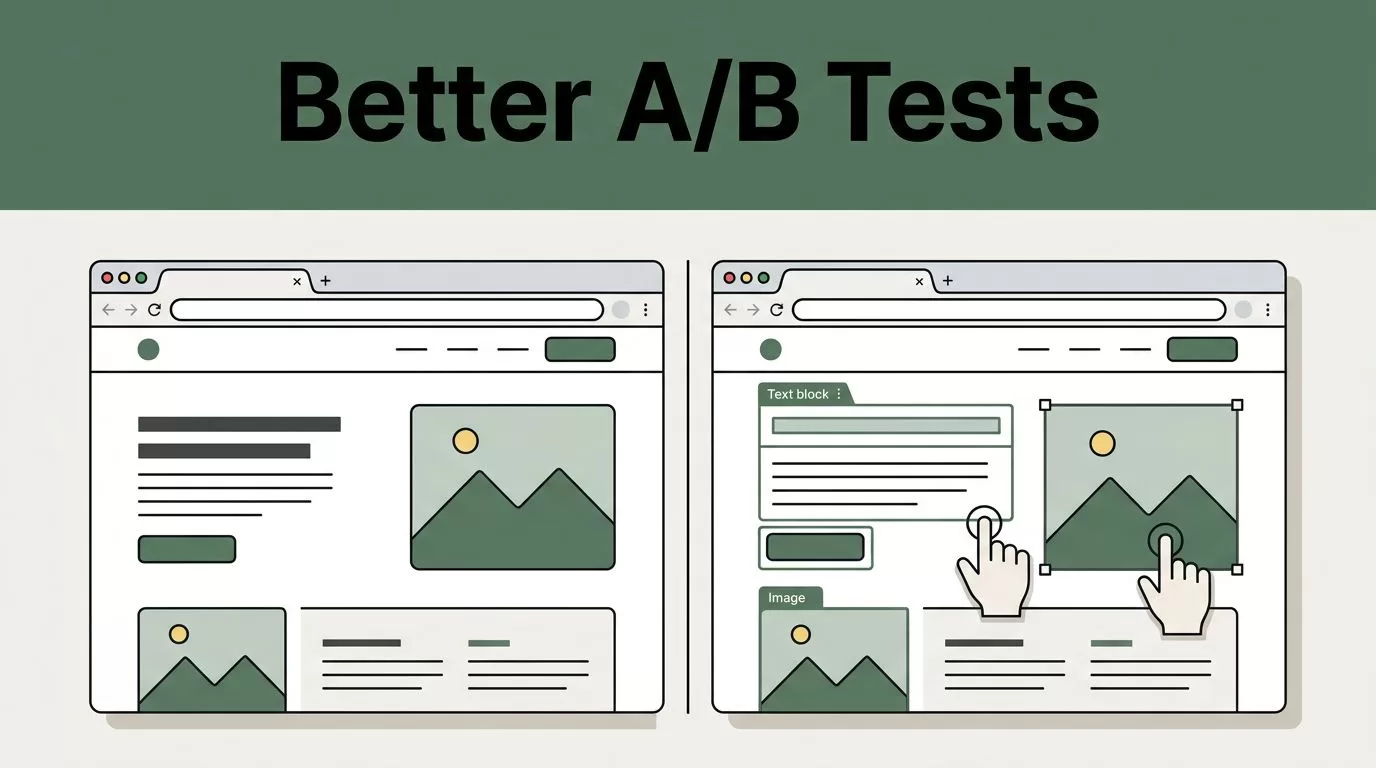
A/B testing fails when the test takes longer to build than the decision takes to make. The Mida visual editor reduces that setup time by letting you change visible page elements without rebuilding the page in a code editor.
You still need a clear hypothesis, a focused change, and a reliable success metric. The editor handles the page variation. Your process determines whether the result is useful.
Key Takeaways
- Start with one conversion problem and one primary metric.
- Use the visual editor for visible content, layout, styling, and simple form changes.
- Preview every variation across desktop and mobile before launch.
- Keep the original page unchanged and test one main idea at a time.
- Use custom code for complex logic, dynamic data, advanced interactions, or changes outside the visual editor’s reach.
Know What the Mida Visual Editor Should Handle
The visual editor is built for changes you can identify directly on a live page. You select an element, change its content or appearance, and create a variation for the test.
Depending on your Mida.so setup and plan, available controls may include text edits, style changes, element visibility, spacing, layout adjustments, and simple content replacements. The exact controls can vary, so confirm what appears in your workspace before planning a test around one feature.
Use the editor when the change is clear in the page structure. Common examples include:
- Replacing a headline or supporting paragraph
- Changing button text, color, size, or position
- Hiding a secondary navigation link
- Moving a form closer to the main call to action
- Adjusting spacing around a pricing section
- Reducing the number of visible form fields
- Testing a different image or content block
The editor doesn’t replace your website’s source code. It adds a test variation when the page loads for an eligible visitor. The original page remains the control, while the alternate version receives the changes defined in the experiment.
That distinction matters. A visual edit can look correct in the editor but fail when the site loads content dynamically. React components, single-page application routes, delayed content, and third-party forms can change the page after the initial load.
Use the visual editor for visible page changes. Use custom code when the change depends on logic, data, or behavior.
Prepare the Experiment Before Opening Mida
The editor is not where you decide what to test. Write the test plan first.
Start with the page and conversion action. A product page might target demo requests. A pricing page might target trial starts. A blog page might target clicks to a product page.
Then define the problem. Avoid statements such as “We need a better page.” Use a specific observation:
“Visitors reach the pricing section but submit the demo form at a lower rate than expected.”
Turn that observation into a hypothesis:
“If we place the form beside the pricing explanation and remove two nonessential fields, more qualified visitors will submit it.”
Your hypothesis should identify three things:
- The page element you will change.
- The expected visitor response.
- The metric that will confirm or reject the idea.
Choose one primary metric. Supporting metrics can help explain the result, but they shouldn’t compete with the main decision. For a lead-generation page, the primary metric may be completed form submissions. For an ecommerce page, it may be completed purchases rather than button clicks.
Check the page before you build the variation. Confirm that the URL is correct, the existing conversion event fires, and the page has enough traffic for the test to produce useful evidence. If the page receives little traffic, a large redesign may take too long to evaluate.
Build an A/B Test in the Visual Editor
The setup flow can differ by account and product version. The working process remains consistent.
1. Create a focused experiment
Open the A/B testing area in Mida.so and create a new experiment. Give it a name that records the page and the change.
“Pricing page, shorter demo form” is more useful than “Test 14.” Clear names help marketing, product, and analytics teams understand old experiments months later.
Add the target page or URL rule. If your site has several similar routes, verify that the experiment won’t run on pages outside the intended test group.
2. Open the page in the editor
Load the target page through the visual editor. Wait for the page to finish rendering before selecting an element.
Click the headline, button, form, or section you want to edit. If the editor selects the wrong container, move up or down the page structure until you reach the correct element. A button may sit inside a link, a form wrapper, or a larger content block.
Take a screenshot of the original page before making changes. Record the current text, location, and styling. This gives you a reference during quality checks.
3. Make one primary change
Change the element tied to your hypothesis. Don’t rewrite the headline, move the form, replace the image, and change the navigation in one variation unless you are testing a complete redesign.
A focused test gives you a clearer result. If the variation wins, you know which idea deserves further use. If it loses, you know which assumption needs review.
For a headline test, keep the promise consistent while changing the angle. For example:
- Control: “Talk to a sales specialist”
- Variation: “See how the platform fits your workflow”
For a call-to-action test, change the wording without changing the destination:
- Control: “Request a demo”
- Variation: “See the product in action”
Check that the new text doesn’t wrap into an awkward second line. Button copy can change the button width and push nearby content lower on the page.
4. Check layout and responsive behavior
Use the editor’s preview controls when available. Review the variation at desktop and mobile widths.
Look for cropped images, overlapping sections, broken alignment, unreadable text, and buttons that become difficult to tap. Check the page around the edited element as well. Moving one block can shift a form, testimonial, or pricing table.
If the editor supports device-specific styling, keep the mobile change separate from the desktop change. If it doesn’t, use a responsive CSS rule or custom code when the layout requires different behavior by screen size.
5. Save, preview, and connect the goal
Save the variation, then use the preview mode to compare it with the control. Test the actual conversion action.
Submit the form with valid data if your testing process allows it. Confirm that the thank-you page, confirmation message, CRM record, or analytics event still works. For a purchase flow, check the path through cart and checkout without creating duplicate transactions.
Select the primary goal inside the experiment settings if Mida.so provides that option. If the goal depends on an existing analytics setup, verify that the event name and destination are correct before launch.
6. Launch with a documented decision rule
Record the test hypothesis, primary metric, audience, page, launch date, and planned review point. Decide in advance what result would justify implementation.
Don’t stop the test because the variation leads after one afternoon. Early results can change as more visitors enter the experiment. Review the result after the test has collected enough conversions for a sensible comparison, and account for traffic quality, seasonality, campaigns, and product changes.
Practical Edits Worth Testing
Start with changes that address a visible barrier. The best first test is usually not a complete redesign.
Headlines
A headline should tell visitors what the page offers and who it helps. Test clarity against specificity.
A broad headline such as “Tools for modern teams” gives visitors little direction. A more direct version could say, “Manage customer requests in one workspace.”
Keep the supporting copy stable when testing only the headline. Otherwise, you won’t know whether the response came from the headline or the explanation below it.
Calls to action
Button copy should describe the next action. “Submit” is generic. “Book a product walkthrough” gives the visitor a clearer expectation.
Test one change at a time:
- Action wording
- Button placement
- Button size
- Primary and secondary button hierarchy
- Supporting text near the button
Don’t use a more aggressive CTA if the page hasn’t earned the click. A visitor comparing software may need “Compare plans” before “Start your trial.”
Layout
Layout tests work when visitors miss important information or face too many competing actions. You might move the main CTA above a long feature list, place proof points beside a form, or reduce the visual weight of a secondary link.
Check the full page after every layout change. A better first screen doesn’t help if it pushes the form below a confusing section or makes the mobile version harder to use.
Forms
Forms give you a direct conversion target. Test the number of fields, field labels, helper text, and form placement.
Removing fields can reduce effort, but it may also reduce the information your sales team needs. Track lead quality when the form collects qualification data. A higher submission rate doesn’t automatically mean a better outcome.
If the form comes from HubSpot, Salesforce, Marketo, or another embedded provider, test the actual submission. A visual change may not affect the provider’s internal validation or event tracking.
When to Use Custom Code Instead
The visual editor is not the right tool for every experiment. Use custom JavaScript or CSS when the change needs conditions, calculations, or repeated behavior.
Choose custom code when you need to:
- Show different content based on a user’s account, plan, or data
- Change elements after an interaction
- Add a countdown, calculator, or interactive selector
- Modify a component that renders after the initial page load
- Test URL parameters, query strings, or referral-specific content
- Change several repeated components based on one rule
- Integrate a new event or alter tracking behavior
- Control complex mobile and desktop layouts
If Mida.so exposes a custom code option in your workspace, use it for the behavior and keep simple visual changes in the editor. If not, deploy the code through your site or tag management process and use Mida.so for experiment assignment and measurement only when the setup supports that workflow.
Test custom code in a staging environment when possible. A script that works on one route can affect every page where the same selector appears. Use stable selectors and avoid relying on fragile generated class names.
Validate Results Before You Ship the Winner
A winning variation still needs a production check. Compare the result with your original hypothesis and review secondary metrics.
For a form test, inspect lead quality, not only submissions. For a CTA test, check whether clicks lead to completed sign-ups. For a pricing page test, watch trial activation or purchase completion if those events are available.
Review the test audience and traffic sources. A paid campaign can change the visitor mix. A product launch can change demand. A website release can affect page speed or event tracking.
Before making the change permanent, confirm that:
- The primary metric moved in the expected direction.
- Secondary metrics didn’t show a clear problem.
- The result holds across important devices or traffic groups.
- Tracking continued to work for both control and variation.
- No other website change explains the result.
Then publish the winning version through your normal website process. Keep the experiment record, screenshots, hypothesis, and result. The next test should build on recorded evidence, not memory.
Conclusion
The Mida visual editor works best when the test idea is already clear. Use it for focused changes to headlines, CTAs, layout, and simple forms. Preview the page, test the conversion path, and check tracking before visitors see the variation.
Move to custom code when the experiment depends on data, timing, user actions, or complex responsive behavior. A faster editor helps you launch, but a disciplined test plan determines what you learn.
