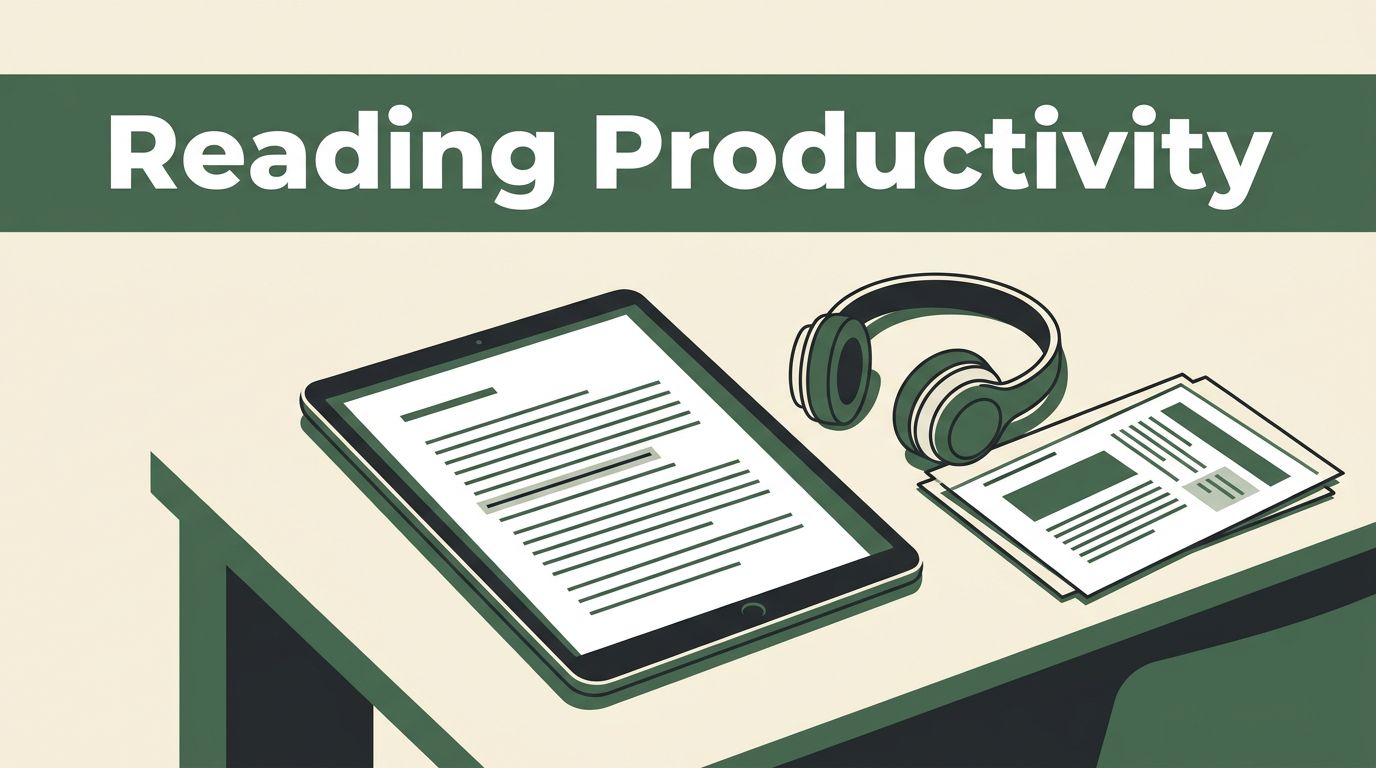
Long articles, PDFs, reports, and study materials can consume hours when you read every word on screen. A reading productivity app such as Speechify lets you listen to text while following along visually.
That changes how you use spare time. You can review a report during a commute, reduce screen exposure after work, or listen to course material while handling a routine task. The right setup matters more than pressing play, so start with the workflow.
Key Takeaways
- Speechify converts documents, webpages, and other text into spoken audio.
- Word highlighting, playback speed, and voice controls help you match the app to your reading style.
- Listening can support people with dyslexia, visual fatigue, or limited time.
- Audio improves access to information, but active review still matters for difficult material.
- Check the current plan and platform limits before moving a large document library.
What Speechify Does as a Reading Productivity App
Speechify is a text-to-speech platform. It reads digital text aloud through AI-generated voices, while the original words appear on screen. You can adjust the reading speed, choose a voice, and follow word-level highlighting as the audio plays.
The service supports common reading sources, including PDFs, webpages, Google Docs, emails, and ePub files. You can add content to a central library instead of searching for the same document each time. Current product information also lists apps for iOS, Android, Mac, Windows, and browser extensions for Chrome and Edge.
This setup separates reading access from screen time. You still receive the written content, but your eyes aren’t responsible for processing every line. That helps when a document is long, the font is tiring, or your schedule doesn’t allow a quiet reading session.
Speechify also includes features beyond basic playback. Depending on your plan and device, you may find AI summaries, document chat, comprehension quizzes, voice dictation, offline listening, and document scanning. Treat these as separate tools. Use text-to-speech for primary reading, then use summaries or quizzes for review.
Speed deserves careful handling. Faster audio can help you scan familiar material, but it doesn’t automatically improve comprehension. A 4.5x setting is available in Speechify’s current product messaging, yet most users need lower speeds for technical writing or new subjects. Speechify’s 4.5x playback example shows the upper end of the feature, not a recommended default.
Build a Reliable Speechify Reading Workflow
A reading app produces better results when you give it a defined job. Don’t send every document into one unsorted queue. Create a simple process that separates urgent reading, reference material, and long-term learning.
1. Add the right source
Start with one document you already need to finish. Import a PDF, paste a webpage, connect a supported cloud source, or use the browser extension. Check the document before listening. Scanned pages, columns, tables, and footnotes can affect how the app extracts text.
If the file is a scan, use an OCR option when available. OCR converts an image of text into selectable words. Review the first page after scanning. A misplaced heading or missing symbol can change the meaning of a technical document.
2. Set a practical speed
Begin at a speed that feels slightly faster than your normal silent reading pace. Reduce it when the subject includes unfamiliar terms, formulas, names, or instructions. Raise it for email, background information, or material you’ve already read.
Use pauses as control points. Stop after a section, not after every sentence. Ask yourself what the section said and how it connects to your goal. If you can’t answer, replay the passage at a lower speed.
3. Follow the highlighted text
Keep word highlighting active when you need to learn or retain information. The combination of audio and visual tracking can help maintain attention and connect written words with pronunciation. Text-to-speech research and classroom guidance also describe ways TTS can support access and comprehension.
Turn off visual tracking when your eyes need a break. Audio-only listening works well for familiar topics, but it provides less support when you need to check spelling, structure, or exact wording.
4. Save your place
Use Speechify’s library and progress tracking instead of relying on memory. Finish one meaningful section per session. Leave a short note outside the app if the document requires follow-up work.
This workflow prevents a common mistake: treating listening time as completed learning. Listening moves the content into your attention. Notes, questions, and review help move it into usable knowledge.

Improve Comprehension Instead of Chasing Speed
The main benefit of Speechify isn’t listening to the highest possible number of words per minute. The benefit is keeping useful content available when traditional reading doesn’t fit the situation.
Use different modes for different documents:
- Reports and research papers: Listen at a moderate speed and pause after each major section. Record the main claim, evidence, and open question.
- Course readings: Follow the highlighted text and create a short summary after each chapter.
- Work emails and briefs: Use a faster speed for the first pass. Return to the written version before making a decision.
- Books and long-form articles: Set a consistent daily listening block and save your progress after every session.
- Reference documents: Search the written file first. Listen only to the passages that answer your question.
AI summaries can reduce the time needed for orientation. They shouldn’t replace the source when the details affect a business decision, grade, contract, or safety process. Read or listen to the relevant section yourself before acting on an abbreviated version.
AI-generated quizzes can provide a useful recall check. If Speechify offers quiz generation for your imported document, select a small question set first. Answer without looking back. Then review the sections behind the questions you missed.
Faster playback is useful when the material is easy. Lower playback speed is useful when accuracy matters.
A practical daily target is one focused listening block, not constant audio. Set a 20 to 30-minute session for demanding material. Use longer sessions for routine reading. Your attention still has limits, even when the app removes the screen.
Accessibility Benefits for Dyslexia, Visual Fatigue, and Attention Challenges
Text-to-speech can reduce the effort required to decode written language. For a person with dyslexia, hearing words while seeing them highlighted can provide auditory reinforcement. It doesn’t remove dyslexia or guarantee comprehension, but it can make documents easier to access. Guidance on text-to-speech for students with dyslexia covers this use case in practical terms.
Visual fatigue is another clear use. Extended screen reading can cause eye strain, headaches, or reduced focus. Listening lets you lower your gaze, close the document, or switch to audio for part of the session. You can return to the written text when you need to inspect a chart, quote, table, or citation.
People with attention challenges may benefit from synchronized highlighting and adjustable playback. The moving text gives your eyes a fixed target. The audio adds a second input channel. If background sound distracts you, remove it. If silence makes it difficult to start, a low-volume background option may help.
Students can use Speechify to preview a chapter before class, listen to assigned reading after class, and review difficult sections before an exam. Professionals can listen to internal documentation, product briefs, and industry reports while completing low-risk tasks.
Don’t listen during activities that require full attention. Driving, operating equipment, and handling confidential information require separate safety and privacy decisions. Audio is an access option, not a reason to divide your attention in every situation.
Check Speechify Plans, Platforms, and File Support
Speechify’s current availability includes mobile apps, desktop access, and browser extensions. Cross-device use can help if you start a document on a laptop and finish it on a phone. Confirm that your specific device supports the feature before building a team workflow around it.
The free tier provides basic reading access. Premium plans may add more voices, offline listening, advanced AI tools, and other limits or features. Plan names, prices, and allowances can change, so check the current account page before purchasing. Don’t assume that a feature available on mobile also works the same way in a browser or desktop app.
Check file handling before importing business or academic archives. PDFs and webpages are common inputs, but complex layouts can produce extraction errors. For company documents, review privacy terms and internal policies before uploading sensitive material. A reading assistant should fit your information controls, not bypass them.
For most users, the decision is simple. Start with the free reading workflow. Upgrade only if you need offline access, broader voice options, higher usage limits, or advanced document tools.
Conclusion
Speechify works best as a flexible access layer for reading. Use it to listen to long documents, reduce screen demand, support word tracking, and fit reading into a busy schedule.
Set a sensible speed, check extracted text, pause for recall, and review important details in writing. The strongest result comes from combining audio access with active comprehension, not from trying to finish every document faster.
FAQ
Is Speechify good for studying?
Yes, when you use it with notes and recall. Listen to a chapter, pause at section breaks, and write the main point without looking at the screen. Use summaries or quizzes as review tools, not as replacements for the source.
Can Speechify help with dyslexia?
Text-to-speech can support people with dyslexia by combining spoken audio with visual word tracking. Results vary by person. Try different voices, speeds, fonts, and highlighting settings to find a setup that reduces decoding effort.
Does Speechify read PDFs and webpages?
Speechify supports PDFs and webpages, along with other common document types such as Google Docs and ePub files. Scanned or complex PDFs may need OCR and a quick accuracy check before you rely on the audio.
Should you use the fastest reading speed?
No. Use higher speeds for familiar or low-risk material. Lower the speed when you need comprehension, precise wording, or strong recall. Speed is a control, not a measure of productive reading.