Optimizing Accessibility With Dyslexia Friendly Fonts and Speechify
Reading long digital documents with dyslexia creates constant mental fatigue. Standard typography lacks the character spacing and distinct glyph shapes needed for smooth visual processing. You struggle to parse dense walls of text, and your...

Reading long digital documents with dyslexia creates constant mental fatigue. Standard typography lacks the character spacing and distinct glyph shapes needed for smooth visual processing. You struggle to parse dense walls of text, and your working memory drains before you finish the first page.
The solution requires combining specialized typography with dual sensory input. When you pair dyslexia friendly fonts with the text to speech capabilities of Speechify, you anchor visual letters to auditory reinforcement. This dual approach cuts cognitive load and lets you process content without exhaustion.
Key Takeaways
- Pair open sans-serif typography like Lexend or Arial with text to speech tools to support visual tracking.
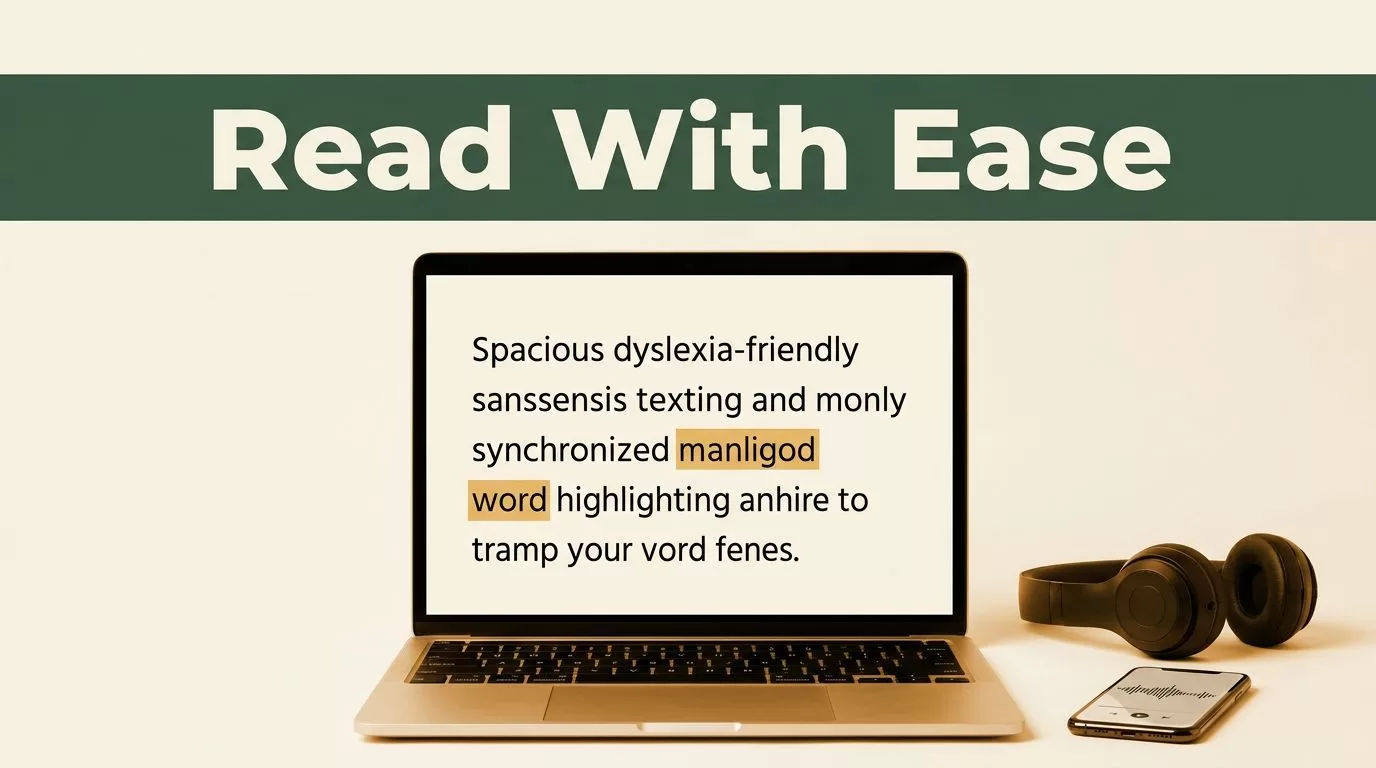
- Enable synchronized word highlighting in Speechify so your eyes follow spoken words in real time.
- Scale your listening speed gradually from normal pace up to 2.0x as your auditory processing adapts.
- Clean up messy PDFs and remove administrative watermarks before importing files into your reading queue.
Selecting Typography for Visual Clarity
Standard typefaces often cause letter crowding. Letters like ‘b’, ‘d’, ‘p’, and ‘q’ mirror each other, which triggers visual confusion for readers with dyslexia. You need typefaces that feature wide apertures, distinct letter forms, and heavy bases to prevent text crowding.
Sans-serif typefaces consistently rank as the best choices for digital reading accessibility. Options like Arial, Verdana, and Lexend provide clean lines and generous spacing. For a deeper breakdown of top type options, review this guide on the best fonts for dyslexia.
You should also adjust your reading surface settings. Set your background color to a soft cream or muted pastel instead of harsh stark white. High contrast glare causes eye strain during long study sessions.
Configuring Speechify for Multimodal Reading
Visual text alone is often not enough for deep comprehension. You bridge the gap by routing your reading material through an audio engine. Speechify converts articles, PDFs, and web pages into spoken audio using lifelike voices across multiple languages.
Open your browser extension or mobile app settings and enable synchronized word highlighting. Seeing each word underlined as the voice speaks it reinforces visual word recognition. This technique helps you build sight-reading confidence over time.
Prepare your documents before you hit play. Complex PDFs often contain stray headers, page numbers, and citation margins that disrupt synthetic speech engines. Clean up your files by removing unnecessary administrative artifacts so the audio flows smoothly from introduction to conclusion.


Stepping Up Your Listening Speed Safely
Jumping straight to maximum playback speed creates a wall of unintelligible noise. Your brain needs time to build tolerance for faster speech rates. Start your session by listening to familiar material at normal speed for twenty minutes.
Once that pace feels comfortable, bump the playback rate up to 1.5x and then 2.0x over the course of a week. If you notice your mind wandering or find yourself missing key arguments, dial the speed back down for a session. Match your speed settings to the complexity of the material rather than chasing vanity metrics.
Dense legal contracts and technical architecture documents require slower pacing than industry news or narrative articles. Calibrate your playback speed based on operational objectives. Use text to speech acceleration to clear your reading backlog of operational memos and research papers.
Integrating Active Note Taking and Bookmarking
Passive listening leads to zoned out reading sessions. You prevent comprehension loss by combining listening routines with active annotation tools. Use the built-in bookmarking feature to flag critical passages for later citation.
Integrate note-taking directly into your listening workflow. Use summary features to generate concise chapter overviews before you dive into full texts. Export your highlighted quotes and notes directly into your writing workspace or reference manager to streamline your essay preparation.
Organize your files into folders by project name to keep your research queue structured. This simple habit prevents context switching during intensive study or review blocks. When your documents are organized, you spend less time searching and more time absorbing content.
Conclusion
Overcoming reading barriers requires more than good intentions and standard software settings. When you combine readable typography with Speechify audio playback, you build an accessible reading workflow that protects your energy. Start by importing a familiar article into your library today. Set your typography, lock in your word highlighting, and test your comprehension at a comfortable listening speed. Consistent practice yields sustainable reading gains without burning out your working memory.

