You know that sinking feeling when candidate emails pile up in your inbox, and jobs sit open because pipelines vanish into chaos. I faced it too, juggling spreadsheets for a small staffing agency. Recruit CRM changed everything. It turned scattered notes into a smooth applicant tracking system that tracks every step.
This tool combines ATS and CRM features perfectly for recruiters like us. I set it up in days, and now my team fills roles 25% faster. Let’s walk through how you can do the same.
Define Your Hiring Needs First
I started by listing what my agency needed. High-volume contract staffing meant tracking candidates across multiple clients. In-house teams might focus on fewer roles but deeper sourcing.
Ask yourself: How many jobs do you run monthly? Do you handle placements or just screening? Map your process on paper first. For agencies, include client portals and invoicing. Talent teams often prioritize AI matching.
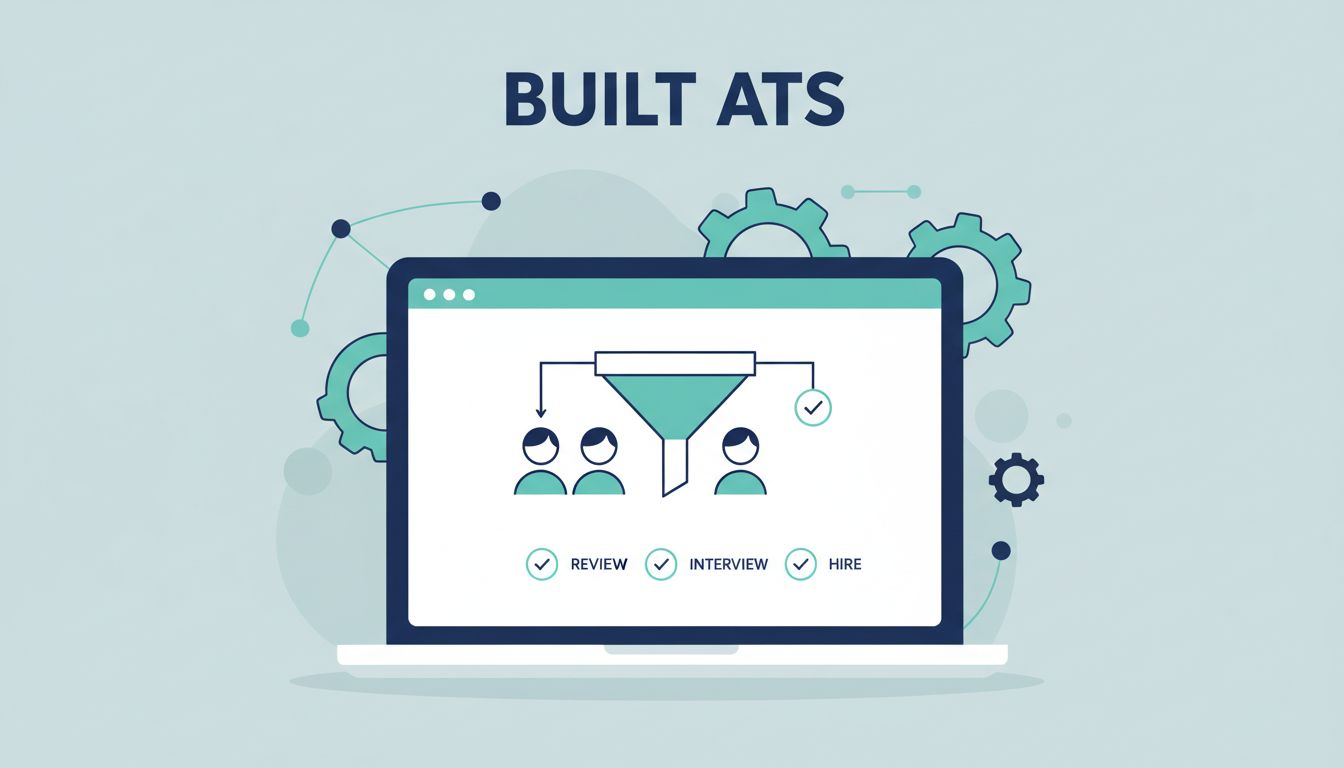
This prep avoids overload. I skipped it once and wasted hours tweaking later. Instead, note stages like sourcing, screening, interviews, and offers. Decide on custom fields too, such as skills or salary expectations.
Benefits show quick. With clear goals, setup flows naturally. You gain visibility right away, spotting bottlenecks before they hurt.
Setting Up Your Recruit CRM Dashboard
Sign up for the Business plan at $119 per user monthly. It includes core ATS tools and basic AI. I chose it because trials let you test without commitment.
Log in and create your account. Add team members next. Set billing details last to avoid surprises.
Build your first job posting. Use the Kanban board for visual pipelines. Drag candidates between stages. I added colors for quick scans: green for ready, red for no-go.
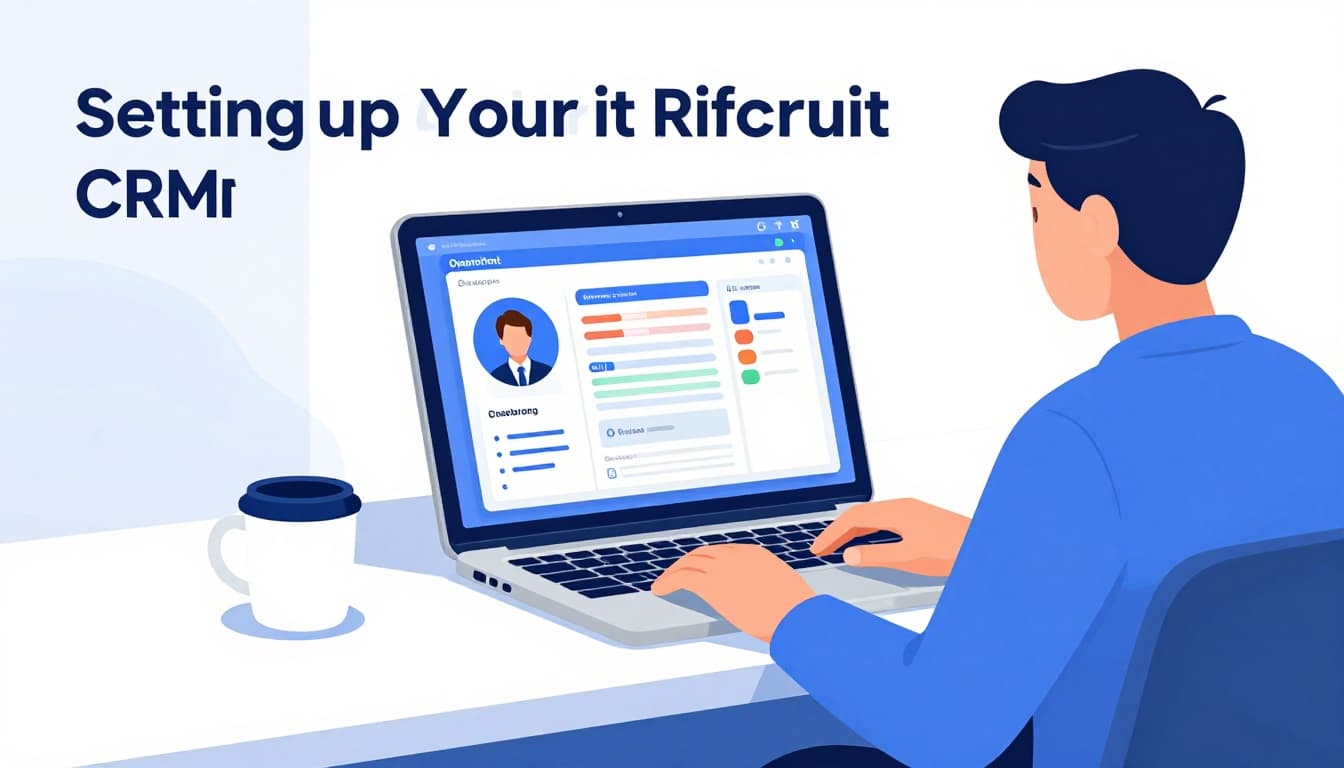
Connect email and calendars early. Recruit CRM syncs with Gmail or Outlook. Link LinkedIn for one-click sourcing. The Chrome extension pulls profiles instantly.
Test with a sample job. Post to boards and watch applications roll in. AI parses resumes automatically. In my case, this cut manual entry by hours weekly.
Dashboards update in real time. See open roles and pipeline health at a glance. For agencies, client views share progress without extra emails.
Customizing Workflows to Fit Your Process
Default pipelines work fine, but tweaks make it yours. I customized for staffing: added “client approval” after interviews.
Go to settings and edit stages. Drag to reorder. Add automations like email triggers on movement.
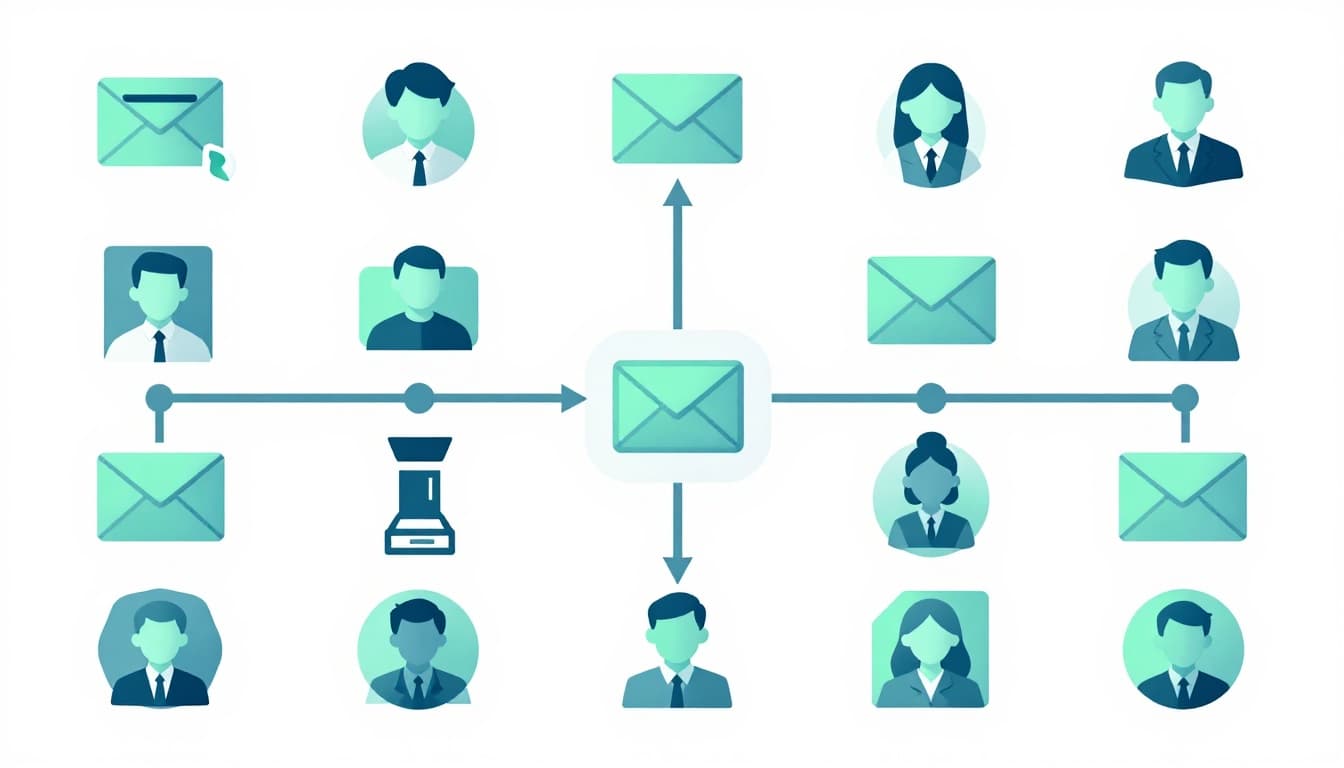
For volume hiring, set sequences. Auto-send follow-ups via email, SMS, or LinkedIn. AI sequences personalize based on responses.
In executive search, I added scoring. Rate candidates on fit, then auto-rank. No-code tools let non-tech users build this.
Different processes shine here. Freelance recruiters add quick notes fields. Agencies enable bill-pay tracking for placed talent. Check Recruit CRM’s guide on placed candidates for details.
Test changes on one job first. Roll out after. My team adapted in a week, boosting response rates.
Importing Data and Tracking Candidates Seamlessly
Upload existing data via CSV. Recruit CRM handles candidates, clients, and jobs. AI cleans duplicates during import.
I moved 500 profiles in minutes. Resume parsing grabs skills and experience. No more retyping.
Track everything centrally. Notes, calls, and emails log automatically. Search by keyword across records.
For pipeline visibility, use tags. Label by source or urgency. Mobile app keeps you connected on the go.
Automation shines. Set rules for hot leads. Get alerts on stalls. This keeps momentum without constant checks.
Unlocking Reporting and Advanced Automation
Dive into analytics after a week. Dashboards show placements, time-to-hire, and source effectiveness.
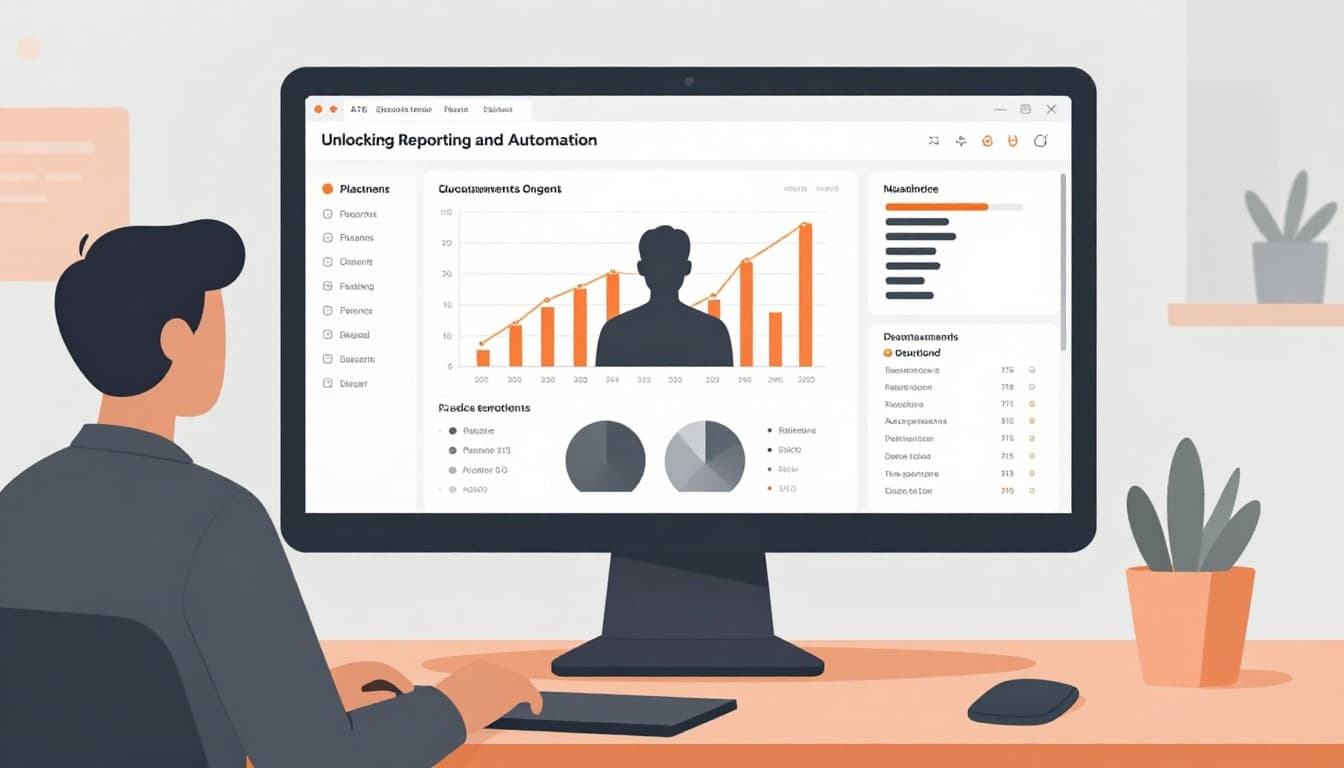
I spotted weak sources fast. Switched focus and cut costs. Custom reports export easily for clients.
Upgrade to Business Plus for AI Co-Pilot. It suggests matches and drafts outreach. Enterprise adds premium support.
Integrate with tools like RingCentral for calls. Everything ties back to the ATS.
Mistakes I Learned to Avoid
Don’t skip training. My first team struggled without demos. Run sessions daily at start.
Over-customize early. Defaults cover 80%. Tweak after live use.
Ignore CRM side. It’s not just tracking; build client relationships too.
Pick wrong plan. Business suits small teams. Scale up as needed.
For more on ATS basics, see Recruit CRM’s in-depth guide.
See our Recruit CRM AI-powered ATS review for agency fit.
Pipeline chaos ends with this setup. You control hiring like never before. Start your trial today and build your system. What stage trips you up most?