How I Deploy Speechify Text Reader on Desktop, Mobile, and Browser
I remember scanning long reports at my desk, eyes burning after hours. Words blurred together. Then I found Speechify text reader. It turns text into natural speech, so I listen while multitasking. You face the same crunch in sales or ops,...

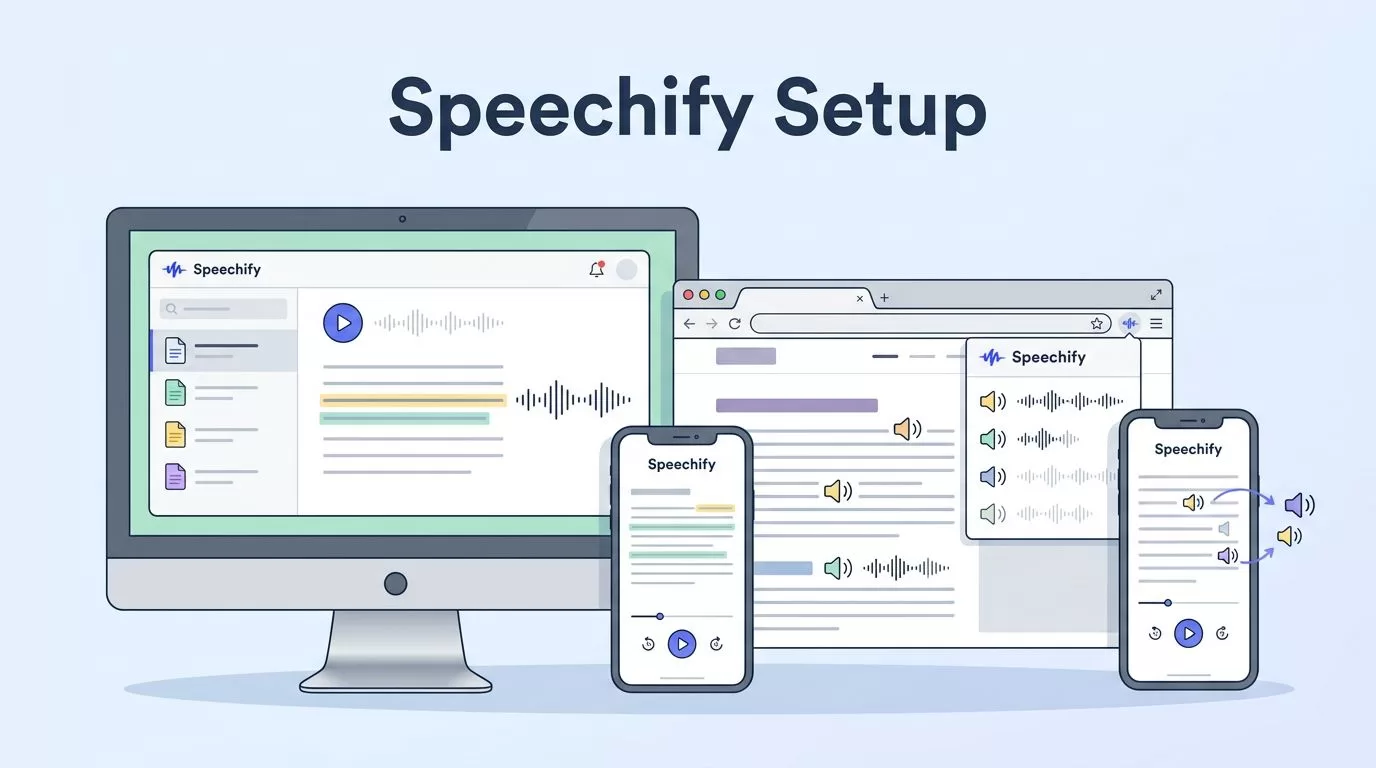
I remember scanning long reports at my desk, eyes burning after hours. Words blurred together. Then I found Speechify text reader. It turns text into natural speech, so I listen while multitasking. You face the same crunch in sales or ops, right? Dense docs slow you down. This guide shares my exact steps to deploy it across devices. You’ll get it running fast, whether solo or for a team.
Why Speechify Fits My Productivity Stack
Speechify stands out because it handles real work files. I upload PDFs, emails, or web pages. The app reads them aloud at up to 4.5 times speed. Voices sound human, with options for tone and emotion. In April 2026, new features like OCR scan books directly. It grabs text from screenshots, skips footers. Voice typing cleans my dictations too. No more filler words in notes.
I pair it with tools like Notion or Google Drive. One click starts playback. For business, on-device AI keeps data private. No cloud lag on Windows. Teams like mine use it for training docs. Students scan textbooks. Everyone gains time back.
Prosody controls let me adjust pauses or pitch. Picture narrating a pitch deck with sarcasm for emphasis. AI dubbing even translates videos, syncing lips. These updates make it essential. Check Speechify’s 2026 feature overview for the full list.
Setup differs by platform. Desktop runs everywhere. Mobile scans on the go. Browser works instantly. I deploy all three for full coverage.
Desktop Deployment Steps
I start with desktop for heavy lifting. Speechify’s Windows app installs in minutes. Head to speechify.com. Click download for the latest version. It supports on-device AI now, so it reads in Word or Teams without internet.
Run the installer. Follow prompts: accept terms, pick install path. Launch it. Sign in with Google or email. Your library syncs right away. Test with a PDF. Drag a file in. Hit play. Adjust speed slider. Voices load from 1000 options, 60 languages.
For deeper use, enable OCR. Snap a book page. It converts to audio at 99.8% accuracy. I do this for quarterly reports. Voice cloning adds my tone, locked by biometrics. Secure for teams.
Here’s how it looks in action:


Teams assign licenses via admin dashboard. Upload shared docs. Everyone accesses the same library. Education mode highlights text as it reads, great for dyslexic users. No extra cost for basics; premium unlocks cloning. I verify pricing on their site first.
Common snag: firewall blocks. Allow the app through Windows Defender. Restart if sync lags. Now it hums across my workflow.
Mobile App Deployment
Mobile keeps me moving. I grab the iOS or Android app from the store. Search “Speechify.” Install, open, sign in. Library appears instantly, synced from desktop.
Scan books with camera. OCR pulls text fast. Listen offline during commutes. Hand holds phone steady; app stays blurred for focus.
Adjust prosody here too. Set whisper for notes. Multimodal Q&A answers doc questions aloud. I query sales scripts mid-walk.
For teams, share via links. Educational users get doc summaries. Differences stay small; core tools match desktop. Free tier limits scans; upgrade for unlimited.
Battery drains less now with 2026 optimizations. Permissions: grant camera, storage. Done. I listen to emails hands-free.
Quick Browser Extension Setup
Browsers need zero install hassle. I use Chrome mostly. Visit the Chrome Web Store Speechify page. Click “Add to Chrome.” Pin the icon.
On any page, like a WSJ article, click play. It reads aloud. Switch voices, speeds. Voice assistant pops for questions. Syncs with apps.
Firefox or Edge? Same process via their stores. For teams, extensions deploy via group policy. Education installs in seconds for students.
See Speechify’s Chrome extension guide for tips. I avoid it for sensitive docs; use desktop there.
Handling Teams and Educational Rollouts
Solo setup stays simple. Teams add admin steps. Buy bulk licenses at speechify.com. Assign via dashboard. Integrations like Zapier auto-load files.
Educational environments focus on accessibility. Highlighting aids reading disorders. No feature locks; same OCR, voices. Schools push via MDM tools.
I test small first. One user, then scale. Track usage in analytics. Costs scale with users; free trials help.
Deploy Speechify and Reclaim Your Day
Speechify text reader transformed my routine. Desktop handles depth, mobile mobility, browser speed. Steps sync across all. Teams and schools adapt easily.
Start today: pick your platform, install, test a file. You’ll wonder how you read without it. What doc will you hear first?

