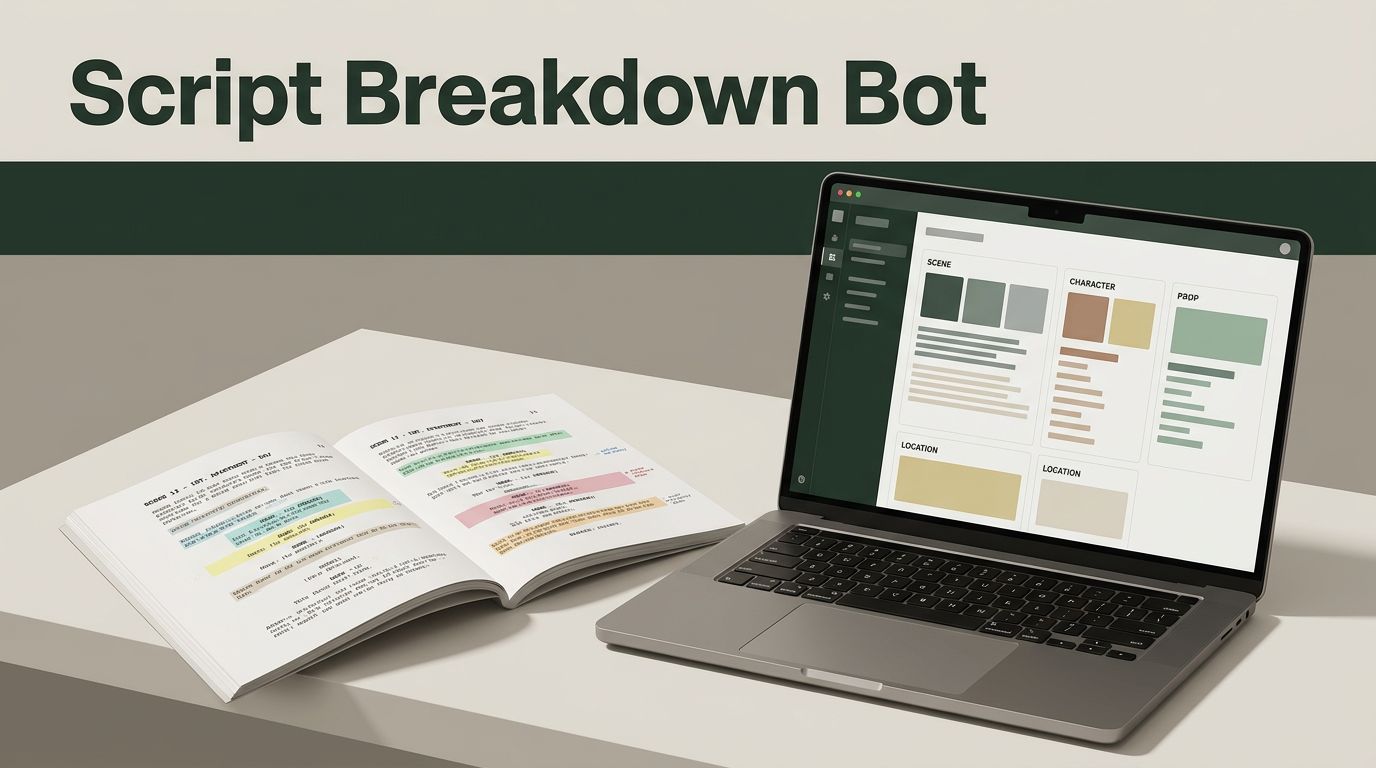
A script breakdown bot can turn a screenplay into production data before your team spends hours marking pages by hand. It can identify scenes, characters, locations, props, wardrobe, stunts, VFX, and special production requirements.
Twin.so is useful for this workflow because it combines natural-language agent building with browser automation. You define the outcome, connect the required tools, and instruct the agent to return structured records. The key is to build a controlled extraction process, not a vague “analyze this script” command.
Define the Breakdown Output Before Building the Bot
Your bot needs a fixed output structure. Without one, the same screenplay can produce different results on every run.
Start with a project folder and one approved screenplay version. Use a clear filename such as ProjectName_Draft03_2026-08-06.pdf. Store revisions separately. Mixing drafts creates continuity problems before the breakdown begins.
A useful workflow has four stages:
- Retrieve the approved screenplay.
- Extract scene-level and element-level data.
- Write the results into a structured workspace.
- Route uncertain items to human review.
The source file also matters. A clean, text-based PDF is easier to process than a scanned document with broken OCR. Multi-column layouts, decorative page elements, headers, and footers can interrupt scene order. If the screenplay is image-only, add OCR through a separate tool before sending it to Twin.so. Do not assume Twin.so includes screenplay OCR unless your workspace documentation confirms it.
The first output should contain scene records. Each record needs a stable scene ID, such as SC-001, so other elements can reference the correct scene.
Use these base fields:
- Scene ID
- Scene number
- Page range
- Scene heading
- Interior or exterior
- Location
- Time of day
- Scene synopsis
- Characters present
- Production notes
- Confidence status
- Source page or line reference
The confidence status is important. A bot should be allowed to return confirmed, needs review, or not found. Forcing a guess produces cleaner-looking data and worse production decisions.
Build a script breakdown bot with Twin.so
Twin describes its product as an autonomous AI employee that can work across tools, websites, Slack, and Gmail. For this project, use the platform as an extraction and routing agent, not as a replacement for the assistant director.
Open the Twin workspace and use the Orchestrator or Agent Builder to describe the workflow in plain language. Twin’s AI automation features include agent building and browser automation. Those features support the general workflow, but your prompt must define the screenplay rules.
Give the agent a narrow job:
Read the approved screenplay from the connected source. Process it in scene order. Create one scene record for every scene heading. Extract only details stated in the screenplay. Link every character, prop, wardrobe item, stunt, VFX requirement, and production note to a scene ID. Leave unknown fields blank. Never infer a location, prop, or character detail. Return uncertain items with a needs-review status.
Add a second instruction for revision control:
Record the screenplay filename, revision name, processing date, and source page for every result. Do not overwrite an existing breakdown. Create a new revision record when the source file changes.
This prevents a common failure. A production coordinator updates the script, runs the bot again, and loses the original breakdown. Version control belongs in the workflow from the start.
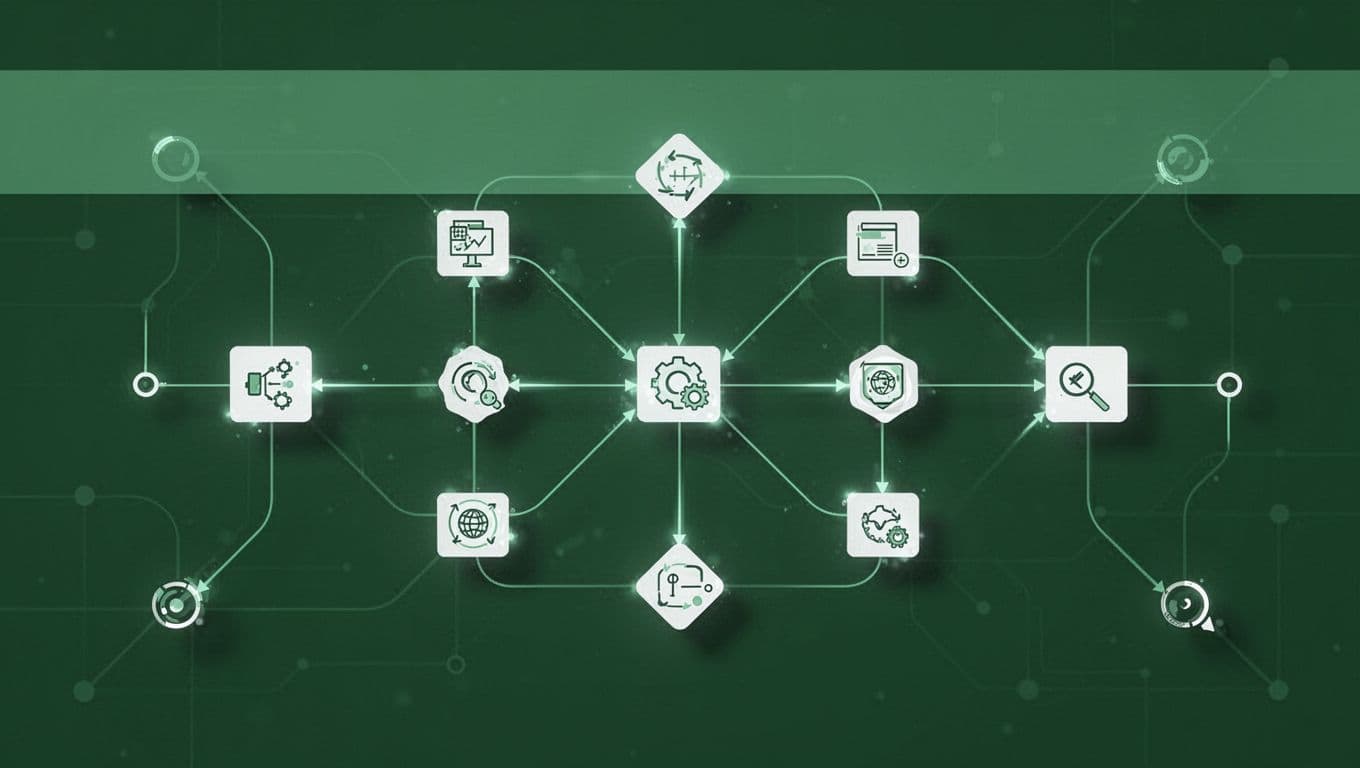
The bot should process one scene at a time. A single prompt that asks for every production detail across a 120-page screenplay can produce inconsistent records. Scene-by-scene processing creates smaller outputs and makes errors easier to locate.
If Twin.so writes to an external spreadsheet, database, or production platform, map the fields before testing. If no structured destination is available, ask for consistent JSON or CSV-style output, then send it through a separate cleanup step. Do not treat a formatted paragraph as a database.
Configure Fields for Every Script Element
A scene breakdown is more than a list of characters. Each department needs information that supports scheduling, budgeting, preparation, or approvals.
Use a field structure like this:
| Element | Example fields |
|---|---|
| Scenes | Scene ID, number, heading, page range, interior/exterior, time, synopsis |
| Characters | Character name, scene IDs, role type, dialogue or action, special requirements |
| Locations | Location name, scene IDs, practical or controlled location, permit notes |
| Props | Prop name, scene IDs, hero prop status, continuity notes, owner |
| Wardrobe | Character, scene ID, wardrobe change, period detail, special costume |
| Stunts | Action, performer, safety requirement, coordinator, rehearsal status |
| VFX | Effect, scene ID, plate or element requirement, reference, review status |
| Production notes | Vehicles, animals, minors, intimacy, weather, company move, sound, equipment |
Keep each field atomic. Store rain, night exterior, and company move as separate production notes instead of placing them inside one long synopsis. Separate values are easier to filter and export.
For characters, distinguish presence from dialogue. A character may appear silently, in a photograph, over a phone, or as a voice. Add a presence_type field with values such as speaking, silent, voice, photo, or mentioned. This distinction affects scheduling and casting.
Props also need context. “Gun” is not enough. Record whether it is carried, fired, discovered, displayed, or used in a specific action. The production team may need different approvals and safety procedures for each case.
Wardrobe changes should use one record per change. Include the scene where the change occurs and the continuity reference. This gives the costume department a usable list instead of a paragraph hidden inside a scene summary.

Separate Twin.so Features From External Dependencies
Twin.so can coordinate actions across tools and websites, but that doesn’t mean every production function is native to the platform. Treat each dependency as a separate implementation decision.
| Workflow task | Twin.so role | Additional requirement |
|---|---|---|
| Create the agent | Use the Orchestrator or Agent Builder | Twin workspace access and AI agent access |
| Read a screenplay | Use a connected source or browser workflow | Source application, credentials, and readable text |
| Extract breakdown data | Use the AI agent with strict instructions | Model access, prompt testing, and human review |
| Write records | Use an available integration or browser action | Connected spreadsheet, database, or production tool |
| Send notifications | Trigger a connected communication workflow | Slack, Gmail, or another supported destination |
| Calculate costs or page totals | Pass records to a calculation tool | Spreadsheet formulas or production software |
| Approve sensitive items | Route results for review | Named reviewer and an approval process |
AI model access is required for semantic extraction. The bot must understand that “a sedan pulls up” is a vehicle note, while “rain lashes the windows” is a weather or effects note. If the account lacks access to the required agent or model features, Twin.so cannot perform that interpretation.
Third-party integrations are required when the screenplay lives outside Twin.so or when the output must update another system. Authentication is also part of the setup. Use a dedicated service account where possible, and limit permissions to the required folders, tables, or websites.
Browser automation helps when a production portal has no usable API. Twin’s product feature overview describes browser workflows that can navigate websites and interact with online tools. Still, browser steps can fail when page layouts change. Use an API or direct file connection when one is available, and reserve browser actions for systems that need them.
Twin’s own discussion of AI automation platforms also highlights changing websites and connector recovery. Treat that as a resilience feature, not a reason to skip testing. A recovered browser action can still write to the wrong field if your mapping is incorrect.
Test the Bot With Difficult Scenes
Do not start with an entire feature screenplay. Use five to ten scenes that contain different production conditions.
Include:
- A dialogue scene with no special elements.
- A crowded scene with many characters.
- A scene with a flashback or time jump.
- A scene with a phone call or off-screen voice.
- A scene with stunts, weapons, vehicles, or animals.
- A scene with unclear location changes.
- A scene with wardrobe continuity.
- A scene that uses VFX or unusual sound cues.
Compare the bot’s output against a manual breakdown. Check every scene ID, page reference, character, prop, and production note. Record errors by category instead of fixing them randomly.
Common corrections include:
- The bot merges two scene headings.
- A recurring prop appears under different names.
- A background character is treated as a speaking role.
- A location change is missed inside a continuous sequence.
- A VFX instruction is classified as a camera direction.
- A wardrobe change is assigned to the wrong scene.
- A production note has no source reference.
Update the prompt with explicit rules for each error. For example:
Treat slug lines containing INT., EXT., INT./EXT., or EST. as scene headings. Do not create a new scene for a paragraph that lacks a slug line. Preserve the screenplay’s scene numbering when available.
Add a review queue for uncertain records. A human should approve stunts, weapons, animals, minors, intimacy, hazardous locations, complex VFX, and legal or clearance concerns. The bot can identify these items. It shouldn’t make the final safety or production decision.
Store the source excerpt with each flagged record. A reviewer should be able to move from the breakdown row to the exact page or line without searching the entire screenplay.
Move From One-Off Runs to a Controlled Workflow
Once the test results are reliable, connect the bot to a repeatable trigger. Twin supports recurring agents and workflow triggers such as schedules or webhooks, but the right trigger depends on your source system.
A practical production workflow is:
- Upload or identify the approved screenplay.
- Confirm the revision name and file date.
- Run the extraction agent.
- Write scene and element records.
- Mark uncertain records for review.
- Notify the assigned coordinator.
- Lock the approved breakdown.
- Create a new revision instead of overwriting the old one.
Use a final status field such as draft, review, approved, or superseded. This gives the production team a clear record of which breakdown is active.
Do not ask the bot to generate a shooting schedule, budget, call sheet, risk assessment, or legal clearance report in the same first workflow. Those outputs need different rules and often depend on data that isn’t present in the screenplay. Build them as separate agents or downstream processes after the breakdown data has passed review.
The best script breakdown bot is not the one that produces the longest report. It is the one that returns consistent records, shows its sources, and stops when the evidence is unclear.
Conclusion
Twin.so can provide the agent layer for a screenplay breakdown workflow. You define the fields, connect the source and destination tools, write strict extraction rules, and route uncertain results to a human reviewer.
Start with a small scene set. Validate the output against a manual breakdown. Then add revision tracking, production notes, external integrations, and scheduled processing.
A script breakdown bot becomes useful when it produces production-ready data, not when it merely summarizes a screenplay. Keep the schema narrow, preserve source references, and make every approved breakdown traceable to a specific script revision.


