How To Migrate Business Email From Zoho To Google Workspace
Moving business email feels like carrying glass across a crowded room. One bad step and people miss messages, calendars drift, and new mail lands in the wrong place. A Zoho to Google Workspace move stays safe when you follow a fixed order....

Moving business email feels like carrying glass across a crowded room. One bad step and people miss messages, calendars drift, and new mail lands in the wrong place.
A Zoho to Google Workspace move stays safe when you follow a fixed order. Prepare accounts first. Copy old mail while Zoho still receives new mail. Switch MX records only after you verify the data. This guide covers prep, tool choice, steps, contacts and calendars, DNS records, fixes, and a rollback plan. Facts come from the official Zoho and Google help pages checked in October 2026.
What to Prepare Before the Move
Line up access, storage, and backups before you migrate a single mailbox. Weak prep makes every later step wobble.
| Check | What to confirm |
|---|---|
| Domain access | You can edit MX, SPF, DKIM, and DMARC records at the DNS host |
| Admin rights | You hold super admin access in Google Workspace and admin access in Zoho |
| User prep | Each Google account exists and holds a license with Gmail turned on |
| IMAP access | Each Zoho mailbox allows IMAP and you hold the credentials |
| Backup | Key mailboxes are exported or backed up before the first copy |
Verify the domain in Google Workspace. Create every user you plan to migrate. Use the same primary addresses in both systems. Matching addresses reduce mapping errors and keep users calm.
Mailbox size shapes the plan. A ten user team with light inboxes is one job. A legal team with years of attachments is another. Compare storage and features in the Google Workspace pricing plans before you commit.
Turn on IMAP in Zoho
Most mailbox migration methods need IMAP. Zoho documents these steps for each mailbox.
- Log in to Zoho Mail and open Settings.
- Go to Mail Accounts and click the primary email address.
- Open the IMAP section and check IMAP Access.
- Scroll down and save the change.
Paid organization accounts on a custom domain use the server imappro.zoho.com on port 993 with SSL. Personal accounts use imap.zoho.com on port 993. Your Server Configuration Details section in Zoho shows the exact server for your data center. Read the Zoho IMAP access help page for current values.
Two factor authentication changes the login. When two factor authentication is on, create an application specific password in Zoho and use the password for the migration. A regular password fails in this case.
Choose the Migration Method
Google lists Zoho as a supported IMAP source in the Admin console data import tool. For most businesses, this tool is the cleanest path. Manual forwarding suits only tiny mailboxes.
| Option | Best for | Main downside |
|---|---|---|
| Google data import tool over IMAP | Most small and mid sized teams | Needs admin prep and per user credentials |
| Manual forwarding or import | Very small mailboxes | Slow and easy to miss data |
Know the tool limits. Google states an IMAP import handles up to 100 users at a time. The CSV user map for IMAP can reach 128 MB. Authorization requests on other source types expire after 24 hours. Target users need a Google Workspace license with Gmail turned on. Read the full list on the Google data import tool help page.
What the IMAP import copies
Google states the IMAP import copies email messages. You can exclude labels and folders. The page lists calendar events, contacts, and tasks only for Exchange Online sources. Plan a separate path for Zoho contacts and calendars.
Never switch MX first. Copy historical mail before you point new mail to Gmail.
Step by Step Zoho to Google Workspace Process
Use this sequence for the least disruption.
- Verify the domain in Google Workspace and create all users, aliases, and groups.
- Turn on IMAP in Zoho Mail and confirm every mailbox can authenticate.
- Open the data import tool in the Admin console with a super admin account and enter the Zoho IMAP server.
- Map users manually or by CSV and choose a start date.
- Start the first import while MX still points to Zoho.
- Start with the largest mailboxes, because the largest mailboxes take longest and expose quota issues fast.
- Run a delta import to copy new or failed items after the bulk copy.
- Change MX records to Google after sample mailboxes look right.
- Update SPF, DKIM, and DMARC, then reconfigure mobile and desktop mail apps.

Google confirms a delta import can run later to copy new or failed items. Old mail moves first, new mail stays on Zoho during the copy, and the final cutover becomes a small step instead of a cliff edge.
Run a pilot group first
Pick two or three users with different mailbox sizes. Import their mail and ask them to check folders, search, and attachments. Fix mapping problems on the pilot group before you launch the full run. A pilot adds a day to the plan and removes days of cleanup later.
Send a short notice to every user before cutover day. State the date, the new login steps, and the support contact. Clear notice cuts help desk tickets.
Switch the MX Records
The MX change redirects new mail to Gmail. Google documents the current values.
- Value: smtp.google.com. Some registrars need a trailing period.
- Priority: 1.
- TTL: Use the registrar default or set the value to 1.
- Cleanup: Remove other MX records, because leftover records can cause delivery problems.
- Propagation: Changes can take up to 72 hours to reach the whole internet.
Accounts started before 2023 may use older aspmx values. Those values still work. If mail already flows, no change is needed. After the record is in place, open Account, Domains, Manage domains in the Admin console and click Activate Gmail. Read the Google MX records help page before you edit DNS.
Lower the TTL on old records a day before cutover when your DNS host allows. Shorter TTL values help the change spread faster. Run a final delta import after propagation settles so late messages reach Gmail.
Move Contacts, Calendars, Aliases, and Groups
Email is only half the job. People notice missing contacts and broken aliases faster than an old newsletter folder.
- Contacts: Export contacts from Zoho and import the file into Google Contacts. Check each product help page for supported file formats.
- Calendars: Export from Zoho Calendar and import into Google Calendar before cutover day. Users then spot missing shared events early.
- Aliases: Create sales, billing, and help style aliases in Google Workspace before the MX change.
- Groups: Recreate distribution lists and test who can send to each group, including outside senders.
Keep primary addresses unchanged. Users settle in much faster.
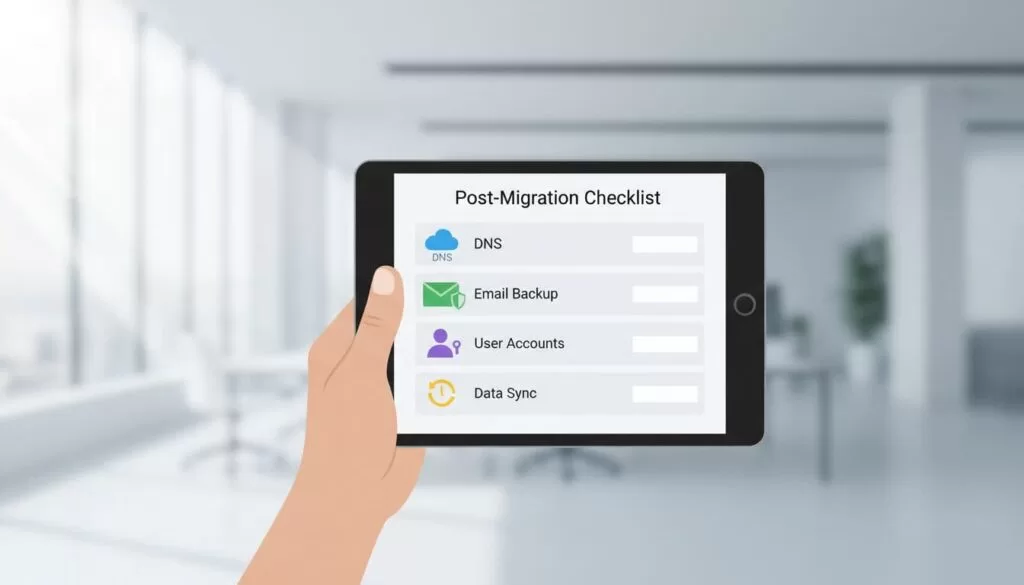
Post Migration Checklist
After cutover, verify mail flow, search, and identity settings before you call the project done.
- Send and receive on primary addresses and aliases.
- Spot check old mail, recent mail, and large attachments.
- Rebuild signatures, filters, forwarding, and mobile apps.
- Confirm SPF, DKIM, DMARC, groups, and shared calendars.
- Send a test message to a Gmail address and a Microsoft address, then check headers for passing authentication.
Fixes for common errors
| Symptom | Likely cause | Fix |
|---|---|---|
| Authentication failure | IMAP is off or two factor authentication blocks the login | Enable IMAP and use an application specific password |
| Missing folders | Special folders did not map cleanly | Check folder mapping and rerun a delta import |
| New mail still lands in Zoho | MX entered wrong or DNS has not propagated | Recheck the record and wait for propagation |
| Duplicate mail | A full pass ran twice | Use a delta import for later passes |
| Wrong server error | Personal server used for a paid account | Use the server from the Zoho Server Configuration Details |
Rollback and Cleanup Plan
Plan the exit before the start. Keep Zoho active until you verify email, contacts, calendars, aliases, and group delivery. A short overlap gives you a safety net.
- Keep the old Zoho mailboxes for at least one full billing cycle.
- Export a final backup of key mailboxes.
- Confirm no sender still delivers to Zoho by checking the mail logs.
- Remove old DNS records only after the new records work.
- Close the Zoho subscription when the team signs off.
If mail breaks after cutover, restore the old MX records and investigate. Mail sent during the gap sits in the queue of the sending server and retries for a time. Fix the cause and switch again.
FAQ
How long does a Zoho to Google Workspace migration take?
Time depends on mailbox size, attachment volume, and the number of users per run. Small teams can finish in one day. Larger mailboxes often need a staged rollout over several days.
Can I migrate with no downtime?
You can come very close. Copy old mail first, keep MX on Zoho during the copy, then run a delta import and switch DNS.
Does the import move contacts and calendars?
Google lists contacts and calendars only for Exchange Online sources. For Zoho over IMAP, plan a separate export and import.
How many users can I import at once?
Google states an IMAP import handles up to 100 users at a time.
Should I cancel Zoho right away?
No. Keep Zoho until you verify every layer. A short overlap lowers risk.
How long does DNS take to update?
Google states MX changes can take up to 72 hours to be recognized across the internet.
Conclusion
A clean migration depends on order, not luck. Prepare access, copy data before cutover, switch MX after checks, and verify each layer. Keep Zoho as a safety net for a short time. Confirm every setting on the official Zoho and Google pages before you act.
