How To Find And Remove Duplicate Files In Google Drive
Duplicate files creep into Google Drive faster than most people expect. One copied proposal turns into three. One synced photo folder becomes a pile of near-matches. Before long, storage feels crowded and search gets messy. As of April 2026...

Duplicate files creep into Google Drive faster than most people expect. One copied proposal turns into three. One synced photo folder becomes a pile of near-matches. Before long, storage feels crowded and search gets messy.
As of April 2026, Google Drive still doesn’t offer a one-click duplicate remover. So I rely on search, sorting, file checks, and a little caution before I delete anything. When the folder belongs to a team, I slow down even more, because shared files need a second look.
I start with search and filters
I always begin with the simplest clue, the file name. That catches obvious copies fast, especially when someone saved the same file with “copy” or “(1)” in the title.
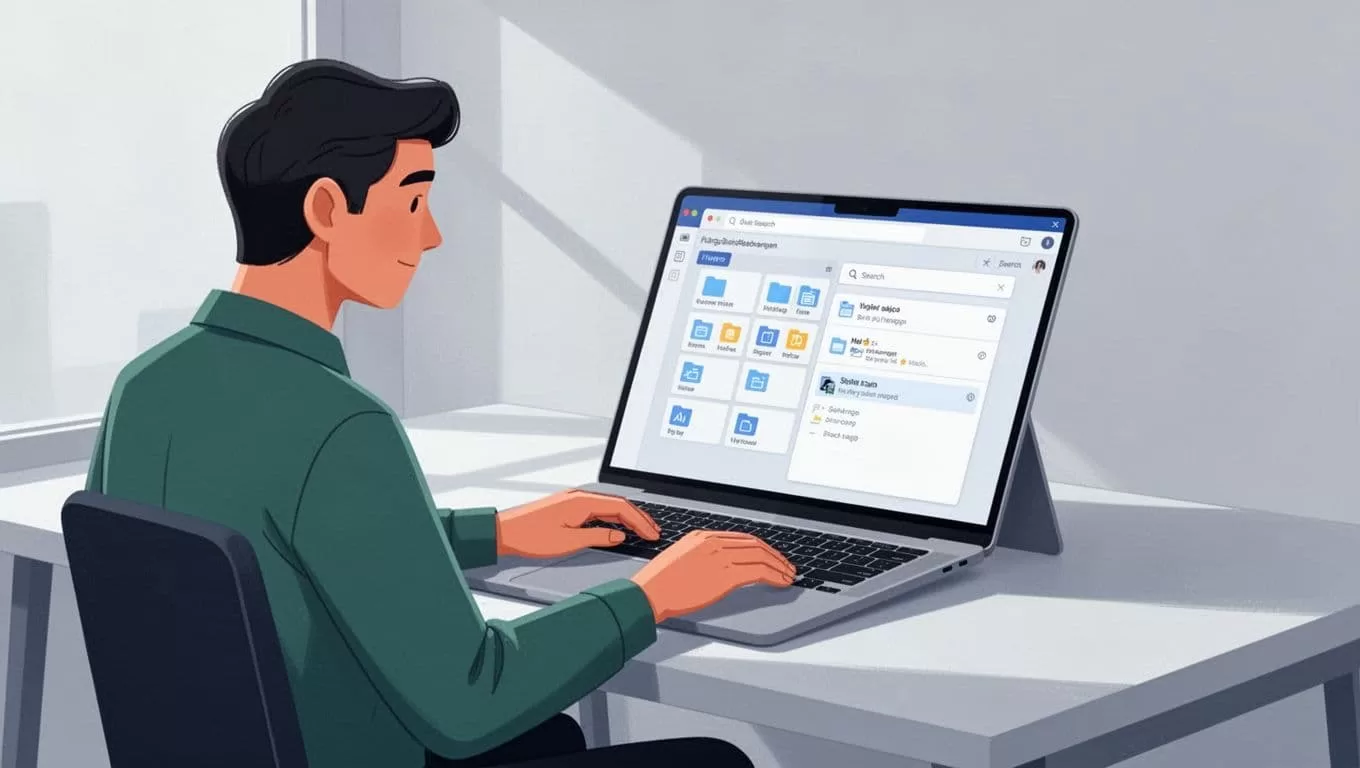
Here’s the process I use in Drive:
- I search for the file name or part of it.
- I open the filter icon and narrow by file type, owner, date modified, or location.
- I sort the results by name or modified date.
- I look for files with the same name, same size, or the same upload day.
This works well because duplicates often sit near each other. If I uploaded a report twice, both copies usually show up in the same search cluster. A recent 2026 guide from SysInfo on removing Google Drive duplicates makes the same point, search first, then confirm before deleting.
I never delete a duplicate until I know who owns it and where it lives.
That habit saves me from removing the wrong version in a shared folder.
I use storage and sorting to expose the obvious clutter
Search finds the known names. Storage view finds the hidden waste. When I want a quick cleanup, I open Drive’s storage area and look for large files that appear more than once.
I focus on files taking up the most space because duplicates hurt fastest there. A 5 MB duplicate hurts less than a 500 MB video copy. So I sort by size first, then I check whether the same file shows up in more than one place.
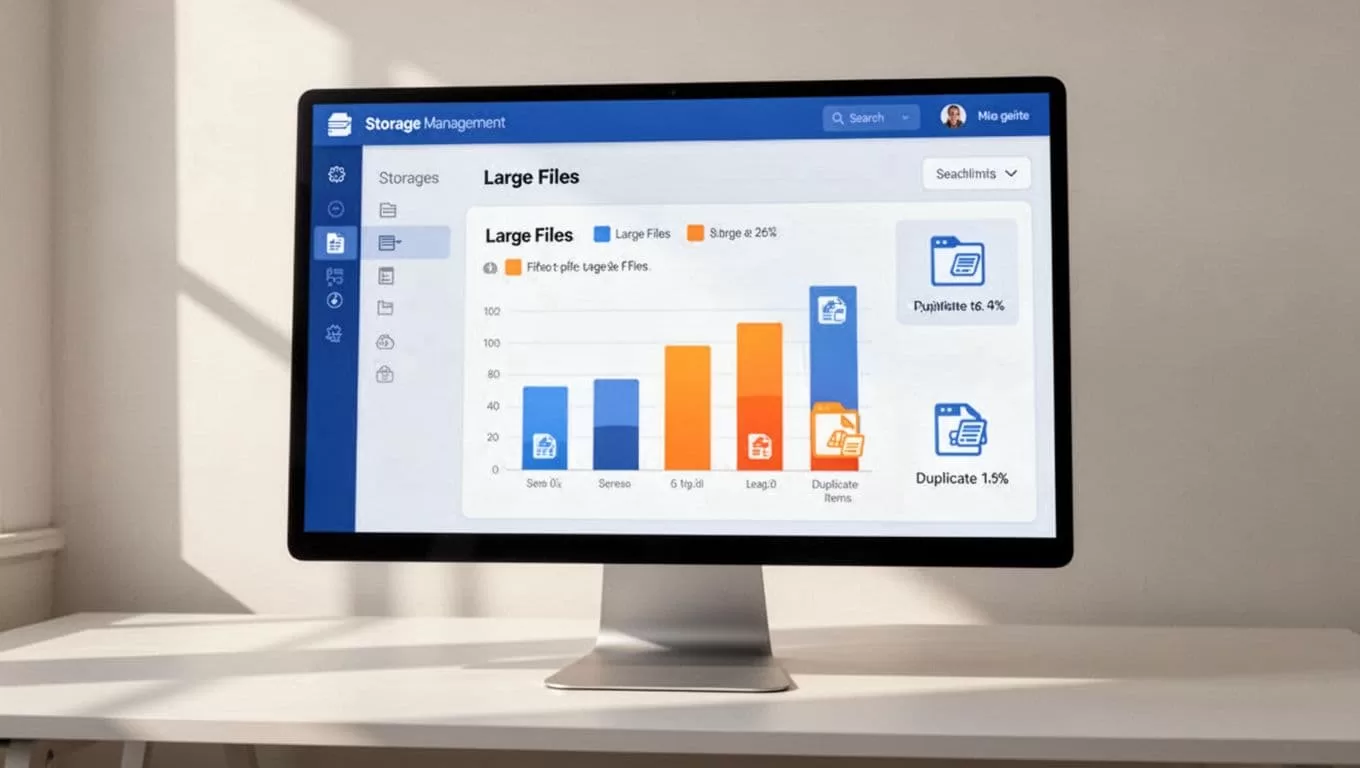
I also look at modified dates. If I see several files changed on the same day, that usually points to a copy-and-paste habit or a sync problem. In that case, I compare file size and type before I touch anything.
If my team uses shared storage, I keep the structure clean first with my Google Workspace shared drives tutorial. That makes duplicate hunting easier because files stay in predictable places.
I check names, file types, and folder paths before deleting
A filename can lie. A PDF and a Google Doc might share a title. A photo can appear twice with different extensions. That’s why I never stop at the name alone.
I compare three things next:
- File type: A Doc, PDF, and exported Word file can look like duplicates, but they may serve different jobs.
- Folder location: The same file may exist in a project folder and a shared folder for a reason.
- Owner and version history: A copy made by a coworker may be the only file tied to a specific edit trail.
Google Drive duplicate files are easy to miss when they sit inside different folders. The file may even be part of a workflow. For example, one team member keeps the working draft, while another stores the final export.
Before I remove anything shared, I review access with my secure document sharing in Google Workspace guide. Permissions matter because a file that looks useless to me may still belong to someone else’s process.
When I use desktop apps or third-party scanners
For a small Drive, manual cleanup works fine. For a big one, it gets slow. That’s when I use Drive for desktop or a duplicate finder tool on my computer.
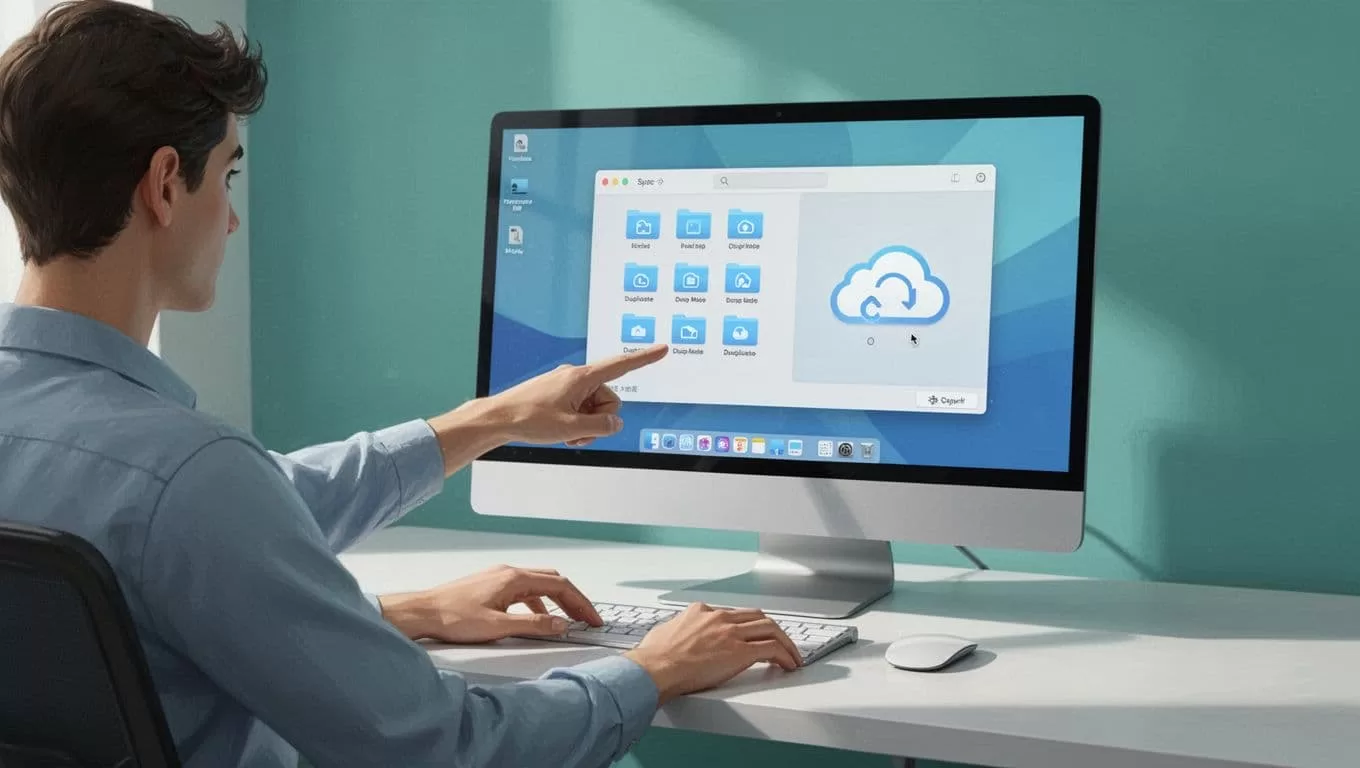
If I use Drive for desktop, I scan the synced folder like any other local folder. That helps when I already know the files are mirrored on my machine. Still, I pause sync awareness before deleting, because a local change can flow back to Drive.
Third-party tools can help when the file list is huge or the duplicates are buried. A tool like Filerev’s duplicate file finder can make the process faster, and similar desktop scanners can show file groups I would miss by hand. I still read the permissions closely. Read-only access is better than broad access, and I revoke the app when I’m done.
If I need more control, I may use Apps Script or another automation route. That works better for technical users than beginners, though, and it still needs careful testing. Automation helps with volume, but it doesn’t replace judgment.
A scanner is useful only when I can confirm each result before I delete it.
I delete with care, especially in shared workspaces
My cleanup rule is simple. I remove the extra copy, not the file that keeps a team moving.
I start with the safest candidates, usually obvious personal duplicates or old exports. Then I check whether the file sits in a shared drive, whether it has version history I might need, and whether anyone else owns or edits it. If the answer is unclear, I leave it alone until I can confirm.
I also avoid mass deletion in one pass. Instead, I clear a small batch, refresh Drive, and check that nothing important disappeared. That slower pace takes longer, but it saves me from painful mistakes.
FAQ
Can Google Drive find duplicates automatically?
No, not on its own. Drive helps me search, sort, and inspect files, but I still have to spot duplicates manually or use another tool.
Should I use a third-party duplicate finder?
I use one when the drive is large or the cleanup is urgent. I only pick tools with clear permissions, and I remove access after I finish.
What should I check before deleting a file?
I check ownership, folder location, file type, and version history. If the file is shared or part of a team workflow, I confirm before I trash it.
Duplicate cleanup in Google Drive works best when I move slowly at first and faster only after the pattern is clear. Search catches the obvious copies, storage view exposes the heavy ones, and file checks protect the shared work that still matters. Once I treat Google Drive duplicate files as a storage and ownership problem, the cleanup gets a lot easier to trust.
