How to Share Google Workspace Documents Safely
Google Workspace document sharing starts in the Share dialog in Drive. Open the file, choose Share, add a person or Google Group, and pick Viewer, Commenter, or Editor. Keep General access on Restricted for private files. Admins then set or...
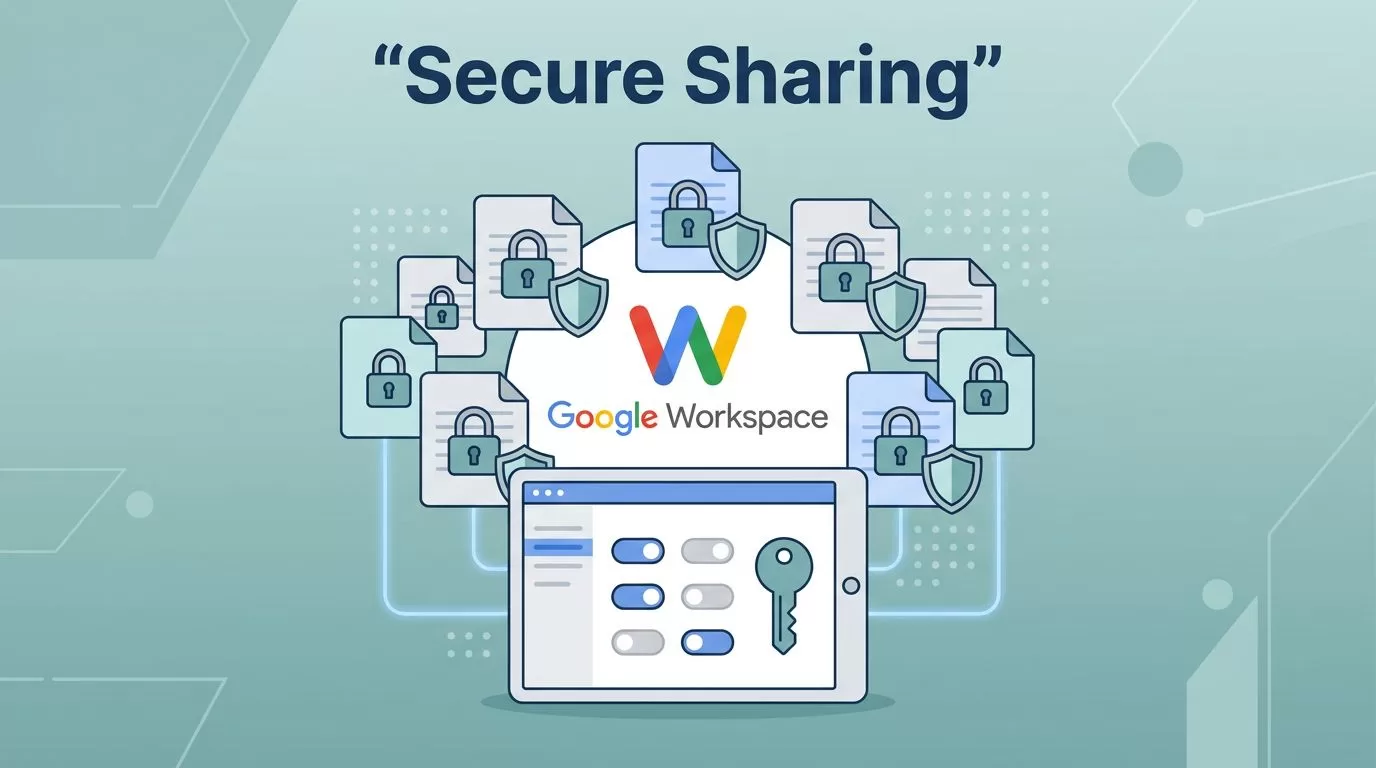
Google Workspace document sharing starts in the Share dialog in Drive. Open the file, choose Share, add a person or Google Group, and pick Viewer, Commenter, or Editor. Keep General access on Restricted for private files. Admins then set organization-wide limits in the Admin console.
This guide covers daily sharing for Drive users and guardrails for Workspace admins. Menu names can change by account or device. The steps below follow the desktop Drive workflow. Confirm each detail on the official Google page for sharing files and folders in Drive.
How to Share a Google Drive File
To invite a specific person or Google Group, follow these steps.
- Open Google Drive and select the file to share.
- Click Share.
- Enter the email address of the person or the address of a Google Group.
- Choose a role: Viewer, Commenter, or Editor.
- Set an expiration date for access if your account is eligible. Google does not publish a full list of eligible accounts on the sharing page, so check the Share dialog for the option.
- Choose whether to notify people by email.
- Click Send or Share.
Pick the role for the task, not for convenience. A reviewer usually needs Commenter. A person who only reads a report needs Viewer. Group invitations save time, but every member of the group receives the access granted to the group.
Understand the Three Sharing Roles
Drive offers three roles for direct sharing and link sharing. Matching the role to the task limits accidental edits and reduces risk.
| Role | What the person can do | Best use |
|---|---|---|
| Viewer | Open and read the file | Final reports, policies, reference files |
| Commenter | Read the file and add comments | Reviewers, managers, and clients giving feedback |
| Editor | Change the content of the file | Co-authors who work on the draft with you |
Start with the lowest role and raise access only when the work requires more. Raising a role later takes seconds. Cleaning up a leaked file takes much longer.
Share a Link Without Opening Access Too Far
To share a link, select the file and click Share. Under General access, open the dropdown and choose who can open the file. Pick a role for link recipients, click Done, and copy the link.
| General access setting | Who can open the file | Risk level |
|---|---|---|
| Restricted | Only people who already have permission | Low |
| Anyone with the link | Any person who receives the link | Higher. Forwarded links reach people you never chose |
Your organization may limit which options appear in the menu. Google warns, for folders, about the Anyone with the link setting: the folder will not restrict who can access the folder. Treat every link as something people can forward. Before you send a link, open the dialog and check both the audience and the role.
- Restricted suits private work. A person who gets the URL still needs permission.
- Anyone with the link suits public handouts, such as a published price sheet.
- Check the role after you change the audience. A link set to Editor lets every holder change the file.
Change or Stop Sharing a File
Access can change after you share a file. In Drive, select the file, click Share, and find the person or group in the access list. Open the role menu beside the name to change the role, then save.
To remove one person, open the role menu beside the name, choose Remove access, and save. To close link access, set General access to Restricted and click Done. The link still exists, but people without permission can no longer open the file.
Sometimes a person keeps access after removal. Check where the access comes from. The person may belong to a Google Group, inherit permission from a parent folder, or belong to a Shared Drive. Removing a direct invitation does not remove these other routes. Google explains how to stop, limit, or change sharing on its Drive help page.
What Happens When You Share a Folder
Folder sharing affects more than the folder name. People with access can work with the files inside according to their folder role. A viewer can open the folder and read the files. A person with edit rights can add, move, and change items.
Drive applies folder permissions to files and subfolders inside the folder, including items added later. This makes project folders convenient. This also exposes a new file to everyone with access to the parent. Check the folder access list before you add sensitive material.
A file inside a shared folder cannot always be made more private than the inherited access. If one document needs a smaller audience, move the document to a suitable location. Google documents the steps in its guide to sharing folders in Drive.
Share With People Who Do Not Have a Google Account
Sometimes this works. Google states the invitation works only when your organization turns on visitor sharing. Admins can allow visitor sharing for anyone or only for trusted domains. If the option is off, the invitation fails.
If you cannot invite an outside person, ask the Workspace admin to review the visitor sharing policy. Read the official guide to sharing documents with visitors before you choose this route.
When to Use a Shared Drive
Use a Shared Drive for files owned by a team or company. Files in a Shared Drive stay with the organization when a staff member leaves. Use My Drive for personal drafts.
Add a person as a Shared Drive member when the person needs ongoing access to the work of the team. Share a single file or folder when the person needs only one item and the drive settings allow this. Shared Drive rules can limit external sharing and link access. If someone cannot open a file, check both the direct permission and the drive membership. See Google guides on file access in Shared Drives and on how to use Shared Drives.
Workspace Admin Controls for Sharing
Admins set the boundaries for every user. Open the Admin console and go to the Drive and Docs sharing settings. Use the Admin console search if Google has renamed a menu. Google publishes the full list of options in its guide to managing external sharing.
- Choose the organizational unit or group for the rule. Avoid special policies for the whole company when only one team needs a change.
- Decide whether users may share outside the organization. Allow outside sharing only with trusted domains when possible.
- Review visitor sharing separately for staff who work with people without Google Accounts.
- Review Shared Drive settings for outside users, non-members, and link sharing.
- Tell staff the approved sharing path and review access when a project ends.
Google states sharing is controlled by organizational unit or group, and group settings override organizational unit settings. A common pattern turns off external sharing at the top unit and enables external sharing for a specific group. When external sharing is off, users cannot share invitations, Drive links, or attachments with outside users, and outside users lose access to items shared earlier. A blocked option in the share dialog of an employee can therefore reflect an admin policy and not a Drive error.
Troubleshoot Access Problems
Access denied. Ask the person which Google Account is signed in. Check the direct permission and role. Then check the parent folder, Google Groups, and the Shared Drive. For an outside person, ask the admin whether external or visitor sharing is allowed.
Access remains after removal. Look for group membership, inherited folder access, Shared Drive membership, or an Anyone with the link setting. Fix the permission at the source.
Outside sharing fails. Check the domain of the recipient, the organizational unit, and any group rule. Ask an admin for a policy change only when the business need is approved.
A Safer Sharing Checklist
- Choose named people or groups when the audience is known.
- Keep private files on Restricted.
- Give each person the lowest role for the task.
- Check parent folder and Shared Drive access before you add sensitive files.
- Use link access only when a wide audience is intentional, and check the role.
- Remove access when the work ends, including group and inherited access.
- Ask your admin about blocked options.
Frequently Asked Questions
Can I share a Drive file with a Google Group?
Yes. Enter the address of the Google Group in the Share dialog. Every member of the group receives the role you choose.
Can I set an expiration date on shared access?
Only if your account is eligible. Google states an expiration date is available when your account is eligible. Look for the option in the Share dialog.
Why can I not share a file with someone outside my company?
An admin policy may block outside sharing for your organizational unit or group. Visitor sharing may also be off. Ask your admin to review the sharing settings.
Does a link stay active after I set General access to Restricted?
The link still exists. People without permission cannot open the file through the link.
Conclusion
Secure document sharing in Google Workspace depends on a simple habit. Check who can open a file before you send the file, and check again when the work ends. Users manage people and links in Drive. Admins set company-wide rules in the Admin console. Keep these two jobs separate, use the lowest role for each task, and confirm current menu names on the official Google help pages.
