How To Set Up Gmail Templates For Repeated Replies
Repeated emails drain time in small, sneaky ways. A few minutes here and there turns into an hour before I notice. That’s why I use Gmail templates for replies I send again and again. They help me answer faster, stay consistent, and k...
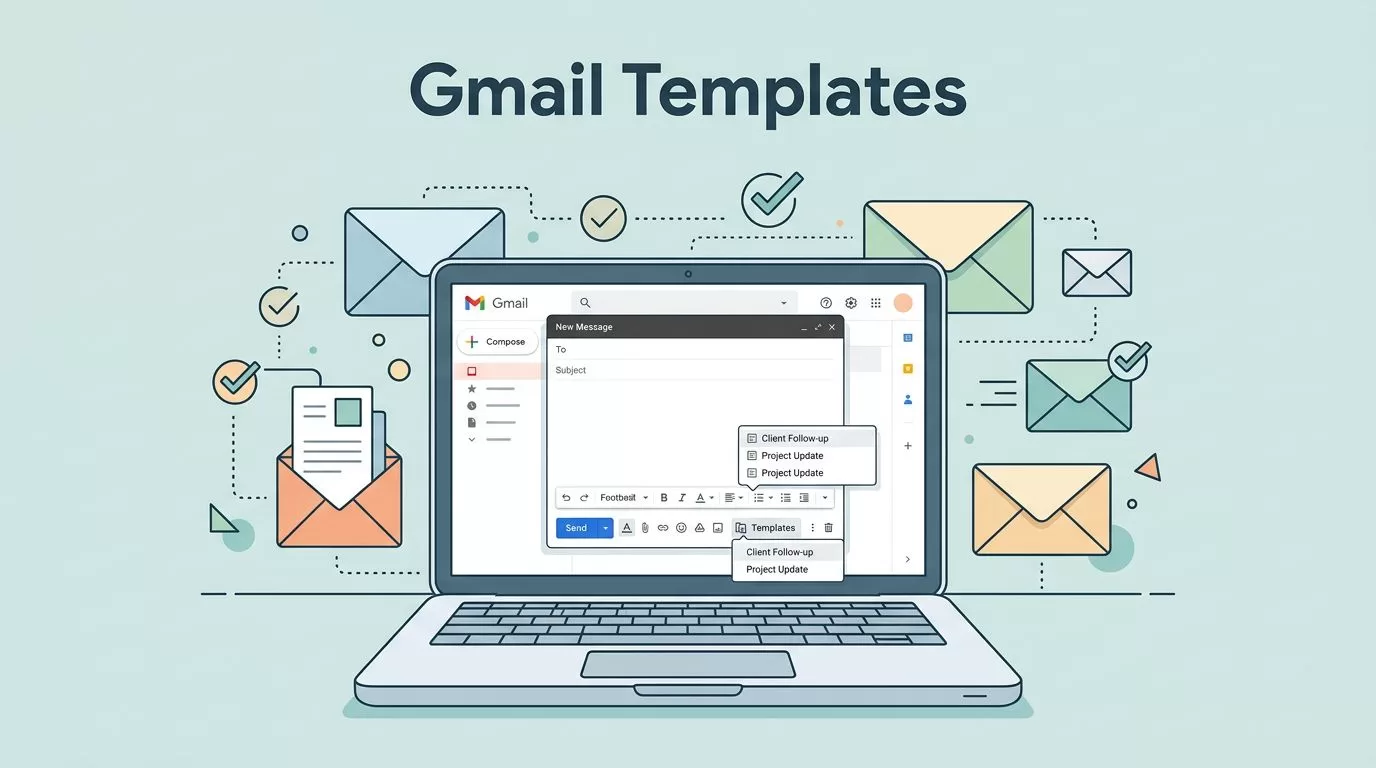
Repeated emails drain time in small, sneaky ways. A few minutes here and there turns into an hour before I notice.
That’s why I use Gmail templates for replies I send again and again. They help me answer faster, stay consistent, and keep my inbox from feeling like copy-and-paste work.
I keep the setup simple, because Gmail labels can shift over time, and some features depend on the account type or Google Workspace settings. The good news is that the core workflow still works the same.
Why I use Gmail templates for repetitive email work
I reach for templates when I write the same reply more than twice a week. That covers common support questions, meeting follow-ups, status updates, and intro emails.
Templates work best when the message structure stays the same, but a few details change. I still edit the greeting, names, dates, and next steps, so the reply doesn’t sound flat.
When I manage shared inboxes, I also keep Google Workspace alias best practices in mind. The address people write to shapes the kind of replies I end up sending.
For a second reference, I sometimes compare my setup with Mailmeteor’s Gmail templates guide. It’s useful when I want to double-check the menu path.
Turn on Gmail templates before you save anything
I always start in a desktop browser. Gmail’s web version has the full template controls, while the mobile app usually gives me fewer options.
Here’s the path I use:
- Open Gmail in a browser.
- Click the gear icon in the top-right corner.
- Select See all settings.
- Open the Advanced tab.
- Find Templates, then choose Enable.
- Scroll down and click Save Changes.
Gmail refreshes after that. If I don’t see the same labels, I look for the closest match in the settings menu. Gmail changes wording from time to time, so I check the same section before I assume the feature is missing.
I enable templates first, then I test them with a draft before I build a full library.
If the feature still doesn’t show up, I check whether my Workspace admin has limited it. That happens in some business accounts.
Save your first Gmail template the right way
Once templates are on, I build my first one from an actual draft. That keeps the wording natural.
- Click Compose.
- Write the email body you want to reuse.
- Add the subject line if your version of Gmail stores it the way you expect.
- Click the More options menu at the bottom right of the compose window.
- Choose Templates.
- Select Save draft as template.
- Click Save as new template and give it a clear name.
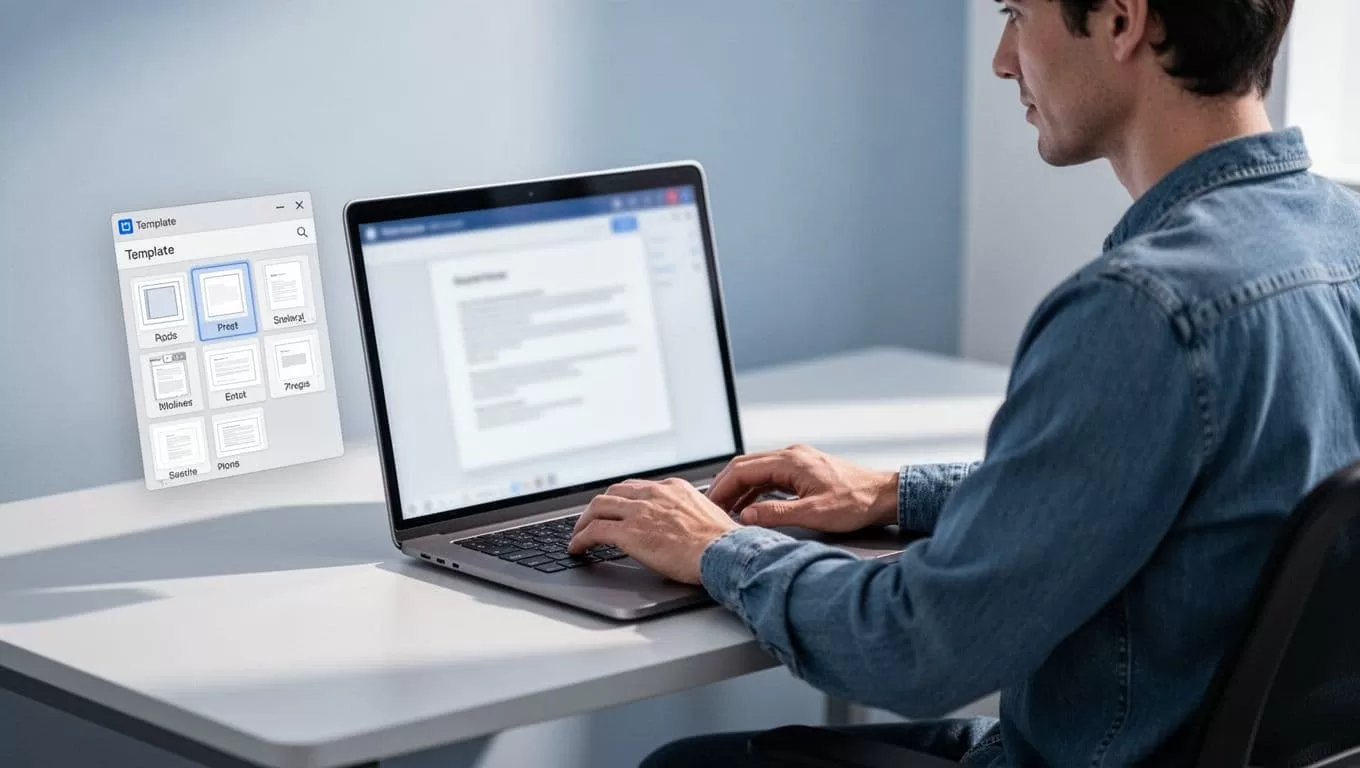
I name templates by job, not by mood. “Client follow-up after demo” helps me more than “Nice reply.”
That small habit saves time later, because I can find the right draft fast.
Use templates for the replies I send most often
I get the best results when I match templates to real work patterns. The table below shows the kinds of replies I save first.
| Situation | Template I save | Why I use it |
|---|---|---|
| Customer support | Pricing, billing, or reset reply | I answer the same question with the same tone |
| Meeting follow-up | Recap and next steps | I don’t rewrite the same summary |
| Sales outreach | Intro and scheduling note | I move faster without sounding rushed |
| Recruiting | Candidate update or interview invite | I keep communication steady |
The pattern matters more than the exact wording. When I know the message shape, I can plug in the details and send it with less effort.
In recruiting workflows, I often pair templates with Recruit CRM Gmail workflows for hiring. That helps when the same candidate updates keep coming back through the inbox.
Keep templates personal so they don’t sound robotic
A template should feel like a shortcut, not a wall of canned text. I edit mine every time I use them.
I change the opening line, add one detail from the thread, and trim anything that feels stiff. If the message started with a complaint or a question, I answer that point first.
I also leave a few blank spots in my head, even if I don’t literally use placeholders. That keeps me from sending a polished but cold reply.
A few habits help me keep the tone human:
- I change the first sentence so it fits the thread.
- I keep one line for context, not three.
- I remove filler phrases that sound formal for no reason.
- I sign off in the way I’d actually write to that person.
That’s the balance I want. Fast, but still personal.
Fix the common Gmail template problems fast
When templates misbehave, I usually find the cause quickly.
Why don’t I see Templates in Gmail?
I check that I’m in Gmail on a desktop browser first. Then I return to Settings > See all settings > Advanced and look again. If it still isn’t there, my account may not allow it yet.
Can I use templates on my phone?
I can usually use my messages on mobile, but I don’t rely on the phone app to build or manage templates. I do that work on desktop, where the menu options are clearer.
Do Gmail templates support attachments?
No, I don’t count on templates for attachments. I keep them text-based and add files after I insert the draft.
How many templates can I save?
Gmail allows up to 50 templates per account, which is enough for most repeat tasks I handle. I still keep the list smaller, because too many templates get messy fast.
If the steps look slightly different on your screen, I cross-check UseCarly’s Gmail template walkthrough. Gmail’s labels shift now and then, so a second reference helps.
The real win comes from building only the templates I’ll use often. A small, clean set beats a long list I never open.
Gmail templates save time when I use them with care. I set them up in the web version, name them clearly, and rewrite the opening line every time I send one.
That’s how I keep repeated replies fast without making them feel copied. A good template removes friction, but it still leaves room for a human touch.
