How I Restrict Third-Party Apps in Google Workspace
Google Workspace app restrictions matter the moment users start connecting shiny tools to Gmail, Drive, and Calendar. One wrong OAuth grant can expose files, mail, or directory data faster than most teams expect. I treat third-party app con...

Google Workspace app restrictions matter the moment users start connecting shiny tools to Gmail, Drive, and Calendar. One wrong OAuth grant can expose files, mail, or directory data faster than most teams expect.
I treat third-party app control as a security seatbelt. It doesn’t stop work, but it keeps one careless click from becoming a mess. That matters even more when I’m working with compliance rules, client data, or a mixed fleet of approved and unapproved tools.
What I mean by third-party apps in Google Workspace
In Google Workspace, third-party apps are tools that aren’t made by Google or my organization. They might be a CRM add-on, an AI note-taker, a signing app, or a reporting tool that asks users to sign in with Google.
The risk comes from scope. When a user approves an app, that app may ask for access to email, files, contacts, or calendar data. If I don’t control that access, one helpful tool can turn into a wide-open door.
That’s why I separate three decisions in my head:
- Allowlist trusted apps when I’ve reviewed the vendor and the scope.
- Block risky apps when I don’t trust the source or the request.
- Limit access when the app is useful, but only for certain users, devices, or contexts.
I block first, then open only the doors I’ve checked.
If I want Google’s official wording in front of me while I work, I keep Google’s app access control help page open in another tab.
Open the right controls in the Admin console

I start in the Admin console with a super admin or another account that has Service Settings admin privileges. Then I follow the current menu path, which in 2026 is usually:
Menu > Security > Access and data control > API controls
From there, I open App access control or Manage third-party app access. The wording can shift a bit over time, so I always confirm the current menu labels before I make changes.
Then I check these areas first:
- Configured apps to see what already has access.
- Apps pending review to catch new user requests.
- Unconfigured third-party apps to stop unknown apps by default.
- Organizational units so I can test changes in a small group first.
I like to start with one pilot OU. That gives me room to spot broken workflows before I touch the whole company.
Decide when to trust, block, or limit access
Not every app needs the same treatment. A payroll tool and a lunchtime survey app are not in the same risk class. I use the app’s purpose, data scope, and user group to decide what happens next.
Here’s the framework I use most often:
| Choice | When I use it | What it does |
|---|---|---|
| Trusted / allowlisted | I’ve reviewed the vendor, scope, and business need | Users can connect the app under the rules I set |
| Blocked | The app is risky, unnecessary, or unverified | Users can’t authorize it |
| Limited access | The app is useful, but only for a subset of users or devices | I narrow access by OU, device state, IP, or context |
For broad control, I often set Unconfigured third-party apps to block by default. That stops unknown apps from slipping in before I’ve reviewed them. When an app is clearly approved, I add it as Trusted by OAuth app name or client ID.
If I want to limit access instead of fully trusting the app, I use Google’s Context-Aware Access guide. That lets me shape access by user identity, device, IP address, or location. It’s a good fit for finance, HR, and admin tools.
My step-by-step workflow for third-party app restrictions
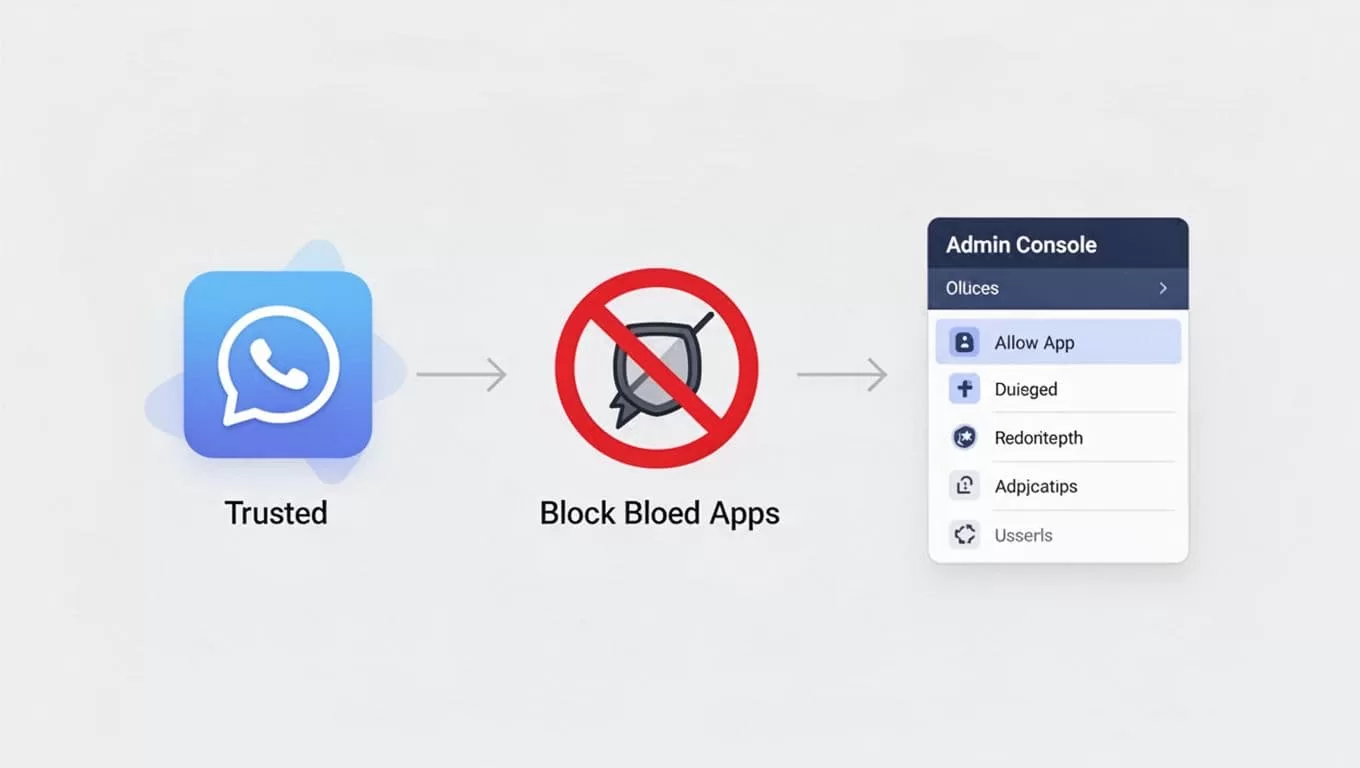
When I’m ready to change settings, I use this order:
- Review existing apps and sort them by business need.
- Identify high-risk scopes like Gmail, Drive, Calendar, and Contacts.
- Block unconfigured apps if the environment needs tight control.
- Trust approved apps by client ID or app name.
- Apply limits by OU if only certain teams should use an app.
- Test with a pilot group before I expand the rule.
- Watch the audit logs for failed sign-ins or blocked app attempts.
If I’m managing admin-installed Marketplace apps too, I also check Google’s guide for managing app access requests. That helps when a user wants something new and I need to review access instead of guessing.
I also pair app controls with my Google Workspace 2-Step Verification setup. Strong sign-in rules make app restrictions easier to defend.
Roll out changes slowly, or expect noise
Big changes can break daily work if I rush them. A sales team may rely on a quote tool. A finance team may use a receipt app. A blocked OAuth flow can trigger a wave of tickets by lunch.
So I test changes in a small OU first. I also tell users what I’m changing, why I’m changing it, and what to do if a trusted app gets blocked. That short warning saves time later.
I keep three habits in place:
- I test first in a non-critical OU.
- I check Google’s official docs before each rollout, since menu names and paths can change.
- I review requests and logs after the change, not weeks later.
If I’m also tightening file behavior, I connect this work with secure Google Workspace document sharing. App access and file access touch the same data, so I treat them as part of one control set.
Keep the app list clean after rollout
The first pass is never the last pass. Apps age out, vendors change scopes, and users forget what they approved six months ago.
I review access on a schedule and remove anything stale. I also watch for apps that ask for more permissions than they need. If an app starts reaching for broad access, I either trim it or block it.
For larger teams, I keep a simple rule in place. If I can’t explain why an app needs access, I don’t allow it yet.
That rule keeps Google Workspace app restrictions practical instead of heavy-handed. It also keeps my security story easy to explain when an auditor, manager, or user asks why a tool was blocked.
The cleanest setup is simple: approve less, review more, and test every change before I widen it.
