How I Share Google Calendar With Clients Without Exposing Internal Events
Sharing a calendar with clients can either keep work moving or reveal too much. I want clients to see when I’m open, not the meeting names, attendee lists, or private holds behind those blocks. So when I share Google Calendar clients...
Sharing a calendar with clients can either keep work moving or reveal too much. I want clients to see when I’m open, not the meeting names, attendee lists, or private holds behind those blocks. So when I share Google Calendar clients need to see, I treat privacy like a locked filing cabinet, not a glass wall.
The fix is simple once I separate the use cases. I use free/busy sharing for quick availability, a secondary calendar for client-facing work, and appointment schedules when I want clients to book time on their own.
Table of contents
- Share only free/busy when the client only needs openings
- Build a client-facing secondary calendar
- Use appointment schedules when the client should book directly
- Check permissions before you send anything
- Avoid the privacy mistakes that leak internal work
- FAQs
Share only free/busy when the client only needs openings
This is my default when a client just needs to know if I’m available. They don’t need titles, notes, or guest lists. They only need a yes or no on time.
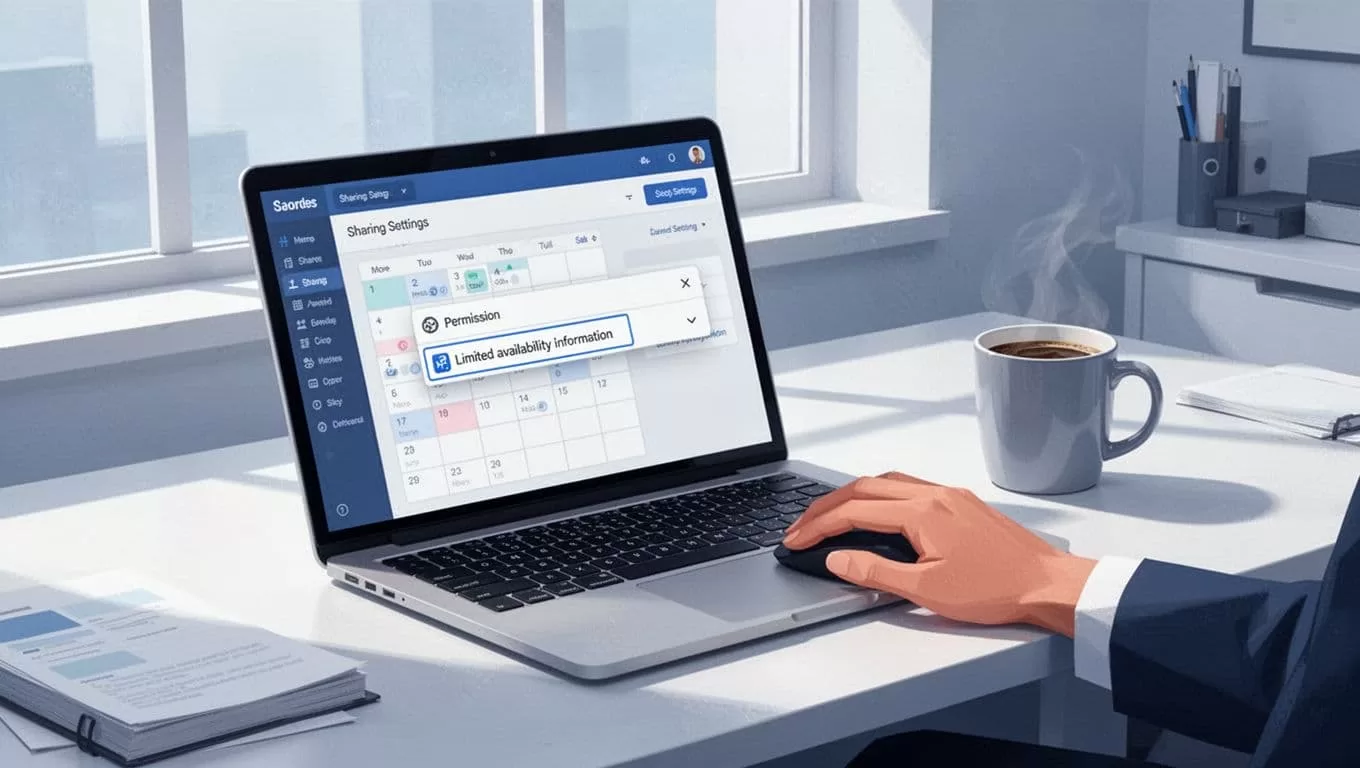
Google’s calendar sharing docs spell out the main access levels, and free/busy is the safest one for this use case. It shows blocked time without exposing the event itself.
Here’s how I set it up on desktop:
- Open Google Calendar in a browser.
- Hover over the calendar I want to share.
- Click the three dots, then choose Settings and sharing.
- Under Share with specific people or groups, add the client’s email.
- Choose See only free/busy.
- Send the invite and test the view with a second account if I can.
That last step matters. I do not trust assumptions with private data. I check what the client can actually see.
If a client only needs scheduling access, free/busy is usually enough. Anything more can expose work I never meant to share.
Build a client-facing secondary calendar
When a client needs more context, I create a separate calendar instead of sharing my main one. That calendar holds only the events I’m willing to show. It keeps internal planning, personal work, and sensitive meetings out of sight.
I use the same habit in my shared team calendar setup. Separation makes the whole system easier to trust.
My setup is simple:
- Create a new calendar for the client, project, or service line.
- Give it a clean name, like “Client Calls” or “Project Schedules”.
- Add only the events that belong there.
- Share that calendar with the client at the right permission level.
- Keep the main work calendar private.
This works well for long-term retainers, consulting work, or support plans. It also helps when I want the client to see deadlines or booked sessions, but nothing else.
Use appointment schedules when the client should book directly
Appointment schedules work best when I want clients to book a slot without emailing back and forth. This is the cleanest choice for discovery calls, office hours, and paid consults.
I like it because it reduces friction. Clients see open windows, pick a time, and book it. I stay in control of the available slots, so my internal calendar stays hidden behind the setup.
Here’s the way I think about the three options:
| Method | What the client sees | Best for | Privacy level |
|---|---|---|---|
| Free/busy sharing | Open or blocked time only | Quick scheduling | Highest |
| Secondary client calendar | Events I place there | Retainers, projects, updates | High |
| Appointment schedules | Booking slots you approve | Calls and consults | High, if set up well |
The table makes the tradeoff clear. I use free/busy for speed, a secondary calendar for structure, and appointment schedules when I want clients to self-book.
Check permissions before you send anything
The part most people skip is also the part that causes the most trouble. I check permissions before I share, because one wrong setting can expose more than I want.
Google Calendar has separate controls for calendar access and event visibility. Google’s event visibility settings let me mark items as default, public, or private. I keep sensitive items private and avoid putting client-facing events on my main calendar when I can help it.
I also check these points every time:
- The calendar is not public.
- External sharing is allowed for the client’s address or domain.
- I only grant the level of access the client needs.
- I do not hand out edit rights unless someone manages the calendar for me.
If I’m in a Google Workspace setup, the admin may limit outside sharing at the domain level. Google’s Workspace admin sharing settings explain that admins can cap what users share outside the company. That matters, because admin rules override what I try to set in Calendar.
Avoid the privacy mistakes that leak internal work
I’ve seen the same mistakes cause the same mess.
The biggest one is sharing the main calendar because it feels easier. It is easier at first, then every internal meeting becomes client-visible by mistake.
I also avoid these traps:
- I don’t place private notes in event descriptions on any shared calendar.
- I don’t invite outside guests to internal meetings unless they belong there.
- I don’t reuse a client calendar for internal planning.
- I don’t forget that location fields, guests, and attachments can carry details I meant to hide.
- I don’t assume mobile changes are enough when sharing settings need a careful review.
If something feels borderline, I move it off the shared calendar. That habit keeps the setup clean.
FAQs
Can clients see the title of a busy block?
Only if I share more than free/busy. With free/busy, they should see the block, not the event title or notes.
Should I share my main calendar with clients?
I rarely do. A separate client calendar gives me better control and fewer privacy risks.
What if my Google Workspace admin blocks external sharing?
Then I follow the admin rules. In many workplaces, outside sharing is limited to free/busy or blocked entirely.
Is appointment scheduling safer than sharing a calendar?
It can be, if I set it up well. I still keep the booking slots free of internal details.
The safest setup is the one that shows less, not more. When I share only what clients need, I keep my schedule useful and my internal work private. That balance is what makes Google Calendar worth using in the first place.
