How to Create a Shared Team Calendar in Google Calendar
A shared team calendar gives everyone one place to track meetings, deadlines, time off, launches, shifts, and other dates that affect the group. It also prevents a common mistake: using one employee’s personal calendar as the permanen...
A shared team calendar gives everyone one place to track meetings, deadlines, time off, launches, shifts, and other dates that affect the group. It also prevents a common mistake: using one employee’s personal calendar as the permanent home for department work.
To create one, open Google Calendar on the web, select the plus icon beside Other calendars, choose Create new calendar, and enter the calendar name, description, and time zone. After you create it, open Settings and sharing to add people or a Google Group and choose the lowest permission level that gives the team enough access.
This guide explains the full setup, including personal Google accounts, Google Workspace permissions, mobile access, event privacy, notifications, ownership, testing, and long-term maintenance.
Before you create the shared calendar
First, decide what the calendar is for. A separate calendar works well for a department schedule, shared deadlines, PTO, office closures, support shifts, content publishing, or a temporary project. It should not become a second copy of every person’s private appointments.
- Choose a clear purpose, such as Customer Support Shifts or Product Launch.
- List the people or Google Group that needs access.
- Choose a primary owner and a backup manager.
- Decide whether users need to see free/busy status, event details, or edit access.
- Confirm the correct time zone for the team.
- Check whether your Google Workspace administrator allows the planned sharing.
- Decide how the team will name events, set reminders, and record private information.
Creating this short plan first prevents the calendar from becoming a catch-all list. A shared calendar is easier to manage when every event has a clear reason to be there.

How to create a shared team calendar in Google Calendar
Use the web version for creation and permission changes. The mobile apps are useful for viewing and adding events, but the web interface usually provides the clearest access to calendar settings.
- Open Google Calendar. Go to calendar.google.com and sign in with the account that should own or manage the calendar.
- Start a new calendar. In the left sidebar, find Other calendars, select the plus icon, and choose Create new calendar.
- Name the calendar. Use a purpose-based name, such as Marketing Team, Company PTO, or Q3 Product Launch. Avoid naming it after one employee.
- Add a description. Explain what belongs on the calendar and what does not. This helps new team members use it correctly.
- Choose the time zone. Use the team’s main operating time zone, or the time zone that matters most for the work. Review this setting before adding recurring events.
- Select Create calendar. The new calendar should appear under My calendars or the calendar list in the left sidebar.
- Open Settings and sharing. Select the new calendar, then review its permissions, notifications, and general settings.
- Add people or a group. Use Share with specific people or groups to add individual addresses or a Google Group.
- Choose a permission level. Give each person only the access needed for the job.
- Test the setup. Ask a real team member to view the calendar, create a test event if allowed, and confirm the expected notifications.
After setup, add a few useful starter events. These might include a recurring team meeting, a reporting deadline, a planned office closure, or the first project milestone. A shared calendar becomes useful when people can see how the team expects it to be used.
Separate a shared team calendar from a personal calendar
Use a separate shared calendar for dates that belong to the group. Keep personal appointments on personal calendars. Sharing one person’s calendar may be appropriate when the goal is to show that person’s availability, but it is a weak foundation for department operations.
| Need | Recommended setup |
|---|---|
| Show when coworkers are busy | Share free/busy access to the relevant calendar. |
| Let a team view deadlines and event details | Use a separate team or project calendar with detail visibility. |
| Let coordinators create and edit events | Give selected coordinators permission to make changes to events. |
| Track PTO without exposing personal details | Use a dedicated PTO calendar and keep event titles brief. |
| Let customers book appointments | Use an appointment scheduling page when the account and plan support it. |
| Run a temporary launch or audit | Create a project calendar, then archive or hide it when the work ends. |
Do not place sensitive information in a broadly shared calendar. Event titles, descriptions, attachments, guest lists, and meeting links can reveal more than the calendar permission alone suggests.
Personal Google accounts versus Google Workspace
Google Calendar works with personal Google accounts and Google Workspace accounts, but the available sharing controls may differ. If a setting is missing, the account type, user role, or an administrator policy may be the reason.
| Area | Personal Google account | Google Workspace account |
|---|---|---|
| Create a shared calendar | Available through Google Calendar. | Available, subject to organization rules. |
| Share with specific people | Available, with account and sharing limits. | Available, but administrators can restrict access. |
| Share with a Google Group | Possible when the group is available and sharing is allowed. | Common for departments and internal teams. |
| Organization-wide visibility | Not available in the same way as an organization-managed account. | May be controlled by Workspace settings and administrator policies. |
| External sharing | Depends on the account and calendar settings. | May be limited or blocked by the administrator. |
| Access reviews and administration | Limited compared with a managed organization account. | Administrators can apply organization policies and review account access. |
| Working location and business features | Availability varies. | Depends on the Workspace edition and administrator settings. |
A Workspace administrator may restrict external sharing, event visibility, group access, appointment scheduling, working location, or other features. Do not assume that every team member sees the same menu. When testing, use the account type that ordinary team members will use.
Choose the right permission level
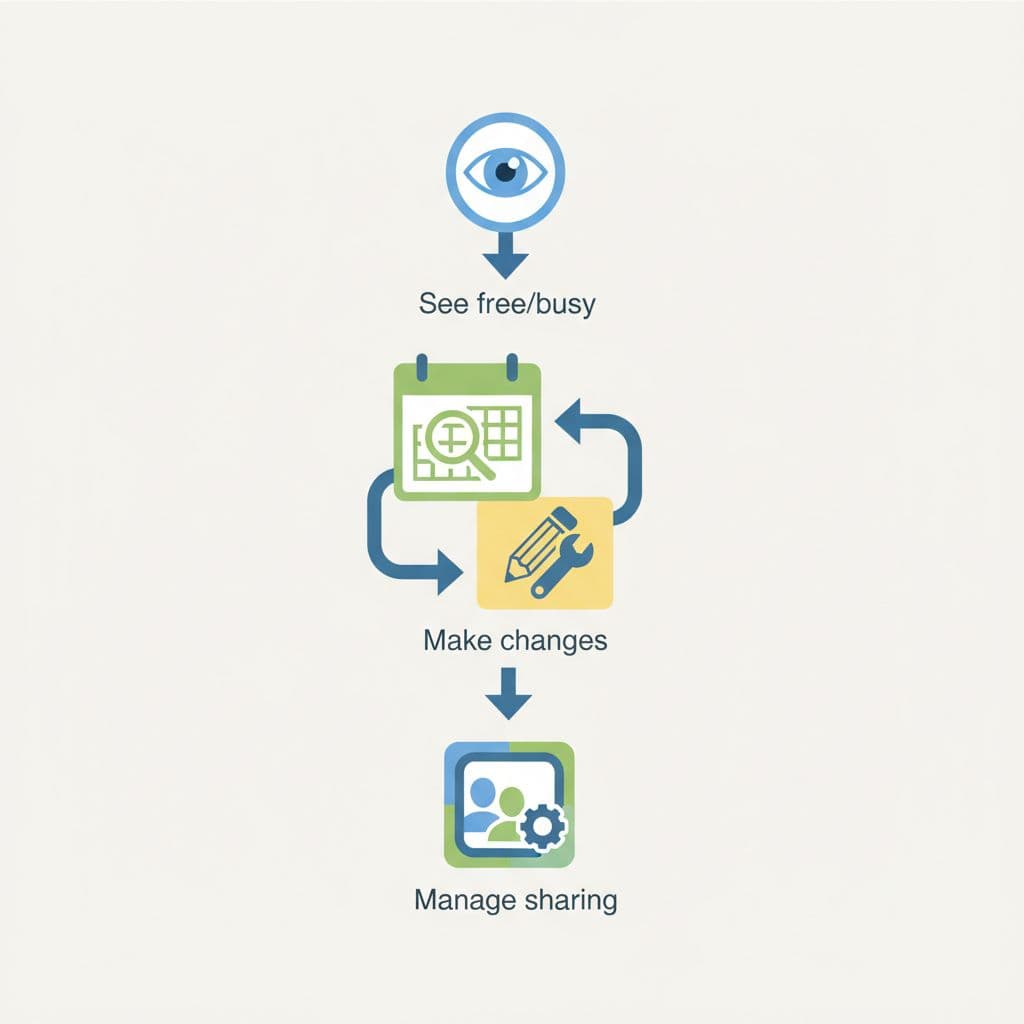
Calendar-level permissions control what a person can do with the calendar. Event-level privacy controls what people can see about a specific event. These are related, but they are not the same setting.
| Permission | What it generally allows | Good fit |
|---|---|---|
| See only free/busy | Shows whether time is blocked without exposing event details. | Organization-wide scheduling and room availability. |
| See all event details | Shows titles and other available event information. | Trusted internal teams that need context. |
| Make changes to events | Allows the person to create, edit, and delete events on the shared calendar. | Coordinators, assistants, and team leads. |
| Make changes and manage sharing | Allows event changes and permission management. | One primary owner and one backup manager. |
Keep full management access limited. Too many people with permission to change sharing can create overlapping access, accidental exposure, and difficult offboarding. Direct access and group access can also overlap, so review both when a user’s access does not match expectations.
Use Google Groups for changing teams
A Google Group is often easier to manage than adding employees one at a time. Share the calendar with the group, then let the group owner manage membership. When someone joins or leaves, the calendar access follows the group membership.
- Give the group a clear name and owner.
- Explain what access the group receives.
- Avoid sharing sensitive calendars with a broad company-wide group.
- Test access with a real group member, not only the calendar owner.
- Allow time for membership changes to appear everywhere.
- Remove old direct shares when group access replaces them.
Groups are especially useful for departments, but they can hide access problems. A person may still have direct access after leaving the group, or may belong to another group with a different permission. Check all relevant groups and direct shares during access reviews.
Protect private events and sensitive information
A shared calendar should not expose private details simply because the team needs to coordinate. Mark sensitive events as private when appropriate, and keep the title general if other users only need to know that time is unavailable.
- Use general wording for one-on-one meetings, interviews, and personal appointments.
- Do not add medical information, confidential customer details, or private notes to a broadly shared event.
- Review attachments and meeting links before sharing an event.
- Use a dedicated PTO calendar when the team needs coverage information but not personal details.
- Remember that guests, event owners, and calendar viewers may have different access.
Private event behavior can vary with the user’s role and the calendar settings, so test it with a normal team account. Check what the viewer can see rather than assuming the private label hides every part of the event.
Set up the calendar for mobile use
Team members can usually view shared calendars and add events from the Google Calendar app on Android or iPhone. They must be signed into the account that received access. If the calendar appears on the web but not on a phone, check the account and calendar visibility before changing permissions.
- Open the Google Calendar app and confirm the correct Google account is active.
- Open the calendar list and turn on the shared calendar.
- Use the calendar options to choose a color and make it easier to spot.
- Refresh the app if a recent share or group membership change does not appear.
- Check phone notification permissions and the calendar’s event notification settings.
- Use the web version for calendar creation, detailed sharing changes, and organization controls when the app does not show the needed option.
Google Calendar can sync across devices, but synchronization is not the same as permission. A phone cannot display details that the signed-in account is not allowed to see.
Use the features that help teams work
A shared calendar is more useful when events contain enough information for someone to act. Google Calendar supports several features that reduce follow-up messages:
- Multiple calendars: Layer team, project, personal, holiday, and room calendars to compare availability.
- Calendar views: Use day, week, month, or schedule views based on the work you are planning.
- Color coding: Use a small set of consistent colors for meetings, deadlines, PTO, and milestones.
- Google Meet: Add a Meet link when a meeting needs remote attendance.
- Attachments and notes: Add a meeting agenda, brief, or Google Drive file when the audience has access.
- Guests and optional attendees: Invite only the people who need to attend and mark others as optional where appropriate.
- Tasks: Use Google Tasks beside the calendar for personal follow-up work.
- Working location: Use it for office, remote, or another work location when the account and organization support the feature.
- Gmail event detection: Some reservations may be added from Gmail, but review the date, time zone, and details before treating them as team commitments.
- Appointment schedules: Use a booking page for outside people who need to choose an available time. It is not a replacement for an internal operational calendar.
Working location is different from an all-day event. An all-day event may block or label a day, while working location communicates where someone plans to work. Availability depends on the account type, Workspace edition, and administrator settings.
Set team rules before the calendar fills up
Google Calendar provides the controls, but the team needs simple operating rules. Write these rules in the calendar description or your team documentation:
- Use a consistent event title format, such as [Project] Review: Topic.
- Include the owner, purpose, location, and next action when they matter.
- Use the correct time zone for events involving more than one region.
- Do not create recurring events unless someone owns the review process.
- Use private events for sensitive information instead of placing details in a shared title.
- Choose one person to maintain the calendar and another person as backup.
- Review colors and notifications so they remain useful instead of becoming decoration.
- Archive or hide completed project calendars rather than leaving them in every user’s view.
Ownership and offboarding checklist
A calendar owned by one employee can become a problem when that employee changes roles or leaves the organization. Use a role account, department account, or clearly documented owner when that fits your organization’s policies. Always keep a backup manager.
- Record the calendar purpose, URL, owner, and backup owner.
- Review direct access and group membership monthly or quarterly.
- Remove stale individual access when group access is the new standard.
- Transfer management duties when an owner changes roles.
- Remove former employees from groups and review any direct shares.
- Review recurring events and delete or update those that no longer apply.
- Hide or archive completed project calendars without deleting records that the team still needs.
Test the shared calendar before launch
Do not test only from the owner’s account. Use a normal team member account and, when relevant, an external account. Create a temporary event and work through the actions each role should be able to perform.
- Confirm the calendar appears in the web sidebar.
- Confirm it appears in the Android or iPhone app.
- Create a test event with the intended owner.
- Check whether a viewer sees free/busy status, details, or neither.
- Confirm the intended coordinator can edit or delete the event.
- Test an invitation and verify the expected email or device notification.
- Mark a test event private and confirm what another user can see.
- Check the calendar from the correct time zone.
- Remove the test event.
- After a group change, confirm that a removed member no longer has access.
Shared Google Calendar troubleshooting
| Problem | Checks to perform |
|---|---|
| The calendar is not visible | Confirm the correct account, sidebar visibility, share address, and group membership. Refresh the app. |
| The user sees the calendar but not event details | Review calendar permission, event privacy, and Workspace restrictions. |
| An external user sees only busy blocks | Check the organization’s external-sharing policy and the permission granted to that user. |
| Mobile changes are not appearing | Open the web version, confirm the account, refresh the app, and check whether synchronization is delayed. |
| Notifications are not arriving | Review calendar defaults, event-specific reminders, phone notification settings, email filters, and guest status. |
| A former employee still has access | Remove direct access, review every relevant Google Group, and check inherited access. |
| A user cannot edit events | Confirm the calendar-level permission and whether the event is owned by another calendar. |
| Events show at the wrong time | Check the calendar time zone, user time zone, recurring event settings, and daylight-saving changes. |
Notifications deserve special attention. Seeing an event does not always mean a person will receive an alert. Calendar defaults, event-specific settings, guest invitations, email filters, browser permissions, and mobile settings can all affect delivery. Test a real event instead of assuming the notification will work.
Frequently asked questions
Can I create a shared calendar from the mobile app?
The web version is the safest place to create a calendar and manage detailed sharing settings. Use the Android or iPhone app for viewing, notifications, and event creation after the calendar is set up.
Should I share a personal calendar with my team?
Share a personal calendar when the goal is to show one person’s availability. For department deadlines, PTO, shifts, or project work, create a separate shared calendar instead.
Can a shared calendar let other people add events?
Yes, if you give them permission to make changes to events. Give that access only to people who understand the team’s event rules and can keep the calendar accurate.
What is the difference between a shared calendar and an appointment schedule?
A shared calendar coordinates internal work. An appointment schedule or booking page lets people choose available times. A booking page may require an eligible Google Workspace plan, and it should not replace the team’s operational calendar.
Why does a team member see the calendar but not the event details?
Check the person’s calendar permission, the event’s privacy setting, overlapping direct and group access, and any Workspace policy that limits sharing. Test the event from that person’s account.
How often should we review access?
Review access monthly for active operational calendars and at least quarterly for stable calendars. Review it immediately after staff changes, group changes, or a change in calendar purpose.
A shared calendar works best with simple rules
The technical setup takes only a few minutes, but the operating rules determine whether the calendar stays useful. Create a separate calendar, name it by purpose, choose the right permissions, protect private details, test it with a normal user, and assign a backup owner. Then review access and recurring events on a regular schedule.
With that foundation, Google Calendar becomes more than a list of dates. It gives the team a shared view of work without forcing everyone to expose their personal schedule.
