How I Set Up Shared Drives in Google Workspace for My Team
I remember the day a key designer quit without notice. Our project files vanished into her personal Drive. No backups. Pure panic. That mess pushed me to set up shared drives in Google Workspace. Now files belong to the team. They stick aro...
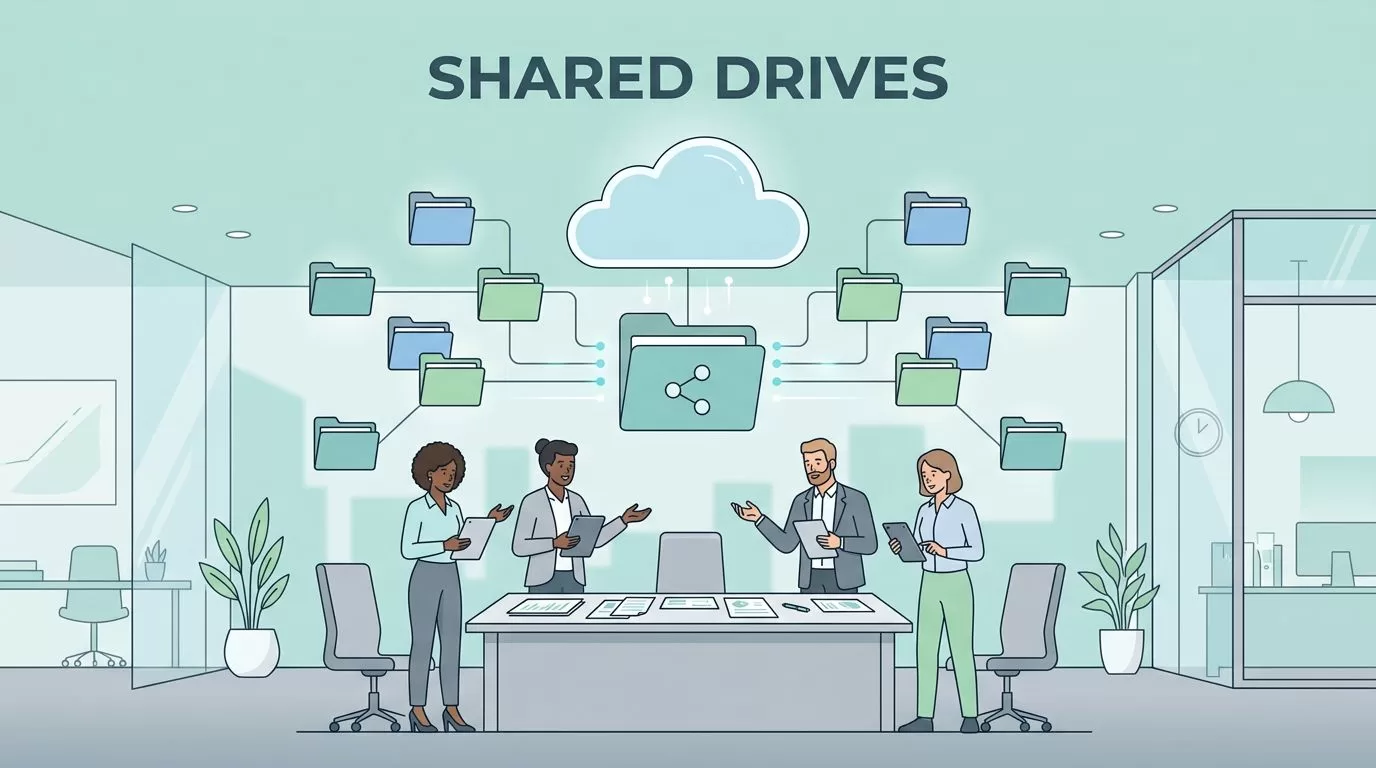
I remember the day a key designer quit without notice. Our project files vanished into her personal Drive. No backups. Pure panic. That mess pushed me to set up shared drives in Google Workspace. Now files belong to the team. They stick around no matter who comes or goes.
You face the same issue if your business juggles docs across personal accounts. Shared drives fix that. They centralize everything. In this guide, I walk you through my exact steps from my recent rollout. Follow along, and your team gains control fast.
Table of Contents
- Why Shared Drives Fixed My File Problems
- Check Your Prerequisites First
- Enable Shared Drives in the Admin Console
- Create Your First Shared Drive
- Add Members and Set Permissions
- Move Files into Shared Drives
- Tips from My Rollout
- Conclusion
- FAQ
Why Shared Drives Fixed My File Problems
Personal Drives cause headaches. One person owns the files. They leave, and access dies. I saw this hit sales reports and client contracts. Chaos.
Shared drives change that. Files live in a team space. Ownership stays with the group. Editors add content. Viewers comment. No single point of failure.
My small team of 12 switched last month. Productivity jumped. No more “Where’s that file?” emails. Everyone sees the same version. Real-time edits happen without version conflicts.
Business Starter works too, though storage caps at 30 GB per user. We upgraded for more space. If you run remote ops, this setup shines. Check my Google Workspace shared drives setup guide for small teams for similar stories.
Check Your Prerequisites First
Start with the basics. Confirm your Google Workspace edition supports shared drives. Business Standard, Plus, Enterprise, and Education all do. Business Starter now includes them too.
Log into the Admin console at admin.google.com. You need super admin rights or Drive management permissions. Test your account. Can you access Apps > Google Workspace > Drive and Docs? Good.
Groups help later. I created ones like sales-team@domain.com first. They make adding members simple. No manual lists.
Storage matters. Count your current usage. Shared drives pull from pooled limits. Plan subfolders early, like Projects/2026-Q2.
This setup mirrors my desk during rollout. Laptop open to Drive. Files organized. Calm focus.
Enable Shared Drives in the Admin Console
Admins handle this first. I skipped it once. Users couldn’t see the option. Wasted an hour.
Go to admin.google.com. Click Menu > Apps > Google Workspace > Drive and Docs > Sharing settings. Scroll to Shared drive creation.
Choose who creates drives: all users, admins only, or off. I picked all users for trust. Education admins, turn it on; it’s default off.
Set defaults. Block external sharing? I did for sensitive docs. Stop download/print/copy for viewers? Yes. Let managers override? Always.
Click Save. Changes propagate in minutes. Test by refreshing Drive.
For details, see Google’s official setup guide for organizations. It matches my steps.
Create Your First Shared Drive
Users with permission now build drives. Open drive.google.com. Spot Shared drives on the left? Click it.
Hit New at top left. Name it clear, like Marketing-Assets-2026. Click Create. Done. It appears in the list.
I made five: Sales, HR, Ops, Projects, Leadership. Match your teams. Subfolders keep order, like Q1-Proposals under Projects.
No drive shows? Check admin settings. Or your edition lacks it. Business Starter users, confirm recent updates allow this.
Quick process. Five minutes tops. Now invite the team.
Add Members and Set Permissions
Empty drives help no one. Open your new drive. Click Manage members up top.
Add emails, names, or groups. I used groups for scale. Type sales-team@domain.com. Set level.
Permissions fit roles. Here’s what I use:
| Access Level | Capabilities |
|---|---|
| Manager | Full control, add/remove members |
| Content manager | Edit/delete files, share folders |
| Contributor | Add/edit files, no delete/share |
| Commenter | View and comment |
| Viewer | View only |
Send notifies them. Access kicks in fast.
I limit managers to two per drive. Prevents disputes. For more, visit Google’s shared drive creation help.
Test it. Share a test doc. Confirm edits work.
Move Files into Shared Drives
Files stay scattered without this. Admins enable migration first. Admin console > Drive and Docs > Migration settings. Check Allow users to migrate files. Save.
As manager, drag folders from My Drive or Shared with me to the shared drive. Or right-click > Move to. Pick destination.
I moved client folders in batches. 50 at a time. No data loss. Ownership transfers.
Users upload new ones directly. Drag-drop or New > File upload.
Pro tip: Archive old personal Drives. Label them “Migrated-to-Shared.”
Tips from My Rollout
Naming sticks. Use Team-Purpose-Year. Easy search.
Train your team. Short meeting: “Drag here, not My Drive.” I made a one-pager.
Monitor usage. Admin reports show activity. Spot unused drives; delete them.
Integrate with other tools. Our remote setup pairs this with Google Workspace collaboration for teams. Chats link to drives.
Troubleshoot common snags. No menu? Permissions off. Can’t move? Migration blocked. Quick fixes.
Scale with groups. New hire joins sales? Add to group. Instant access.
For storage deep dives, read my Google Workspace file storage guide.
Conclusion
Shared drives ended our file chaos. Central ownership. Clear permissions. Smooth collaboration.
My team saves hours weekly. No lost docs. Everyone pulls weight.
Set yours up today. Start small. One drive per key team. Watch productivity climb.
FAQ
Do all Google Workspace plans support shared drives?
Yes. Business Starter, Standard, Plus, Enterprise, and Education. Check your admin settings.
How long does setup take?
Ten minutes for basics. Migration adds hours based on file count. I finished core in a day.
Can I limit who sees shared drives?
Admins control creation and sharing. Set viewer restrictions in console.
What if a member leaves the shared drive?
Files stay. Remove them via Manage members. No ownership loss.
Does shared storage count against personal quotas?
No. It uses pooled org storage. Monitor totals in admin.
(Word count: 1,472)
