How I Deploy Google Workspace Collaboration for Remote Teams
Remote work falls apart when tools pile up like mismatched keys. People chat in one app, store files in another, and miss the latest version in a third. I’ve seen that mess slow teams down more than distance ever could. That’s w...
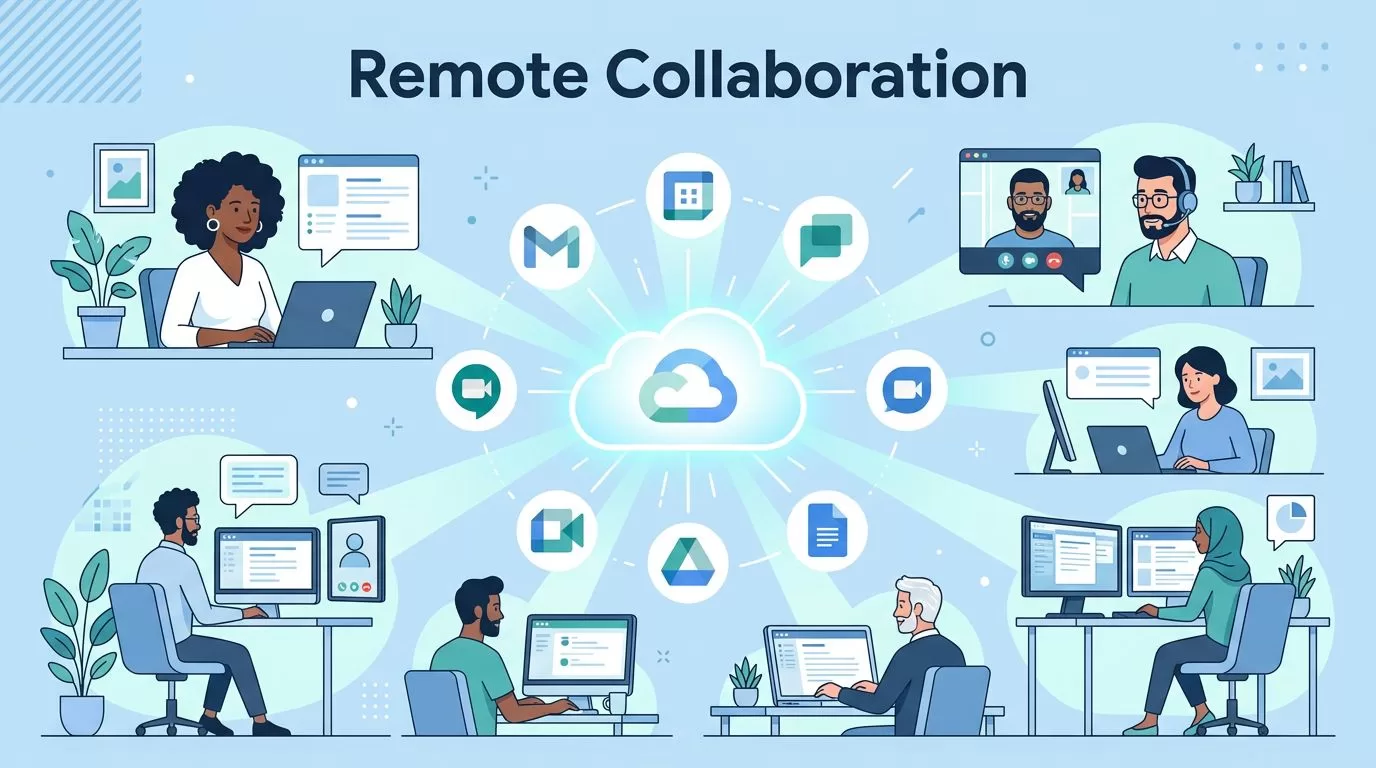
Remote work falls apart when tools pile up like mismatched keys. People chat in one app, store files in another, and miss the latest version in a third. I’ve seen that mess slow teams down more than distance ever could.
That’s why I like Google Workspace collaboration for remote teams. It gives me one place to manage communication, files, meetings, and shared work. When I deploy it well, people stop hunting for information and start moving work forward.
Why Google Workspace works for remote teams
I start with a simple idea: every team needs one home for daily work. Google Workspace gives me that home because Gmail, Calendar, Chat, Meet, Drive, and Docs sit under one admin layer. That matters for IT, but it also matters for the people doing the work.
In 2026, the platform is stronger for distributed teams than it was even a year ago. Gemini-powered summaries help cut through long chats and long documents. Meet recordings and transcripts save straight to Drive. Gmail’s scheduling help can suggest meeting times for multiple guests. Spaces now do a better job of tying chats, files, tasks, and meetings together.
When I’m planning a larger rollout, I usually check Google’s deployment guide for large organizations. It helps me map the work before I touch settings.
The biggest win, though, is control. I can manage users, access, and sharing from one place. That means fewer shadow tools, fewer loose permissions, and less confusion across home offices, coworking desks, and airport lounges.
My rollout checklist for Google Workspace collaboration
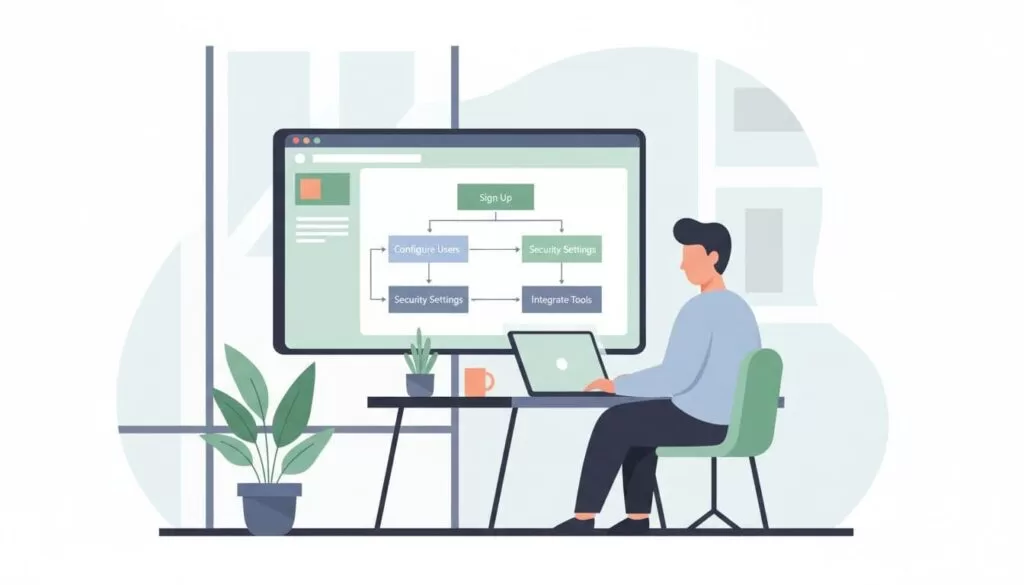
I never start with licenses alone. First, I map people, workflows, and risk. A remote setup without structure is like building shelves before measuring the wall.
Here’s the checklist I use:
- Pick the right edition. I match the plan to meeting size, storage, security needs, and compliance rules.
- Set identity and access. I verify the domain, create organizational units or groups, and turn on multi-factor authentication from day one.
- Build a sharing model. I decide what stays internal, what can be shared outside, and where shared drives should replace personal storage.
- Configure core tools. I set Meet recording rules, caption use, Chat defaults, Spaces naming rules, and Drive permissions.
- Pilot before full launch. I test with one team, fix pain points, then move the wider company in waves.
For a 60-person remote company, I’d usually create shared drives for Operations, Sales, Marketing, HR, and Leadership. Then I’d map Spaces to those same teams. That way, files, meeting links, and ongoing chat stay close together.
I also write short usage rules before launch. For example, urgent questions go in Chat, project history lives in Spaces, and final files go in Drive, not in someone’s inbox. Those rules sound small, but they stop a lot of drift.
If I need setup details, I lean on Google’s technical deployment guides. They help me move from good intent to clean execution.
When I use Chat, Meet, Spaces, Drive, and Docs together
Each app needs one clear job. If everything becomes a chat message, the team loses memory. If every update becomes a meeting, the calendar turns into wet cement.
This quick table shows how I assign each tool:
| Tool | Best use | Don’t rely on it for |
|---|---|---|
| Chat | Fast questions, quick updates, direct messages | Final decisions or document history |
| Meet | Weekly reviews, live problem-solving, client calls | Async status updates |
| Spaces | Team rooms for projects, recurring work, shared context | One-off personal messages |
| Drive | Shared file storage, recordings, transcripts, folders | Fast conversation |
| Docs | Drafts, plans, notes, comments, live editing | File storage or urgent alerts |
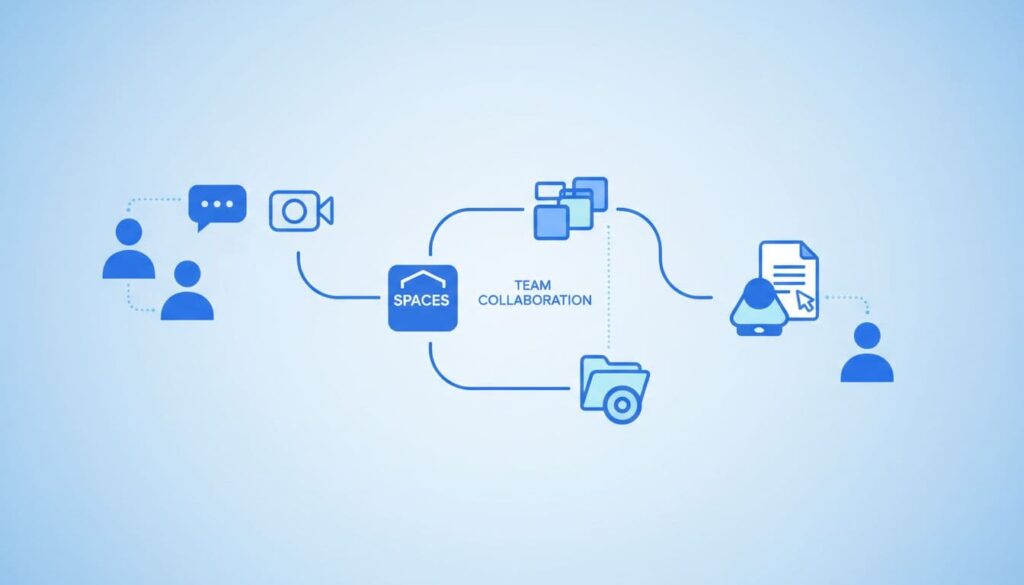
The pattern matters more than the app names. For example, if I’m launching a new service, I create one Space for the project. Inside it, I pin the Meet link, the main Doc, and the Drive folder. Chat handles quick back-and-forth. Docs hold the plan. Meet handles the weekly decision call. Drive stores recordings and transcripts.
That setup cuts noise because people know where to look. It also helps new hires. They can open one Space and see the story of the project, not a trail of missing breadcrumbs.
Security, compliance, and adoption in 2026
Remote teams need strong guardrails, not heavy friction. I turn on multi-factor authentication first. Then I review external sharing, user access, and device rules before I invite everyone in.
For regulated work, I match policies to the data I actually have. Google Workspace gives teams built-in protection against spam and phishing, plus encryption and admin controls that help with standards such as HIPAA and GDPR. I also review Gemini access settings so AI features match company policy, not wishful thinking.
If team files live only in personal Drives, one exit can turn into a rescue mission.
That’s why I push shared drives for team-owned content. Ownership should stay with the business, not with the last person who touched the file.
Still, security alone won’t make a rollout stick. People need habits. I train by role, not by app. Sales gets one workflow. Ops gets another. Managers learn how to run Meet notes, track decisions, and keep Spaces clean. I also name a few team champions who can answer small questions before they become tickets.
For long-term improvement, I like practical advice such as these organization-wide optimization tips. The real goal is simple: less app switching, fewer file hunts, and clearer communication.
Conclusion
When I deploy Google Workspace for remote teams, I don’t treat it like a box of apps. I treat it like a shared operating system for work. The best results come from clear roles, tight permissions, simple team rules, and patient rollout. If your remote tools feel scattered today, Google Workspace collaboration can bring them back under one roof, and make daily work feel lighter tomorrow.
