Audio to Video Converter in Transistor.fm with Opus
A podcast can be sharp, useful, and completely invisible if it stays audio-only. If you want reach, you need video assets too, and you need a repeatable way to make them without burning time every week. That is where an audio to video conve...

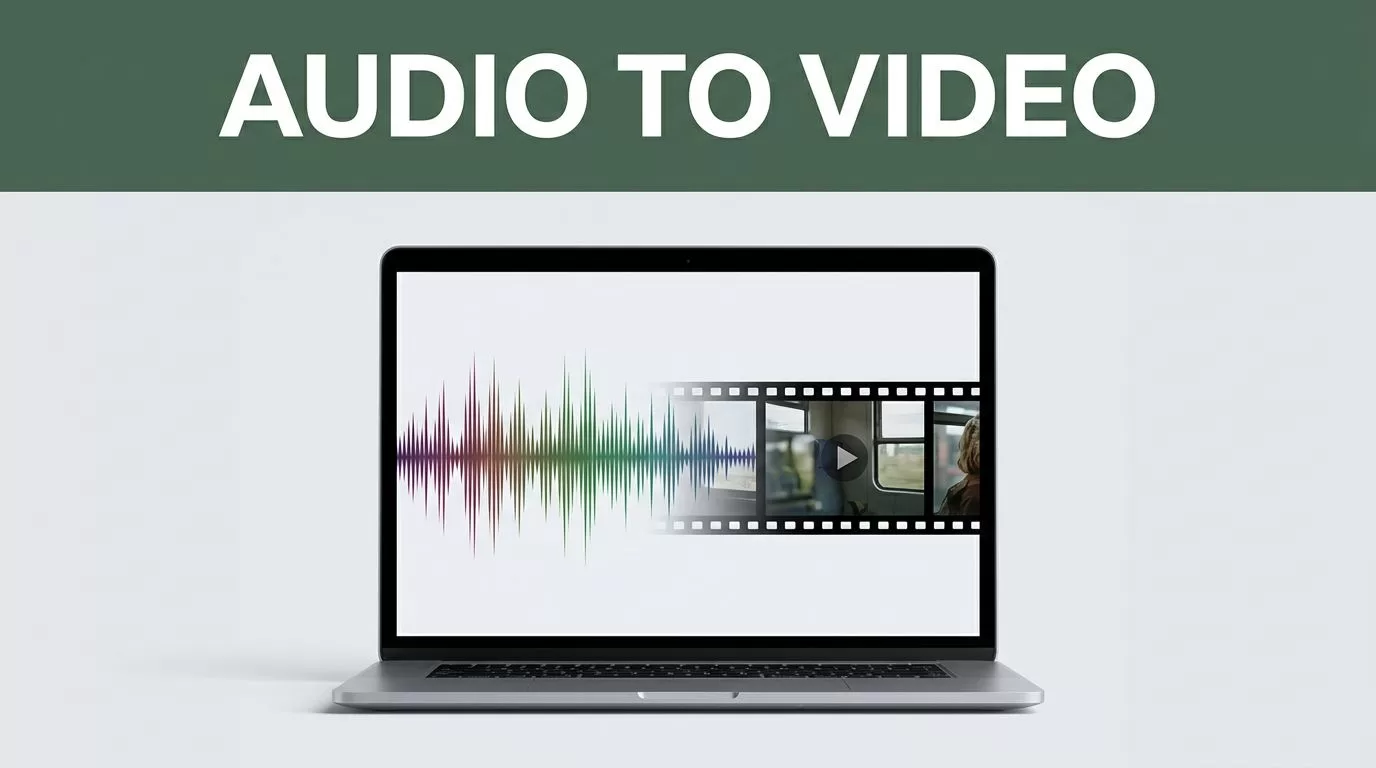
A podcast can be sharp, useful, and completely invisible if it stays audio-only. If you want reach, you need video assets too, and you need a repeatable way to make them without burning time every week.
That is where an audio to video converter workflow matters. Transistor.fm handles hosting and distribution well, but Opus is the tool that turns spoken episodes into usable video clips. The job is not to force one platform to do everything. The job is to assign each tool a clean role.
Key Takeaways
- Transistor.fm does not generate rich video clips from raw audio on its own.
- Opus is the conversion layer when you want animated, captioned, shareable clips.
- Transistor’s native YouTube path wraps audio with a static image, which is useful but limited.
- Full video podcast hosting in Transistor requires a video file first. It does not create that file for you.
- The clean workflow is simple, export from Opus, then publish the right file in the right place.
What Transistor.fm handles natively, and what it doesn’t
As of July 2026, Transistor is a podcast host first. It stores your feed, publishes episodes, and supports video podcast hosting when you already have a video file. It also has a native YouTube integration, but that integration is a packaging step. It wraps audio with a static background image. It does not create motion graphics, animated waveforms, or short-form social clips.
That split matters. If you want a simple YouTube version of an audio episode, Transistor can do that. If you want a true video clip for marketing, Opus does the conversion and Transistor sits downstream as the host or distribution layer.
Transistor’s own audiogram guide shows the static-image approach. Its audio and video publishing guide covers the full video route when you already have an MP4.
Transistor can package audio into video for YouTube. It does not replace a real clip editor.
Here is the clean comparison.
| Path | What happens | Best use | Limits |
|---|---|---|---|
| Transistor YouTube integration | Audio is wrapped with one image | Simple YouTube publishing | No motion, no clip selection |
| Opus Clip export | Audio becomes a captioned video clip | Social cutdowns | Separate upload step |
| Transistor video podcast hosting | Existing MP4 is distributed | Full video episodes | Requires a video file first |
The table makes the decision easy. Use Transistor for hosting and distribution. Use Opus when the output needs to feel like a real video asset.

Set up Opus as the actual converter
The handoff works best when you prepare the source file before you upload anything. Opus can only work with what you give it. Clean audio in means cleaner clips out.
- Start with the final episode audio.
Cut dead air, remove bad takes, and lock the final version before you build clips. If the source file changes later, your clip library drifts. - Upload the episode to Opus.
Use the full conversation, not a teaser cut, if you want the tool to find multiple moments worth sharing. A longer source gives you better segment options. - Set the output format before you export.
Vertical clips fit short-form feeds. Square clips work better for some social placements. If you expect viewers to watch with sound off, keep captions on. - Tighten the brand settings.
Keep fonts, colors, and framing simple. You want the clip to look like your show, not like a generic template. One bad visual choice can make the clip feel off-brand. - Check captions and speaker cuts.
Podcast dialogue can jump fast. Make sure the clip starts on a clean sentence and ends before the thought gets clipped off. - Export with a clear file name.
Use the episode number, guest name, and clip angle. A file calledep-42-finding-buyer-intent.mp4is easier to manage thanfinal-export-3.mp4.
The point is not to micromanage every frame. The point is to get a video file that is already ready for publishing.
Publish the finished video without breaking the RSS workflow
Once Opus has created the clip, decide what the file is for. That choice changes where it should go next.
If it is a full episode video, upload it to Transistor’s video podcast hosting. That path is native, but it is not an audio conversion. Transistor expects a video file. It then distributes that file to YouTube, Apple Podcasts, Spotify, and supported RSS apps like Pocket Casts, Fountain, True Fans, and iHeartRadio.
If it is a promo clip, keep it out of the podcast feed. Publish it as a marketing asset. That keeps your RSS clean and your social output separate.
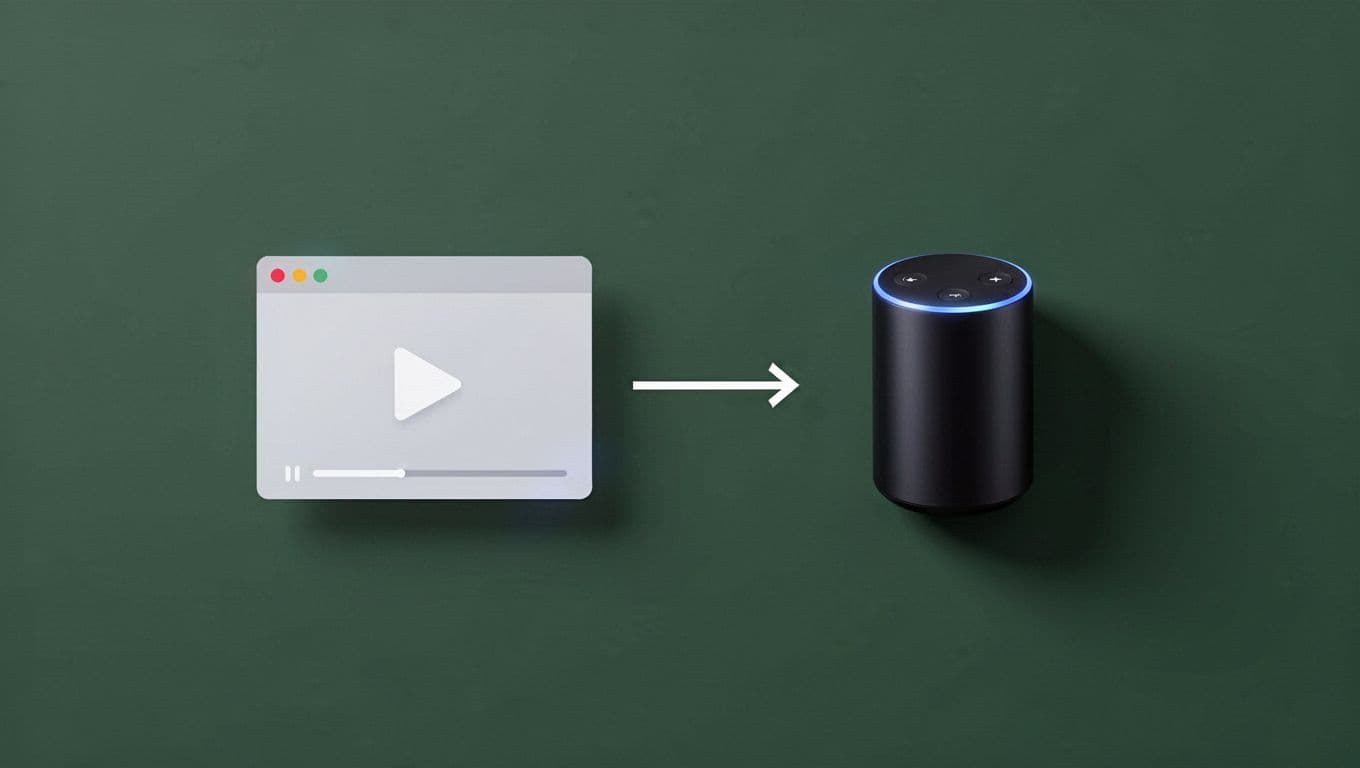
If your goal is only to turn an audio episode into a simple YouTube version, Transistor’s native YouTube integration is enough. It wraps the audio with a static image and publishes the result. That is useful when you want a low-effort video surface, but it is not the same as a clip generated in Opus.
The deployment path usually looks like this:
- Generate the clip in Opus.
- Confirm the aspect ratio and caption layout.
- Export the MP4.
- Upload the file to the right destination.
- Keep the audio episode in Transistor as the source of truth.
That last step matters. Transistor should remain the system for the podcast feed. Opus should remain the system for video creation. When those roles stay separate, your workflow stays predictable.
Common mistakes that slow teams down
Most failures happen at the handoff, not in the tools themselves. The process is simple, but small mistakes create rework.
- Using the wrong output type.
Teams often build a social clip, then try to push it through video podcast hosting. Full video hosting is for full episodes. Promo clips belong in marketing channels. - Treating the static-image YouTube path like a real converter.
Transistor can package audio into video for YouTube. It cannot replace Opus when you need motion, captions, or a clip that feels built for social feeds. - Choosing a bad aspect ratio.
A horizontal clip can work on YouTube, but it often performs poorly on mobile-first feeds. Set the format with the destination in mind. - Skipping caption checks.
Auto-captions can miss punctuation or speaker changes. A quick review fixes most of the damage. - Losing track of file names.
If every export is called the same thing, version control turns into guesswork. Clear naming saves time later.
The fast fix is discipline. Build once, export once, publish to the right place once.
Conclusion
If you need a true audio to video converter, Opus does the conversion. Transistor.fm does the hosting, distribution, and the simple YouTube packaging route when a static image is enough.
The clean 2026 workflow is not complicated. Use Opus for the video asset, keep Transistor as the podcast system, and only use Transistor’s video podcast hosting when you already have an MP4. That keeps the pipeline sharp, which is exactly what a busy podcast team needs.
When the file needs motion and captions, ask the converter to convert it, and let the host do the hosting.

