How to Automate Diet Planning With Twin.so
Most diet-plan work doesn’t fail because the formulas are difficult. It fails because coaches repeat the same intake, conversion, calculation, formatting, and follow-up tasks for every client. You can automate diet planning with Twin....

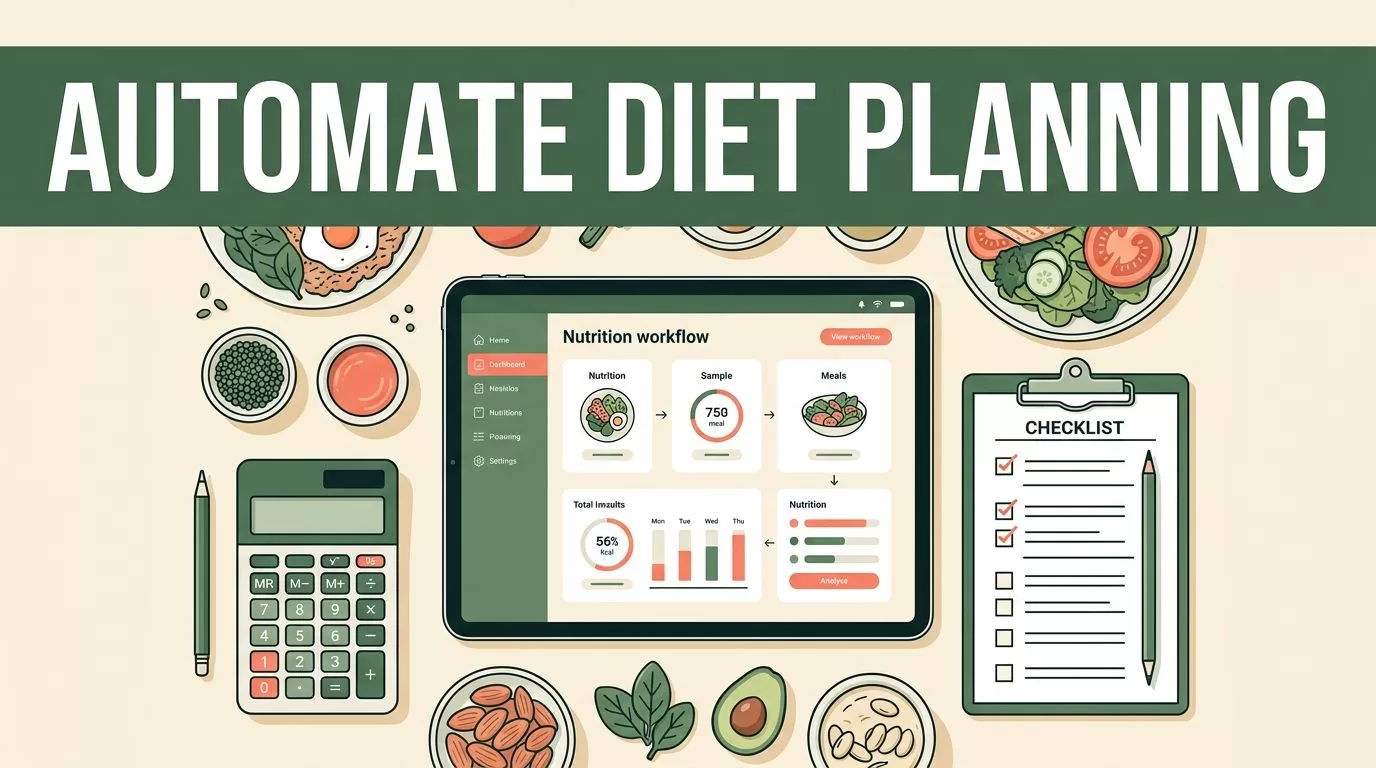
Most diet-plan work doesn’t fail because the formulas are difficult. It fails because coaches repeat the same intake, conversion, calculation, formatting, and follow-up tasks for every client.
You can automate diet planning with Twin.so by connecting client inputs to repeatable calculation steps and delivery workflows. Twin.so can handle data movement and routine arithmetic, but it doesn’t replace a qualified professional’s clinical judgment. Start with one controlled workflow, validate every output, then expand.
What Twin.so Can Automate in a Nutrition Workflow
Twin.so is an AI agent platform for multi-step work across apps and websites. Its current setup uses workspaces, and every agent must live inside a workspace. A workspace can contain one agent or several agents that share context and knowledge.
The platform’s Orchestrator works as the workspace-level command center. You describe the workflow in natural language, and it can create or update agents, coordinate tasks, and track runs or schedules.
For a nutrition coach, that structure can support a workflow such as:
- Read a completed intake form or spreadsheet row.
- Check that required fields are present.
- Convert units into a standard format.
- Apply your approved calculation rules.
- Write the results into a spreadsheet or client document.
- Mark the record for review.
- Send an internal notification or prepare a follow-up task.
Twin.so supports API connections and browser automation. That matters when a tool has no suitable API or when an agent needs to work inside a web dashboard. Agents can also run on schedules or respond to webhooks, which gives you options for weekly check-ins, new intake submissions, or recurring report preparation.
The best automation targets are repetitive and easy to verify. Intake cleanup, unit conversion, calorie and macronutrient calculations, document creation, task creation, and internal alerts fit this model.
Clinical assessment doesn’t.
A broader coaching software stack may still need check-ins, habit tracking, payments, and client communication. This health coaching software comparison can help you separate those functions from the calculation layer.
Twin.so can automate the process around a diet plan. It should not make unsupervised clinical decisions about a client.
How to Automate Diet Planning Calculations in Twin.so
Twin.so works best when you give it a defined process instead of a vague instruction such as “make a meal plan.” Build the workflow in small blocks. Each block should have a clear input, action, and output.


1. Create a focused workspace
Create a workspace for a defined business function, such as client nutrition operations. Keep related agents and documents in the same workspace so they can share the required context.
Don’t place every business process in one workspace. Twin.so workspaces are independent, so agents in separate workspaces cannot directly communicate. Separate spaces can help you control access and reduce unrelated instructions.
Name each agent by its job. Examples include:
- Intake Validator
- Nutrition Calculator
- Plan Document Builder
- Weekly Review Assistant
You may not need four agents at the start. One focused agent can handle the first version. Add separate agents when the workflow becomes difficult to test or maintain.
2. Define the input schema
The agent needs consistent fields before it can calculate anything. Create a standard intake structure in your form, spreadsheet, or client platform.
Common non-clinical inputs include:
- Client identifier
- Age
- Height and weight
- Measurement units
- Activity description
- Stated goal
- Dietary preferences
- Allergens and exclusions
- Meals per day
- Coach review status
Use fixed field names. Decide whether weight is stored in kilograms or pounds. Decide how height is stored. Don’t make the agent guess when a value is missing or formatted differently.
Your agent instruction should say what happens when data is incomplete. A missing height should return “Needs Review,” not an assumed value.
3. Connect the source and destination
Connect the location where client data arrives. That might be a spreadsheet, form, CRM, or another tool with an available integration.
Then define the destination. The output may go to a calculation sheet, Google Doc, internal CRM record, or review queue. Twin.so can work across connected applications and websites, but you should limit access to the tools the workflow needs.
Use a test record first. Confirm that the agent reads the correct row, identifies the right client, and writes to the correct destination. A correct formula applied to the wrong client is still a serious failure.
4. Add a review state
Make the first output a draft. Add a visible status such as Needs Review, Approved, or Returned for Correction.
This step keeps automation separate from delivery. The agent can prepare the calculations and document, while a coach checks the result before the client receives anything.
Build Calculation Blocks That Stay Consistent
Don’t place all of your math inside one long natural-language prompt. Store the rules in a calculation sheet or structured document. Let Twin.so move the inputs into that system and retrieve the results.

A simple calculation design might look like this:
| Calculation area | Required inputs | Output control |
|---|---|---|
| Energy estimate | Weight, height, age, approved formula | Round to your defined increment |
| Protein target | Body weight, approved target range | Return grams and calculation basis |
| Meal distribution | Daily totals, meals per day | Check that meal values add to the daily total |
| Dietary filters | Preferences, allergies, exclusions | Flag conflicts before approval |
If your professional protocol uses the Mifflin-St Jeor equation, store the equation and its constants in the calculation layer. Keep weight in kilograms, height in centimeters, and age in years. Handle unit conversion in a separate step.
Don’t ask the agent to select a formula based on a client’s condition. Choose the formula and operating rules in advance. The agent should apply the rule you approved, not decide which rule sounds appropriate.
The same approach applies to macronutrients. Store the target method, unit, rounding rule, and range. If your process calculates protein from body weight, define the exact factor or range in the sheet. If the client falls outside your permitted inputs, return a review status.
Add checks for:
- Missing or duplicate client records
- Impossible or out-of-range values
- Pounds entered where kilograms are expected
- Totals that don’t match meal-level calculations
- Allergens appearing in proposed food data
- Outputs below a professional safety threshold
- Conflicting instructions across source documents
The agent should stop when a check fails. It should report the issue and identify the field that needs correction.
This approach makes the system easier to audit. You can change a formula in one controlled location instead of rewriting a prompt every time your process changes.
Review, Approve, and Deliver the Output
A calculation workflow is useful only when the result reaches the right person in the right format. Tell Twin.so what the final document must contain.
A practical output can include:
- Client identifier and date
- Input values used
- Formula or method applied
- Daily totals
- Meal-level targets
- Client preferences and exclusions
- Missing information
- Review status
- Notes for the coach
Keep the calculation record separate from the client-facing document. The internal record should show the source values and calculation trail. The client document can use simpler language and omit internal system details.
Twin.so can also prepare recurring workflows. A scheduled agent might scan a review sheet each morning and create an internal task for records marked Needs Review. A webhook could trigger an intake validation process when a new submission arrives.
Don’t let a scheduled agent send dietary recommendations automatically during your first deployment. Run it in draft mode. Compare its output with manual calculations for at least several records. Check edge cases, not only clean inputs.
You can also review the wider tools for online nutrition coaches when deciding whether Twin.so should handle calculations, or whether another platform should manage check-ins and client delivery.
Keep Clinical Judgment Outside the Automation
Automation of calculations is not individualized medical nutrition therapy. Twin.so can process values and apply rules. It cannot diagnose a condition, assess a medical history, interpret lab results, or take responsibility for a clinical recommendation.
Use extra caution when a workflow involves diabetes, kidney disease, gastrointestinal conditions, medication interactions, pregnancy, breastfeeding, children, older adults with complex needs, or eating disorders.
Readers with these needs should consult a qualified healthcare professional or registered dietitian. Nutrition coaches and personal trainers should operate within their training, credentials, local laws, and professional scope.
The system also needs privacy controls. Collect only the information required for the workflow. Restrict access to client records. Use clear consent language. Review how connected tools store and process personal health information. Don’t assume that an AI automation platform automatically meets HIPAA, GDPR, or another privacy standard for your business.
A registered dietitian can use automation to reduce administrative work while keeping assessment and recommendations under professional control. Coaches without clinical credentials can use the same structure for general wellness education, habit support, food preferences, and routine tracking, with a clear referral process for clinical cases.
For a broader comparison of software used by registered dietitians and trainers, review these nutrition coaching software options.
Conclusion
Twin.so can automate diet planning calculations when the workflow has fixed inputs, approved formulas, clear error handling, and a required human review step.
Start with one workspace and one agent. Connect a single intake source to a controlled calculation sheet. Test missing values, unit errors, duplicate records, and conflicting dietary restrictions before you send anything to a client.
The strongest use of Twin.so is not replacing nutrition expertise. It’s removing repetitive data handling so professionals can spend more time reviewing the result and supporting the client. That is how you automate diet planning without automating judgment.

