How to Automate Listing Creation on Twin.so
Product data rarely arrives in a publish-ready format. Suppliers send spreadsheets, marketplaces use different fields, and product pages change without notice. You can automate listing creation on Twin.so by turning those inputs into a cont...
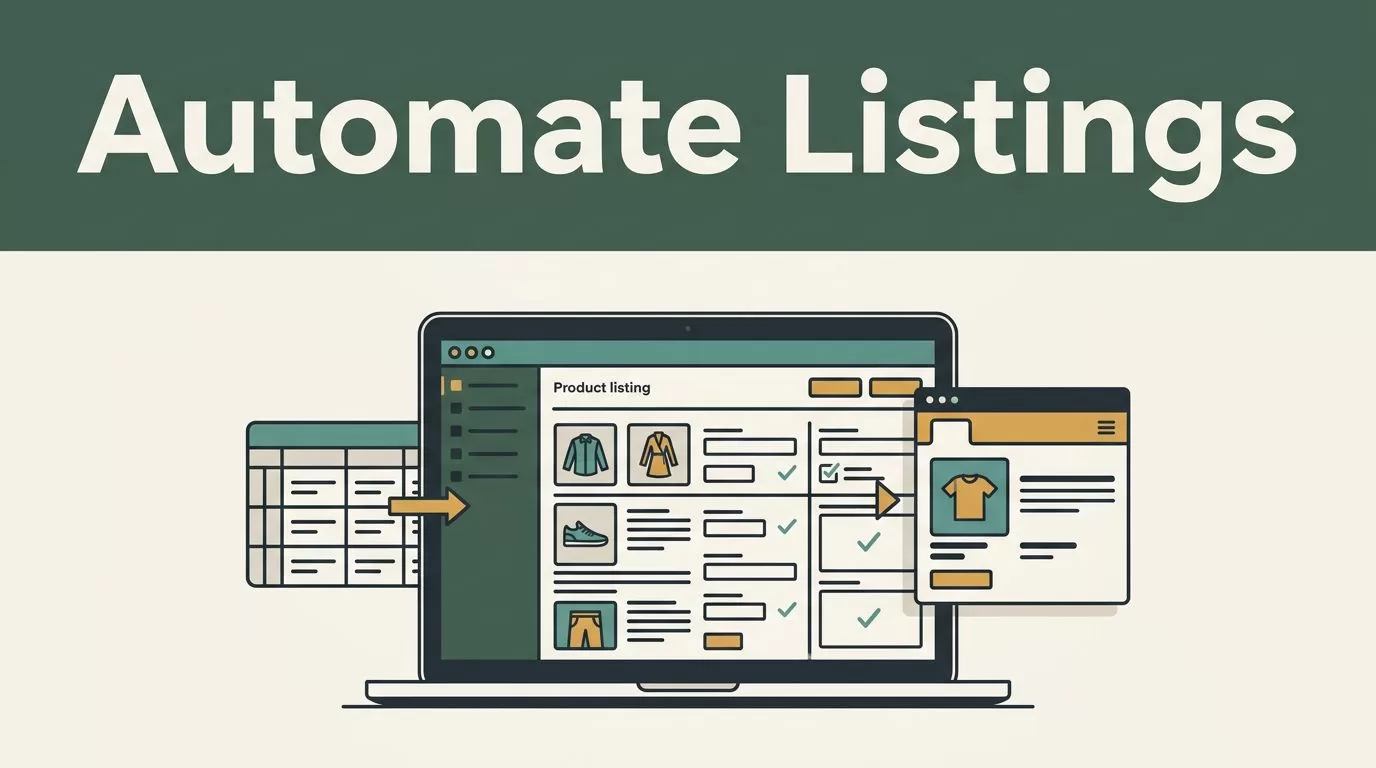
Product data rarely arrives in a publish-ready format. Suppliers send spreadsheets, marketplaces use different fields, and product pages change without notice. You can automate listing creation on Twin.so by turning those inputs into a controlled workflow for collection, enrichment, formatting, validation, and publishing.
Twin.so positions its e-commerce agents around product monitoring, competitor tracking, price changes, and AI-generated Shopify listings. The practical goal is not to remove every human decision. It is to remove repetitive preparation work and send uncertain records to review.
How to Automate Listing Creation on Twin.so
A reliable workflow starts with a fixed listing schema. Your agent needs to know what data to collect, what to generate, what to reject, and where to place the final record.
Start with one product category. Do not begin with your entire catalog. A small pilot exposes missing fields and bad assumptions before they affect thousands of listings.
A useful product schema includes:
| Field | Input or rule | Final destination |
|---|---|---|
| SKU | Supplier file or internal catalog | Store and inventory system |
| Product title | Brand, product type, size, and key attribute | Marketplace listing |
| Description | Verified specifications and approved benefits | Store product page |
| Bullet points | Three to five factual selling points | Marketplace attributes |
| Price | Supplier price plus approved margin rule | Store and marketplace |
| Stock | Supplier feed or inventory system | Store and marketplace |
| Images | Approved image URLs and file types | Product media library |
| Category | Marketplace taxonomy mapping | Listing category |
| GTIN or barcode | Supplier data, with missing-value flag | Marketplace identifier |
| Compliance fields | Material, safety, country of origin, or warranty data | Required attributes |
This structure prevents the agent from treating every source as equally reliable. A supplier SKU can identify a product. It should not automatically become a marketing claim.
Twin’s public e-commerce materials describe a workflow where you clone an agent, define products and metrics to track, connect sources such as Shopify, Amazon, Google Sheets, or marketplaces, then receive reports or updates. Verify the current integrations and write permissions in Twin.so documentation before designing the final publishing step.

Prepare the Source Data Before Building the Agent
Automation exposes bad data quickly. If your source sheet contains inconsistent SKUs, missing dimensions, and duplicate products, Twin will process those problems at scale.
Create one controlled intake location for the pilot. Google Sheets can work for an initial workflow because operations teams can inspect rows, correct values, and compare agent output without waiting for a developer. Larger catalogs may need a product information management system or a database.
Use one row per product variant. A red shirt in medium and a red shirt in large should not share one listing record if their SKUs, stock levels, or barcodes differ.
Standardize the source values before the agent reads them:
- Use one currency format for costs and selling prices.
- Store dimensions in one unit system.
- Keep image URLs in separate columns.
- Use consistent category names.
- Separate factual specifications from promotional copy.
- Mark unknown values as
missing, not as blank cells. - Add an update timestamp to every source record.
The agent can then collect additional information from approved sources. Twin says its agents can work with websites, portals, forms, dashboards, and directories through browser automation when a standard API isn’t available. That can support research tasks such as checking a manufacturer page for material details or collecting product names, prices, ratings, and order volumes from a source such as AliExpress.
Use enrichment rules that protect data quality. For example, the agent may copy a weight from a manufacturer page only when the SKU matches exactly. It may use competitor pricing as a comparison field, but it shouldn’t replace your approved selling price without a separate pricing rule.
A practical intake instruction might look like this:
Read new rows from the product intake sheet. Match each SKU against the approved supplier source. Add missing factual specifications only when the SKU and product title agree. Keep the source URL beside every enriched value. Mark unresolved fields for review.
This makes the process traceable. When someone questions a product claim, your team can find the source instead of reviewing the entire browsing session.
Build the Listing Workflow in Five Stages
Treat listing creation as a sequence of controlled stages. Each stage should produce a clear output before the next one runs.
1. Collect new or changed product records
Set a trigger for new rows, updated supplier data, or a scheduled catalog scan. Twin’s platform materials describe schedules and real-world events as supported trigger types, but confirm which trigger options apply to your account.
The collection step should identify:
- New SKUs not in the store.
- Existing SKUs with changed price or stock.
- Records with updated images or specifications.
- Products removed by the supplier.
- Variants that no longer match the parent product.
Do not let the agent create a new listing every time a supplier edits a description. Use the SKU as the primary identity key and compare meaningful fields before creating a task.
2. Enrich missing information
Next, ask Twin to fill approved fields from approved sources. Keep enrichment narrow. Product title, color, size, material, dimensions, and warranty details are easier to validate than broad claims such as “best in class” or “professional grade.”
Store the original value, the enriched value, and the source URL when possible. This gives your team a simple audit trail.
AI-generated copy should follow a fixed format. Define the title length, bullet count, tone, banned claims, and required attributes. A listing prompt might require the agent to use the brand name, product type, primary material, and variant attribute in the title. It can then generate a short description from verified fields only.
Do not ask the agent to invent benefits when the source contains no evidence. Missing information should remain missing.
3. Format the record for each channel
Shopify, Amazon, and other marketplaces don’t use identical field structures. A single product record may need multiple output versions.
For Shopify, you may need a product title, description, vendor, product type, tags, images, variants, price, and inventory data. A marketplace may require a category-specific template, an identifier, shipping information, or a different bullet format.
Create channel-specific rules rather than forcing one universal listing format. For example:
- Shopify receives a readable description with HTML-safe formatting if supported by your workflow.
- Amazon receives category attributes and marketplace-compliant bullet points.
- Google Sheets receives a review-ready export with source URLs and validation status.
The meaning of automated product listings depends on more than generating text. The system also needs consistent product data across catalog records and sales channels.
4. Validate before publishing
Validation is the control layer. Add checks before any record reaches a live store.
A listing should fail review when:
- The SKU already exists under another product.
- The title contains unsupported claims.
- The price is missing, negative, or in the wrong currency.
- Stock is stale beyond your allowed time window.
- Required category fields are empty.
- The GTIN or barcode fails your format check.
- Images are missing, broken, duplicated, or below your quality standard.
- The description includes supplier contact details or prohibited language.
- A variant has attributes that don’t match the parent product.
Use a status field such as ready, needs_review, blocked, or published. The agent should write the reason for every failed record. “Validation failed” is not enough. “Missing country of origin” gives the operator a next action.
Start with a draft-only workflow. Let Twin create or update drafts in Shopify or a review sheet first. Compare the result with manually approved listings. Move to automatic publishing only after the workflow produces consistent output across multiple product batches.
The safest publishing rule is simple: automate records with complete evidence, not records with complete-looking copy.
5. Publish and record the result
The final step sends approved fields to the selected destination. Depending on the current Twin integration and account permissions, this may involve writing directly to a store, updating a spreadsheet, or operating a marketplace interface through browser automation.
Record the outcome after each run. Store the SKU, timestamp, destination, action, status, and error message. If the agent updates a listing, keep the previous value for important fields such as price, title, and stock.
This history helps you answer operational questions:
- Which products failed validation?
- Which source caused the missing data?
- When did a price change reach the store?
- Which listings were created by the automation?
- How many records still need human review?
Add Monitoring for Prices, Stock, and Source Changes
Listing automation shouldn’t stop after publication. Product data continues to change.
Twin promotes price tracking across websites, marketplaces, and competitor stores. Its described components include web scraping, historical price storage, threshold alerts, and a dashboard. These capabilities can support a separate monitoring agent that checks competitor prices or supplier changes without rewriting your catalog automatically.
Set thresholds before enabling alerts. A five-cent change may not matter. A 15% drop from a key competitor may require a pricing review.
Keep monitoring separate from publishing. The monitoring agent can detect a price change and write an alert to your operations sheet. A pricing rule or human reviewer can then decide whether to update the selling price.
The same approach works for stock. If a supplier marks a product unavailable, the agent can flag the record, reduce available inventory, or create a review task. Don’t allow a browser automation error to be interpreted as zero stock.
Tools such as Shopify Flow, Zapier, Workato, and Linnworks are often used for moving data between e-commerce systems, as outlined in this overview of e-commerce automation tools. Twin may fit where the workflow requires browser-based actions or research across sites that don’t expose the needed API.
Test, Monitor, and Improve the Workflow
Run the first test with 10 to 20 products from one category. Include normal records, missing data, variants, duplicate SKUs, and unusual descriptions. A clean-only test hides the problems that matter.
Compare the generated records against your approved standard. Track:
- Percentage of records that pass without edits.
- Average review time per listing.
- Number of missing or conflicting fields.
- Duplicate detection accuracy.
- Publishing failures.
- Price and stock update delays.
- Human corrections by field.
Update the agent instructions when the same error appears repeatedly. Add new validation rules when operators keep catching the same issue manually.
Keep a human approval step for regulated products, safety claims, medical language, restricted categories, and large price changes. Automation should reduce review volume. It shouldn’t remove accountability from high-risk decisions.
Marketplace operators also share practical patterns for handling titles, bullets, descriptions, and tags in community discussions about automating product listings. Use those discussions for workflow ideas, but apply your own category rules and compliance checks.
Conclusion
You can automate listing creation on Twin.so by treating the process as a data pipeline, not a copywriting shortcut. Collect reliable records, enrich only from approved sources, format each channel separately, validate every required field, and publish drafts before enabling full automation.
Start with one category and a small product batch. Confirm Twin’s current integrations, browser actions, schedules, and publishing permissions in its documentation. The strongest workflow is the one that creates accurate listings while giving your team a clear reason whenever automation stops.
