How to Send Automated Booking Reminders on Twin.so
Every missed appointment costs more than an empty calendar slot. It creates idle staff time, disrupts planning, and forces someone to chase the customer. Automated booking reminders on Twin.so can move that follow-up into a defined workflow...

Every missed appointment costs more than an empty calendar slot. It creates idle staff time, disrupts planning, and forces someone to chase the customer. Automated booking reminders on Twin.so can move that follow-up into a defined workflow.
The workflow only works when it uses current booking details, respects cancellations, and sends messages through a channel your workspace supports. Set up the trigger, map the booking data, choose the timing, and test the full path before you activate it.
Why automated booking reminders matter for service teams
Customers forget appointments. They also miss messages when the original booking happened several days earlier. A confirmation sent at the time of booking doesn’t always provide enough coverage.
A reminder gives the customer a clear prompt before the appointment. It can include the date, time, service, location, preparation instructions, and a simple way to contact your team.
The operational benefit is direct. Staff spend less time sending routine follow-ups. Customers get consistent information. Your team has fewer last-minute gaps to manage.
Twin.so is useful when it connects the booking event to the next operational step. The platform should receive the booking information, check the relevant conditions, and send the approved message through an available action.
Don’t treat every booking as ready for a reminder. A cancelled appointment should stop the workflow. A rescheduled appointment should use the new time. A booking without a valid contact method should move to an exception path instead of producing a failed send.
A reminder workflow is only reliable when its booking status stays current.
Prepare the booking data before building the workflow
Start with the fields your reminder needs. The exact fields depend on your booking system and the information available to Twin.so.
At minimum, check for:
- Customer name and contact details.
- Appointment date and start time.
- Customer time zone, if you serve multiple regions.
- Service or appointment type.
- Location, meeting link, or arrival instructions.
- Booking status, such as confirmed, cancelled, or rescheduled.
- Consent or communication preferences, where applicable.
Keep the source data consistent. If one system stores the appointment time as “10 AM” and another stores it as a full timestamp, message errors become more likely. A reminder should use a clear date and time format that the customer understands.
Decide the reminder schedule before you open Twin.so. A common operating pattern is an immediate confirmation, a reminder one day before the appointment, and an optional short reminder closer to the start time. Your business may need only one message.
The timing must match the way your workspace handles delayed actions or scheduled tasks. If Twin.so exposes a scheduling control, use it for the reminder offset. If your setup doesn’t provide that control, keep the timing in the booking system and use Twin.so for the supported follow-up action.
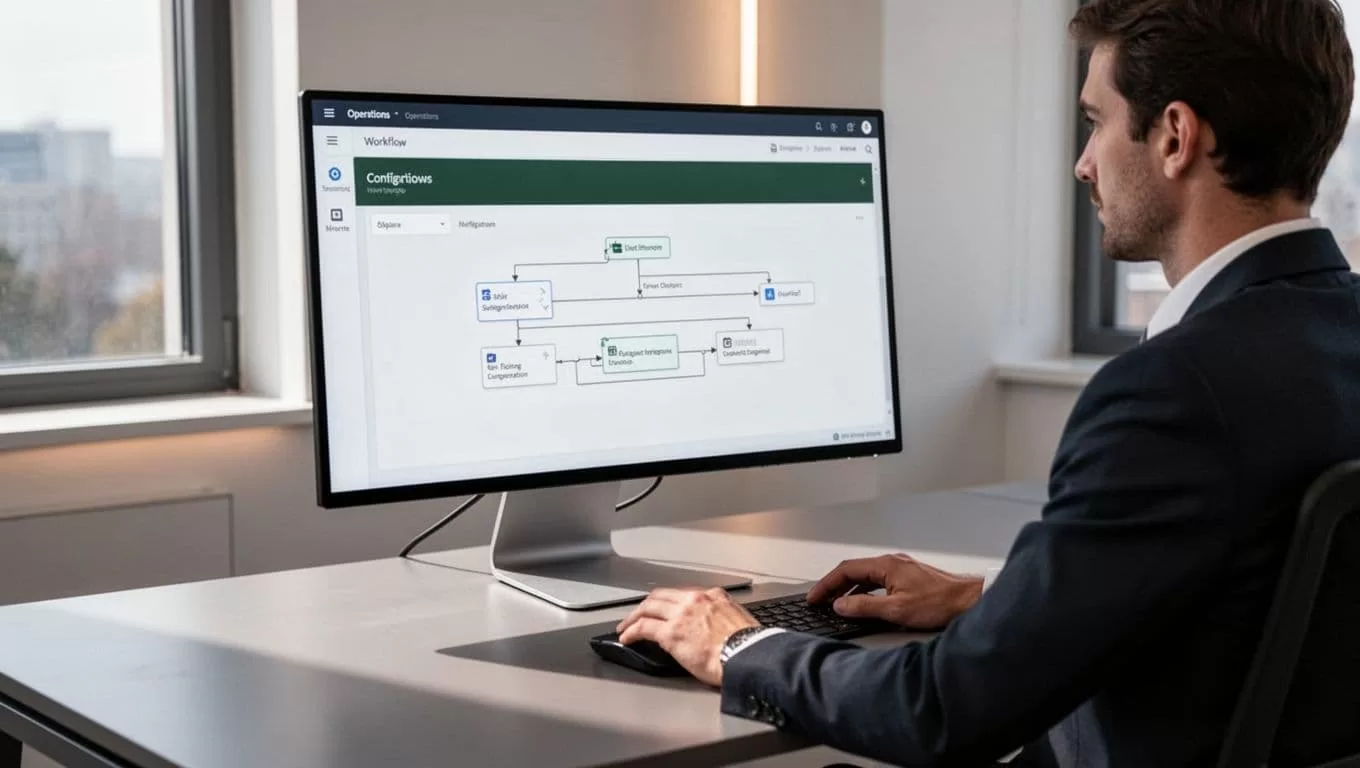
Build automated booking reminders on Twin.so
The labels in Twin.so can vary by workspace, permissions, plan, and connected services. Look for the controls that create or edit an automation. You need four basic parts: a trigger, conditions, timing, and an action.
1. Select the booking trigger
Use the event that confirms a new appointment. Depending on your setup, this may come from a connected booking source or an event already available inside your workspace.
Avoid using a generic contact-created trigger. A new contact isn’t always a new booking. The workflow should start only when an appointment exists and contains enough information for a reminder.
If Twin.so provides more than one booking-related event, choose the event that represents a confirmed appointment. Test it with one real or controlled booking before adding more steps.
2. Add conditions that protect the workflow
Conditions prevent the automation from sending the wrong message. At a minimum, check that the booking is confirmed and that the customer has a usable contact method.
Add a status check before every delayed reminder when the platform allows it. This matters because a booking can change after the first message. The workflow should not continue sending reminders for an appointment that was cancelled.
You should also account for duplicate events. Some booking systems update the same record several times. If Twin.so exposes a unique booking ID or event ID, use it to distinguish a new appointment from an update.
3. Set the reminder timing
Choose the delay based on the type of service. A dental appointment, consultation, class, and home visit may need different notice periods.
A 24-hour reminder gives customers time to confirm details or request a change. A two-hour reminder can help with short-notice preparation, but it may be unnecessary for appointments that require travel or documents.
Use the customer’s time zone when it is available. Sending a 9:00 AM reminder according to your office time can produce an inconvenient message for customers in another region.
4. Add the supported message action
Open the action list in your Twin.so workspace and confirm which communication methods are available. Do not assume that email, SMS, or a particular provider is included. Use only the channel and connection that your workspace actually exposes.
Map each message field to the booking record. The customer name, appointment time, service, and location should come from the current booking data, not from fixed text.
5. Test the full path
Run a test with a booking that has realistic values. Check the trigger, field mapping, delay, message content, and final action.
Test at least three cases:
- A confirmed booking with complete customer details.
- A cancelled booking before the reminder time.
- A rescheduled booking with a changed appointment time.
Review the execution details Twin.so makes available for the test. If a step fails, fix the data or condition before activating the workflow for every customer.
Write reminder messages that customers can use
A reminder should answer the customer’s immediate questions. Keep it short. Put the appointment details near the beginning.
Include the business name, service, date, time, location or meeting link, and contact instructions. Add a cancellation or rescheduling path only if your process supports it.
If email is available as an action in your Twin.so workspace, use a subject line that identifies the appointment clearly.
Email example
Subject: Appointment reminder for {{appointment_date}}
Hi {{customer_name}},
This is a reminder for your {{service_name}} appointment on {{appointment_date}} at {{appointment_time}}.
Location: {{location_or_link}}
Need to make a change? Contact us at {{contact_method}}.
Thanks,
{{business_name}}
If SMS is supported by your workspace and the customer has provided permission, shorten the message.
SMS example
Hi {{customer_name}}, reminder: your {{service_name}} appointment is {{appointment_date}} at {{appointment_time}}. Location: {{location_or_link}}. Questions? Reply or contact {{business_name}}.
Use the actual field names available in your Twin.so workflow. If a field isn’t available, remove that detail rather than inserting a blank value.
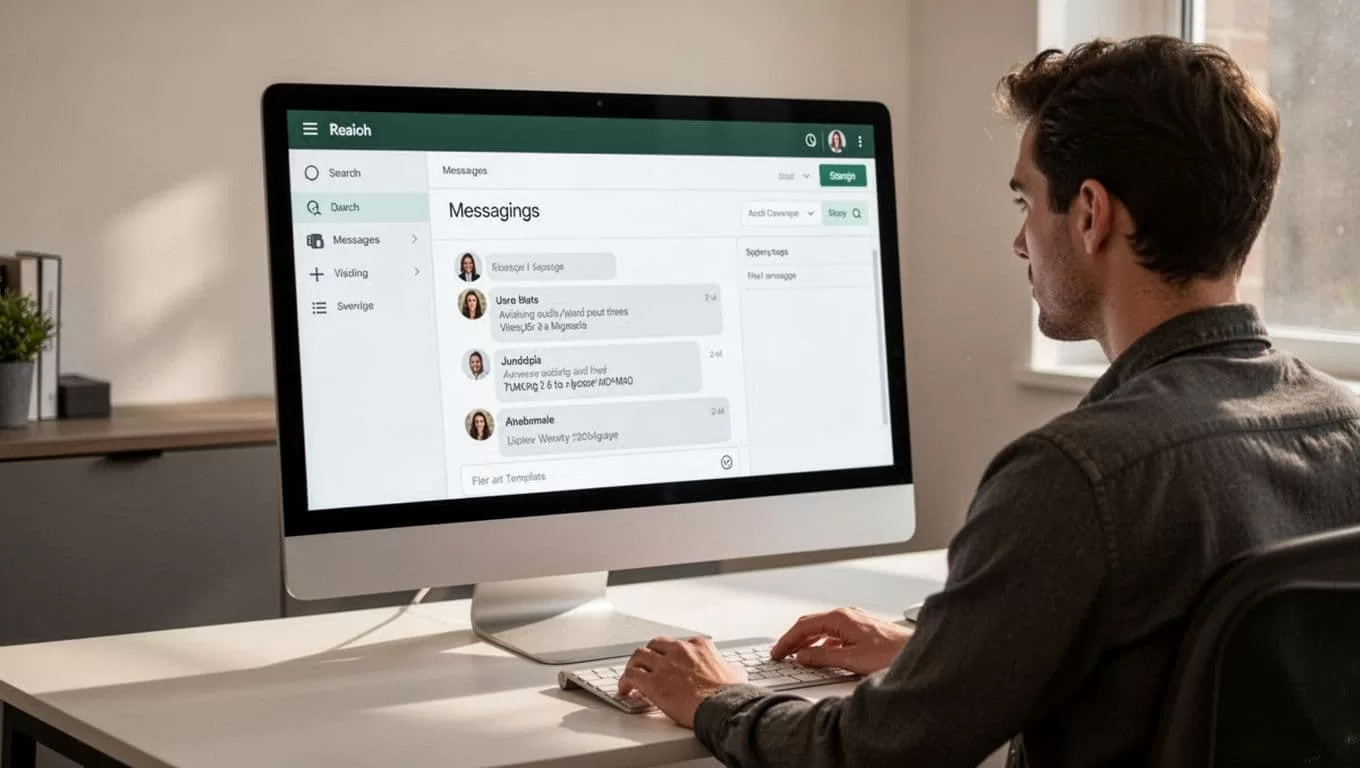
Avoid long reminders with several unrelated instructions. Customers should understand the action within a few seconds. A clear message is easier to read on a phone and easier for your team to maintain.
Handle cancellations, changes, and failed sends
The first reminder doesn’t end the workflow. Bookings change. Your automation needs rules for those changes.
When a booking is cancelled, stop any pending reminder if Twin.so supports a cancellation condition or status check. If the platform can’t re-check the booking after a delay, place the status control in the booking system before the message action.
For rescheduled appointments, use the latest booking record. Don’t rely on the original date stored when the customer first booked. A customer who receives an old reminder after rescheduling loses trust in the process.
Failed sends need a clear response. Check whether Twin.so reports the failed step, returned error, or unavailable contact field. Route the issue to a staff queue or internal notification only if that action is supported in your workspace.
Keep the fallback manual. If no supported message action can reach the customer, your team needs a visible way to identify the missed send and follow up.
Monitor the workflow after launch
Launch with a small group or one appointment type when possible. Review the first set of runs before expanding the workflow.
Check these results:
- The correct customer receives the message.
- The appointment time uses the correct time zone.
- Cancelled bookings produce no reminder.
- Rescheduled bookings use the updated details.
- Empty fields don’t appear in the message.
- Duplicate booking events don’t create duplicate reminders.
- The selected channel accepts the message without errors.
Track reminders alongside appointment outcomes. Compare the number of missed appointments before and after deployment, but don’t attribute every change to the automation. Seasonality, staffing, pricing, and booking volume also affect attendance.
Review the copy when customers ask the same question repeatedly. Those questions show which information is missing. Update the template once, then let the workflow apply the change consistently.
Keep the workflow simple as it grows
Start with one booking type and one reminder channel. Add more timing rules only after the first path runs correctly.
Separate customer messages from internal alerts. Customers need appointment details. Staff may need failure reasons, missing contact data, or cancellation updates. Mixing both audiences in one message creates confusion.
Limit access to booking information to the people and systems that need it. Use the permissions and connections available in Twin.so rather than adding unnecessary tools to the process.
Review the automation whenever you change your booking form, service names, time-zone handling, or contact process. A reminder workflow depends on those fields. Small source changes can produce incorrect messages if nobody checks the mappings.
Conclusion
Automated booking reminders on Twin.so work best as a controlled operational workflow, not as a single send action. Start with a confirmed booking trigger, map clean appointment data, apply cancellation and rescheduling checks, and use only communication channels available in your workspace.
Test the workflow with real booking conditions before activating it broadly. Once the timing, fields, and message content are correct, routine reminders can run without adding another daily task for your staff.
