Best OCR Apps for Turning Scans Into Text in 2026
A photo of a receipt should not turn into ten minutes of typing. The best OCR apps save me from that grind, and they do it in different ways. Some apps are built for quick phone scans. Others keep complex PDF layouts intact, or push text in...

A photo of a receipt should not turn into ten minutes of typing. The best OCR apps save me from that grind, and they do it in different ways.
Some apps are built for quick phone scans. Others keep complex PDF layouts intact, or push text into a workflow where teams can use it. Because of that, I look at OCR tools by job, not by hype.
I checked current support, pricing patterns, and feature sets across 2026 options. Here’s the shortlist I’d trust first.
The OCR apps I’d shortlist first
For a wider market view, I also cross-check product notes with Parsio’s 2026 OCR roundup. Prices can change, so I treat these as starting points.
| App | Platforms | OCR accuracy strengths | Handwriting support | Batch scanning | Export formats | Offline support | Integrations | Starting price |
|---|---|---|---|---|---|---|---|---|
| Adobe Scan | iOS, Android | Strong on clean scans and blurred pages | Basic | Yes | Searchable PDF, JPG | Yes | Adobe, Dropbox, Google Drive | Free, premium from about $10/mo |
| Microsoft Lens | iOS, Android | Good on notes, receipts, whiteboards | Good | Yes | PDF, Word, OneNote | Yes | Microsoft 365, OneDrive | Free |
| Google Lens | iOS, Android | Fast on short printed text | Limited | No | Copy text, share | Partial | Google Search, Keep, Drive | Free |
| CamScanner | iOS, Android | Good on mixed photo scans | Decent | Yes | PDF, JPG, Word | Yes | Drive, Dropbox, OneDrive | Free, premium from about $5/mo |
| ABBYY FineReader PDF | Windows, macOS | Best on complex PDFs and layouts | Good | Yes | PDF, DOCX, XLSX | Yes | Desktop workflows, cloud storage | About $16/mo, perpetual options |
| Nanonets | Web | Strong on custom document extraction | Strong with training | Yes | CSV, JSON, PDF | No | API, webhooks | From about $0.30/page |
My takeaway is simple. ABBYY FineReader PDF gives me the most dependable desktop OCR, while Adobe Scan and Microsoft Lens cover most phone-based jobs. If I need a tool for a team workflow, I move past simple scanning and look at extraction.
What I use on my phone for receipts and quick scans
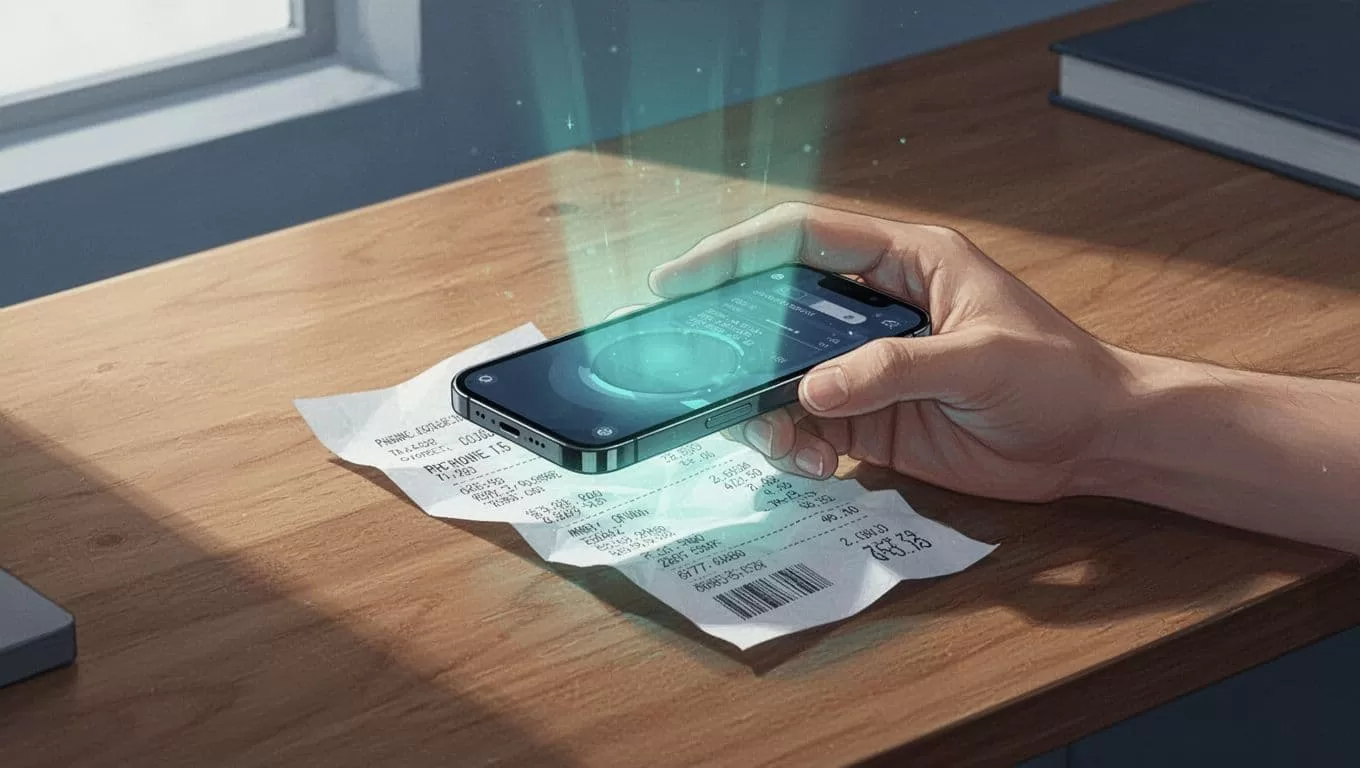
Phone OCR lives or dies on convenience. If I can point the camera, crop once, and get a searchable file, I’m happy.
Adobe Scan is still one of my first picks for mobile scanning because it makes a clean searchable PDF with very little fuss. I like that it handles multi-page scans well, and the current Adobe Scan app page still shows the free download path clearly.
Microsoft Lens is the app I use when I want simple capture with good text cleanup. It works well for receipts, whiteboards, and notes, and the export to Word or OneNote is handy. It also stays useful offline, which matters when I’m on a plane or in a poor signal area.
Google Lens is faster for tiny jobs than for real document work. I use it when I only need to copy a line from a screenshot or translate a sign. I do not rely on it for long batch scans.
CamScanner sits in the middle. It gives me batch capture and flexible export, but some of the nicer features sit behind paid plans. That’s fine if I scan often, less so if I only need it once in a while.
Why desktop OCR still wins for serious PDFs
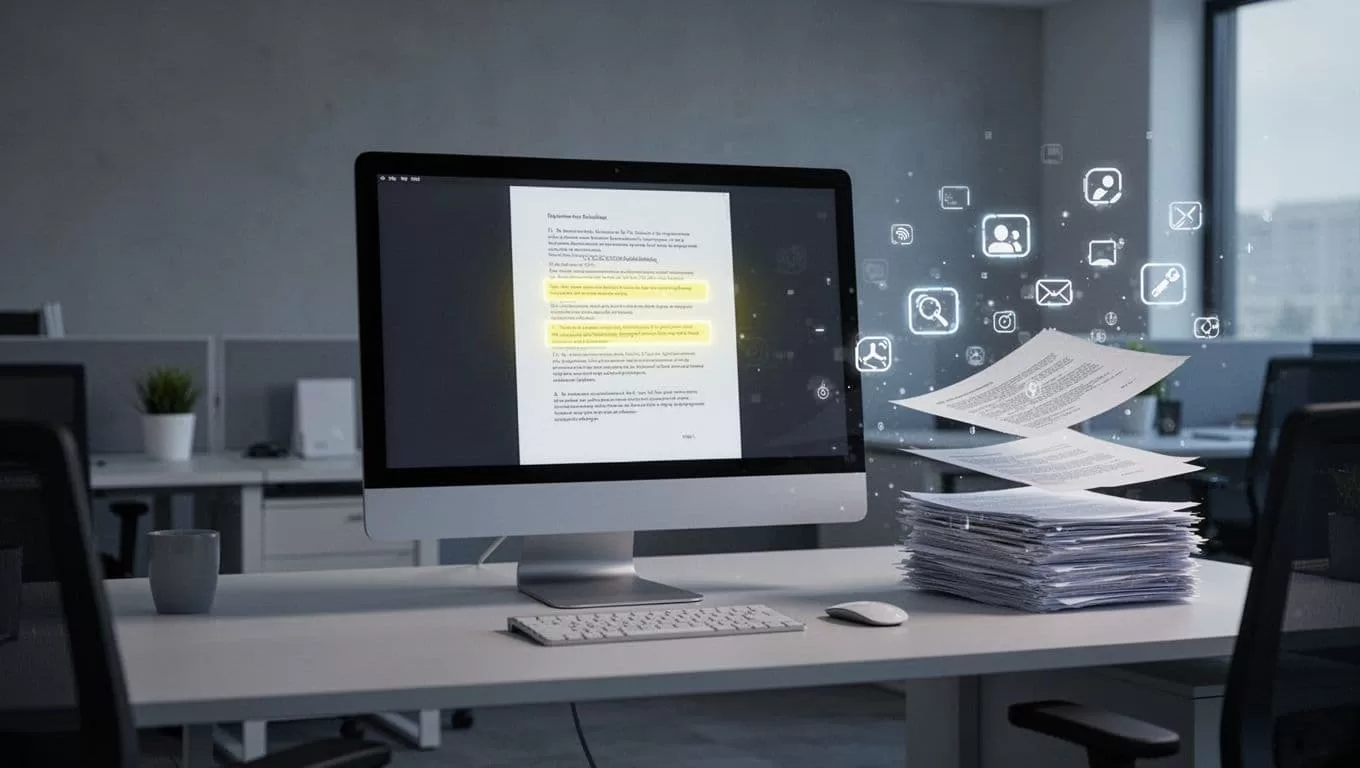
When the document matters more than the camera shot, I reach for a desktop app. That is where ABBYY FineReader PDF earns its reputation. I use it when I need tables, columns, or mixed-language files to stay readable after OCR.
I also like that ABBYY works offline on Windows and macOS. That matters for legal files, finance records, and old paper scans that need careful cleanup. The official ABBYY FineReader PDF page is the best place to check the current feature list and version details.
If I need a scanned file to survive editing, ABBYY is usually the safest bet.
This is also where business teams should think one step further. If a scan has to become structured data, OCR is only the first layer. That same handoff shows up in AI resume parsing software and in Recruit CRM’s OCR for PDFs and images, where extracted text feeds a live workflow instead of sitting in a folder.
What I check before I pay for OCR
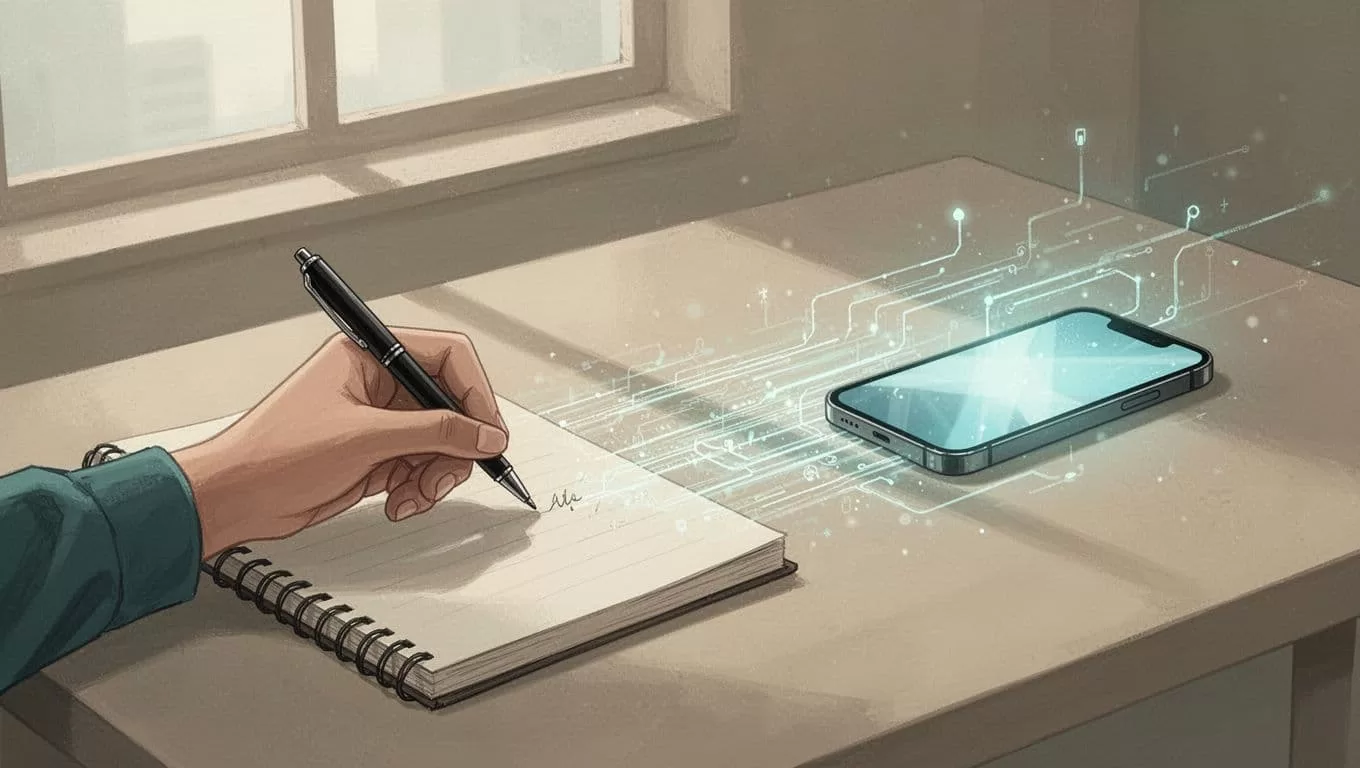
Handwriting support changes the whole answer. Some OCR apps read neat print well, but stumble on messy notes. Others handle handwritten pages better, yet lose speed on clean PDFs.
I look at four things before I subscribe:
- I pick a free app when I only need a quick text grab.
- I pay for OCR when I need better layout retention or batch jobs.
- I move to workflow tools when scans must fill a CRM or spreadsheet.
- I skip apps that hide core export features behind too many steps.
If I’m scanning receipts, Adobe Scan or Microsoft Lens usually wins. If I’m cleaning up a long PDF report, ABBYY takes the lead. If I’m building a process around extracted data, Nanonets or a workflow platform makes more sense than a phone app.
The choice I’d make in 2026
The best OCR apps do one job well, then stay out of the way. That matters more than a long feature list.
For quick phone scans, I reach for Adobe Scan or Microsoft Lens. For hard PDFs and layout-heavy files, ABBYY FineReader PDF is the one I trust most. And when I need OCR to feed a business process, I look beyond scanning and into extraction.
A good OCR app should save time, not create cleanup work.
