How I Build a Client Onboarding Workflow in Notion
Client onboarding gets messy fast. One client wants a contract, another needs a kickoff call, and a third keeps asking for files I swear I already sent. I build my client onboarding workflow in Notion so every new project starts with the sa...
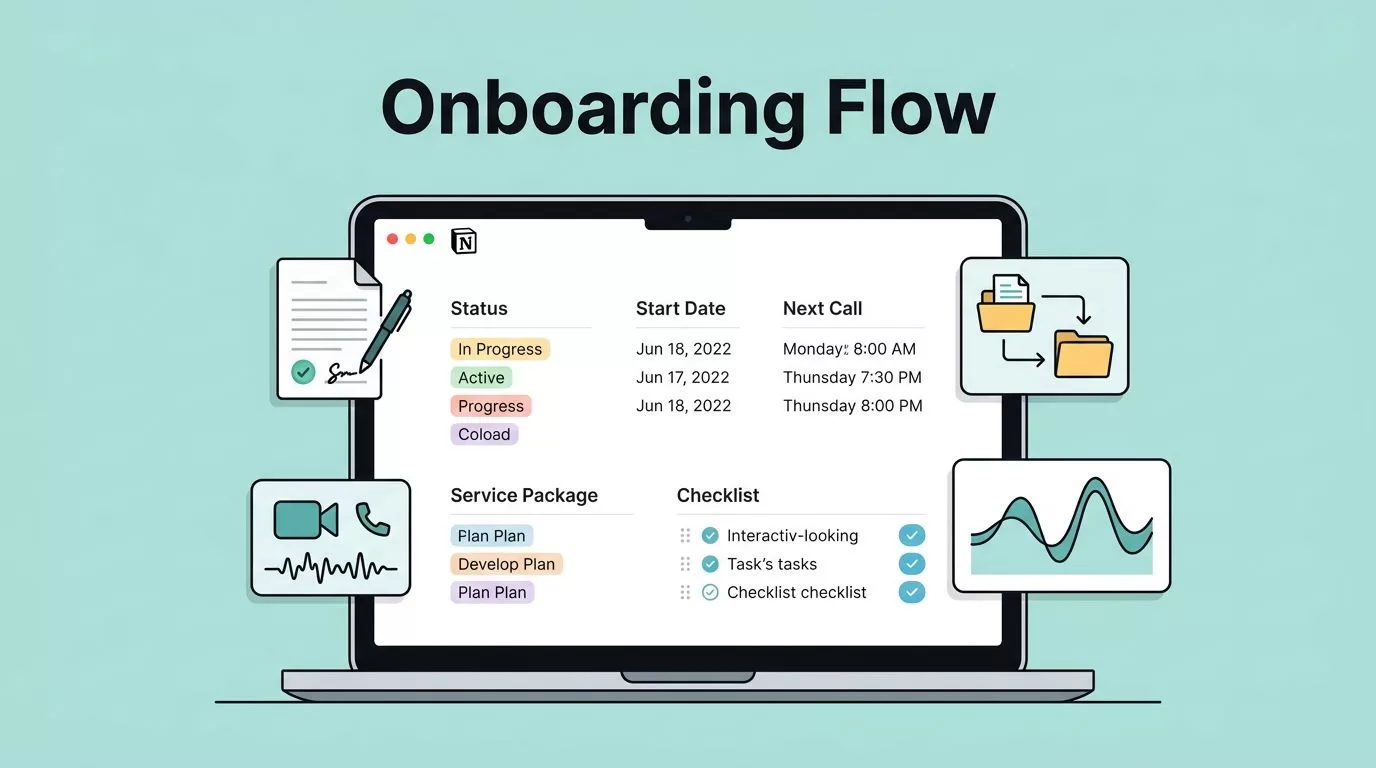
Client onboarding gets messy fast. One client wants a contract, another needs a kickoff call, and a third keeps asking for files I swear I already sent. I build my client onboarding workflow in Notion so every new project starts with the same calm rhythm.
The goal is simple. I want fewer loose ends, fewer missed steps, and a better first impression. When the setup is clear, I spend more time doing the work and less time chasing it.
Setting Up the Foundation in Notion
I start with one master page for every new client. That page holds the core record, the project space, and the links I need during the first week. It keeps me from bouncing between email, chat, and old documents.
This is the workspace I return to each time a deal closes.

I keep the layout plain on purpose. The page needs to show status, start date, service package, next call, and anything waiting on the client. If I can’t tell what matters in ten seconds, the system is too cluttered.
I also keep my structure close to common Notion setups, so I can compare it with the Client Onboarding Template on Notion Marketplace. That helps me spot gaps without rebuilding the wheel.
Creating the Intake Form That Filters the Right Clients
The intake form is where I save time before the work begins. I use it to collect the details that shape the project, not the details that sound impressive.
The questions I ask every time are simple. I want to know the client’s goal, deadline, budget range, decision-maker, current tools, and the files they already have. I also ask how they prefer to communicate. That small choice saves awkward back-and-forth later.
How I read the answers matters as much as the questions themselves. If a client has no timeline, I slow down and confirm the scope. If the budget and scope don’t match, I notice it before I start. If they skip important details, I know I need a stronger kickoff.
The intake form protects my time. If the answers are vague, the project stays on hold until they get clearer.
I like seeing how others handle this step too, especially when they connect forms and follow-up tasks. The client onboarding system in Notion is a useful reference for that kind of setup.
Building a Client Portal That Feels Clear
Once I have the intake details, I build a client portal. This is the front desk of the workflow. It answers common questions before they reach my inbox.
I keep the portal clean and calm. Clients should see the welcome note, project overview, timeline, shared files, next steps, and any meeting notes they need. I also add a clear place for approvals, because approval delays can stall everything else.
What I keep visible matters. If a client can find the kickoff date, the status of each phase, and the right files in one place, they feel less lost. That saves me from repeating the same explanations in email.
What I keep private matters too. Internal notes, draft tasks, and private comments stay out of the client view. I want the portal to feel like a guided path, not a window into my rough notes.
A good portal cuts noise. It also gives the client a place to return when they forget a link, which happens more often than people admit.
Turning Tasks Into a Tracker I Can Trust
The task tracker is where onboarding stops being a promise and starts being real. I build it so every step has an owner, a due date, and a clear status.

The fields I never skip are task name, owner, due date, status, and waiting-on-client flag. If I run a small agency, I also add the service line and project phase. Those fields make sorting easier, and they show where the bottlenecks live.
Deadlines matter, but waiting states matter too. A task marked “waiting on client” tells me the delay is outside my hands. That keeps the project from looking stalled when it is only paused.
I also like keeping one view for me and another for the client. My view includes the messy details. Their view stays focused on milestones and next actions. When I need a reminder on clean role assignment, I look at role-based onboarding structure. It helps me think in terms of ownership instead of scattered tasks.
The Rules That Keep My Workflow Useful
A Notion setup only works if I can repeat it without thinking too hard. These are the rules I follow every time:
- I keep one source of truth for each client, so I don’t split notes across five places.
- I label the client-facing space clearly, so people know where to look first.
- I make sure every task has an owner before the project starts.
- I never start work until the intake details are complete.
- I close the loop with a final checklist, so handoff doesn’t feel rushed.
That final checklist matters more than people expect. It catches loose files, missing links, and open approvals before they turn into awkward follow-up emails.
A calmer start for every new client
A strong onboarding system doesn’t need to be fancy. It needs to be clear, repeatable, and easy to trust. That is why I build my client onboarding workflow in Notion around a few simple parts that each do one job well.
When a contract is signed, I want the next step to feel obvious. A calm start saves time, but it also tells the client they made the right choice.
