How to Combine Multiple PDFs Into One File
Combining PDFs sounds simple until page order slips, file sizes balloon, or a private file gets uploaded to the wrong place. I deal with that problem often, so I keep a short routine for each device I use. The right method depends on the fi...

Combining PDFs sounds simple until page order slips, file sizes balloon, or a private file gets uploaded to the wrong place. I deal with that problem often, so I keep a short routine for each device I use.
The right method depends on the files in front of me. A tax packet needs a different path than a stack of receipts or a sales deck. I match the tool to the risk level first, then I combine PDFs.
Pick the right method before you start
I save time when I choose the safest path first. If the files are sensitive, I prefer a local app. If they’re light and low-risk, I may use a browser tool.
| Method | Best for | Privacy level |
|---|---|---|
| Local desktop app | Contracts, tax files, client docs | High |
| Mac Preview | Quick merges on a Mac | High |
| Online merger | Shared computers, one-off jobs | Medium |
That small choice matters. It keeps private files off shared servers and makes the rest of the job easier.
Combine PDFs on Windows with a desktop app
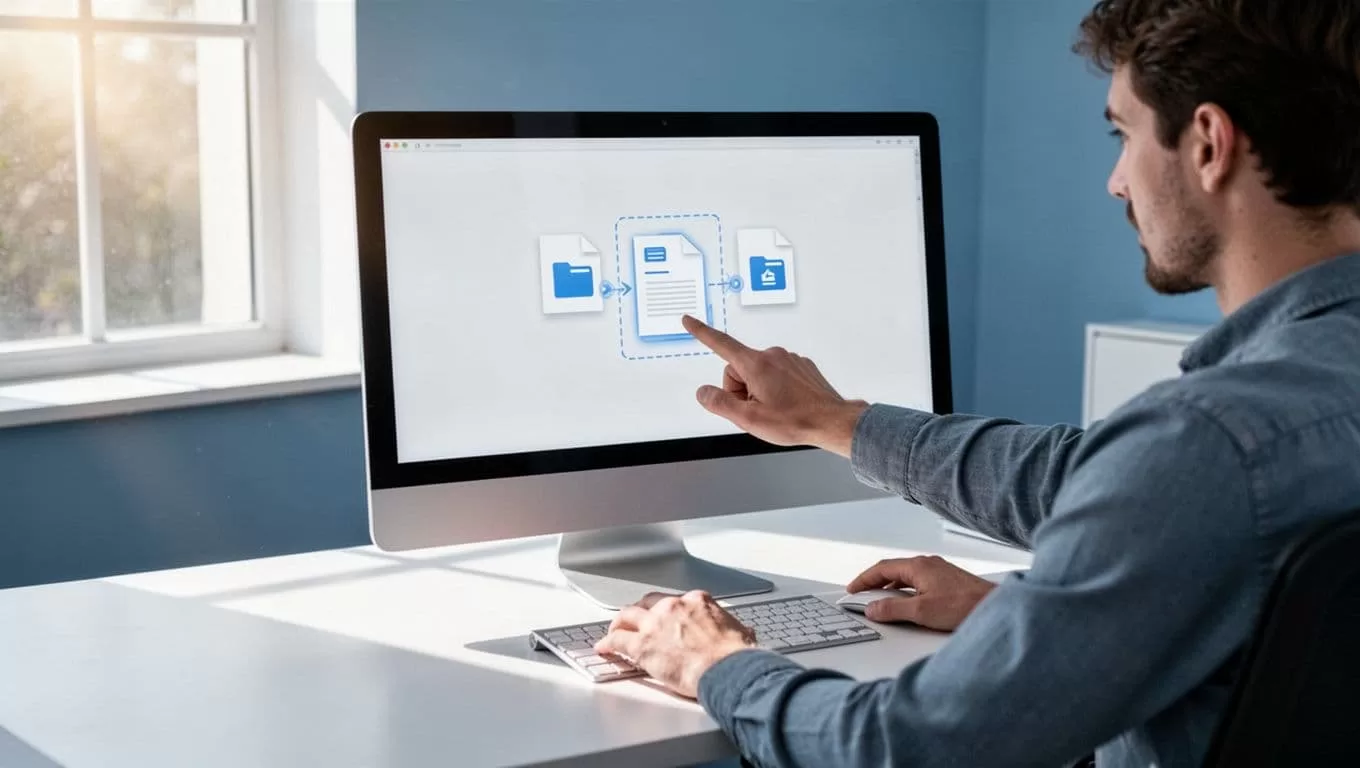
Windows doesn’t give me a clean native merge tool, so I use a desktop app when I want control and privacy. For that, I like PDFsam Basic because it runs on my computer and keeps the files local.
Here’s how I do it:
- Open the merger and add the PDF files.
- Drag them into the order I want.
- Check the file names and page order one more time.
- Click merge, then save the new PDF with a clear name.
I treat the order step like laying pages on a desk. Once the stack looks right, the final file usually does too. If one page sits in the wrong spot, I fix it before I merge. That saves me from redoing the whole job later.
Merge PDFs on Mac with Preview
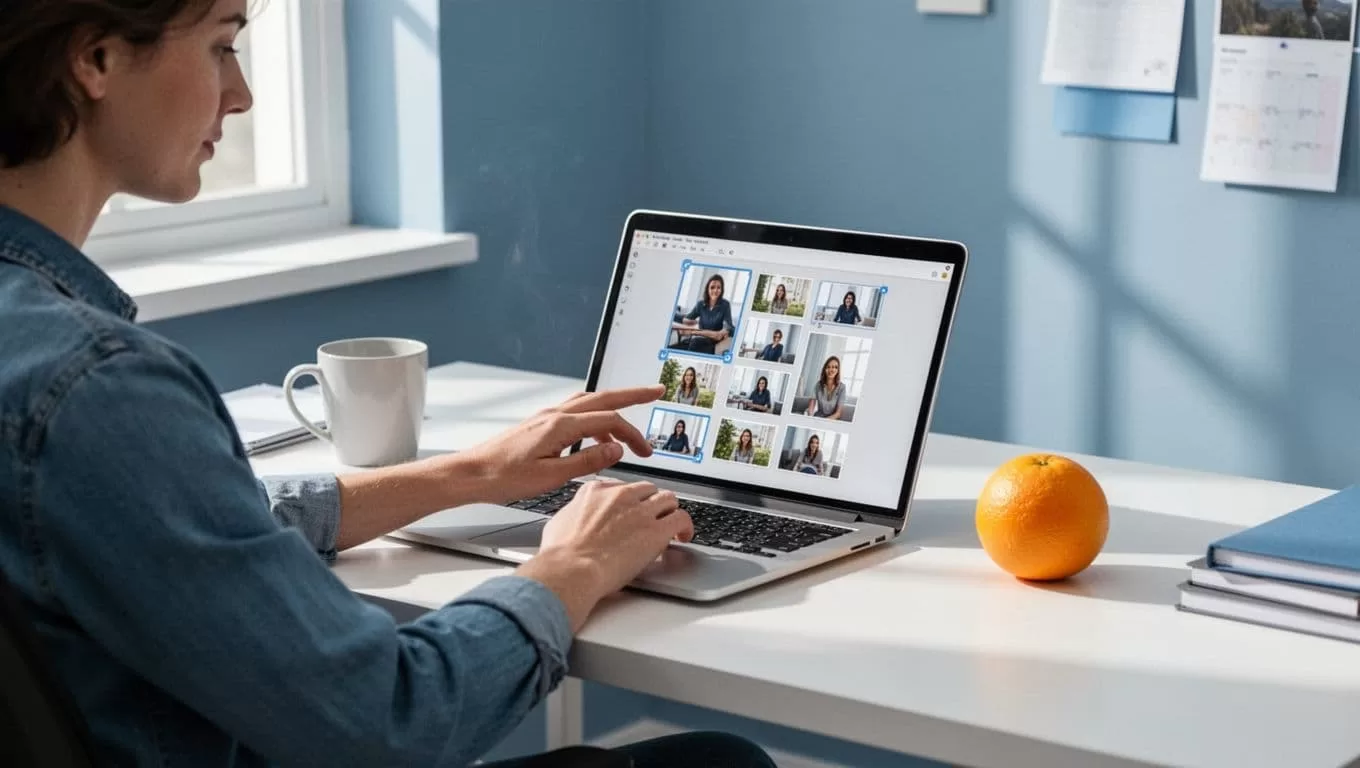
On a Mac, Preview is the easiest native option I’ve found. I don’t need extra software, and I can move pages around with a few clicks.
I usually follow this path:
- Open the first PDF in Preview.
- Turn on the thumbnail sidebar.
- Open the other PDF, then drag its pages into the first file.
- Reorder any pages that landed in the wrong place.
- Save the finished file as a new PDF.
Preview is handy when I need a quick merge, but I still check the page flow before I save. A missing cover page or swapped appendix can ruin a clean handoff.
If the file gets too large, I use Export and reduce the size before sending it. That helps when email limits get in the way.
Combine PDFs on a phone or in the browser
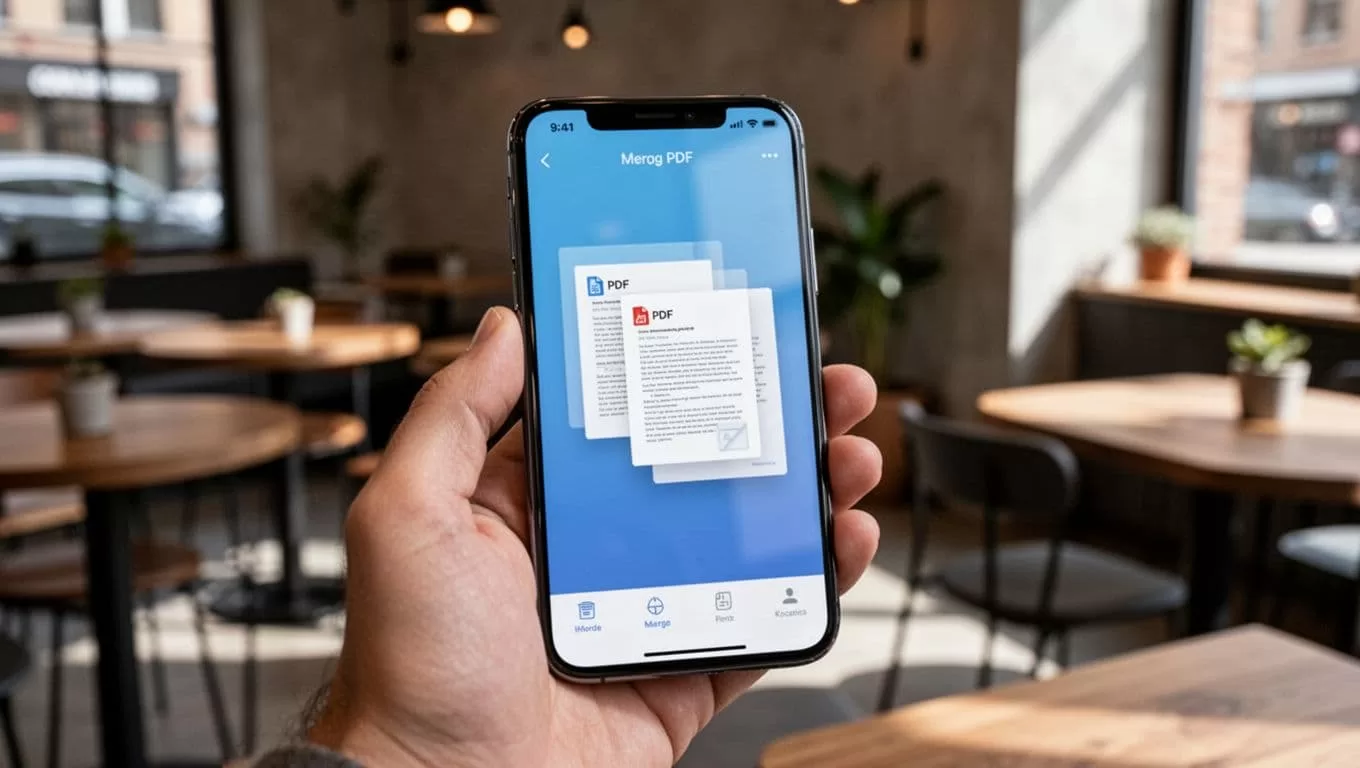
When I’m away from my laptop, browser tools and mobile apps fill the gap. They’re fast, especially for receipts, school papers, or simple work files.
Before I pick one, I often scan a couple of current tool roundups, like Jotform’s PDF merge guide or Smallppt’s free PDF merger list. That helps me compare options without guessing.
My basic process stays the same:
- Upload the PDFs.
- Arrange the files in the right order.
- Merge and download the result.
- Delete the uploaded files if the service keeps copies.
I only use online mergers for files I’d be fine uploading to a third-party service.
That rule keeps me out of trouble. For payroll, IDs, contracts, or anything else sensitive, I use a local app instead of a browser tool.
Keep private files private
Privacy matters more than speed when the PDF holds real business data. I check for HTTPS, read the privacy note, and avoid tools that keep files longer than I want.
If a service processes files in the browser or deletes uploads right after download, I feel better about using it. If it sounds vague about storage, I move on. I don’t need surprises when the file contains client info or signed documents.
For sensitive work, I usually stay offline. That simple choice gives me more control over where the file goes and who can see it.
Check the final PDF before you share it
I never send the merged file without opening it first. A quick scan catches problems that a merge button won’t warn me about.
- I flip through every page in order.
- I check that pages didn’t rotate or shift.
- I make sure the file name is clear.
- I compress the file if it’s too large for email.
- I keep a backup copy before I send anything important.
This last check saves time later. A five-second scan can catch a bad page order or a missing page before someone else does.
Combining PDFs gets easier when I match the method to the device and the file type. On a Mac, Preview is usually enough. On Windows, a local app like PDFsam keeps things neat. For a phone or a borrowed laptop, I use browser tools only when the files are low-risk.
Once I keep page order, privacy, and file size in mind, the whole task feels simple. The merged PDF lands in one clean file, ready to send, store, or sign.
