Deploy An Auto Scroll Reading App From Speechify
Reading dense technical documents or long research papers requires active cognitive engagement. When you consume large volumes of text, maintaining focus without physical fatigue becomes a primary operational hurdle. Modern text-to-speech p...

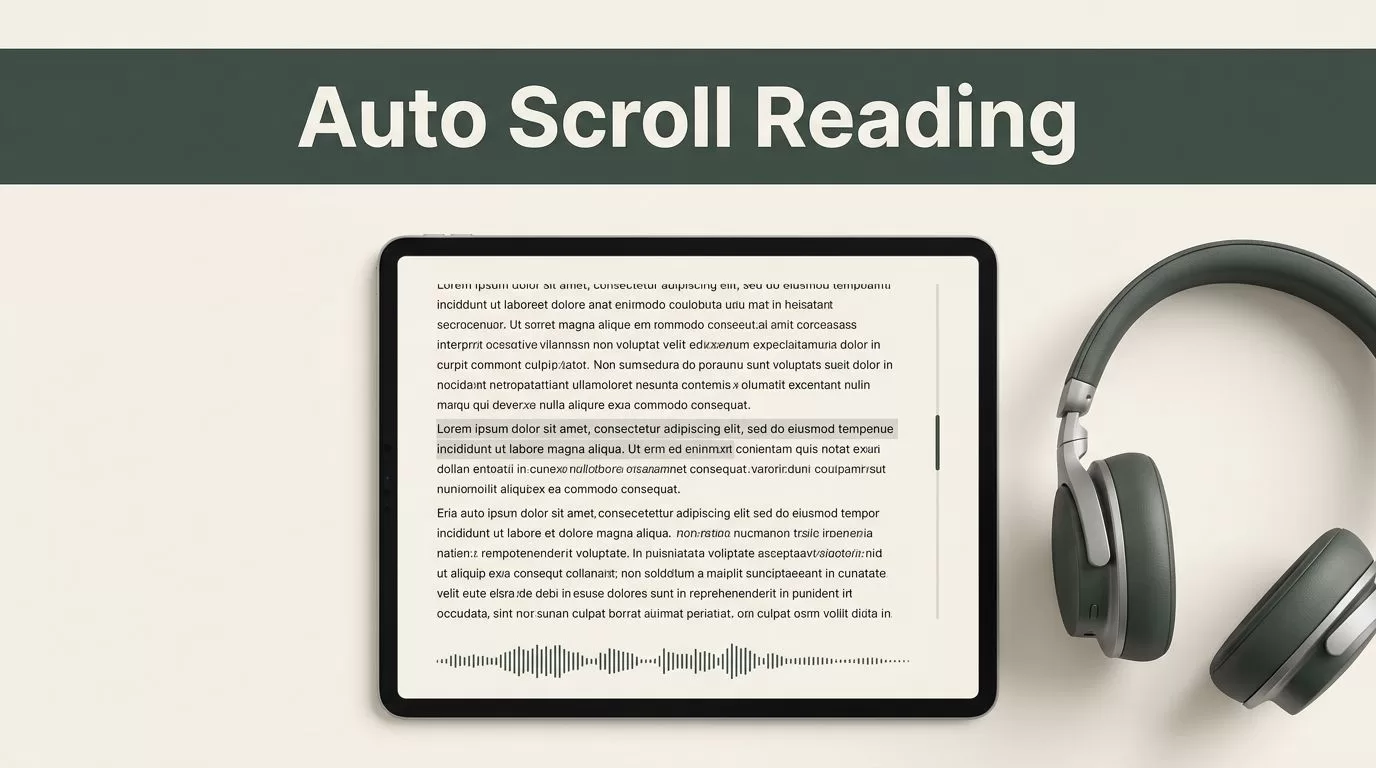
Reading dense technical documents or long research papers requires active cognitive engagement. When you consume large volumes of text, maintaining focus without physical fatigue becomes a primary operational hurdle. Modern text-to-speech platforms solve this by converting written text into natural-sounding audio streams while tracking your position on screen. If you want to deploy an auto scroll reading app, you need a clear setup strategy that connects audio playback with visual tracking. This guide walks you through configuring your environment, integrating the core features, and optimizing your daily reading workflow.
Key Takeaways
- Pair text-to-speech audio playback with synchronized word highlighting to keep your attention locked on the material.
- Organize research files into dedicated digital folders to prevent constant context switching during study blocks.
- Increase your playback speed gradually as your auditory processing adapts to faster pacing.
- Use bookmarking and export tools to bridge the gap between passive listening and active research output.
Architectural Overview


Building an effective reading pipeline starts with understanding how the components interact. When you deploy your auto scroll reading app, the software handles document ingestion, voice synthesis, and viewport management simultaneously. The ingestion engine parses your files, converting messy PDFs or web pages into clean text streams. Meanwhile, the playback controller manages the audio output and sends real-time position markers back to the user interface.
For developers building custom integrations, you can interact directly with synthesis endpoints. The platform provides robust APIs to convert text payloads into audio streams programmatically [11]. You send a request to the speech endpoint with your target text and selected voice parameters, and the service returns audio data ready for playback [11]. You can review the official SpeechifyAI Build documentation to check current payload limits, voice identifiers, and streaming options.
Configuring Your Reading Environment
Before you load your document library, you need to configure your software settings for optimal comprehension. Open your application dashboard and establish your foundational preferences. Select a natural-sounding voice model that matches your personal preference, ensuring you choose a cadence that remains clear during extended listening sessions.
Organize your digital workspace by sorting your files into folders by project or topic name. Keeping your research queue structured prevents constant context switching when you jump between different subjects. If you plan to embed these reading capabilities into a broader web project, you can explore the developer resources available through the main Speechify Text to Speech API portal.
Managing Playback Speed and Visual Tracking
Listening to accelerated audio requires a different cognitive approach than silent reading. When you speed up playback beyond normal limits, your brain needs an anchor to stay focused on the source material. Start your listening sessions at standard speed for the first few minutes to establish comprehension. Scale your playback speed upward gradually as your auditory processing catches up.
Enable synchronized text highlighting in your application settings view. Seeing words underline automatically while you listen reinforces retention, especially when reviewing unfamiliar terminology or dense theoretical arguments. Your eyes follow the text anchor while your ears process the cadence. If you notice your mind wandering or find yourself missing key arguments, dial the speed back down for a session. Maintain realistic expectations about material density. Dense technical architecture documents require slower playback than industry news or narrative articles.
Capturing Insights and Exporting Notes
Reading without capturing insights leaves you with empty hands at assignment time. You need a reliable bridge between listening to a text and writing about it. Use the bookmarking tool within the application to flag critical passages for later citation during your research phase.
Export your highlighted quotes and notes directly into your writing workspace or reference manager to streamline your report generation. You can also explore specialized developer discussions and community guides within the Speechify API blog category for advanced integration patterns. This direct export pipeline turns routine listening sessions into actionable research assets without adding manual transcription overhead.
Conclusion
Deploying a dynamic reading platform transforms how you consume heavy scholarly literature and business reports. By combining audio conversion, synchronized visual tracking, and multi-device syncing, you remove physical reading bottlenecks from your research pipeline. Audit your current reading volume, test your configuration settings, and keep your workflow moving without unnecessary friction. Set up your library folders today, adjust your playback speed, and tackle your reading list with a more efficient operational routine.

