Speechify Android Auto: A Practical Deployment Guide
Speechify can read articles, PDFs, emails, and documents aloud. Android Auto can control supported media apps from your car display. The problem is that Speechify doesn’t currently provide a direct Android Auto integration. You can st...

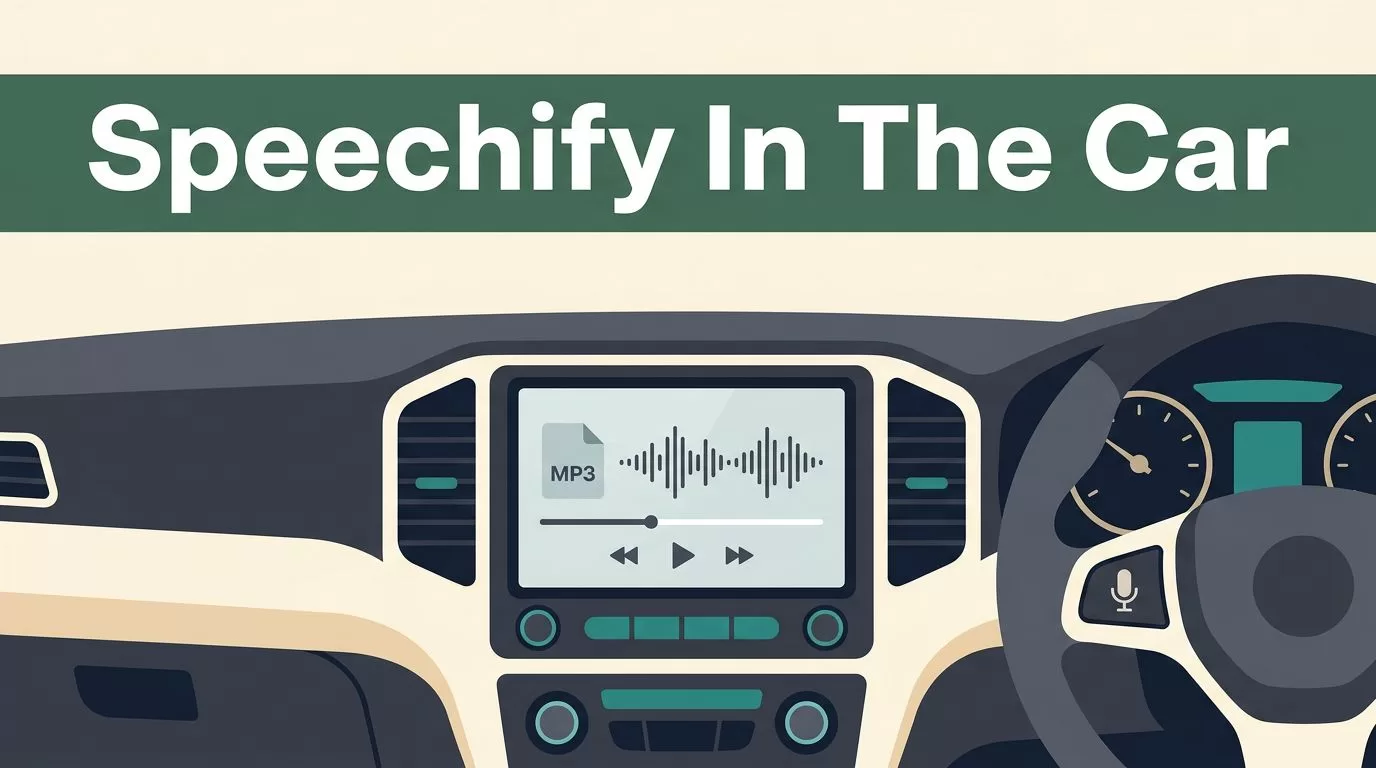
Speechify can read articles, PDFs, emails, and documents aloud. Android Auto can control supported media apps from your car display. The problem is that Speechify doesn’t currently provide a direct Android Auto integration.
You can still build a reliable workflow. Speechify creates the audio file, then an Android Auto-compatible media player handles playback in your vehicle. Set it up before driving, then use steering-wheel controls and voice commands instead of your phone.
Key Takeaways
- Speechify doesn’t appear as a native Android Auto reading app.
- Export Speechify content as an MP3 when the option is available.
- Play the exported file through a compatible Android Auto media player.
- Test the full workflow while parked before using it on the road.
- Never browse, edit, or troubleshoot the phone while driving.
What Speechify Android Auto Supports Today
Searches for “Speechify Android Auto” usually assume the Speechify app will appear on the Android Auto dashboard. That isn’t how the current setup works. Speechify is an Android text-to-speech app, but it doesn’t provide the media session and Android Auto controls required for direct in-car playback.
Android Auto doesn’t mirror every app installed on your phone. Only compatible apps can appear in the Android Auto launcher. Media apps must support Android Auto’s playback controls, browsing actions, and voice interaction. Speechify’s Android app doesn’t currently meet that requirement.
Speechify still handles the most important part of the workflow. You can add content through supported imports, paste a web link, enter text, or scan printed pages with optical character recognition. The app then converts that content into spoken audio.
You can review a beginner Speechify app tutorial before setting up the driving workflow. Pay attention to the import and playback steps. The goal is to prepare the content in Speechify, not to operate Speechify while the car is moving.
The practical distinction is simple:
- Speechify prepares and voices the content.
- The media player stores and plays the exported audio.
- Android Auto provides the vehicle controls.
This setup is a workaround, not official Speechify Android Auto support. Treat it as a file-based deployment with three separate components.
Prepare Speechify Audio Before You Connect
Start with the source material. Add one article, document, or email at a time. Smaller files are easier to identify later and reduce the chance of losing your place.
Speechify supports several ways to add content. You can import files from services such as Google Drive, Dropbox, OneDrive, or Canvas. You can also paste a web address, type text into the app, or scan printed material. Clean the source before converting it. Remove navigation menus, repeated page headers, unrelated footnotes, and broken OCR text.
Listen to the first minute while parked. Check names, abbreviations, URLs, numbers, and punctuation. Text-to-speech apps can pronounce technical terms incorrectly. Fixing the source before export is faster than trying to remember every error on the road.
Choose a voice and playback speed that you can understand through your car speakers. A faster setting may reduce listening time, but it also makes names and figures harder to process. Use a consistent naming system for exported files, such as:
Client-Briefing-July-2026.mp3Marketing-Report-Section-1.mp3Research-Notes-Competitor-A.mp3
If Speechify shows an MP3 export option for your account and app version, export the finished audio. Availability can depend on the plan or current app features. If you can’t export audio, direct Android Auto playback isn’t available through Speechify, so you need a different source or reading app that supports Android Auto.


Prepare every file while the vehicle is parked. The phone should be ready before you start the engine.
Deploy Speechify Through an Android Auto Media Player
The next step is to move the MP3 into a player that Android Auto can control. VLC is a practical option for local audio files. A podcast app may also work if it supports imported audio and appears in Android Auto.
Install the media player from Google Play. Open it once and confirm that it can find the exported Speechify files. Store the files in a clear folder, such as Music/Speechify, instead of scattering them across Downloads and cloud folders.
Use this deployment sequence:
- Install or update the media player. Use a current version that supports Android Auto. Check the app’s Android Auto availability before relying on it.
- Move the MP3 files to local storage. Streaming files from a cloud service can fail when mobile coverage changes. Local files provide more predictable playback.
- Open the player while parked. Confirm that each file has the correct name and duration. Start one file and listen through the phone speaker.
- Connect Android Auto. Use a compatible USB cable for wired Android Auto, or use wireless Android Auto if both the vehicle and phone support it. Keep Bluetooth enabled for wireless pairing.
- Open the media app from the Android Auto launcher. If the app doesn’t appear, check the Android Auto app launcher settings on the phone while parked. The app must be enabled and compatible.
- Start playback from the vehicle display or steering-wheel controls. Select the Speechify MP3 and confirm that pause, resume, skip, and volume controls work.
- Disconnect and reconnect once. This tests whether the setup starts consistently instead of working only during the first session.
Android Auto should now control the media player, not Speechify. You may see the file title, playback progress, and standard media controls. You won’t get Speechify’s document library, text selection, voice settings, or reading position inside the Android Auto interface.
A quick Speechify and Android app overview can help clarify where Speechify’s normal Android controls end. The car workflow begins only after you export the audio and load it into a compatible player.
Avoid using Bluetooth audio alone if you want dashboard controls. Bluetooth can send sound to the car, but it doesn’t guarantee Android Auto browsing, media buttons, or voice commands. Android Auto provides the control layer. Bluetooth only provides a connection in some setups.
Fix Connection, Audio, Permission, and Playback Problems
Troubleshoot the system in order. Start with the connection, then check the player, audio output, and file itself.
- Android Auto won’t connect. Unlock the phone once, reconnect the USB cable, and try a different data-capable cable. Charging-only cables won’t carry Android Auto data. For wireless connections, confirm that Bluetooth, Wi-Fi, and location settings are active when required by the vehicle.
- The media player doesn’t appear. Open Android Auto settings on the phone and review the app launcher. Update the player and Android Auto. Some apps support local playback on Android but don’t support Android Auto controls.
- The app appears but produces no sound. Raise the car’s media volume while audio is playing. Select the correct audio source on the head unit. Check whether another app has control of the car’s audio focus.
- Speechify audio plays through the phone. Confirm that the MP3 is open in the Android Auto media player, not inside Speechify. The exported file must be available locally and readable by the player.
- Playback stops when the screen turns off. Review battery settings for the media player. Remove restrictive battery optimization if Android pauses background audio. Also confirm that the player has permission to access local media files.
- The file won’t open. Test the MP3 in another Android audio player while parked. A failed export or incomplete download can create a file that appears in a folder but won’t play.
- Playback resumes at the wrong location. Keep each file shorter and use clear filenames. Some players remember playback position per file. Splitting a long document into sections makes recovery easier.
Don’t reinstall every app first. Identify which layer failed: phone connection, Android Auto launcher, media player, audio output, or exported file. That approach reduces setup time.
Users have reported different Speechify Android experiences around file types and reading features, as seen in this Android app discussion. Treat forum reports as troubleshooting clues, not as confirmation of official Android Auto support.
Keep the Workflow Hands-Free and Safe
Configure the entire system before you leave. Import documents, correct pronunciation, export MP3 files, organize the media library, and test the car controls in a parked vehicle.
Use steering-wheel buttons for pause and resume when available. Use Google Assistant or your vehicle’s voice control to start compatible media actions. Don’t search through folders, rename files, change Speechify voices, or adjust permissions while the car is moving.
Keep the phone mounted where you can see navigation prompts without reaching for it. Don’t hold the phone in your hand. Don’t use headphones that block traffic sounds or prevent you from hearing vehicle alerts.
The safest workflow is also the simplest one: prepare the content at home, connect Android Auto before driving, and use one clearly named audio file at a time. Pull over if the system needs attention.
Conclusion
Speechify doesn’t currently provide direct Android Auto playback. It can still prepare high-quality spoken audio through imports, pasted links, text entry, and scanning.
Export the finished reading as an MP3 when your account supports it. Store that file in an Android Auto-compatible media player, then control playback through the car system. With the content prepared before departure, Speechify Android Auto becomes a practical hands-free listening workflow rather than an app you need to operate on the road.

