Client files can turn messy fast. One logo lands in email, another draft shows up in chat, and the final version gets buried in a thread no one can find. I use Dropbox file requests to pull everything into one place without giving clients access to my whole folder tree.
The setup is simple in 2026, but the details matter. A clear request saves me time, cuts down on upload mistakes, and makes the handoff feel organized instead of improvised.
How I create a Dropbox file request
I set mine up on dropbox.com, and I keep the process tight so clients don’t have to guess what to do.
- I sign in and open File requests from the left sidebar. That takes me to the place where I manage incoming uploads in one spot.
- I click Create a file request. This starts a fresh request, which matters if I’m running more than one project at once.
- I choose a destination folder or make a new one. I do this first because every upload needs a home, and I don’t want files mixed into a random folder.
- I add a title and description. I use the client name, project name, and the file type I want, so the request feels specific.
- On plans that support it, I set a deadline and a password. A deadline keeps the project moving, and a password keeps the link from floating around too easily.
- I review the details and click Create. Then I copy the link and save it in my project notes.
- I send the link with a short message. I want clients to know exactly what belongs in the upload before they open the page.
If I want the current menu labels or feature notes, I check Dropbox’s file request help page. That keeps me aligned with the latest interface.

What I tell clients before they upload
A request link works best when my message is plain and short. I don’t send a long policy note. I send a few lines that answer the real questions: what to upload, how to name it, and when it’s due.
“Please upload final files only, use clear file names, and skip unrelated extras. If a file belongs to a different project, leave it out.”
That kind of note saves me from sorting through loose drafts and mystery folders. I also include the deadline in a real date and time, with the time zone. “By Friday” can mean three different things depending on where the client is.
As of April 2026, I plan around the current Dropbox limits below.
| Plan type | Max file size per upload | Deadline option | Password |
|---|---|---|---|
| Basic, Plus, Family | 2 GB | No | Yes |
| Pro, Essentials, Business, Business Plus, Standard, Advanced, Enterprise | 250 GB | Yes | Yes |
The size limit matters more than people expect. I always check my own storage before I share the request, because uploaded files count against my Dropbox space. I also point clients to Dropbox’s upload instructions when they ask whether they need an account. They don’t.
How I keep incoming files organized
I never let a request dump into a vague catch-all folder. That creates cleanup work later, and it makes it harder to spot missing files. Instead, I build a small folder system before I send the link.
For client work, I usually make a folder path like Client Name > Project Name > Incoming. If a project has multiple stages, I add dated subfolders, such as 2026-04-briefs, 2026-04-assets, and 2026-04-final. That gives me a clean trail when files arrive in waves.
I also match the request title to the folder name. When the request says “Acme Product Launch Assets,” I want the folder to say the same thing. That tiny bit of consistency helps when I’m juggling several jobs at once.
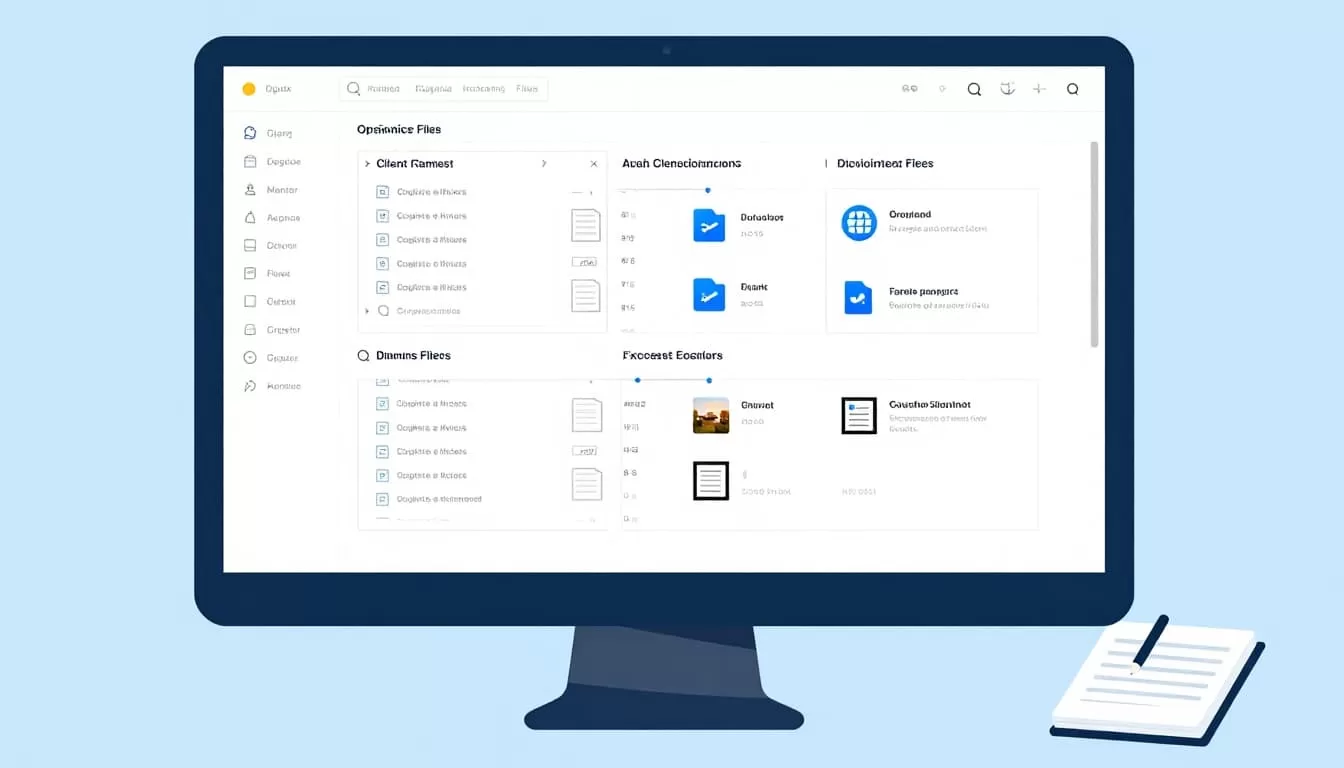
I also tell clients to avoid zipped folders unless I ask for them. Zips can hide missing files, and they make quick checks harder. If I expect images, docs, or spreadsheets, I name those file types in the request so the upload feels obvious.
Common Dropbox file request problems I fix first
Most upload problems come from small setup mistakes, not from Dropbox itself. When something goes wrong, I check these issues first.
- The request link looks missing or broken. I resend the newest link, because old drafts can confuse clients.
- The file is too large. I remind clients that Basic, Plus, and Family plans allow up to 2 GB per upload, while Pro and business plans allow up to 250 GB.
- The request is closed or expired. If I set a deadline, I confirm whether uploads are still open. If the request is closed, I reopen it or create a fresh one.
- The client thinks they need Dropbox access. I explain that they only need the link. They don’t need to enter my folders.
- Notifications don’t show up. I check my email alerts and spam folder, then I open the request folder in Dropbox to confirm the upload landed.
If a client still gets stuck, I ask them to try again in a browser instead of an app. That often clears up weird sign-in behavior.
When I set up Dropbox file requests this way, the process feels calm from the start. Clients know what to send, I know where it goes, and the files land in the right place without a messy cleanup pass.
That small bit of structure matters. A good request link is simple, but the message around it is what keeps the whole handoff clean.