How to Enable and Optimize Speech to Text Windows Features on Speechify
Staring at walls of dense text until your eyes burn and your attention shatters is not a sustainable way to process information. When your workload includes heavy research papers, lengthy reports, and technical documentation, traditional si...


Staring at walls of dense text until your eyes burn and your attention shatters is not a sustainable way to process information. When your workload includes heavy research papers, lengthy reports, and technical documentation, traditional silent reading often leads to severe mental fatigue and declining comprehension. You need a reliable method to bypass visual exhaustion and absorb complex data streams without losing focus. That is where you configure your system workflow to turn your reading backlog into an efficient auditory workflow. Listening to documents with text-to-speech tools saves hours each week, but you also need proper input options when switching between reading and drafting.
Key Takeaways
- Pair audio playback with synchronized word highlighting to keep your attention locked on the material.
- Use built-in Windows shortcuts like the Windows logo key plus H to trigger native dictation.
- Understand that Speechify functions primarily as an advanced text-to-speech reader rather than a direct voice control system for Windows.
- Protect your productivity by verifying your audio speed settings against the complexity of your documents.
Enabling Built-in Windows Dictation
Before you begin dictating notes into your workspace, you must confirm that your operating system tools are active. Windows includes a robust native voice typing utility that functions across text input fields in browsers, emails, and document editors. To launch this feature instantly, press the Windows logo key + H on your physical keyboard [1][3][6]. A small dictation toolbar appears near the top of your screen, signaling that the system is ready to capture your voice [3][6].

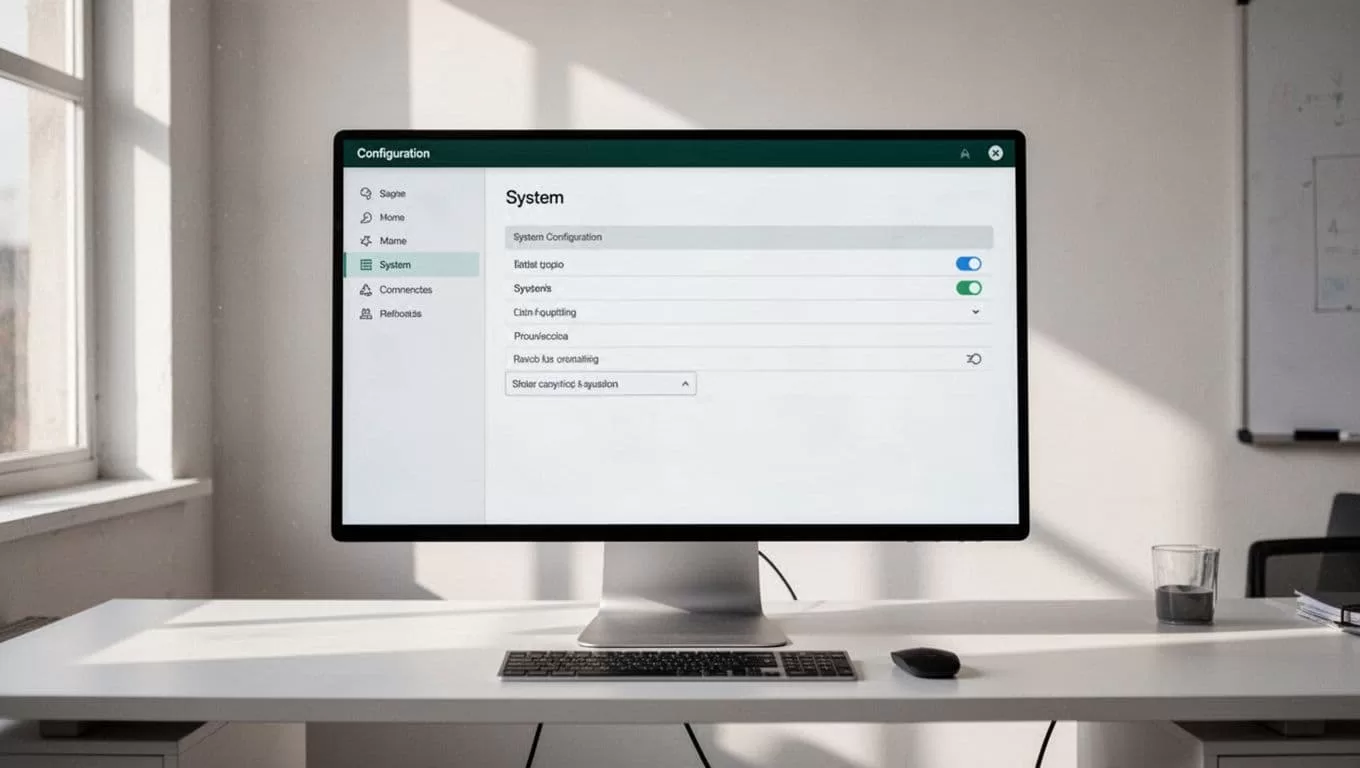
If the shortcut fails to open the toolbar, you need to check your system configuration. Navigate to Settings > Time & language > Speech to verify your default language and region settings [3]. Ensure that your microphone is properly selected and calibrated in your sound settings so the system captures clean input without background static. You can also configure automatic punctuation in the settings menu of the dictation toolbar to let the software insert periods and commas as you speak.
Understanding the Role of Speechify in Your Workflow
Many users look to speech to text Windows solutions when they want to streamline both writing and listening tasks. It helps to clarify tool boundaries before you build your daily routine. Speechify operates primarily as an advanced text-to-speech reader designed to convert written documents, PDFs, and web pages into natural-sounding audio [4]. It reads material aloud to you, letting you absorb reports during commutes or lab work without staring at a monitor [4].
Because Speechify focuses on reading content to you, it does not directly control native Windows system dictation or replace your operating system speech input commands. You use Windows native dictation tools when you want to speak words onto a blank page. You use Speechify when you want to listen to dense reference materials, research papers, or client contracts. Combining both tools gives you a complete dual-direction workflow for handling text-heavy projects.
Optimizing Playback and Comprehension
Listening to synthesized speech requires a different cognitive approach than silent reading. When you accelerate playback speed beyond normal limits, your brain needs visual anchors to stay focused on the source material. Enable synchronized text highlighting in your application settings view so words underline automatically as the software speaks them. Seeing words underlined while you listen reinforces retention, especially when reviewing unfamiliar terminology or dense theoretical arguments.
Your eyes follow the text anchor while your ears process the cadence, creating a dual sensory input loop that keeps your attention locked onto the source material. Match your playback speed settings to the complexity of the material you consume rather than chasing high words-per-minute metrics [4]. Industry news and general blog posts tolerate high speeds well, while legal clauses and dense technical documents require close attention and moderate pacing [4]. If you notice your mind wandering or find yourself missing key arguments, dial your playback speed back down for a session.
Managing Privacy and Accessibility Settings
Operating system dictation and cloud-based reading tools process your voice and text inputs through online services, making privacy management a priority for technical operators. You can review your data sharing preferences by checking the privacy panel under Settings > Privacy & security > Speech, inking, & typing. Disabling online speech recognition training stops your voice clips from being sent to Microsoft for server-side improvements if your organization enforces strict data governance rules.
Accessibility features also play a major role in daily productivity. If you experience visual fatigue from stark white application backgrounds, pair your audio listening sessions with high-contrast themes or screen color filters. For a deeper breakdown of how modern operating systems handle accessibility integrations, you can review Microsoft Windows. Adjusting these parameters ensures your workstation remains comfortable during long stretches of data processing.
Conclusion
Deploying an integrated approach to audio playback and system dictation transforms how you process heavy documentation. By separating your listening tasks from your native text input routines, you remove physical reading bottlenecks from your daily schedule. Enable your operating system dictation shortcut today, calibrate your preferred reading speed, and tackle your documentation backlog with an efficient workflow.

