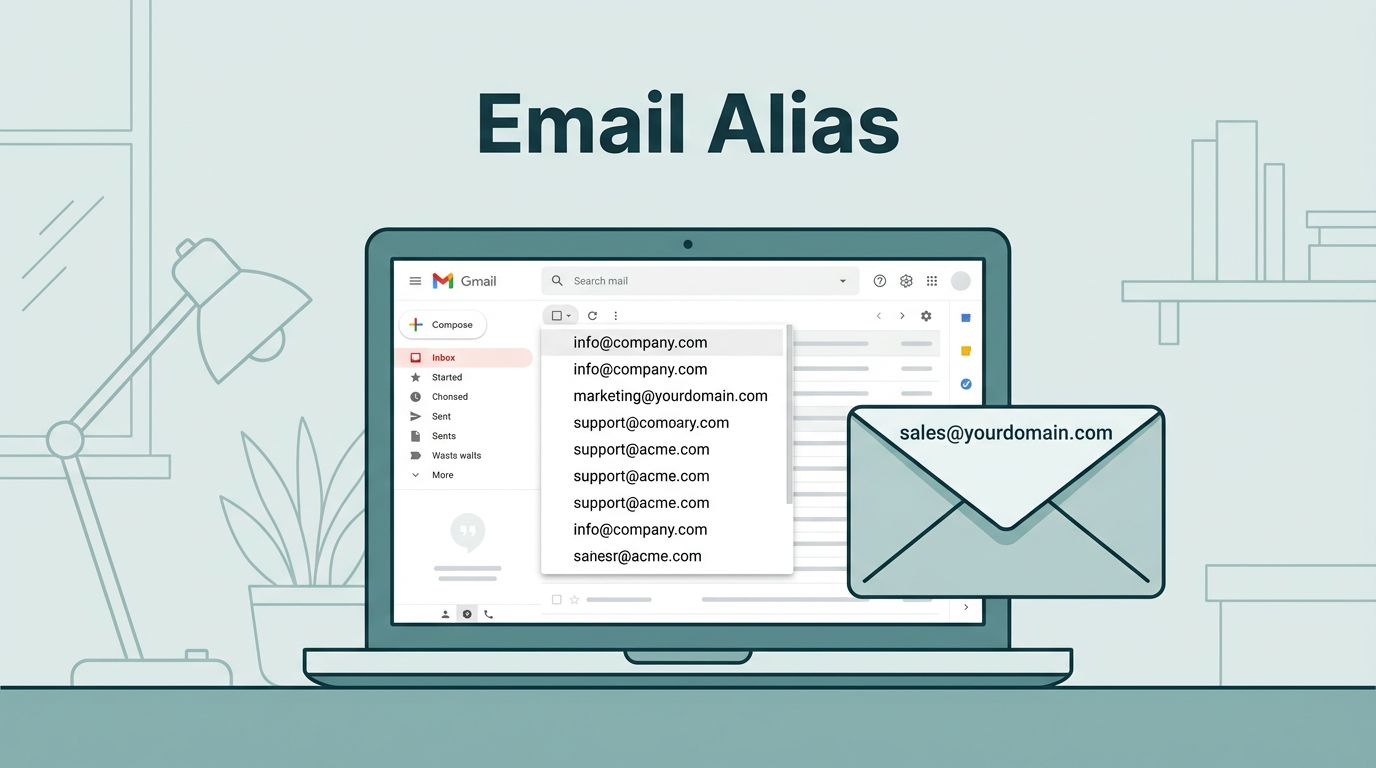
You run a small team. Emails fly between clients and staff. Sometimes you need to reply from sales@yourdomain.com instead of your personal john@yourdomain.com. A Gmail alias makes that simple. It lets one inbox handle multiple addresses without extra accounts.
I use this setup daily in my Google Workspace account. No confusion over who owns what. Replies stay in one place. As of May 2026, Google still allows up to 30 aliases per user for free. Let’s walk through how I set it up and send from them.
What a Gmail Alias Does in Google Workspace
A Gmail alias is an extra email address tied to your main inbox. Mail sent to the alias lands right there. You send replies from it too. Think of it as a nickname for your email.
I add aliases for roles like support or billing. Clients see the right address. Everything routes through my primary account. Google Workspace admins control this from the console. Users handle the send setup in Gmail.
Aliases differ from groups. A group like team@yourdomain.com lets multiple people read and reply. An alias sticks to one user. It keeps things private. I pick aliases when one person owns the conversation.
Google caps aliases at 30 per user. Need more? Create another account. Domain-wide aliases apply to everyone. You can’t delete those per user.
This setup saves time. No forwarding rules or logins. I check Google’s overview on additional email addresses when limits confuse me.
Admin Setup for Email Aliases
Admins start in the Google Workspace Admin console. I log in at admin.google.com. Search for the user. Click their name. Then hit User information. Find Email aliases. Click Add an alias.
Enter the name before the @. Pick your domain if you have multiples. Save it. Propagation takes minutes. The alias now receives mail. As of late April 2026, this process hasn’t changed.

I verify DNS first. MX records point to Google. SPF helps delivery. Without it, replies bounce. Check my Google Workspace email setup guide for those steps.
Users see the alias in their inbox dropdown. Only one user per alias. Multiple users can’t receive from it. That’s by design. For shared inboxes, use groups instead.
Test it. Send mail to the new alias from outside. Confirm it arrives. Then move to user settings.
Configure Gmail to Send from Alias
Users do this part. Open Gmail. Click the gear icon. See Settings. Go to the Accounts and Import tab. In Send mail as, click Add another email address.
Name shows to recipients. Enter the full alias like support@yourdomain.com. Gmail sends a verification code there. It arrives in your main inbox. Copy and paste it.
For Workspace accounts, select Treat as an alias. This keeps replies in your inbox. Uncheck for external sends, but I stick with aliases.

Click Verify. Done. Now the alias appears in the From dropdown when you compose. I follow Google’s steps to send from a different address if buttons shift.
Interface labels might vary. Google tweaks them. Look for Send mail as section. Restart Gmail if it lags.
Group aliases need delegate access. I skip that for personal aliases.
Sending Emails from Your Alias
Compose a new email. Click the From dropdown. Pick your alias. Type as usual. Hit send. Recipients see the alias. Replies return to your inbox.
I use this for client threads. It matches their records. No explaining address changes.

Signatures auto-apply if set. Check mobile too. Gmail apps support it. Pull down the From field.
Aliases show in searches sometimes. Not hidden. Fine for internal use.
Bulk sends? Use mail merge tools. Aliases work there too.
Troubleshoot Alias Sending Problems
Verification fails? Check spam. Resend from settings.
Can’t send? Admin didn’t add it. Or DNS issues block outbound.
Replies go elsewhere? Treat as alias box matters. Recheck it.
Bounce backs cite SPF. Add include:_spf.google.com to your record. My SPF DKIM DMARC guide covers this.
Limits hit? 30 max. Delete old ones carefully.
Mobile glitches? Update the app. Clear cache.
Google’s alias management help lists more. Test small first.
When to Use Aliases over Groups or Delegation
Aliases suit solo roles. One owner. Simple.
Groups for teams. All read send. Needs moderation.
Delegation shares one inbox. Others access yours. Secure but limited.
| Option | Best For | Owner Control | Max Users |
|---|---|---|---|
| Alias | Personal roles | Full | 1 |
| Group | Shared replies | Moderate | Many |
| Delegate | Assistants | Owner sets | 1,000 in Workspace |
I pick aliases for billing@. Groups for support@. See my Gmail delegation setup for shared needs.
Aliases cost nothing. Groups do at scale. Match your workflow.
Best Practices for Gmail Aliases
Document them. List in a shared sheet.
Train users. Show the From dropdown.
Monitor bounces. Set alerts.
Combine with signatures. My team signatures guide helps.
Review quarterly. Delete unused.
Aliases boost pro look. Clients trust them.
Conclusion
Gmail aliases streamline my Workspace emails. Admins add them fast. Users configure in minutes. Sends feel native.
You gain control without chaos. Test one today. It sticks.
Stick to 30 limit. Use groups for teams. Your inbox thanks you.