How I Convert google docs to audio with Speechify for Better Productivity
Key Takeaways Speechify turns Google Docs into natural-sounding audio, slashing eye strain and unlocking multitasking like walks or commutes for massive productivity gains. Natural voices (100+ options), speed controls up to 3x, text highli...

Key Takeaways
- Speechify turns Google Docs into natural-sounding audio, slashing eye strain and unlocking multitasking like walks or commutes for massive productivity gains.
- Natural voices (100+ options), speed controls up to 3x, text highlighting, and privacy-focused processing make it beat free readers hands-down.
- Start instantly with Chrome extension, blue audio button, or shortcuts (Alt+Q Windows, Opt+Q Mac)—full docs or sections in seconds.
- Advanced tricks like MP3 exports, Zapier automation, offline mode, and quizzes supercharge workflows for sales, teams, and data reviews.
Table of Contents
- Why Audio Makes Google Docs Work Better for Me
- Why Speechify Stands Out for This
- Why Use Audio for Document Review
- Getting Started with Speechify in Your Browser
- Step-by-Step: Google Docs to Audio in Minutes
- Advanced Tricks I Use Daily
- Conclusion
- Frequently Asked Questions
I stare at endless Google Docs during busy days. Reports stack up. Emails pile in. My eyes burn after hours of reading. Then I discovered using text to speech to have my Google Docs read aloud. It changed everything.
Now I listen while walking the office or driving home. Productivity soars. No more squinting at screens. Speechify handles the heavy lifting. Let me show you exactly how I do it.
Why Audio Makes Google Docs Work Better for Me
Google Docs power my workflows within the Google Workspace ecosystem. I draft sales plans there with help from Gemini, the AI assistant. I review data exports. But reading tires me out fast. Audio flips that script and boosts accessibility for all users.
I multitask better now. Listen to a client brief during lunch. Catch details I missed before. It’s like giving my docs a voice. They speak at my pace.
Business tools demand speed. Founders juggle ten tabs at once. Audio keeps me ahead. I absorb info hands-free. Decisions come quicker.
This setup fits automation too. I pipe reports from tools into Docs. Gemini preps the content first. Then audio flows. No extra steps. Time saved adds up.
Why Speechify Stands Out for This
I tried free readers first. They sounded robotic. Pauses felt awkward. Speechify nails natural flow with natural sounding voices that make the experience pleasant.
Over 100 options wait, plus multi-language support that’s great for global teams. Pick a calm narrator for reports. Or energetic one for motivation. Speed adjusts from slow study to 3x blitz.
It syncs text highlighting. Text glows as words play, helping track progress. I follow along easy. Perfect for edits on the go.
Privacy matters in business. Speechify processes local when possible. No leaks on sensitive data. I trust it with CRM dumps.
For deeper setup tips across apps, check my Speechify AI reader setup guide.
Why Use Audio for Document Review
Screen fatigue hits hard, especially for the visually impaired. I rub my eyes after long sessions. Audio reviews docs without strain. Comprehension improves too.
Turn long Google Docs into a personal audiobook. Ears catch nuances eyes skip. Names, numbers stick better. I quiz myself aloud after. Retention jumps.
Multitasking unlocks. Walk meetings. Gym sessions. Commutes turn productive. I cover more ground.


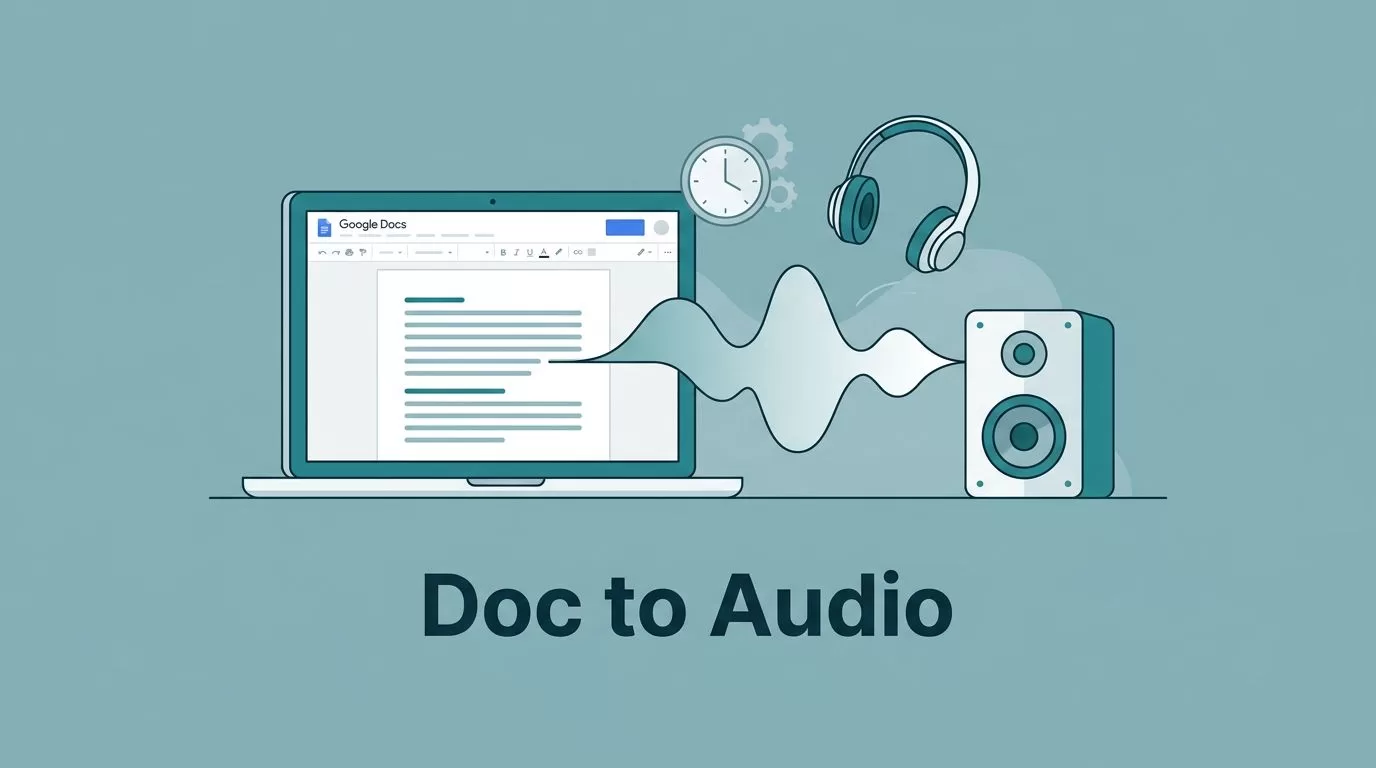
This image captures it. Sound waves rise from the screen. Freedom follows.
In teams, audio shares insights fast. Send voice clips of key sections for a quick document summary. No one reads walls of text.
Data analysis shines here. Tables become spoken summaries. I spot trends while moving.
Getting Started with Speechify in Your Browser
Chrome rules my day. The Speechify Chrome extension lives there. Install takes seconds.
Head to the Chrome Web Store. Search Speechify Chrome extension. Hit add to install. Permissions pop up. Approve them.
Icon sits in the toolbar. Ready for any page. Click it for the listen to this tab feature, and text to speech playback starts immediately. No fuss.


That hand near the screen? That’s me clicking to start listen to this tab.
Log in once. Free trial kicks off. Premium unlocks voices. Worth it for daily use.
For top text-to-speech picks in 2026, see my best text to speech apps for productivity.
Step-by-Step: Google Docs to Audio in Minutes
Open your Doc. Any one works. Long reports. Quick notes.
Spot the blue audio button near the title. Click it. Speechify starts from the top.
Or highlight text. Right-click. Audio button floats up. Selected parts read only.
Shortcuts speed it. Windows? Alt + Q. Mac? Opt + Q. Fingers barely move.
Adjust on fly. Slider for playback speed. Voice picker nearby. Pause, rewind easy.
Here’s a quick comparison of methods I use:
| Method | Best For | Time to Start |
|---|---|---|
| Blue Audio Button | Full Doc | Instant |
| Highlight + Play | Sections | 2 seconds |
| Keyboard Shortcut | Speed | Under 1 second |
| Extension Menu | Custom Voice | 5 seconds |
Blue audio button wins for whole docs. Shortcuts rule repeats. Pick what fits your flow.
If audio buttons don’t appear, accessibility settings can often be found in the Tools menu of Google Docs or your browser.
Speechify reads paragraphs too. Click audio button next to one. No scrolling.
For exact steps on Docs integration, Speechify’s guide covers it well.
Advanced Tricks I Use Daily
Export to files next level. Copy Doc text. Paste into Speechify Studio.
Voice selection shines in audio generation. Choose voice. Add music if needed. Export audio file in MP3 and WAV. Audiobooks for teams.
Automation links in. Zapier pushes new Docs to Speechify. Sync with Google Drive. Audio emails arrive.
Offline mode saves commutes. Download voices. Play anywhere.
Quiz feature tests me. Ask about report stats. Answers confirm understanding.
While Speechify reads, voice typing helps you write. Screen mask or Mote extension enhances workflow.
OCR handles scans. Messy PDFs clean up. Audio flows smooth.
In sales, I listen CRM exports. Trends emerge clear. Follow-ups sharpen.
For human-like voice details, my comprehensive Speechify guide breaks it down.
Batch process folders. Google Drive scans auto. Queue plays overnight.
Speed at 2.5x cuts time half. Eyes rest. Brain processes.
Conclusion
Turning Google Docs into audio with Speechify transformed my routine. Speechify delivers natural voices and easy steps. I review more, strain less.
Productivity climbs. Multitasking flows. Business edges ahead.
Start with the Speechify extension today. Your Google Docs wait to speak.
Frequently Asked Questions
Does Speechify work on mobile devices for Google Docs to audio?
Yes. App mirrors browser. Open Doc in Chrome on mobile devices. Extension plays. Or native app imports. Excellent for students using educational materials.
Is there a free version for Google Docs to audio?
Trial gives full access seven days. Basic voices free after. Premium for all features.
Can I customize voices for Google Docs playback?
Over 100 choices. Clone your own. Accents match teams.
How does Speechify handle tables in Docs?
Reads row by row. Numbers clear. Summaries optional.
What’s the shortcut for Google Docs to audio again?
Alt + Q on Windows. Opt + Q on Mac. Instant start.
(Word count: 1487)

