Google Drive Video Editing for Transistor.fm
Video production often breaks down when raw footage, edit files, approvals, and podcast uploads live in different places. Google Drive video editing works best when Drive manages the files and people, while a dedicated editor handles the ac...
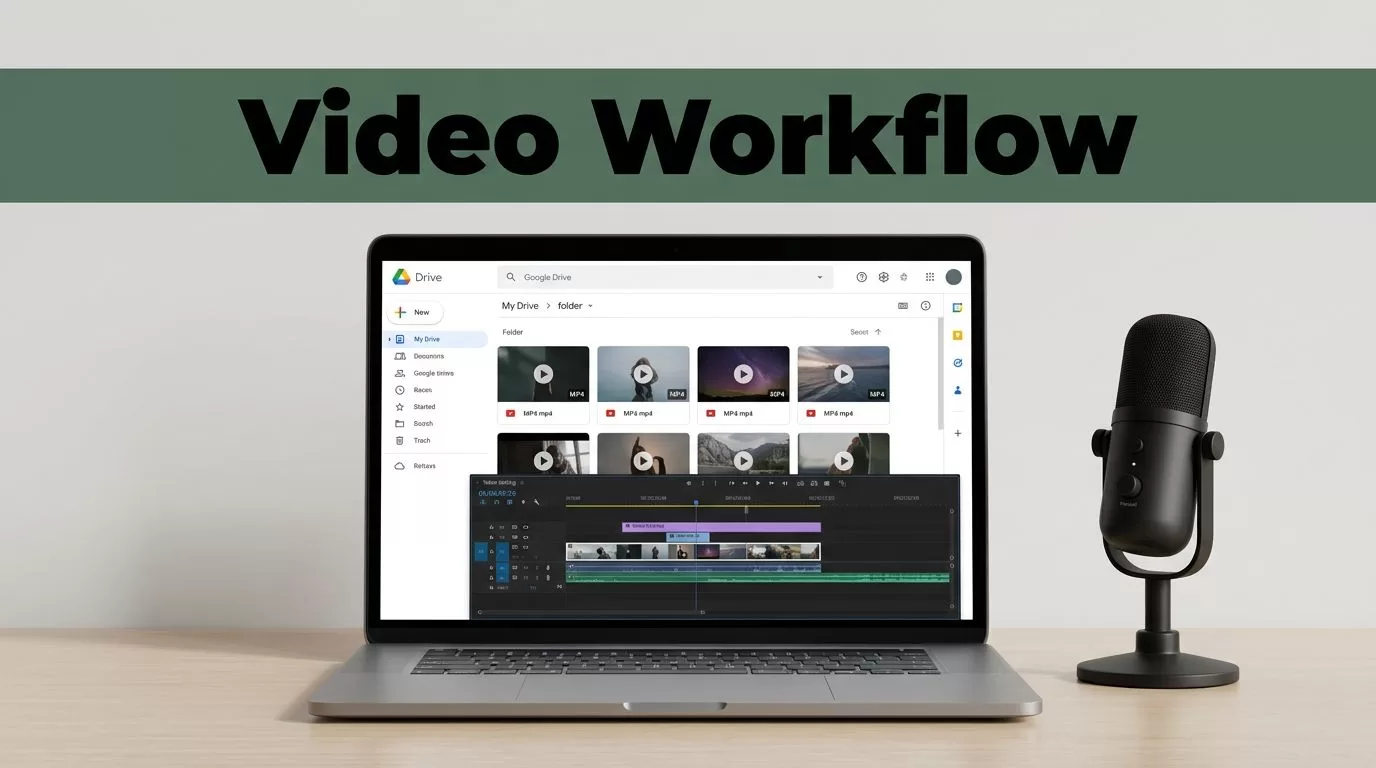
Video production often breaks down when raw footage, edit files, approvals, and podcast uploads live in different places. Google Drive video editing works best when Drive manages the files and people, while a dedicated editor handles the actual timeline work. Establishing a comprehensive Google Drive video library within Google Workspace serves as the essential foundation for a successful and scalable podcast production workflow.
Transistor.fm can remain the primary publishing system for your podcast audio. Meanwhile, Google Drive stores the video project, gives your team controlled access, and keeps approved files ready for distribution. The setup below gives every episode a clear path from recording to publication.
Key Takeaways
- Use Google Drive for storage, collaboration, review, and delivery, rather than using it as a replacement for a full video editor.
- Create one repeatable folder structure for every Transistor.fm episode to maintain consistency.
- Store video masters as MP4 files using H.264 video and AAC audio to ensure compatibility across your workflow.
- Set separate permissions for producers, editors, guests, and clients to keep your files secure.
- Keep approved exports separate from working files, then upload the final audio to Transistor.fm.
Build the Workflow Before You Edit
Start with the episode workflow, not the folder names. Decide where raw footage enters the system, who edits it, who approves it, and which files go to Transistor.fm. While Google Workspace has introduced innovative tools like Google Vids, an AI-powered video creator, complex podcast production often requires third-party services and professional software to achieve high-end post-production results.
A practical workflow looks like this:
- Record the podcast and copy the camera, screen, and audio files into Google Drive.
- Give the video editor access to the raw media and production notes.
- The editor should download videos from the cloud to ensure stability during the creative process.
- The editor creates the project in local editing software.
- The first export goes into a review folder.
- The producer leaves feedback and approves one final version.
- The team exports podcast audio and uploads it to Transistor.fm.
- The approved video moves into a delivery folder for YouTube, a website, or another video platform.
Google Drive is a file system and collaboration layer. It is not a full non-linear video editor. Although some browser-based apps let you edit videos directly, large-scale projects need robust software such as DaVinci Resolve, Adobe Premiere Pro, Final Cut Pro, or other editors that support multi-track timelines, color correction, audio mixing, and export presets.
Use Google’s Drive upload guidance when you first configure desktop uploads. For active projects, local editing is safer than opening large files directly from a streamed cloud drive. The editor should work from a fast local SSD, then upload exports and project backups to Drive.
Keep the production flow simple. Every person should know which folder to open and which file is safe to use.
Create a Repeatable Episode Folder Structure
Create a master folder for the podcast, then use one folder per episode. Do not place every episode in one large directory. Organizing your shared Google Drive folders this way makes permissions, search, and archiving significantly easier.
A useful structure is:
Podcast Name00 Templates2026EP-042 Guest Name01 Raw Media02 Project Files03 Review04 Approved05 Transistor Audio06 Video Delivery07 Graphics and Notes
The numbered folders keep the workflow in order. Within the 00 Templates folder, you should store your project templates and video editing presets to ensure every episode maintains a consistent look and feel. The 01 Raw Media folder contains camera footage, separate audio recordings, screen captures, and guest files. Do not edit or rename these source files after the editor links them to a project.
The 02 Project Files folder contains the editor’s project file, autosaves, title graphics, music licenses, and any linked assets. Some editing applications create several supporting folders. Keep those files together instead of uploading only the main project file.
Use the 03 Review folder for drafts. Put each export in a new file rather than replacing the previous draft. A clear filename might be EP-042_guest-name_video_v02_review.mp4.
The 04 Approved folder should contain only files cleared for publishing. Use names such as:
EP-042_guest-name_video_master_v03_approved.mp4EP-042_guest-name_audio_master_v03_approved.mp3EP-042_guest-name_transcript_v01_approved.docx
The 07 Graphics and Notes folder is essential for managing video metadata and production documentation, ensuring all team members have access to the context required for distribution.
Keep names consistent. Use the episode number, guest or topic, asset type, version, and status. Avoid names such as final-final-new.mp4, as they provide no reliable version history.
At the start of each episode, confirm these items:
- The episode number matches the Transistor.fm draft.
- Raw files have finished uploading.
- The editor has the recording notes and correct assets.
- The guest’s name is spelled correctly.
- The project folder uses the current template.
This setup also helps new team members understand the project without asking where everything lives.
Set Google Drive Permissions for Each Role
Permissions should always align with the specific needs of the job. Granting access to the entire podcast library should be limited to those who truly need it. By restricting access to the episode level, you reduce the risk of accidental changes and limit exposure of unreleased recordings.
A producer or owner manages the episode folder, approves exports, and controls external sharing. A video editor requires edit access to the active episode folder, while a guest usually only needs comment or view access to a review export rather than access to raw recordings or project files.
Administrators using Google Workspace can set global permission levels to maintain security across the entire production team. By defining specific roles for your Google Workspace users, you ensure that everyone has the right level of access to get their work done without compromising the integrity of your files. Use Google Drive’s file-sharing and permission controls to set access by person or group. Avoid public links for unreleased episodes, as a link set to “Anyone with the link” can be forwarded without your team knowing.
A simple permission model looks like this:
- Podcast owner: Full control of the podcast folder.
- Producer: Edit access to the episode folder and approval responsibility.
- Video editor: Edit access to
01 Raw Media,02 Project Files, and03 Review. - Audio editor: Edit access to audio files and
05 Transistor Audio. - Guest or client: View or comment access to a specific review file.
- Contractor: Access only to the episode folder and only for the project period.
Use shared drives when the podcast belongs to a company or production team. Files in a shared drive stay with the organization when an employee leaves. A personal My Drive folder can create ownership problems if the original owner changes jobs or loses access.
Remove temporary access after publication. Review external users once per month. Keep the approved folder locked to the people who publish or archive episodes.
Give reviewers access to the export they need, not the entire production library.
Use Video Formats That Survive the Workflow
The right file format depends on whether the file is a source, an editing master, a review copy, or a publishing file. One file should not handle every job.
Camera files may use formats such as MOV, MP4, MXF, or a camera-specific codec. Keep these original files unchanged in 01 Raw Media. They are your source material if an edit needs to be rebuilt. While the editor may use the Google Drive interface to crop and trim quick clips for social media snippets, the primary project export should focus on compatibility. For example, converting high-bitrate MOV to MP4 ensures your files are easily viewable across different devices.
For the working project, the editor may create proxy files. Proxies are smaller copies that make editing easier on slower computers. They are temporary and should not replace the original camera files.
For a general video master, use an MP4 container with H.264 video and AAC audio. This combination works across common video platforms and is easy to review in Google Drive. Export at the project’s native frame rate, such as 24, 25, or 30 frames per second. Do not change the frame rate without a production reason.
Use a high-quality audio master for editing and archive purposes. WAV files are appropriate for that stage. Create the compressed podcast delivery file only after the mix is approved. Transistor.fm’s current upload requirements should control the final audio format, so check Transistor’s support documentation before publishing.
Keep these files separate:
- Source media: Original camera and recorder files.
- Working media: Proxies and files used by the editor.
- Review export: Smaller file for feedback and approval.
- Video master: Approved high-quality video.
- Podcast audio: Final audio prepared for Transistor.fm.
- Archive copy: Project files, masters, notes, and key source media.
Do not repeatedly download and re-upload compressed review files as new masters. Each conversion can reduce quality. Export the approved master directly from the editing project to maintain the highest fidelity.
Add Review, Version Control, and Backups
Review needs one owner and one approval path. If five people send separate feedback messages, the editor has to decide which request wins. Assign one producer to collect comments and send one consolidated revision list.
While Google Drive doesn’t replace specialized software, you can use the built in video preview UI to leave comments on drafts quickly. This feature is particularly efficient for checking full episodes and short form videos intended for social media. For more advanced needs, you can install a Chrome extension to streamline file management and navigation within your folders. If you require frame-accurate notes, create a Google Doc inside 07 Graphics and Notes to track feedback. Include timestamps such as 00:14:32, remove the repeated sentence.
Use a consistent revision format:
- v01_review is the first draft.
- v02_review includes requested changes.
- v03_approved is the approved export.
- v04_approved is used only when a real correction is made after approval.
Never overwrite an approved file. If the title card changes, create a new version and record the reason in the notes. Drive version history can help recover earlier uploads, but it isn’t a complete backup system. File version retention rules can apply, and a deleted folder can still affect every file inside it.
Use the Google Drive storage information to monitor available space. Video files fill storage quickly, especially when every camera angle is retained. Archive older raw footage to a separate storage system when the active project is complete.
Your backup checklist should include:
- One copy in Google Drive.
- One separate copy on an external drive or approved backup service.
- A tested restore of at least one project file and one final export.
- A record of the editing application and version used.
- Copies of music licenses, fonts, graphics, and release documents.
- A clear archive date and retention rule.
The dedicated video editor owns timeline integrity, media relinking, audio sync, color, captions, and exports. The producer owns the brief, review decisions, guest approvals, and final status. Separating these roles prevents unapproved changes from reaching publication.
Move the Approved Audio to Transistor.fm
Google Drive does not automatically sync your files to your podcast host. Once your project is finalized, it is time to export and share your finished media. After approval, download videos and audio files locally to perform a final quality check before they are uploaded to the Transistor.fm hosting platform.
Do not use a Drive sharing link as the podcast media URL unless Transistor’s current documentation explicitly supports that method. Podcast hosts generally need to receive and process the media file directly through their own upload system.
Before uploading, open the final audio to verify the start, end, loudness, ad markers, and any edited sections. Confirm that the filename matches the episode number. Compare the episode title, show notes, artwork, and publication date with the approved production notes.
Keep the Transistor-specific audio file in 05 Transistor Audio. Store the published video in 06 Video Delivery. This prevents a later YouTube export from being mistaken for the audio file used in your podcast RSS feed.
Use this final publishing checklist:
- The audio file opens without errors.
- The first and last seconds sound correct.
- The episode title matches the production folder.
- Show notes and links have been reviewed.
- Artwork uses the correct podcast branding.
- The correct Transistor.fm show and episode draft are selected.
- The published episode is checked in the RSS feed after release.
- The approved files remain in Drive after publication.
If the podcast distributes both audio and video, treat them as related assets with separate delivery checks. A video upload can pass while the podcast audio contains a bad edit, and the reverse can also happen.
Frequently Asked Questions
Can I use Google Drive to edit videos directly?
While Google Drive acts as an excellent storage and collaboration hub, it is not a professional non-linear video editor. You should use local software like DaVinci Resolve or Adobe Premiere Pro for the actual timeline work and upload your finished exports back to Drive for team review.
How should I manage version control for my video projects?
Always use a consistent naming convention, such as ‘v01_review’ or ‘v03_approved’, to track changes. Never overwrite previous files; keep every iteration in the review folder so the producer can easily reference the development history if needed.
Should I grant guests full access to the project folder?
No, you should limit access based on the specific role. Guests should only be provided with view or comment access to a specific review file rather than the raw footage, project files, or the entire podcast library.
Why keep the Transistor.fm audio file separate from the video master?
Keeping the podcast audio in a dedicated folder ensures that you always have a clean, final file ready for distribution. This prevents confusion during the publishing process and ensures you do not accidentally upload a video export to your podcast feed.
Conclusion
A reliable Google Drive video editing workflow gives your Transistor.fm team one controlled production path. Drive stores the files, the editor handles the timeline, the producer controls approval, and Transistor.fm publishes the finished audio.
By using this structured approach, you ensure your final assets contain no watermarks and that it is much easier to add text to video during the assembly phase. While it may be tempting to edit videos directly within a browser, the most professional results come from managing your library in the cloud and using local tools for the heavy lifting. You can even leverage tools like Gemini AI to help generate show notes or accurate summaries from the final video output.
Use repeatable folders, strict filenames, role-based permissions, separate review versions, and at least one independent backup. When every episode moves through the same system, video production becomes easier to track and much harder to publish incorrectly.
