How I Add Aliases to Google Groups in Workspace
You run a sales team. Emails flood in from leads asking about pricing or demos. One address like sales@yourdomain.com handles it all. But clients also hit reply-all to old chains using support@yourdomain.com. Chaos builds fast. I fix this w...
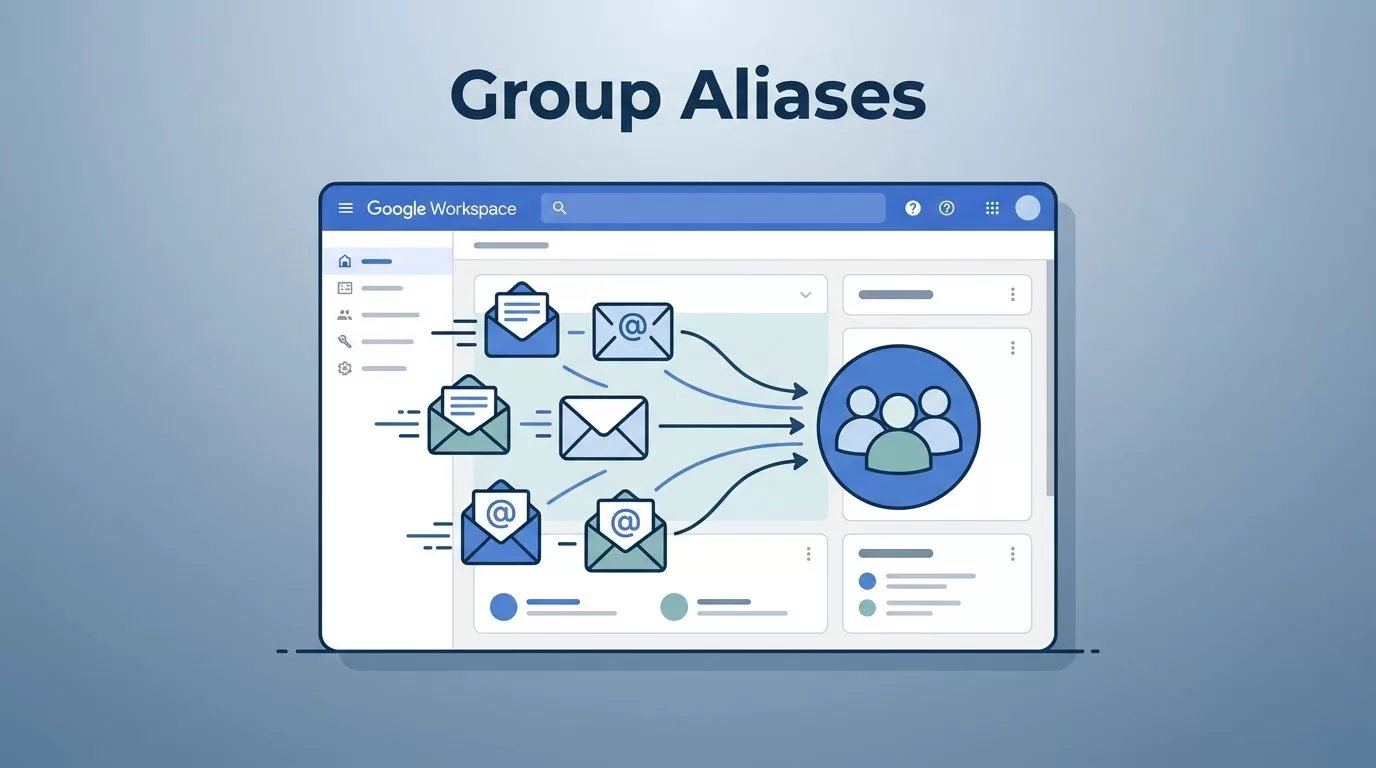
You run a sales team. Emails flood in from leads asking about pricing or demos. One address like sales@yourdomain.com handles it all. But clients also hit reply-all to old chains using support@yourdomain.com. Chaos builds fast.
I fix this with Google group aliases. They let one group catch mail from multiple addresses. No lost messages. No extra inboxes. As a Workspace admin, I add these often. They save time and keep teams sharp.
This guide shares my exact steps. I’ll cover setup, pitfalls, and tips. Google interfaces shift, so check dates. Let’s start in the Admin console.
Why Group Aliases Beat Separate Inboxes
Group aliases route emails to the same shared inbox. Send to support@ or help@. Both land together. Members reply from the group address. Simple.
They differ from Gmail user aliases. User aliases tie to one account. Only that person sends or receives. Groups allow teams. Multiple eyes on replies. Perfect for departments.
I use them for marketing blasts or IT tickets. Limits hit 30 aliases per group. That’s plenty for most needs. Messages to aliases show in the group. No forwarding rules needed.
Domains matter too. If you run two like company.com and company.net, alias across them. Emails unify. Clients stay happy.
For official details, see Google’s guide on group aliases.
Check Permissions Before You Start
You need Groups admin role. I assign it sparingly. Go to Admin console. Apps, Google Workspace, Groups. Check your access there.
Super admins see everything. Delegate if needed. Directory > Groups. Point to a test group. No edit option? Permissions block you.
Groups must exist first. Create via Directory > Groups > Create group. Name it clear, like sales-team@yourdomain.com.
Test domains verify. Messaging > Routing stays default for aliases.
Step-by-Step Guide to Adding a Group Alias
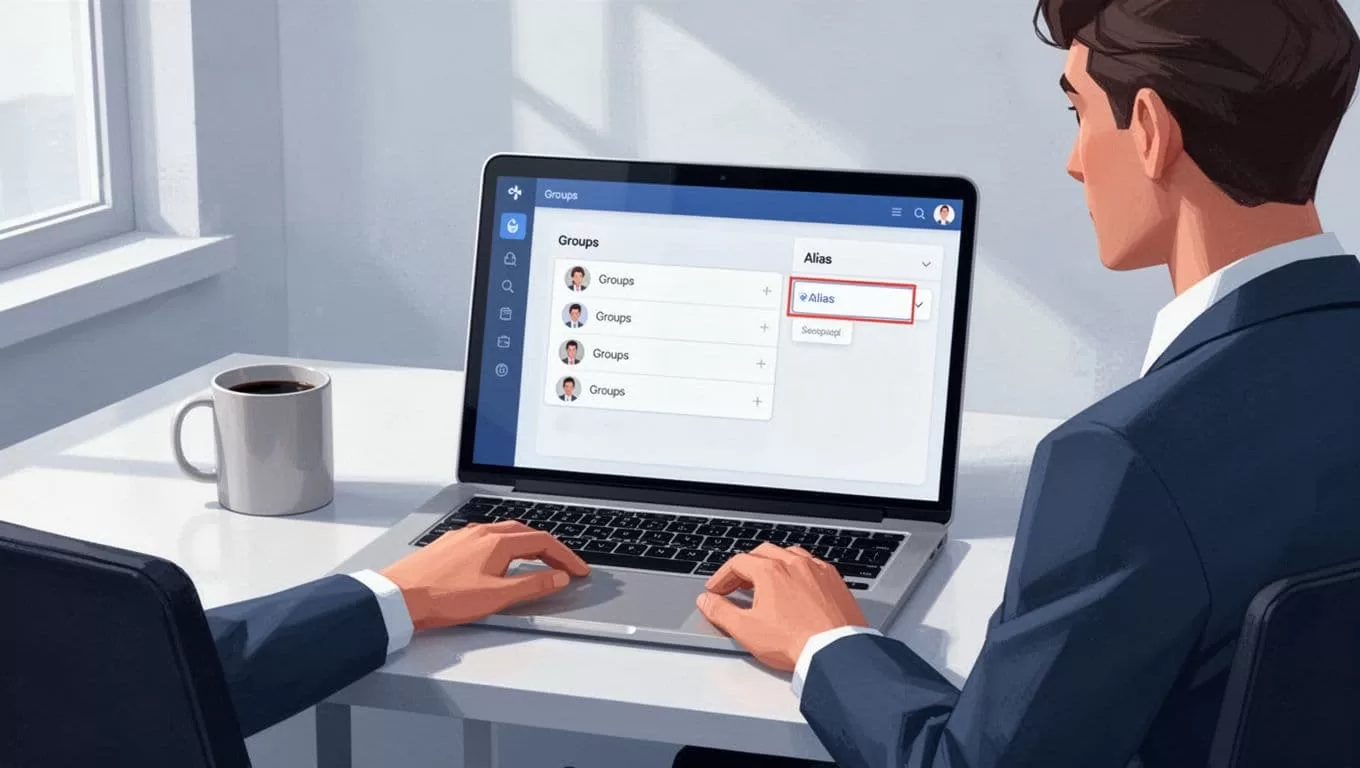
I do this weekly. Always in Admin console, not Google Groups app. Groups app edits details but skips aliases there.
Here’s how:
- Log into admin.google.com. Use super admin or Groups admin account.
- Click Menu > Directory > Groups. List loads. Filters help if many.
- Click your group name. Overview opens.
- Scroll to Group information. Find Aliases section.
- Click Aliases > Edit.
- Enter new address in Group Alias Email field. Pick domain if multiple.
- Hit Add Alias. Save changes.
Done. Test fast. Send email to alias from outside. Check group inbox.

Changes propagate in minutes. Rarely hours. DNS not involved. Aliases use your verified domains.
Avoid reserved words. System blocks them. Try variations.
Troubleshoot Permissions and Delivery Hiccups
Alias won’t add? Permissions first. Confirm Groups admin. Ask super admin to check.
Email bounces to alias? Propagation delay. Wait 15 minutes. Test again.
No delivery? Check spam rules. Apps > Google Workspace > Gmail > Spam, phishing. Defaults route group mail fine.
Members can’t send as alias? Set group settings. Group information > Who can post. Allow members.
I see delivery issues with external senders. Verify SPF, DKIM records. Messaging > Authentication.
User aliases confuse new admins. Don’t mix them. Groups handle teams. Users stay solo.
For alias limits, Google notes 30 max per group.
Manage Aliases Like a Pro
Review often. Remove unused ones. Directory > Groups > your group > Aliases > Edit > Delete.
Use groups for access control. I tie them to Shared Drives setup using Google Workspace groups. Permissions flow easy.
Name aliases logical. sales-support@ not random. Document them in group description.
Monitor via reports. Apps > Reports > Audit > Groups. Spot heavy use.
Batch add if many. Script via API for scale. But console works for small teams.
Track bounces. Gmail > Admin > Reports > Email log search.
Key Takeaways on Group Aliases
Group aliases unify inboxes without hassle. I rely on them for smooth team email.
Follow Admin console steps. Watch permissions and delays. Test every change.
Your setup improves fast. Teams respond quicker. Clients notice.
What alias will you add first?
