How to Build a Simple CRM in Google Sheets
If my sales notes live in random tabs, I lose deals before I notice. A google sheets crm gives me one place to track contacts, follow-ups, and pipeline stages without buying software I don’t need. I can start small, then add structure...

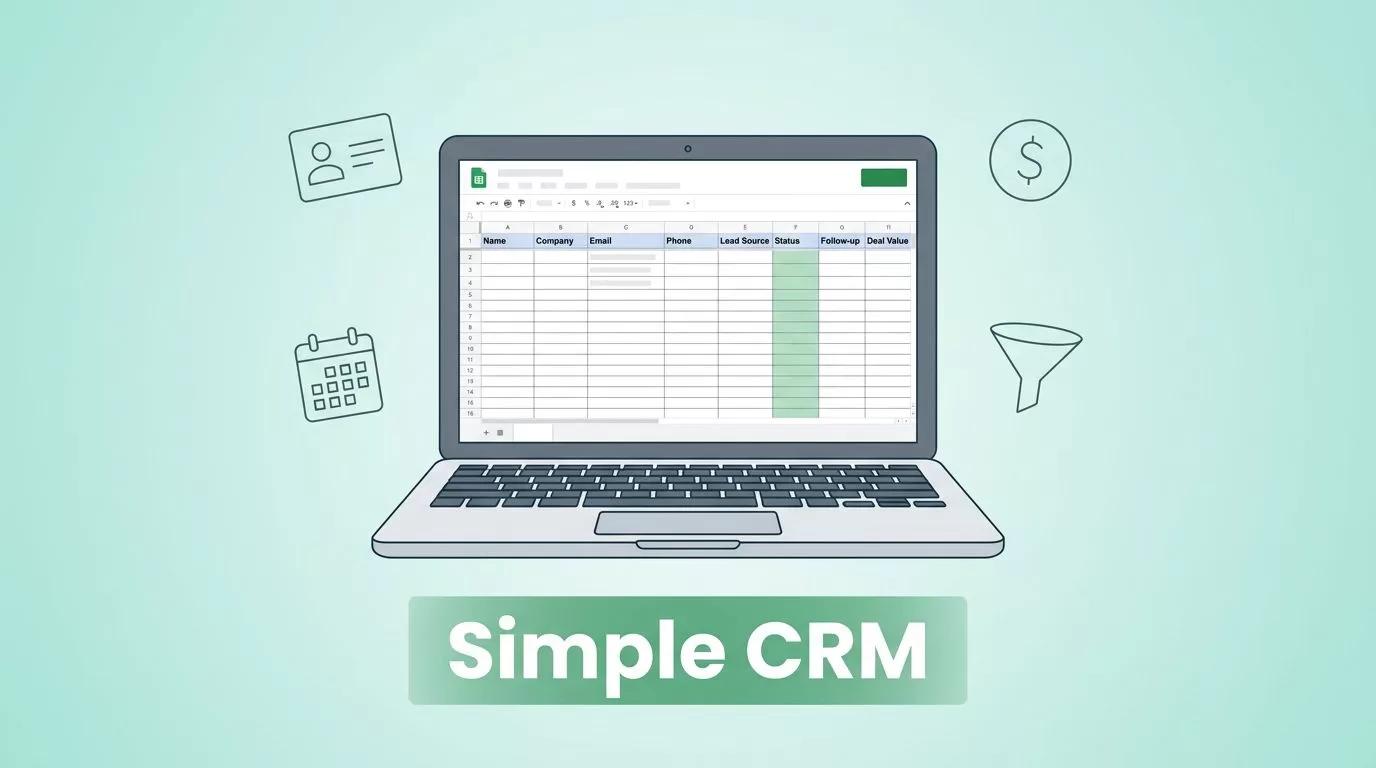
If my sales notes live in random tabs, I lose deals before I notice. A google sheets crm gives me one place to track contacts, follow-ups, and pipeline stages without buying software I don’t need.
I can start small, then add structure as leads arrive. The trick is to build it like a notebook I trust, not a maze I avoid.
Start with one clean sheet
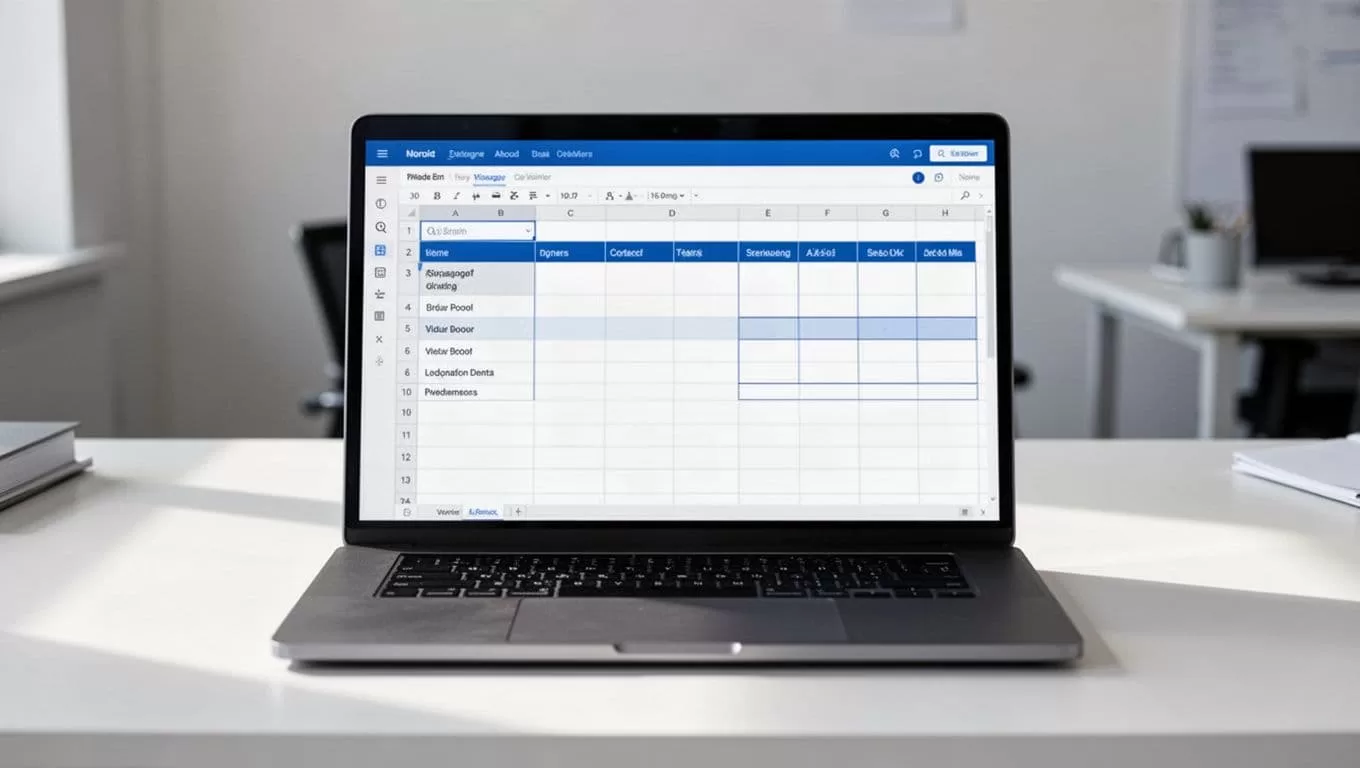
I begin with a single tab called CRM. One row equals one contact. That rule keeps the file easy to sort, filter, and update.
These are the fields I use first.
| Field | What I store | Example |
|---|---|---|
| Contact name | First and last name | Maria Chen |
| Company | Business name | Bright North Studio |
| Work email | maria@brightnorth.com | |
| Phone | Direct or office number | 555-0148 |
| Lead source | Where the lead came from | Referral |
| Status | Current stage | Contacted |
| Follow-up date | Next action date | 4/22/2026 |
| Deal value | Expected revenue | $1,200 |
| Notes | Key context | Wants pricing by Friday |
If I work solo, that’s enough. If I have a teammate, I add Owner and Last touched. I also freeze row 1, turn on filters, and widen the columns so I don’t fight the layout every day.
For a quick reference, I also compare my setup with HubSpot’s Google Sheets CRM guide. It helps confirm that my sheet stays simple and usable.

Add formulas that do the boring work
A CRM gets useful when it points me toward the next move. I keep the formulas simple because I don’t want to babysit them.
I usually set it up like this:
- In the Follow-up date column, I enter the date I need to act.
- In a helper column, I use
=G2-TODAY()to see how many days are left. - In another helper cell, I use
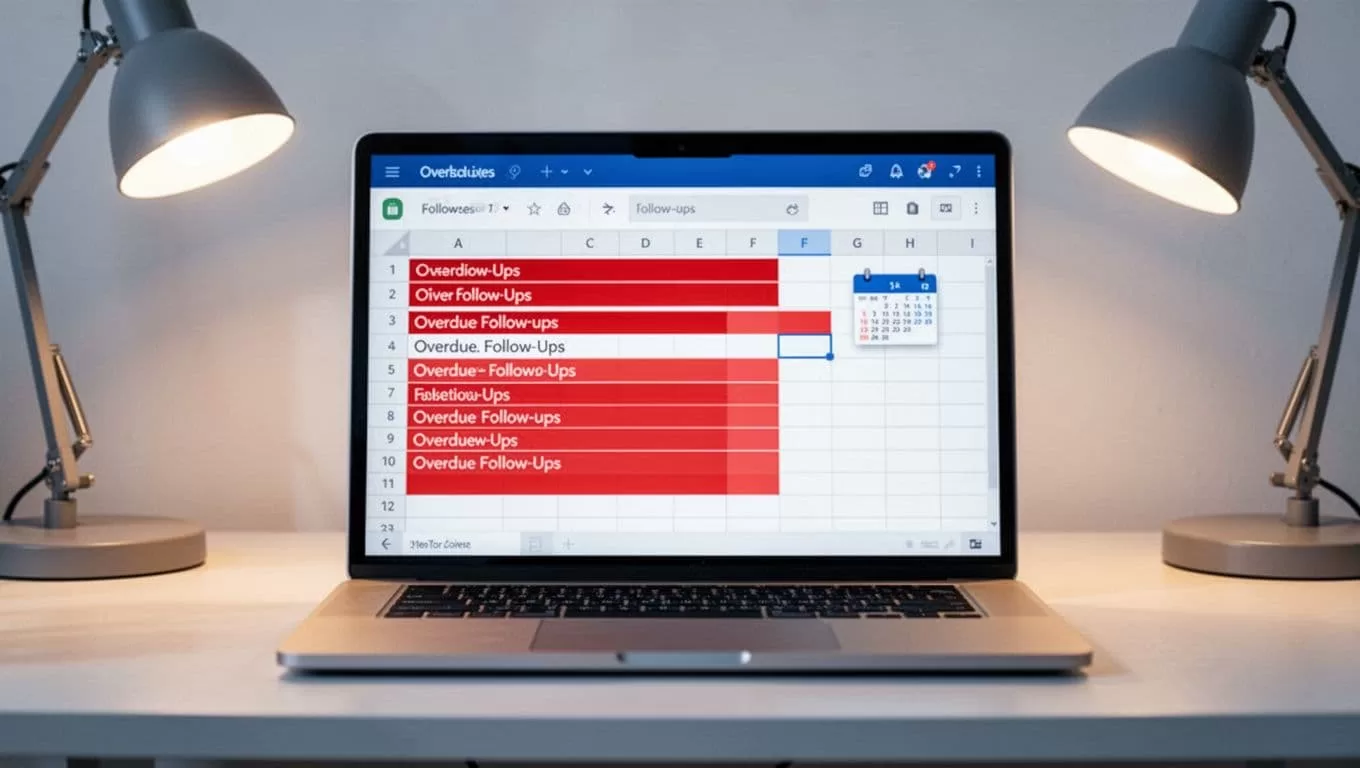
=IF(G2<TODAY(),"Overdue","Open")to flag missed follow-ups. - For status, I use data validation with these options: New Lead, Contacted, Follow-up, Proposal, Won, Lost.
- In a small summary area, I use
=COUNTIF(F:F,"Follow-up")to count active follow-ups.
If I want a quick revenue view, =SUMIF(F:F,"Won",H:H) totals the deal value for closed wins. That one formula tells me a lot.
I color overdue rows red and due-soon rows yellow. As a result, I can open the file and see what needs attention in seconds.
When I start with a fresh prospect list, I sometimes use Hunter.io Google Sheets workflow for verified leads so the CRM begins with cleaner data. That saves me from fixing bad emails later.
Move each lead through a simple pipeline
A pipeline makes the sheet feel alive. I use five statuses: New Lead, Contacted, Follow-up, Proposal, Won. I keep Lost as well, because lost deals teach me where I dropped the thread.
This is how I move a lead:
| Status | My next step |
|---|---|
| New Lead | Log the contact and send the first email |
| Contacted | Wait for a reply or call back |
| Follow-up | Send a reminder on the date in column G |
| Proposal | Record price, scope, and the next date |
| Won | Mark deal value and save notes |
| Lost | Note why it didn’t close |
For example, Maria Chen from Bright North might come from a referral. I log her name, company, email, phone, lead source, status, follow-up date, deal value, and a short note. After my first email, I change her status to Contacted. When she asks for pricing, I move her to Proposal. If she signs, I mark Won and keep the notes for the next deal.
If I later need a handoff into a broader stack, Hunter.io integrations for B2B sales teams helps me move verified contacts out of the sheet without extra copy-paste.
Keep the sheet useful on busy days
The best CRM is the one I open without sighing. I keep the sheet short, clean, and easy to scan.
If I need one rule to remember, it’s this: a CRM only works when I update it the same day.
These are the mistakes I avoid:
- I don’t create too many tabs. One main CRM tab keeps everything readable.
- I don’t bury follow-up dates in notes. Dates belong in their own column.
- I don’t skip the status dropdown. Free-typed statuses get messy fast.
- I don’t write long notes. I keep them short and useful.
- I don’t forget to archive closed deals. A quarterly archive tab keeps the live sheet light.
I also protect the formula columns so I don’t break them by accident. If I work with a team, I use filter views for each rep. That way, everyone sees their own list without touching mine.
When I want reminders or automations outside the sheet, I look at Relay’s automation ideas for Google Sheets CRM. It gives me a path to alerts and task prompts, while I still keep the spreadsheet as my source of truth.
A simple sheet works best when it matches my real habit. If I check leads every morning, the CRM should greet me with today’s work, not a pile of noise.
The whole point is control. When my contacts, follow-ups, and deal values live in one place, I stop guessing and start managing my pipeline with less friction.

