How To Create A Catch-All Email In Google Workspace
Lost mail feels like a cracked window in an office. One typo, and a lead, client reply, or support request slips away. That’s why I set up a catch-all email in Google Workspace when a domain needs to catch misaddressed mail. In 2026,...

Lost mail feels like a cracked window in an office. One typo, and a lead, client reply, or support request slips away.
That’s why I set up a catch-all email in Google Workspace when a domain needs to catch misaddressed mail. In 2026, Google still doesn’t offer a true catch-all switch inside Gmail for users, but I can build the same result with admin routing.
Quick answer
If I want the short version, here’s the setup:
- Google Workspace does not give users a native catch-all button in Gmail.
- Admins can create catch-all-style routing in the Google Admin console.
- I need admin access with Gmail settings rights, but I don’t need a special plan.
- I usually send the mail to a dedicated mailbox or a Google Group.
Google’s own help pages on catch-all routing in Workspace and Gmail routing options match that approach.
Table of contents
- Catch-All Email in Google Workspace: what works in 2026
- How I set up the routing rule
- Choosing the right destination
- When the catch-all stops working
- FAQ
Catch-All Email in Google Workspace: what works in 2026
I keep one rule in mind, Google Workspace doesn’t let me turn on a catch-all from a normal Gmail inbox. Instead, I use routing settings in the Admin console.
That matters because the setup is different from a personal Gmail habit. A user can add filters, aliases, and forwarding. An admin can do more. In the Admin console, I can send mail aimed at non-existent addresses to one chosen target.
As of April 2026, that hasn’t changed. Google’s routing tools still handle the job, and they work across Workspace plans, including Business Starter. The real requirement is admin access.
If I’m starting from a fresh domain, I finish the foundation first. My complete Google Workspace domain email setup guide covers MX records, SPF, DKIM, and DMARC. I don’t skip that part, because a catch-all can’t help if mail never reaches Google.
How I set up the routing rule
I like to set the rule with the mailbox ready first. That keeps testing simple and avoids confusion later.
- I sign in to the Google Admin console with an admin account that can manage Gmail.
- I go to Apps > Google Workspace > Gmail > Routing.
- I open Add setting or Configure, depending on the console layout.
- I choose the option for catch-all address or misaddressed mail.
- I enter the mailbox that should receive the mail.
- I apply the rule to Inbound mail, and if needed, to Internal-receiving mail too.
- I save the change and wait for propagation.
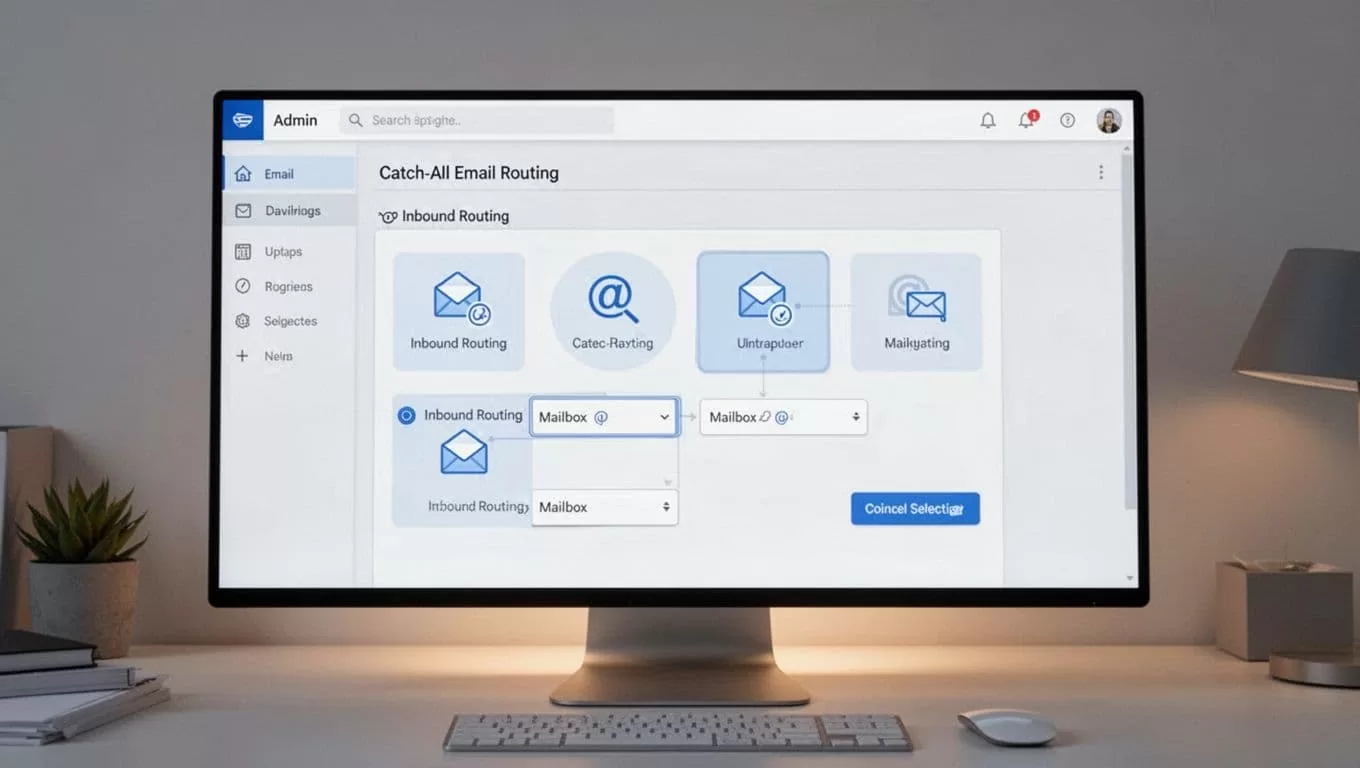
A setup screen like this helps me confirm I’m in the right menu before I save anything.
Google says these routing changes can take up to 24 hours, although I often see them land sooner. That wait is normal, so I test with patience, not panic. I also keep Google’s routing settings guide open while I work, because the exact labels can shift a little.
If a test message misses the inbox, I check the routing rule before I blame the mailbox. Conflicting mail rules often cause the problem.
Choosing the right destination
I don’t send catch-all mail into a random personal inbox. That gets messy fast. I choose the target based on who needs to see the mail and how many people will reply.
| Target | Best for | What I like | Trade-off |
|---|---|---|---|
| Dedicated mailbox | One owner, low volume | Simple and easy to test | Extra user cost |
| Google Group | Small team sharing one address | Several people can monitor mail | Replies can feel inconsistent |
| Alias | One person, many public addresses | Clean and cheap | Not shared ownership |
If I need team addresses beyond a catch-all, I often pair routing with aliases. My Google Workspace email aliases setup for teams guide shows how I handle support@, sales@, and billing@ without creating extra users too early.
For larger teams, I also keep my managing Google Workspace email hosting notes nearby, because MX, deliverability, and account structure all affect whether the setup feels solid.
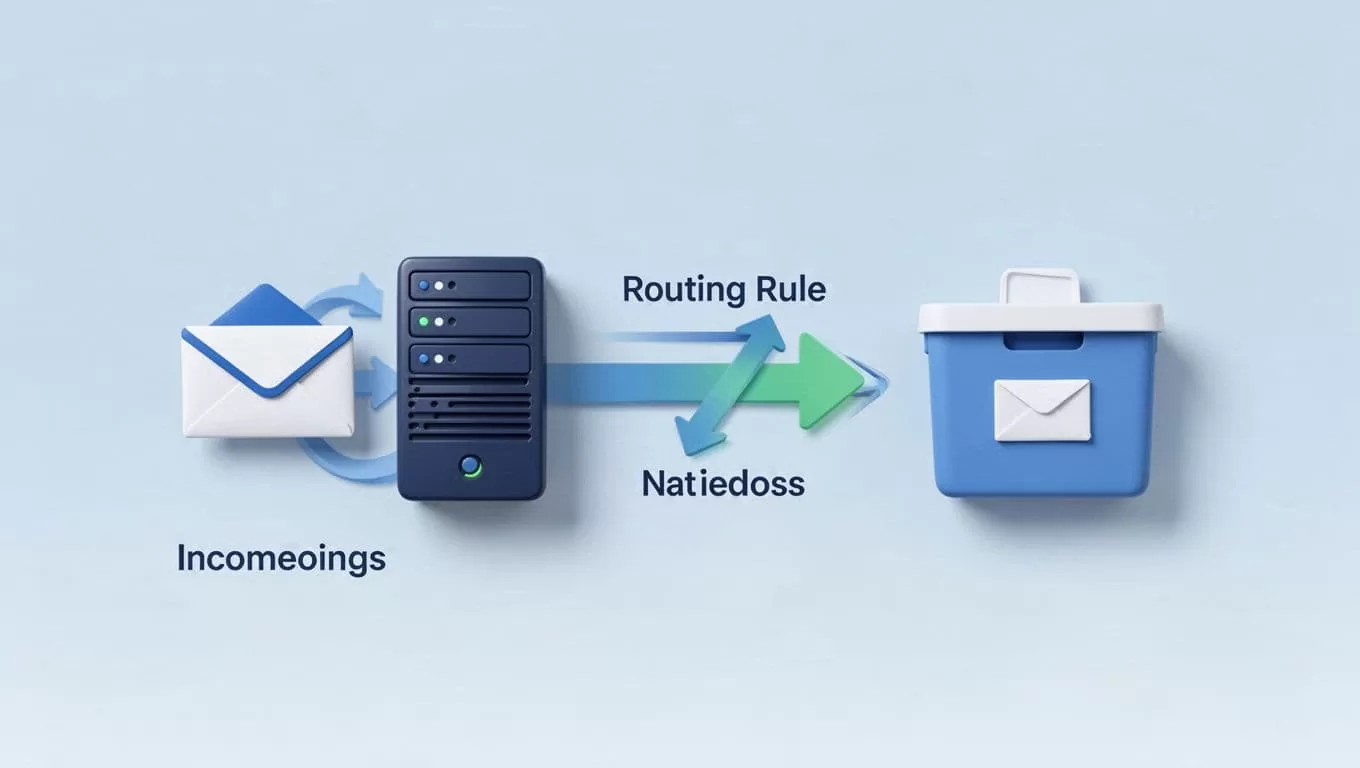
This flow view helps me explain why one mailbox can receive many misspelled addresses.
When the catch-all stops working
When mail doesn’t arrive, I work through the basics first. That saves time.
- I check that Gmail is active for the domain.
- I confirm the routing rule applies to the right message type.
- I make sure the target mailbox or group exists.
- I test from an external address, not only from inside the domain.
- I verify that old MX records aren’t still winning.
- I wait for propagation if I changed the rule recently.
If I moved the domain from another provider, DNS is usually the first place I look. A catch-all is only one part of delivery. If MX records point somewhere else, the rule never gets a chance.
I also watch for spam and compliance rules. Another routing rule can override the catch-all and send mail elsewhere. That’s why I review the whole Gmail settings stack, not just one screen.
FAQ
Can I create a true catch-all inside Gmail?
No. I can’t turn on a native catch-all from a regular Gmail inbox. I need admin routing in Google Workspace.
Does catch-all routing work on Business Starter?
Yes. I don’t need an expensive plan for this. I do need admin access in the Google Admin console.
Should I use a mailbox, group, or alias?
I use a mailbox when one person owns the address. I use a Google Group when several people need to watch the same mail. I use an alias when I want another address that still lands in one inbox.
Why do test emails sometimes take a while?
Routing changes can take time to spread. Google notes that it may take up to 24 hours, so I test again later if the first message doesn’t land.
A catch-all feels simple, but the clean setup depends on one thing, admin control. Once I separate native Gmail behavior from Workspace routing, the rest gets easier. I can catch misaddressed mail, keep one inbox from filling with chaos, and give my domain a safer landing spot for every typo that used to disappear.
