How I Create Email Aliases in Google Workspace
I remember the first time I needed an extra email address for a team member. They handled support tickets, but clients sent messages to support@mycompany.com instead of their main inbox. A quick alias fixed it. No new account. Just one inbo...

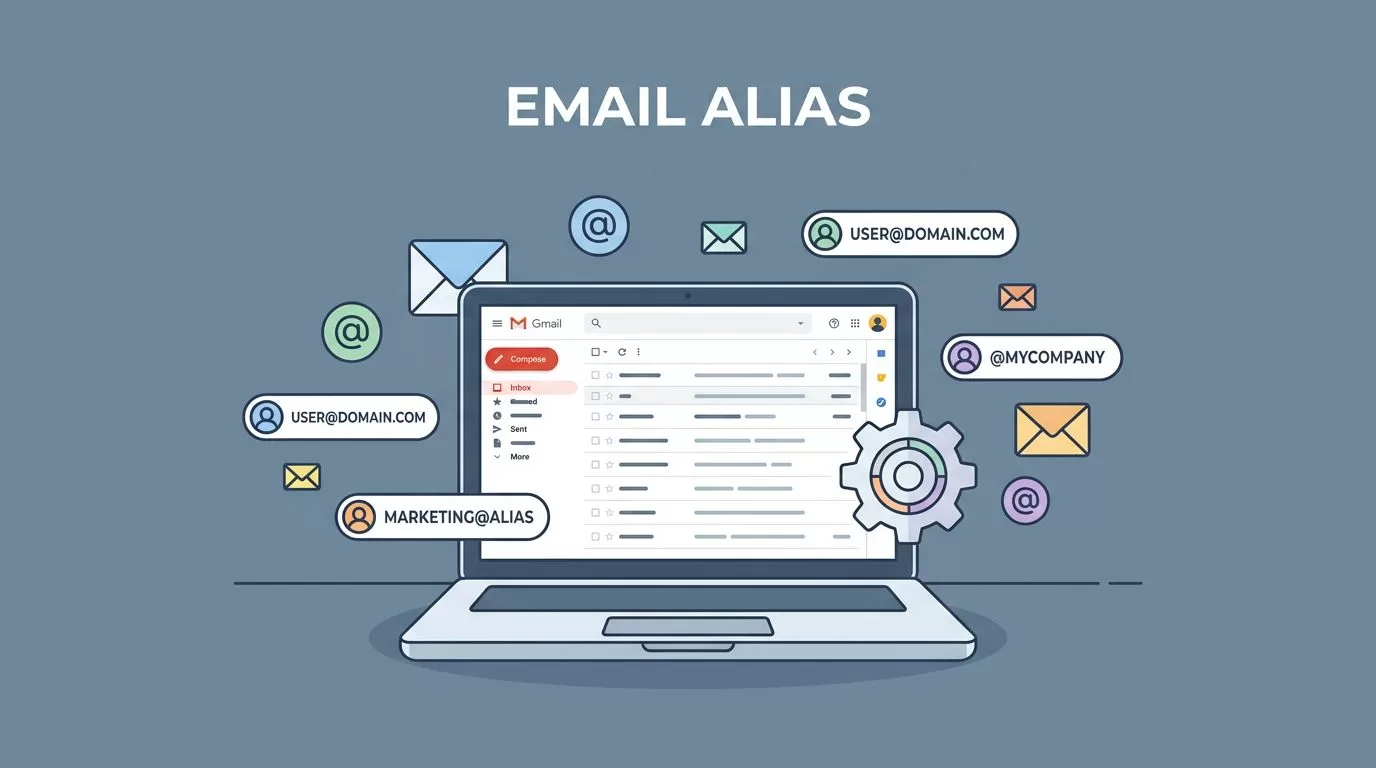
I remember the first time I needed an extra email address for a team member. They handled support tickets, but clients sent messages to support@mycompany.com instead of their main inbox. A quick alias fixed it. No new account. Just one inbox with all the mail.
As a Google Workspace admin, I add these aliases often. They save time and keep things simple. You get up to 30 per user at no extra cost. But first, know what you’re creating. Mix-ups with groups or domains cause headaches.
Let’s start with the basics. Then I’ll walk you through my exact steps.
Understand Email Alias Types in Google Workspace
I always clarify terms before I touch the admin console. People confuse user aliases with groups or domains. Here’s how I sort them.
A user email alias points extra addresses to one person’s inbox. For example, I add billing@company.com to jane@company.com. Jane sees all mail in her Gmail. She sends from it too. No separate login.

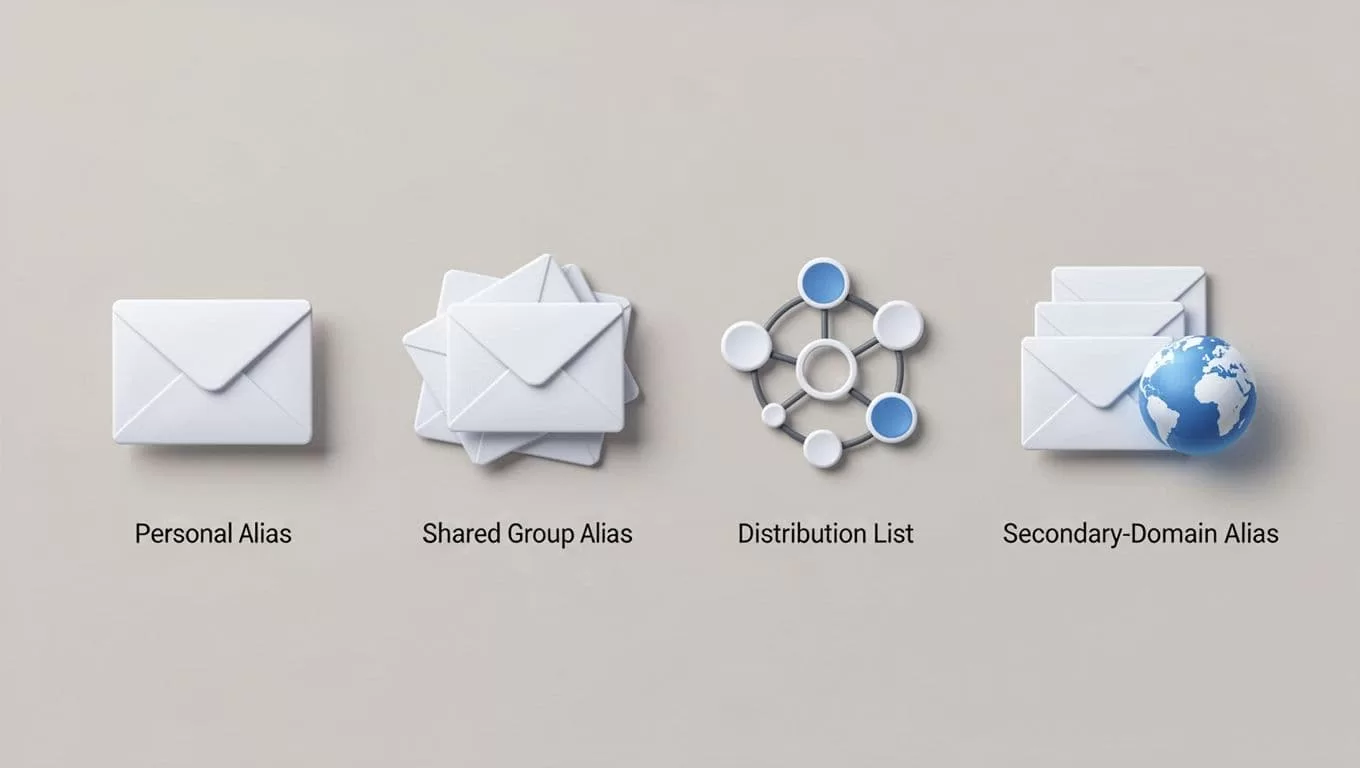
A group alias attaches to a Google Group. Multiple people access it. Mail goes to the group, not one inbox. I use this for shared team addresses like sales@company.com.
Google Groups act as distribution lists. Add members, and they get copies of incoming mail. Or set it to collaborative inbox mode. Unlike aliases, groups need setup first.
Secondary domains expand your reach. I add another domain like company.net. Users get aliases like jane@company.net that route to jane@company.com. But you verify the domain separately.
User aliases stay within primary or secondary domains. They don’t work on domain aliases, which auto-map every user. Check Google’s official guide on adding aliases for details.
These differences matter. Pick the wrong one, and mail bounces or floods inboxes.
Check Your Admin Permissions First
Before I open the console, I confirm access. Only admins with User Management privileges can add aliases. Super admins have it by default. Delegates might not.
Log in at admin.google.com. If you see Directory > Users, you’re good. No access? Ask your super admin. Or check Apps > Google Workspace > Gmail > User settings. Routing must allow aliases.
I also verify domains. Aliases use your primary or secondary ones. Domain aliases don’t support manual adds. See my Google Workspace email setup guide for domain basics.
Propagation takes time. Changes show in 1-24 hours, often minutes. DNS caching slows it sometimes. Patience helps.
Users receive alias mail in their main inbox. They reply as the alias if they choose. No extra credentials. Login stays primary.
Step-by-Step: Add a User Email Alias
Now the hands-on part. I do this weekly. Follow these steps in the 2026 Admin console.
- Sign in to admin.google.com with admin credentials.
- Click Menu > Directory > Users. Search for the user or browse the list.
- Select the user. Their profile opens.
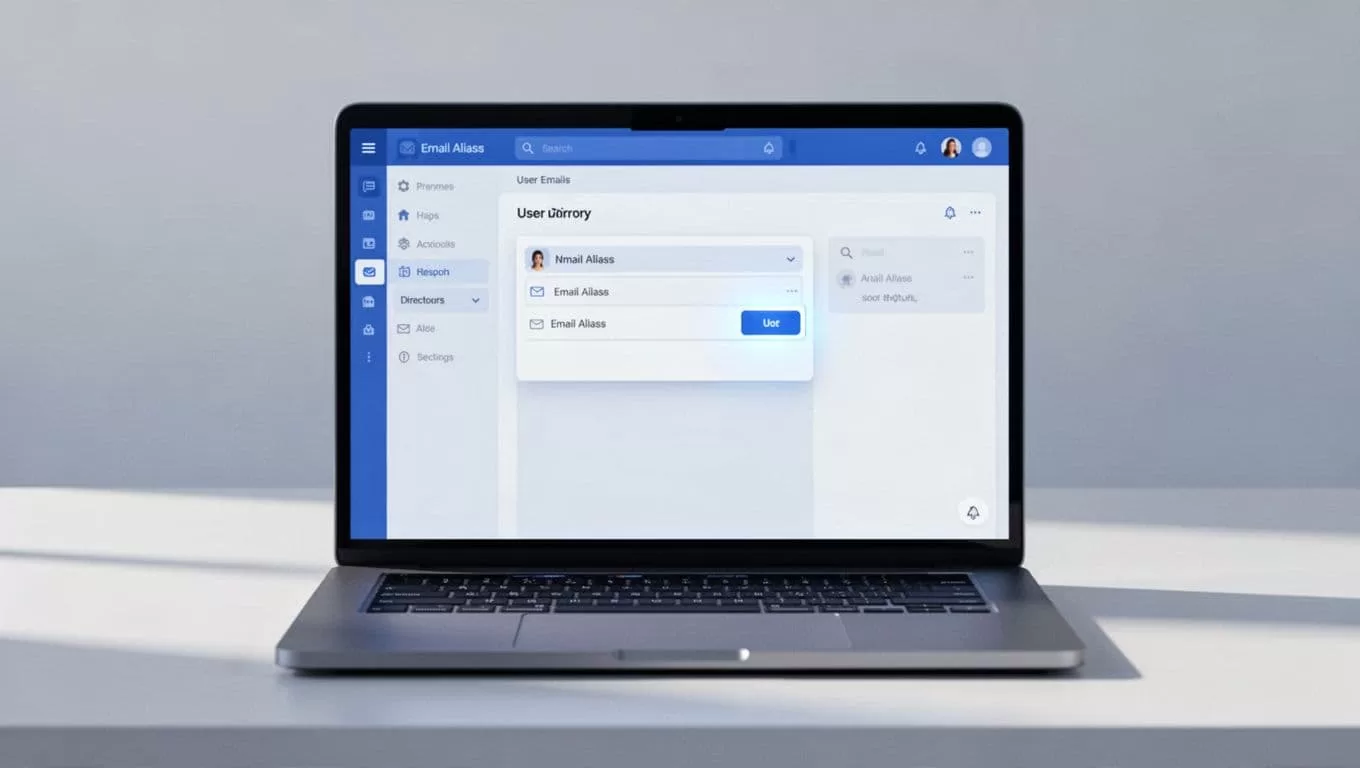
4. On the left, click User information. Scroll to Email aliases or Alternate emails. 5. Click Add alternate email or Add alias. 6. Enter the alias name (before the @). Pick the domain from the dropdown. For example, “info” for info@company.com. 7. Click Save. Done.
Test it. Send mail to the alias from outside. Check the user’s inbox. If no mail in 30 minutes, wait longer.
You hit 30 aliases max per user. Exceed it? Delete one first. Need bulk adds? Use the Directory API, but that’s for scripts. See Google’s API docs.
For my full business email hosting tips with Google Workspace, check that next.
Handle Common Troubleshooting Tips
Issues pop up. I fix them fast with these checks.
Alias already in use? Search Directory > Users for it. Delete from the old spot.
Domain conflicts? Ensure it’s primary or secondary, not alias type. Add secondary domains via Account > Domains > Manage domains. Verify ownership first. Details in Google’s domain alias guide.
Mail not arriving? Propagation delay. Up to 24 hours. Flush DNS or use incognito mode. Check spam filters in Gmail > Settings.
Bounces on send? User must select the alias in Compose > From. Or set default in settings.
SPF/DKIM misconfigured? Mail rejects. I fix with my SPF DKIM DMARC setup for Google Workspace.
User can’t send as alias? Admin routing blocks it. Go to Apps > Google Workspace > Gmail > Routing. Allow.
Still stuck? Review logs in Reports > Email Log Search.
Conclusion
Email aliases streamline my Workspace setup. One inbox handles multiple roles. No extra accounts or logins.
Master user aliases versus groups and domains. Follow the steps. Troubleshoot delays and conflicts.
Your team communicates better now. Set one up today.

