How I Add a Google Workspace Email Footer for My Team
A company email footer sounds small, but it carries a lot of weight. It can hold a legal line, a privacy note, or a clean contact block that every message needs. I use a Google Workspace email footer when I want one rule for the whole organ...
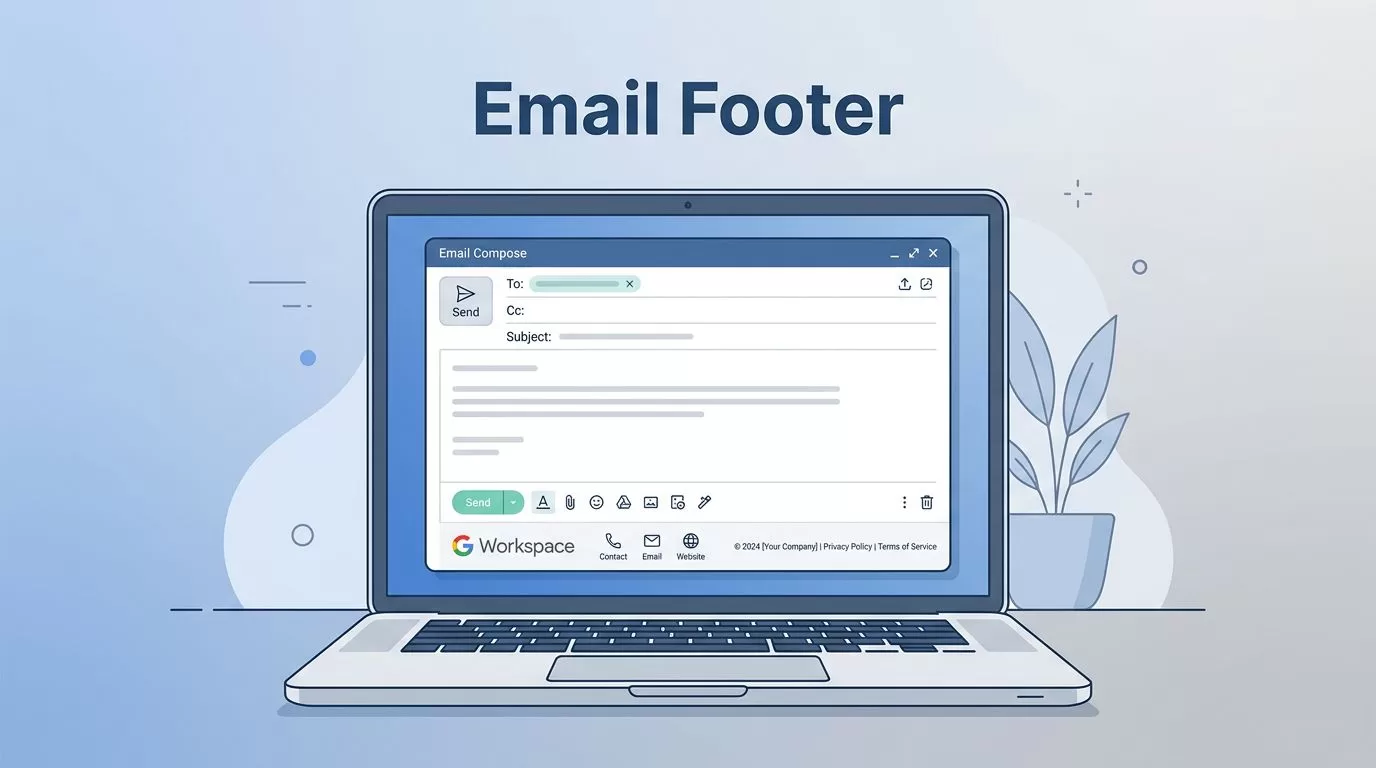
A company email footer sounds small, but it carries a lot of weight. It can hold a legal line, a privacy note, or a clean contact block that every message needs.
I use a Google Workspace email footer when I want one rule for the whole organization. I use a personal Gmail signature when I want each person to control their own name, title, phone number, or logo. The trick is knowing which one solves the problem in front of you.
Find the Append footer setting in the Admin console
Google still places this under Gmail admin settings in 2026, although labels can shift a little. The official help page for adding a standard footer to outgoing emails is the best reference if your screen looks a little different from mine.
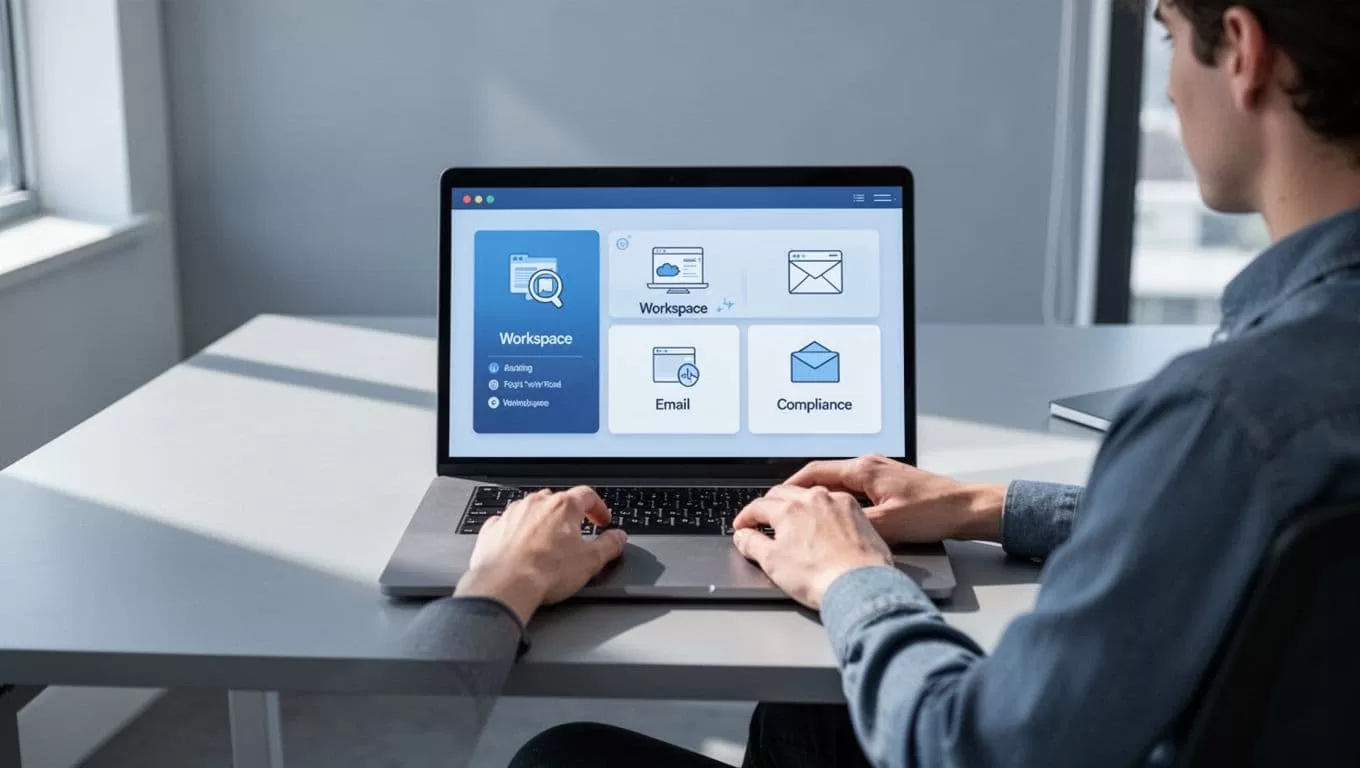
Here’s the path I follow:
- Sign in to the Google Admin console with an administrator account.
- Open Apps.
- Go to Google Workspace.
- Select Gmail.
- Open Compliance. In some tenants, Google may place the option under a slightly different Gmail sub-menu, so don’t panic if the labels move.
- Find Append footer, then click Configure or Add another rule if one already exists.
- Give the rule a clear name. I use something like “External email disclaimer.”
- Type the footer text in the box for outbound messages.
- Choose whether the footer should appear only on external mail or also on internal mail.
- Click Save.
By default, the footer usually applies to messages leaving your company. I only check the internal option when policy or legal review says every email needs it. If you manage multiple organizational units, remember that child units often inherit the parent setting unless you override it.
I always send a test message to both an internal and an external address before I call the setup finished.
Know when a footer beats a Gmail signature
A footer and a signature may look similar, but they solve different problems. I treat the footer like a company rule and the signature like a personal calling card.
| Use case | Best choice | Why |
|---|---|---|
| Legal disclaimer | Admin footer | It stays consistent for everyone |
| Privacy notice | Admin footer | It follows company policy |
| Name, title, phone | Personal Gmail signature | Users can keep it current |
| Logo or marketing banner | Personal signature or footer, depending on policy | It depends on whether you want central control |
For user-managed signatures, Google’s guide to Google Workspace user signatures in Gmail is the right place to start. I use that route when each employee needs a different contact line or a role-specific signoff. I use the admin footer when the whole company needs the same text at the bottom of every outgoing message.
A simple footer keeps the message clean. I like short text such as:
- “Confidentiality notice: This email is intended only for the named recipient.”
- “Please do not share this message outside your organization.”
- “For billing questions, contact support@company.com.”
If I need a softer tone, I keep it plain and direct. For example: “This message may contain confidential information. If you received it by mistake, reply to let us know and delete it.” That reads better than a wall of legal noise.
I also keep one thing in mind: less is easier to read. A footer should look like a signature on a letter, not a paragraph stuffed into the margin.
Fix it when the footer doesn’t show up
When a footer goes missing, I check the basics first. Most problems come from scope, encryption, or a rule that was saved in the wrong place.
- The rule is on the wrong organizational unit: I check whether the users belong to the OU where I added the footer.
- The setting only covers external mail: If I test with an internal address, I may never see it unless I enabled internal messages too.
- Client-side encryption is on: Google says the append footer feature isn’t supported for some encrypted messages, so the footer may never appear there.
- A second rule overrides the first one: If I already have another compliance rule, I review the order and the match conditions.
- The message came from an alias or special workflow: I send a direct test from a normal mailbox to rule out edge cases.
I also watch for plain formatting mistakes. Extra line breaks, odd fonts, or a huge image can make the footer look broken even when the rule works. When I use a logo, I keep it small and clean so it doesn’t crowd the message.
If I’m still stuck, I compare the setup with a personal signature. That helps me spot whether I need an admin rule or a user-level change. A footer is the right move when I want one company-wide standard. A signature is better when the sender needs control.
A clean footer does one job well
A good email footer should feel invisible until the moment someone needs it. I keep it short, place it in the right admin rule, and test it before I trust it.
That matters because the best Google Workspace email footer is the one people notice only when they need the information. If I set it up with care, every message leaves the inbox with the same clear, professional finish.
