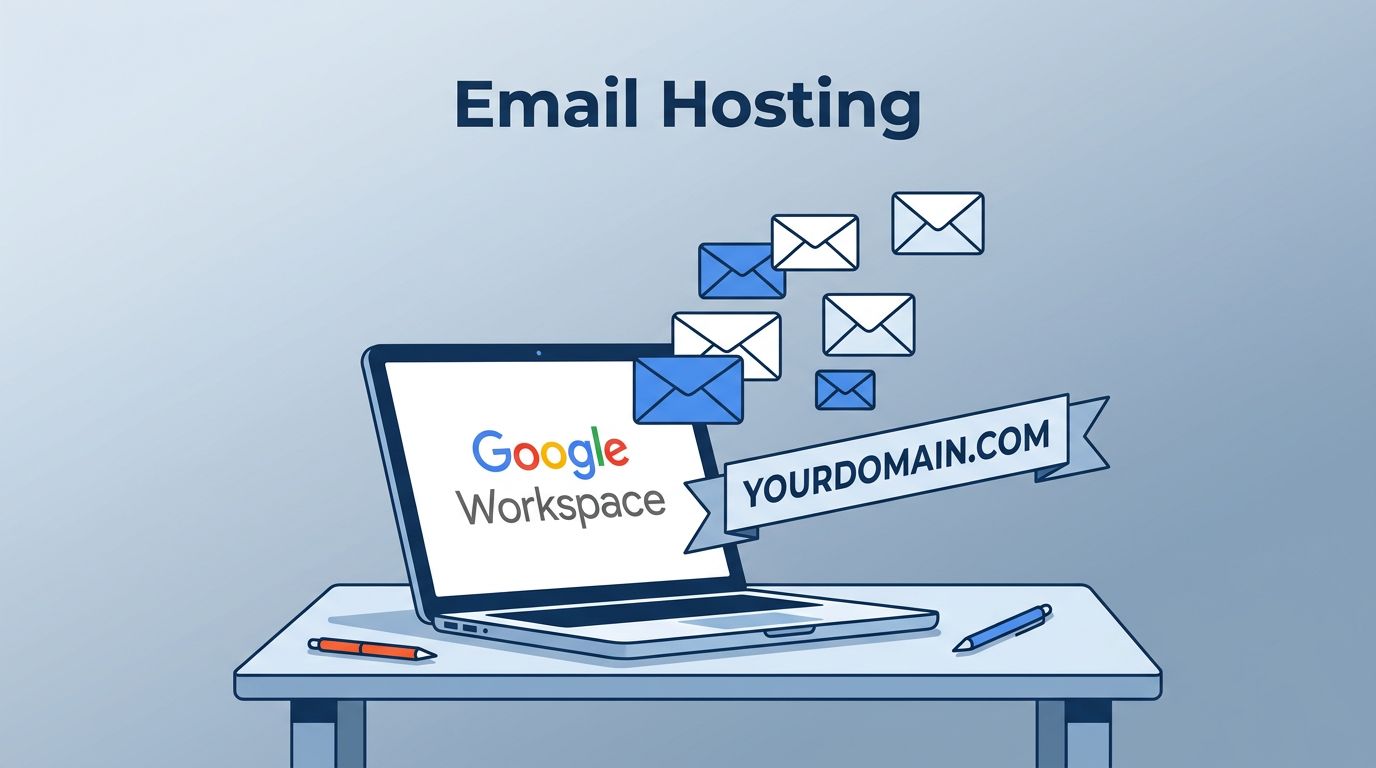
A business email address works like a storefront sign. If the sign looks off, people notice. That’s why I treat Google Workspace email hosting as more than a mailbox. It’s part brand, part security layer, and part daily workflow.
When I set it up well, my team gets professional email on a custom domain, cleaner admin control, and fewer delivery problems. In 2026, that matters even more because inbox trust is harder to win and easier to lose.
Setting up a custom domain email the right way
I always start with the domain. Before I add users or move old mail, I verify domain ownership in Google Workspace and map out who needs an inbox, an alias, or a shared address. Google’s own setup guide is still the best place to confirm the latest steps.
Here’s the order I follow:
- Verify the domain in the Admin console.
- Create user accounts for real employees first.
- Add aliases and groups like support@ or billing@.
- Update MX records at the domain host.
- Test one mailbox before rolling it out to everyone.

If I’m moving from another provider, I avoid a big-bang cutover. Instead, I migrate one or two users first, check folders, contacts, and forwarding, then switch the full domain during a quiet window. That simple pilot run saves a lot of pain.
MX records are the hinge on the whole door. If they point to the wrong place, mail won’t arrive. For a plain-English walkthrough, I like this MX record testing guide. It helps me confirm that old mail routes are gone and Google is receiving mail.
If new mail doesn’t land after setup, DNS is usually the first thing I check, not Gmail.
Managing users without turning admin into chaos
Once email is live, daily management matters more than the launch. I keep the user list clean, assign only the roles people need, and avoid giving super admin access unless there is a clear reason. Too much access feels convenient at first, then turns into risk.
For most businesses, I separate mailboxes into three buckets: named users, shared groups, and aliases. A salesperson needs a real mailbox. A shared address like sales@ usually works better as a group. A founder who wants ceo@ and hello@ often just needs aliases.
I also set a process for offboarding on day one. When someone leaves, I suspend the account, change the password, review forwarding, and decide whether to transfer Drive data. That keeps email history available without letting a forgotten account drift open in the background.
Storage and plan choice matter here, too. As of March 2026, Google’s direct business pricing commonly starts at $8.40 per user monthly for Business Starter, or $7 with annual billing. Business Standard is $16.80 monthly or $14 annually, and Business Plus is $26.40 monthly or $22 annually. Enterprise pricing is custom, and reseller or country pricing can differ.
Improving deliverability before messages start bouncing
A polished domain means nothing if your quotes land in spam. So after setup, I spend time on deliverability. I make sure SPF, DKIM, and DMARC are in place, because those records tell receiving servers that my email is real.
Google’s Gmail best-practice guidance is useful here, especially for send limits and account behavior. I also watch for habits that look suspicious, like a brand-new mailbox sending hundreds of cold emails on day one.
Good deliverability usually comes down to boring discipline:
- Authenticate the domain so mail servers can trust it.
- Warm up new accounts slowly if sending volume will grow.
- Keep lists clean and avoid blasting dead addresses.
- Match sending behavior to the person or team using the inbox.
If I use forms, CRMs, or ticket tools, I test each one. A mis-set integration can send from the wrong address or break replies. That’s the kind of small crack that turns into a missed deal.
Securing accounts and tightening Gmail admin settings
Email is still the front door for fraud. Because of that, I treat security as a setup task, not an afterthought. The first thing I turn on is 2-step verification. Then I review password rules, session control, and account recovery options.
For companies with finance, HR, or client data, I also check routing, spam, and compliance controls in the Gmail Admin settings. Those controls help with catch-all behavior, suspicious attachments, outbound routing, and message filtering.
My baseline security routine is simple. I require 2-step verification, limit super admins, review suspicious login alerts, and remove old mobile sessions. Then I train staff on phishing in plain English. Fancy settings help, but a rushed click can still undo them.
Where Google Workspace fits best, and where it needs extra care
I like Google Workspace because it gives me business email, shared calendars, file tools, and admin control in one place. Still, it isn’t magic. The strengths are real, and so are the trade-offs.
This quick comparison sums up how I look at it:
| Pros | Limitations |
|---|---|
| Professional email on a custom domain | Per-user cost grows with headcount |
| Strong spam filtering and familiar Gmail interface | DNS setup can confuse first-time admins |
| Easy user creation, aliases, and groups | Migrations need planning and testing |
| Good security controls for small and mid-sized teams | Some advanced compliance needs higher plans |
That balance works for most small and growing businesses. If I want a clean, managed system, it’s a strong fit. If I need deep archival or very custom mail flows, I plan more carefully.
Common problems I fix first
When email acts strange, I don’t guess. I check the basics in this order:
- Mail not arriving: MX records are wrong, missing, or still propagating.
- Mail goes to spam: SPF, DKIM, or DMARC is missing, or sending behavior looks risky.
- Users can’t sign in: 2-step settings, password reset flow, or account suspension needs review.
- Old mail is missing: Migration scope was incomplete, or IMAP import stopped early.
Most email problems are less like a storm and more like a loose hinge. Small fix, big relief.
In the end, good email hosting isn’t about having the fanciest inbox. It’s about control, trust, and fewer surprises. When I manage Google Workspace with that mindset, email stops being a daily fire drill and starts working like it should. If you’re setting up business mail this year, start with the domain, lock down security, and test every step before you scale.