How I Set Up Email Routing Rules in Google Workspace
I’ve managed email for small teams and growing businesses. Emails pile up fast. One inbox overflows while another sits empty. That’s where Google Workspace email routing saves the day. It directs messages exactly where they belo...


I’ve managed email for small teams and growing businesses. Emails pile up fast. One inbox overflows while another sits empty. That’s where Google Workspace email routing saves the day. It directs messages exactly where they belong.
I started using these rules years ago. They cut confusion and kept compliance smooth. You forward support tickets automatically or copy execs on key threads. No more manual sorting.
This guide shares my exact steps. I’ll cover basics to advanced setups. Plus, pitfalls I learned the hard way. Let’s get your rules running right.
Why Email Routing Fits My Workflow
Email routing in Google Workspace handles inbound messages smartly. It goes beyond simple forwards. I use it to split traffic by recipient, content, or headers.
Default routing sets the baseline for all mail. It delivers copies to multiple spots if needed. Then, specific routing rules override for precision. For example, I route all @support.example.com to a shared inbox.
This setup works for teams. Sales gets leads. HR handles attachments. No one misses critical mail. It also aids audits. Copies land in compliance folders.
I pair it with aliases for clean addresses. One rule forwards info@ to three inboxes. Everyone sees the same thread. For more on aliases, check my Google Workspace email aliases for teams.
Google processes mail first. It strips spam. Then applies your rules. This order prevents loops. I always test small before full rollout.
Navigating to Routing Settings in the Admin Console
Log into admin.google.com first. Use your super admin account. I enable 2FA everywhere. Security matters.
Click Apps. Then Google Workspace. Select Gmail. Scroll to Routing. You see Default routing and Routing options.
Menus shift sometimes. Check Google’s official guide on adding Gmail routing settings for the latest paths.
Default routing applies org-wide. I set it for dual delivery once. All mail hits Gmail and a backup server. Routing rules handle exceptions.
Click Create above the list. Name your rule. Set it to active right away or test inactive first.
Affected users come next. Pick individuals, groups, or the whole domain. I start narrow. One department avoids surprises.
Creating Your First Routing Rule
Pick a simple start. Say, forward all messages over 5MB to IT.
Name it “Large Attachment Forward.” Set status to Active.
Choose recipients. I select a group like it-support@.
Match criteria. Click Add. Envelope recipient matches support@yourdomain.com. Or any header.
Main action: Add more recipients. Enter it-review@yourdomain.com. Check “Also deliver to original recipients.” Preserves the main inbox.
Advanced options let you modify subjects or reject outright. I skip those first.
Save and activate. Changes take minutes to propagate.

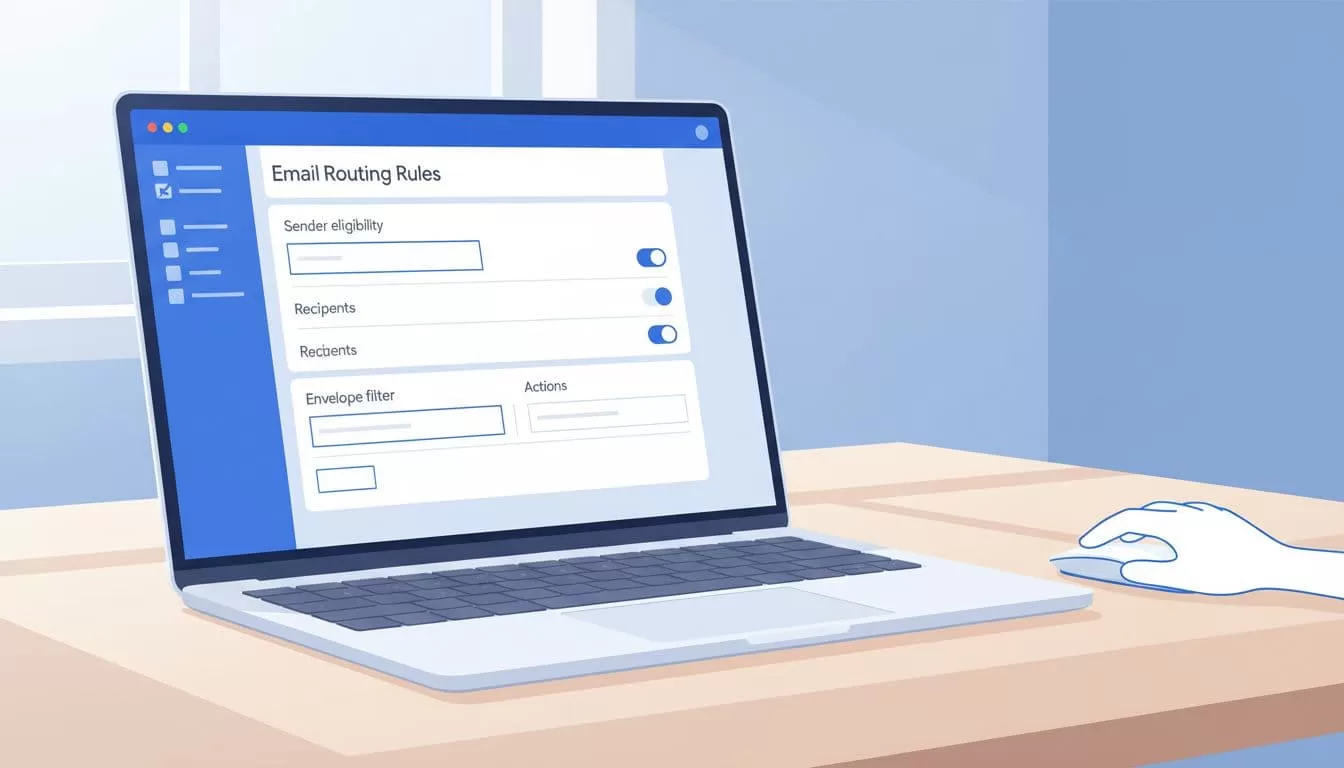
This screenshot matches my setup screen. Focus stays on the rule form.
I verify domain basics first. Proper MX records point to Google. For full steps, see my step-by-step domain verification for Google Workspace email.
Routing by Specific Recipients and Groups
Target one user or a group next. CEO mail copies to an assistant.
Create “CEO Oversight.” Affected users: ceo@yourdomain.com.
No match needed for all inbound. Or add criteria like from competitors.
Action: Also deliver to assistant@yourdomain.com. Original gets it too.
Groups work great. Route sales@ to the team. Create a group in Directory first.
I set rules like this:
- Match: To sales@yourdomain.com
- Action: Deliver to group members
- Also route to: Archive folder if compliance requires
Visualize the flow. Mail hits the group address. It fans out to members.
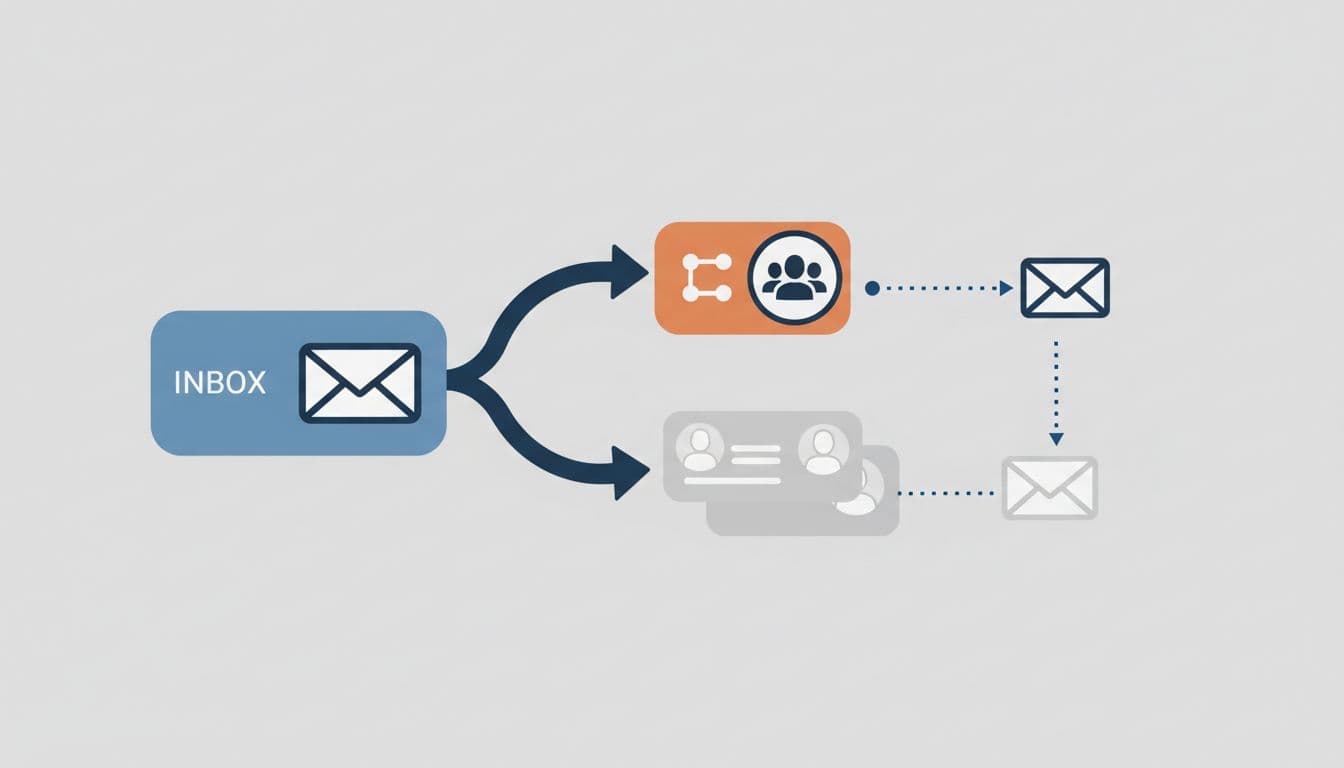
This diagram shows paths I use often. Arrows track copies clearly.
For shared inboxes, combine with delegation. My Gmail delegation in Google Workspace covers access controls.
Handling Content-Based and Outbound Rules
Rules scan subjects, bodies, or attachments. Route PDFs to finance.
Match: Has attachment and filename ends in .pdf.
Action: Change route to finance@yourdomain.com.
Outbound rules control sends. I route all external mail through a gateway for logging.
In Sending routing, set conditions. Match domain or size.
Default handles most. Routing overrides smartly. Google’s docs explain email routing and delivery options.
I add SPF, DKIM first. Poor auth breaks routing. Details in my Google Workspace SPF DKIM DMARC setup.
Common Pitfalls I Dodged
Loops kill inboxes. Rule A forwards to B. B rules back to A. Mail bounces forever.
Fix: Exclude the forward target in criteria. Test with logs.
Delivery fails if quotas hit. Groups over 100 members slow down.
Changes lag 5-60 minutes. Don’t panic early.
Reject rules drop mail silently. Log reviews catch mistakes.
I warn teams before changes. “Expect test mails today.”
Deprecated settings linger. Use new Routing only.
Testing Your Rules Thoroughly
Send test emails from outside. Use a personal Gmail.
Check all paths. Original inbox. Copies. Rejects.
My checklist:
- Send to affected address. Confirm delivery.
- Verify copies arrive. No duplicates.
- Test edge cases. Large files. Bad subjects.
- Review logs in Admin. Apps > Reports > Email log search.
- Roll to small group. Monitor 24 hours.
Pause rules if issues pop.

Testing looks like this in my office. Dual screens confirm flows.
Conclusion
Email routing in Google Workspace streamlines my teams. Simple rules handle daily volume. Advanced ones meet compliance needs.
Key wins: Targeted delivery, preserved copies, quick tests. I avoid loops and lags with care.
Start small. Use Google’s console and docs. Your inboxes stay organized. Mail flows right every time.
(Word count: 1,452)

