How to Highlight Text and Read It With Speechify
Reading long web pages is slow when your eyes must stay on every line. Speechify lets you select text, play it aloud, and follow the words as they are spoken. The setup depends on what you mean by “highlight.” You can highlight...

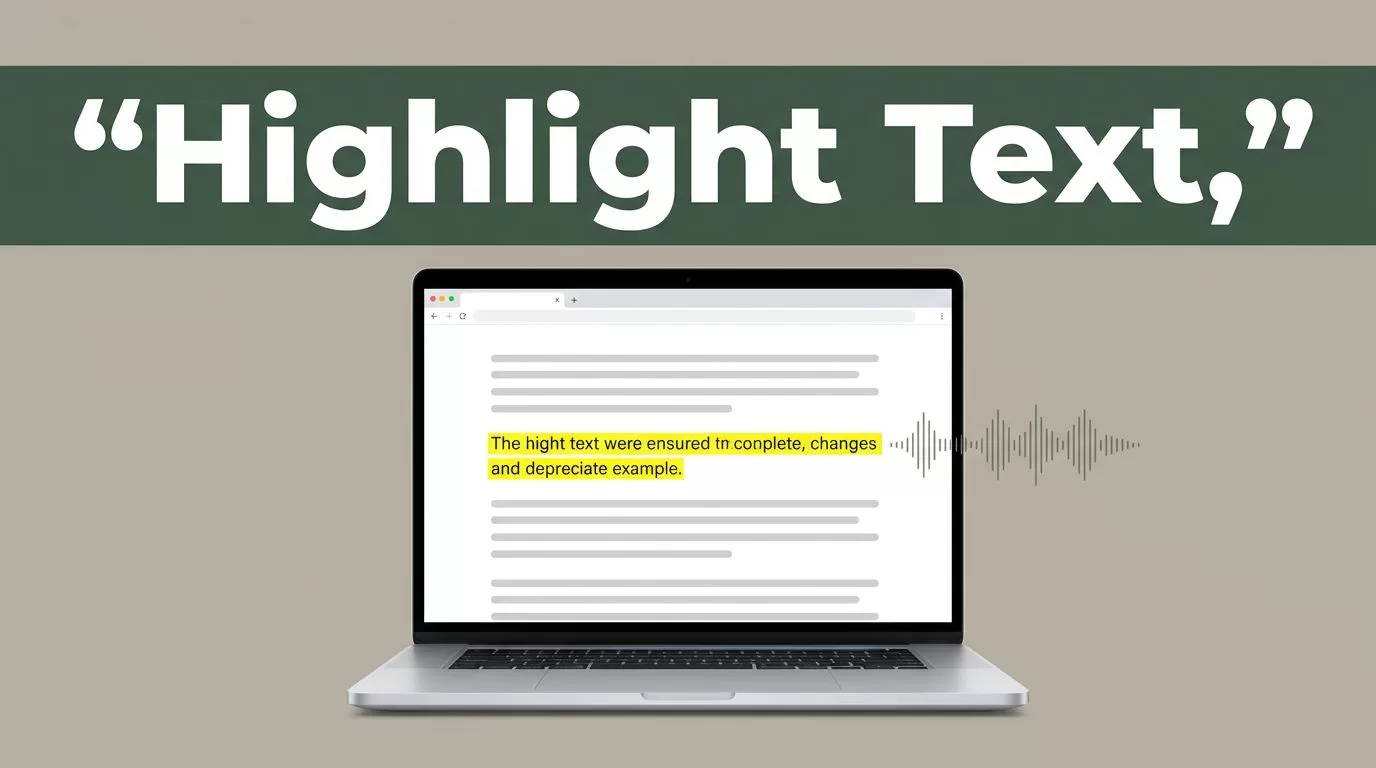
Reading long web pages is slow when your eyes must stay on every line. Speechify lets you select text, play it aloud, and follow the words as they are spoken.
The setup depends on what you mean by “highlight.” You can highlight words on screen for visual tracking, or select text to tell Speechify where playback should begin. These actions often work together, but they aren’t the same.
Key Takeaways
- Speechify uses text selection to start reading from a specific point.
- Text highlighting can follow the narration and help you track each sentence.
- The Chrome or Edge extension is the fastest option for reading web pages.
- The web app and mobile app provide additional controls for documents, notes, voices, and playback speed.
- Interface names can change, so check the current Speechify settings if a label looks different.
Understand Highlighting and Text Selection in Speechify
Speechify has two related text functions.
Visual highlighting marks the words or sentences that Speechify is reading. The highlight moves as narration continues. This helps you maintain your place, follow dense material, or support reading comprehension.
Text selection tells Speechify what content to read. You drag across a paragraph, select a sentence, or choose a section on a page. Speechify then opens playback controls for that selection.
Think of text selection as setting the starting point. Think of visual highlighting as the tracking system that follows the audio.
This distinction matters because selecting text doesn’t always mean the selected words will remain highlighted during playback. The behavior depends on your browser, app version, document type, and current settings.
Speechify’s browser extension can read selected text on supported web pages. Its web app can highlight sentences while documents play from your library. The mobile app also supports document reading, text highlights, notes, and playback controls on supported devices.
If you need a mobile installation, the Speechify Android app is available through Google Play. iPhone users should check the current Speechify app listing in the Apple App Store, since feature names and availability can change.
Highlight Text and Read It With the Browser Extension
The browser extension is the most direct way to read an online article, email, research page, or learning resource.
Install the Speechify text-to-speech extension from your browser’s extension store. Chrome and Edge are the most practical choices for the web app and browser-based highlighting. Speechify also supports other browsers, but the exact controls can differ.
After installation, pin the extension to your toolbar. The pin icon is usually inside the browser’s extensions menu. Pinning saves time because you won’t need to search for Speechify each time you open a page.


Use this workflow:
- Open the web page you want to hear.
- Click and drag across the text you want Speechify to read.
- Release the mouse button after selecting the final word.
- Use the floating play button that appears near the selection.
- Press play and follow the moving highlight as Speechify reads.
- Adjust the voice, speed, pause, rewind, or skip controls as needed.
You can select a single sentence, a full paragraph, or several paragraphs. Start with a short passage when testing a new page. This shows whether the website allows the extension to access its content.
Speechify may also let you activate a manual selection tool with a keyboard shortcut. The realtime setup information lists Option + X for a crosshair selection mode and Option + A to begin reading on supported Mac configurations. Shortcuts can vary by operating system and extension release, so check the current shortcut settings before relying on them.
Some pages also provide a right-click option after you select text. The menu may show a Speechify command, although the exact label can differ. If no Speechify option appears, use the extension icon or floating play button instead.
Turn On Real-Time Text Highlighting
Text highlighting is usually controlled through Speechify’s settings rather than the browser’s standard selection tools.
Open the Speechify extension menu and look for Settings. Find the display or reading options, then turn on the setting labeled Text highlighting if it appears. The words should highlight as the voice reads them.
The setting may be disabled by default, or it may apply only to certain pages. A page with complex layouts, locked content, embedded viewers, or custom scripts can behave differently from a standard article.
For the Speechify web app, sign in through a Chromium-based browser such as Chrome or Edge. Open a document from your Speechify library. Select More on the left toolbar, then look under Display for Highlighting. Turn it on and start playback.
The web app’s highlighting typically follows the sentence being read. That differs from manually selecting a paragraph before playback. Manual selection identifies the content. Display highlighting tracks the narration.
Select the passage first when you need a specific starting point. Turn on text highlighting when you want the words to follow the audio.
If you don’t see the same label, check the current version of the app or extension. Speechify can move settings between menus as its interface changes.
Use Speechify on Documents and Mobile
The browser extension works well for web pages. The Speechify app is more useful when you read PDFs, uploaded documents, scanned material, or saved files.
Open a document in the app and select the section you want to hear. On supported mobile versions, drag across the text, open the context menu, and choose a highlight color. You can then play the selected passage with the voice and speed controls.
Speechify also supports notes in parts of its mobile and web experience. After selecting text, choose Add a Note, enter your annotation, and save it. To review saved items, open the pencil icon and look for Highlights & Notes. Your version may place these controls in a different location.
This workflow fits students who need to mark textbook passages, professionals reviewing reports, and readers who use audio as an accessibility aid. You can mark a key paragraph, add a short note, and listen to the same section without searching through the document again.
Scanned documents require an additional step. If the text can’t be selected normally, look for Speechify’s camera or scan function. Capture the page or section, allow the app to process the text, then select the recognized content for playback. Recognition quality depends on image clarity, font size, page layout, and contrast.
Speechify’s published materials describe support for multiple voices and languages. Current product information also lists more than 150 voices and support for more than 60 languages, but the available choices can depend on your account, device, and plan. A practical Speechify text-to-speech guide provides additional context on voices, languages, and playback controls.
Choose Playback Settings for the Material
The right speed depends on the type of text you are reading.
Use a slower speed for legal documents, technical papers, unfamiliar vocabulary, or material that requires note-taking. A faster speed can work for routine email, news articles, or content you are reviewing for a second time.
Change the voice when pronunciation or tone affects comprehension. Test a short paragraph before starting a long document. Some voices handle names, abbreviations, and technical terms better than others.
Use pause and rewind instead of restarting the entire page. Rewind a few seconds when a sentence contains a key detail. Skip ahead when a page includes navigation menus, author biographies, or repeated content.
You can also use Speechify to listen while walking, commuting, or doing routine work. Keep the source document available when accuracy matters. Audio is useful for review, but visual checking remains necessary for figures, tables, citations, code, and formatted instructions.
Students can combine visual highlighting with active recall. Listen to one paragraph, pause the narration, and state the main point before continuing. Professionals can use the same process for reports and meeting documents.
Fix Highlighting and Playback Problems
Start with a short text selection when Speechify doesn’t respond. A single paragraph is easier to test than an entire page.
Check these items in order:
- Refresh the page and select the text again.
- Confirm that the Speechify extension is enabled.
- Check whether the browser granted permission to read page content.
- Open the extension settings and verify that text highlighting is on.
- Pause or disable conflicting extensions.
- Restart the browser if the floating play button doesn’t appear.
- Test another page with standard selectable text.
A website may block selection or load its content inside an embedded viewer. In that case, the extension may not detect the text. Try opening a downloadable document in Speechify, using the app’s scan feature, or copying the relevant passage into a supported document.
If audio plays but the highlight doesn’t move, check the display settings rather than the voice settings. Playback and visual tracking can use separate controls.
Sync issues usually come from using different accounts or devices with different settings. Sign in with the same account across supported devices, then test a short document. Don’t assume that every voice, speed setting, note, or highlight is available on every platform.
Speechify’s official Chrome extension walkthrough can help if your installation steps differ from the current interface. Follow the controls shown in your own app when labels don’t match the video.
Review Permissions Before Reading Sensitive Text
The browser extension needs access to page content to select and read text. Review the permission request before installing it, especially if you plan to use Speechify on internal business pages.
Avoid sending confidential contracts, customer records, private messages, or restricted company documents to a third-party reading service unless your organization’s policy allows it. Use approved accounts and storage locations for business material.
For accessibility use, test Speechify with the content you read most often. Check whether headings, tables, footnotes, links, and form controls are read in a usable order. A tool can read the words correctly while still handling a complex page poorly.
Set up a repeatable reading process. Select the content, confirm the voice, set the speed, enable highlighting, and start playback. Save important passages as highlights or notes when the app supports those controls.
Conclusion
Speechify works best when you separate the two jobs: select text to choose what gets read, then enable visual highlighting to follow the narration. The browser extension is the fastest choice for web pages, while the web and mobile apps provide better support for saved documents, notes, and scanned text.
Start with a short passage and check the current settings if the interface looks different. Once the selection and highlighting controls work, Speechify can turn dense reading into a controlled audio workflow without removing the source text from view.

