How to Configure a Senior Voice Text to Speech in Speechify
Building accessible audio content for older listeners requires precise control over how text is read aloud. Standard automated voices often sound rushed or mechanical, which causes fatigue for listeners who rely on assistive technology. Whe...

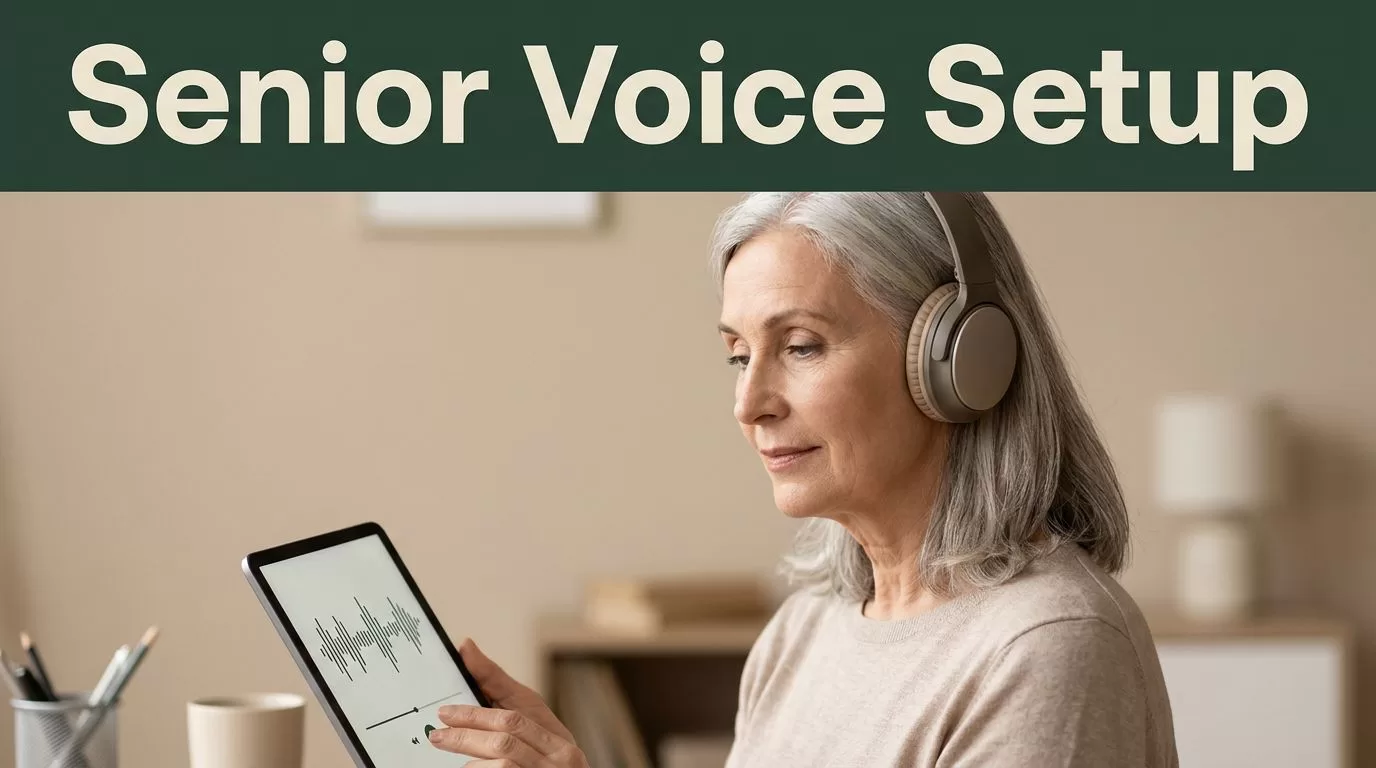
Building accessible audio content for older listeners requires precise control over how text is read aloud. Standard automated voices often sound rushed or mechanical, which causes fatigue for listeners who rely on assistive technology. When you set up a senior voice text to speech workflow in Speechify, you bridge the gap between digital text and natural comprehension. Older adults, family caregivers, and accessibility specialists need reliable ways to configure custom playback speeds, natural intonations, and clear pacing.

Key Takeaways
- Choose natural human-sounding voice profiles rather than robotic default models to improve listening comfort.
- Adjust playback speed below standard rates to ensure optimal comprehension for older audiences.
- Enable synchronized word highlighting so visual tracking supports auditory processing during long sessions.
- Format written source documents with clear punctuation and spacing to guide natural pauses.
Selecting the Right Voice Profile
Choosing the correct voice model determines whether your listener stays engaged or tunes out in minutes. Speechify offers over two hundred HD and premium voices across multiple languages, but not every profile fits an older audience. High-pitched synthetic voices or overly fast speech patterns create instant cognitive friction.
Look for voices marked as high quality or natural HD within your workspace. Warm, stable baritone and mezzo-soprano tones tend to perform best for prolonged listening sessions. You can browse available options by opening the browser extension or mobile app, tapping the listen control, and selecting the human profile icon. Premium voices featuring small yellow diamonds provide smoother transitions and cleaner phonetic articulation than basic system voices. Test several options against your target material before committing to a long document or book export.
Adjusting Speed and Pacing Controls
Speed management is the single most important factor when designing content for older listeners. Many text-to-speech tools default to quick playback speeds designed for fast information skimming. That rapid cadence overwhelms listeners who need time to process complex sentences or technical terminology.
Open your playback settings and adjust the speed slider downward. Start testing at 0.8x or 0.75x speed rather than standard 1x pacing. Slower speeds give the synthetic engine time to insert natural micro-pauses between clauses and punctuation marks. For a deeper look at how platform settings handle playback adjustments, you can explore Speechify text to speech and AI assistant tools to understand core feature availability. Monitor listener comfort as you experiment with multipliers, and keep the pace steady throughout the entire document.
Formatting Source Text for Better Clarity
Even the best voice model struggles if the underlying text contains dense paragraphs, broken syntax, or missing punctuation. Synthetic voice engines rely heavily on commas, periods, and paragraph breaks to determine where to breathe.
Clean your source documents before loading them into your listening queue. Break long run-on sentences into two separate thoughts. Add extra paragraph breaks to create natural mental resting points for the listener. Avoid excessive abbreviations, acronyms, or unpunctuated lists that force the speech engine to stumble. Proper text preparation ensures the audio output sounds conversational and unhurried.
Pairing Audio With Synchronized Visuals
Auditory processing works best when reinforced by visual tracking, especially for older adults managing mild vision loss or reading fatigue. Turning on text highlighting keeps the reader anchored to the exact word being spoken.
Navigate to your display settings and enable synchronized word underlining. As the voice reads each line, the app highlights the text on screen in real time. This dual-input approach improves information retention and helps listeners maintain focus during long educational or professional documents. You can also use the bookmarking tool to save complex passages for review later. For mobile users managing daily reading tasks, downloading Speechify text to speech for Android devices provides direct access to these synchronized reading features on the go.
Structuring Content for Caregivers and Educators
Caregivers and educators often need to convert medical guides, legal documents, or lesson materials into accessible audio files quickly. Organizing your digital library into dedicated folders prevents confusion and keeps the workflow efficient.
Upload your PDF or web article directly into the central workspace, and use the built-in summarization feature to generate a quick chapter overview before listening. This gives the listener a mental map of the material before the full reading begins. Export your notes and highlighted quotes directly into your preferred writing workspace or reference manager when you need to share key takeaways with family members or medical teams.
Conclusion
Configuring an accessible audio experience transforms how older adults consume digital information and heavy documentation. By selecting natural voice profiles, dialing back playback speeds, cleaning up source formatting, and enabling visual highlighting, you remove the physical friction of reading. Take time to test your audio settings with real listeners before finalizing your materials. A thoughtful setup ensures every word lands clearly and comfortably.

