How I Export Hunter.io Leads Into HubSpot Without Messy Data
Moving leads from Hunter.io into HubSpot looks simple until duplicates start piling up. One bad field map can turn a clean list into a noisy CRM. I treat the Hunter HubSpot integration like a short bridge, but only if I pack the truck befor...

Moving leads from Hunter.io into HubSpot looks simple until duplicates start piling up. One bad field map can turn a clean list into a noisy CRM. I treat the Hunter HubSpot integration like a short bridge, but only if I pack the truck before I cross it.
As of April 2026, I still use two paths. I use native sync for fresh leads, and CSV export when I need tighter control. The trick is knowing which route fits the list, then keeping the data clean from the start.
I choose the export path before I touch the list
I start in Hunter’s left sidebar, then Integrations, then Connect next to HubSpot. That path is my first choice when I want a new lead to land in HubSpot with less manual work. I also keep Hunter’s HubSpot integration page and the Hunter Help Center guide open while I work.
| Method | Best for | My take |
|---|---|---|
| Native Hunter sync | New leads and email activity | Best when I want speed and fewer steps |
| CSV export and import | Cleanup, updates, custom fields | Best when I want control over every column |
The native sync is free, and it can push leads, deals, and email activity into HubSpot. It also skips contacts that already exist. CSV is slower, but it helps when I need to update older records or handle custom properties. If I’m unsure, I pick control over speed every time.
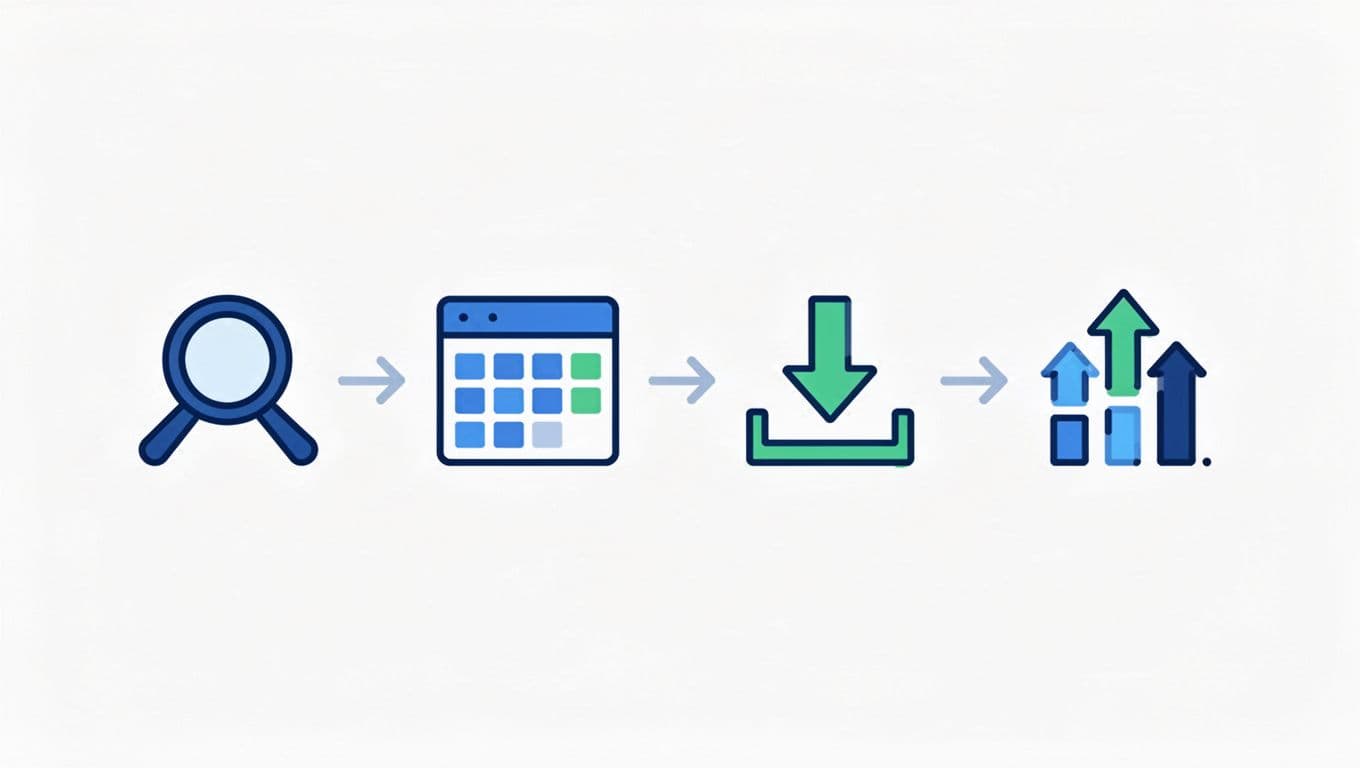
I clean and verify leads in Hunter.io first
I never export a raw list. First, I open each lead and check the email status, company name, domain, and role. If a record looks thin, I leave it out. When I’m cleaning bigger batches, I pair this step with my Hunter.io email verification workflow so risky addresses never reach HubSpot.
My order stays the same:
- I remove duplicate emails before I export anything.
- I verify uncertain or catch-all addresses.
- I fill in missing names and company data where I can.
- I keep only leads I’d feel good about seeing in HubSpot tomorrow.
If I’m syncing from a lead page, I use Sync this lead after I save the record. If I’m building a batch, I save the leads first, then send them over in one pass. That small pause helps me catch bad data before it spreads.
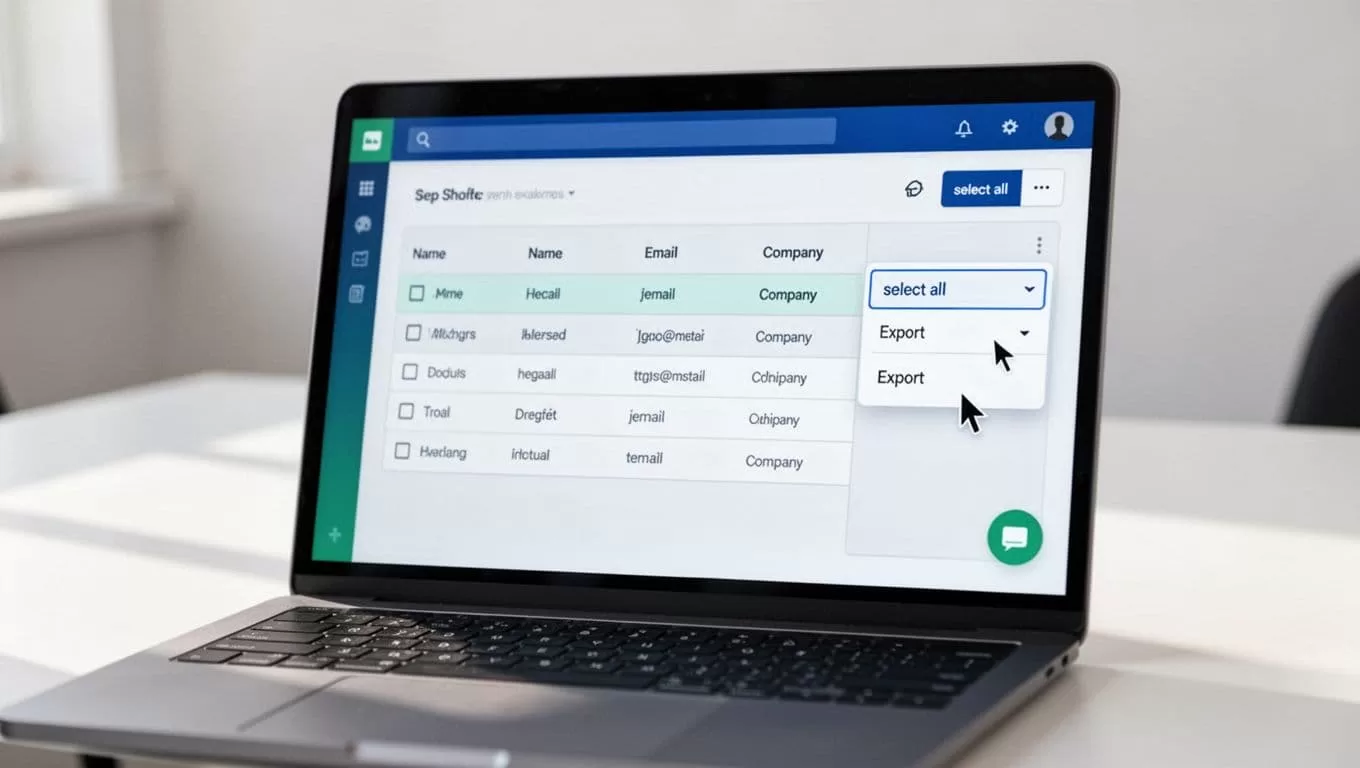
I map fields in HubSpot without messy records
Field mapping is where a good export becomes a useful CRM record. I match the basics first, then I add extras only when they help later. On the Hunter side, I map the fields during the HubSpot connection. For CSV imports, I go to Contacts > Import > Start an import in HubSpot, upload the file, and review the preview before I confirm anything.
| Hunter data | HubSpot field I use |
|---|---|
| First name | First name |
| Last name | Last name |
| Company | Company name |
| Domain | Website or domain field |
| Verification status | Custom property |
If a field doesn’t exist in HubSpot, I create the property first. I don’t force Hunter to guess. That’s how bad records get born.
If the field doesn’t exist in HubSpot, I create it first. I don’t try to fix that later.
For a deeper look at how Hunter handles HubSpot data, I keep Hunter’s guide to enriching HubSpot data nearby. It matches how I think about the process, lead by lead, not spreadsheet by spreadsheet.
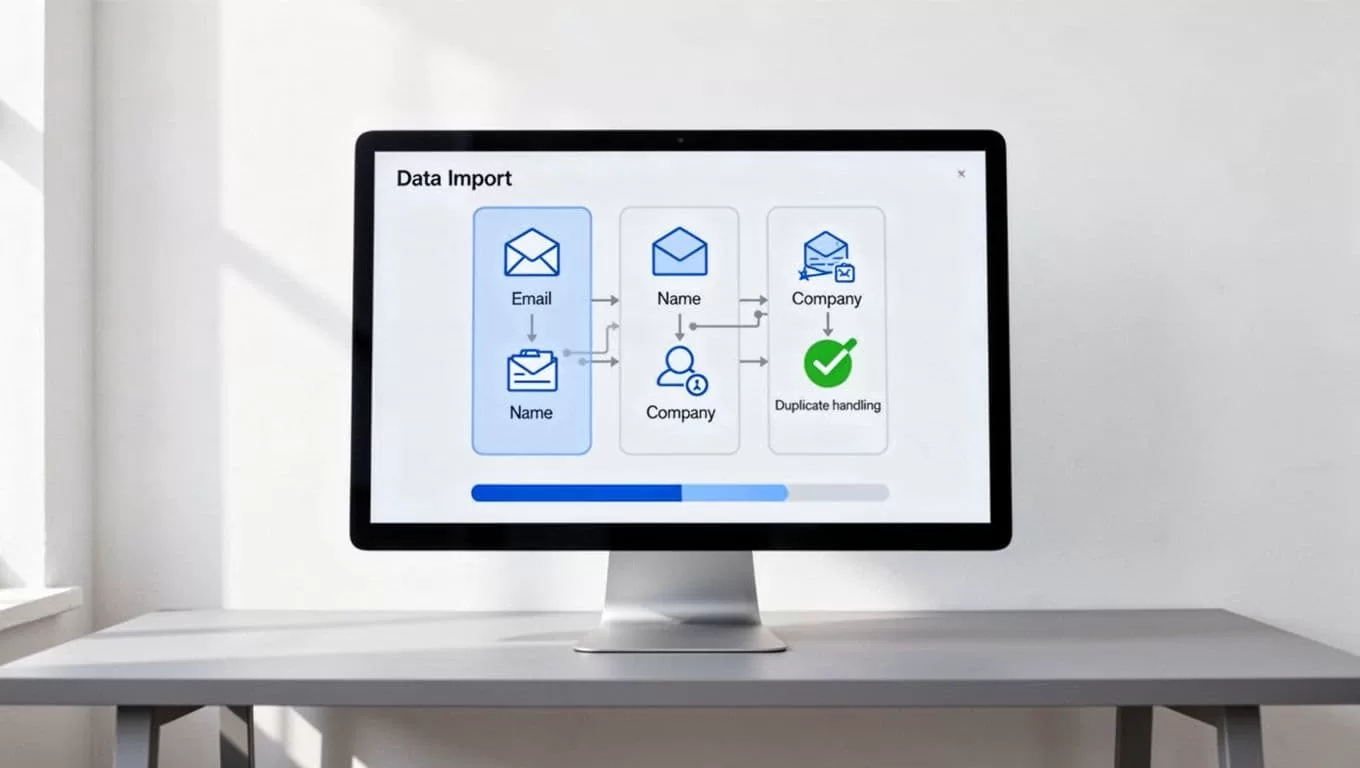
I fix duplicates, missing fields, and failed imports before they spread
Duplicates are the fastest way to make HubSpot feel unreliable. Hunter’s native sync usually skips records that already exist, but I still watch the import preview. If I’m using CSV, I dedupe on email first and let HubSpot flag any matches during import.
When something breaks, I check these first:
- Missing fields, I create the property in HubSpot, then remap it in Hunter or the import screen.
- Failed imports, I check the CSV headers, blank rows, odd delimiters, and malformed emails.
- Permission issues, I sign in with a HubSpot user who can import, or I ask an admin to approve the connection.
- Plan limits, I check Hunter credits before a big batch, then split the work if I’m short.
If the connection acts strange, I also reconnect it in a fresh browser session. Browser cookies and stale permissions cause more pain than people expect.
When bounce risk is part of the problem, I go back to how I reduce cold email bounces with Hunter.io. Clean exports and clean deliverability are the same habit in different clothes. I’ve learned that the front end of the workflow matters more than the final click.
Conclusion
Exporting leads from Hunter.io into HubSpot isn’t hard, but clean exports take discipline. I verify the leads first, map the fields with care, and stop duplicates before they spread.
That saves me hours later. More importantly, it keeps HubSpot useful instead of cluttered. When the data is clean, the sync feels almost boring, and that’s the best result I can ask for.
