Hunter.io Chrome Extension Guide for Prospecting in 2026
The Hunter.io Chrome Extension finds public work emails while you browse a company site. You click the icon, read the results, and move on. No tab switching and no copy and paste. This guide covers setup, credit costs, a daily prospecting w...
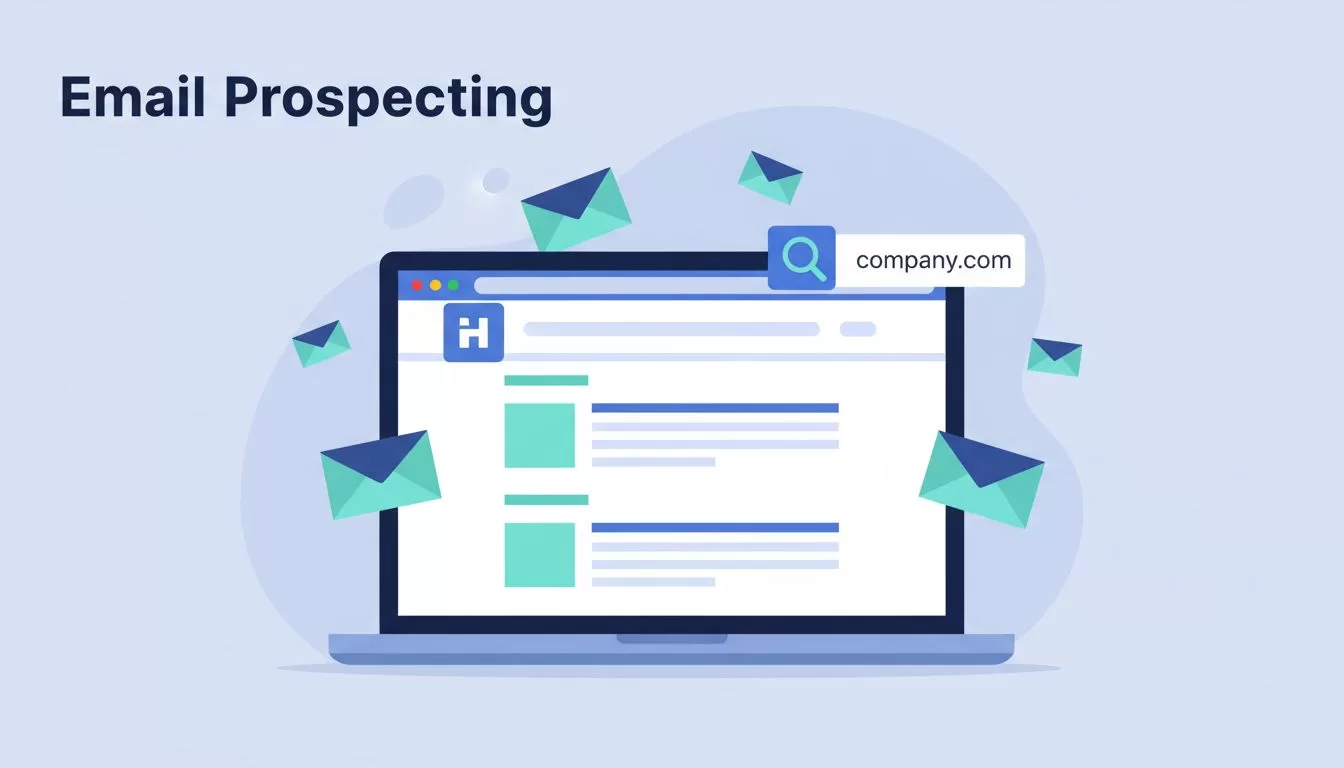
The Hunter.io Chrome Extension finds public work emails while you browse a company site. You click the icon, read the results, and move on. No tab switching and no copy and paste.
This guide covers setup, credit costs, a daily prospecting workflow, accuracy checks, compliance basics, and limits. Prices come from the official Hunter pricing page and were checked in October 2026. Confirm current numbers there before you buy.
What the Hunter.io Chrome Extension Does
Hunter describes its Chrome extension as a one-click way to find email addresses from any website. You open a site, click the Hunter icon, and see the addresses tied to the site domain. Each address shows the source pages and the discovery date.
You can also type a full name into the panel. The tool then returns the most likely address for the person at the domain. Every address carries either a green verified icon or a confidence score. A checkmark next to the address runs a manual verification.
Hunter states the extension does not save data from the pages you visit. The addresses come from Hunter crawlers, not from your browsing.
Which browsers work
The official page lists Chrome, Firefox, and Edge add-ons. Hunter gives no detail on feature differences between the three. Test your browser with a free account before you commit to a workflow.
Where the extension fits
The extension suits focused prospecting. You already know the companies. You need the right contact fast. For a wider view of the product, read the Hunter.io 2026 review for B2B on this site. Larger jobs belong in the web app, the Google Sheets add-on, or the API, all of which Hunter links from the extension page.
How to Install and Set Up the Extension
Setup takes a few minutes. Follow these steps.
- Open the Hunter page in the Chrome Web Store and add the extension.
- Pin the Hunter icon to the toolbar through the puzzle piece menu.
- Create a free Hunter account or sign in to your current one.
- Visit a company site, a team page, or an author page.
- Click the icon and review the emails, sources, and confidence details.
The extension requires a Hunter account. The free plan works. Hunter lists 50 credits per month on the free tier.
Run a small first session
Test 10 to 15 contacts on day one. Pick companies from one niche. This approach exposes weak targeting before you spend credits on bad fits. Save only the contacts with a clear role match.
Plans and Credit Costs
Credits fund every lookup. Hunter uses one shared credit pool for Domain Search, Email Finder, and Email Verifier. Monthly credits reset each month and do not roll over. Yearly plans release all credits upfront.
| Plan | Monthly price | Effective monthly price on yearly billing | Credits | Email accounts |
|---|---|---|---|---|
| Free | $0 | $0 | 50 per month | 1 |
| Starter | $49 | $34 | 2,000 per month | 3 |
| Growth | $149 | $104 | 10,000 per month | 10 |
| Scale | $299 | $209 | 25,000 per month | 20 |
| Enterprise | Custom | Custom | Custom | Custom |
Every plan includes unlimited team members. Members share one credit pool. Yearly billing carries a 30 percent discount according to the pricing page.
What each action costs
The Hunter help center publishes credit rules for the API. The extension runs on the same lookups, but Hunter does not document extension billing on a separate page. Check your usage dashboard after your first session to confirm how your account charges.
- Domain Search: 1 credit per domain returns 1 to 10 email addresses.
- Email Finder: 1 credit per call. Hunter charges the credit only when an email is found.
- Email Verifier: 0.5 credit per call.
Read the full rules on the Hunter credits help page.
Domain Search Versus Name Lookup in the Panel
The panel offers two ways to work. Pick the right one for the job.
| Situation | Best mode | Why |
|---|---|---|
| You know the company, not the person | Domain results | Shows public addresses, sources, and common patterns |
| You know the full name | Name lookup | Returns a likely address for one person |
| Results show no match | Pattern guess plus verification | Predicts the format and confirms before sending |
| You need hundreds of contacts | Web app or API | Bulk work wastes time in a browser panel |
Domain results suit account research. Name lookup suits outreach to a known decision maker. Combine both when a team page lists names but hides emails.
A Practical Prospecting Workflow
The extension works best at the end of a clear process. Build the target list first. Then use Hunter to confirm contacts one company at a time.
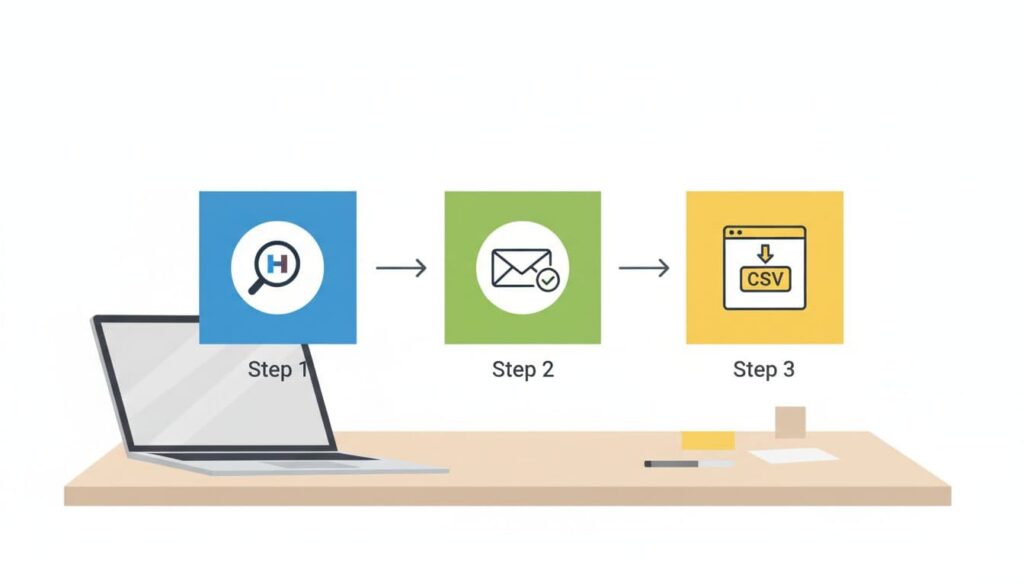
- Define the niche, the role, and the reason for contact.
- Build a list of 25 to 50 target accounts.
- Open each company site and click the Hunter icon.
- Select contacts with a clear role fit.
- Verify each address before export.
- Write one line of real context for every message.
- Save the lead and log the outreach in your CRM.
When the exact address is hidden
Some companies publish no addresses. Study the corporate email patterns with Hunter.io to predict the format. Then verify the guess. A pattern alone is not proof.
Keep lead lists clean
Hunter lets you save leads into lists. Name lists by niche and date. Remove contacts who fail verification. Clean lists protect sender reputation and reply rates.
Verify Before You Send
Stale data hurts deliverability. Bounces damage sender reputation. Verification costs 0.5 credit per address on the API rules, which is cheap against a damaged domain.
Use the green verified icon as a first signal. Treat a confidence score as a hint, not a guarantee. For addresses without a clear status, run a manual check. The Hunter.io Email Verifier tool guide explains how the checker reads results.
Result statuses to watch
- Verified: Hunter confirmed the address as deliverable.
- Confidence score: Hunter estimates likelihood but has not confirmed delivery.
- Source dates: Older sources raise the risk of a stale address.
Common Mistakes to Avoid
- Clicking through random sites. Each curiosity click can cost a credit.
- Skipping verification because the score looks high.
- Saving every address on a page, including generic ones like info or support.
- Sending the same template to every contact.
- Ignoring the source page and its date.
A verified email is not permission to send a weak message. Context decides replies.
Compliance and Responsible Use
Public data does not give you open permission to write to anyone. Laws differ by country. In the United States, the CAN-SPAM Act sets rules for commercial email. In the European Union and United Kingdom, GDPR and PECR add stricter duties. Read the official guidance from your regulator and ask a lawyer when in doubt.
Follow these basic habits. Write only with a clear business reason. Keep the message relevant to the role. Identify yourself. Offer a working opt-out. Delete contacts who ask to be removed. Hunter supports compliance-minded work, but responsibility stays with the sender.
Limits of the Extension
The extension finds and checks work emails. Nothing more. Plan around these limits.
- The tool does not replace deep company data, org charts, or buying signals.
- The tool does not supply direct phone numbers.
- Coverage varies by company. Small firms often show few public addresses.
- Hunter does not mention LinkedIn support on its official extension page. Test any social profile yourself before you rely on results there.
- Monthly credits on the free plan run out fast during steady outbound.
Older guides on this page claimed LinkedIn support as a core feature. The official page does not confirm this claim, so the claim is removed here.
Extension Versus Web App Versus API
| Tool | Best for | Main limit |
|---|---|---|
| Chrome extension | Quick lookups while browsing | Manual, one site at a time |
| Web app | Lists, sequences, and bulk searches | Needs time outside the browser tab |
| Google Sheets add-on | Spreadsheet based enrichment | Depends on clean input data |
| API | Automated pipelines | Requires developer work |
Start with the extension. Move to the web app or API when volume grows. Hunter links the Sheets add-on, the API, and an MCP server for AI tools from its extension page.
FAQ
Is the Hunter.io Chrome Extension free?
The extension costs nothing to install. You need a Hunter account. The free plan includes 50 credits per month according to the official pricing page.
Does the extension work on LinkedIn?
The official extension page does not mention LinkedIn. Results depend on public data tied to the company domain. Test a few profiles on a free account before you plan a workflow around LinkedIn.
Is the free plan enough for prospecting?
Light testing works. Fifty credits cover a small niche test and a few verifications. Steady outbound needs a paid plan. Starter lists 2,000 credits per month at $49 on monthly billing.
Does the extension store my browsing data?
Hunter states the extension does not save data from the pages you visit. Read the current privacy policy on the Hunter site for full terms.
Can my team share one account?
Every plan includes unlimited team members. Members share the same credit pool.
How accurate are the emails?
Accuracy varies. Verified icons and fresh source dates raise confidence. Always verify before you send.
Conclusion
The Hunter.io Chrome Extension rewards precision. Stay on the page, find the right contact, verify the address, and add real context to every message. Watch your credits and confirm prices on the official pricing page. Used with care, the tool saves time without turning prospecting into spam.
