How to Listen to News Articles Daily With Speechify
Your news queue can grow faster than your available reading time. Speechify helps you turn online articles into audio, so you can stay informed while commuting, walking, exercising, or taking a break from screens. The process is simple. Cho...

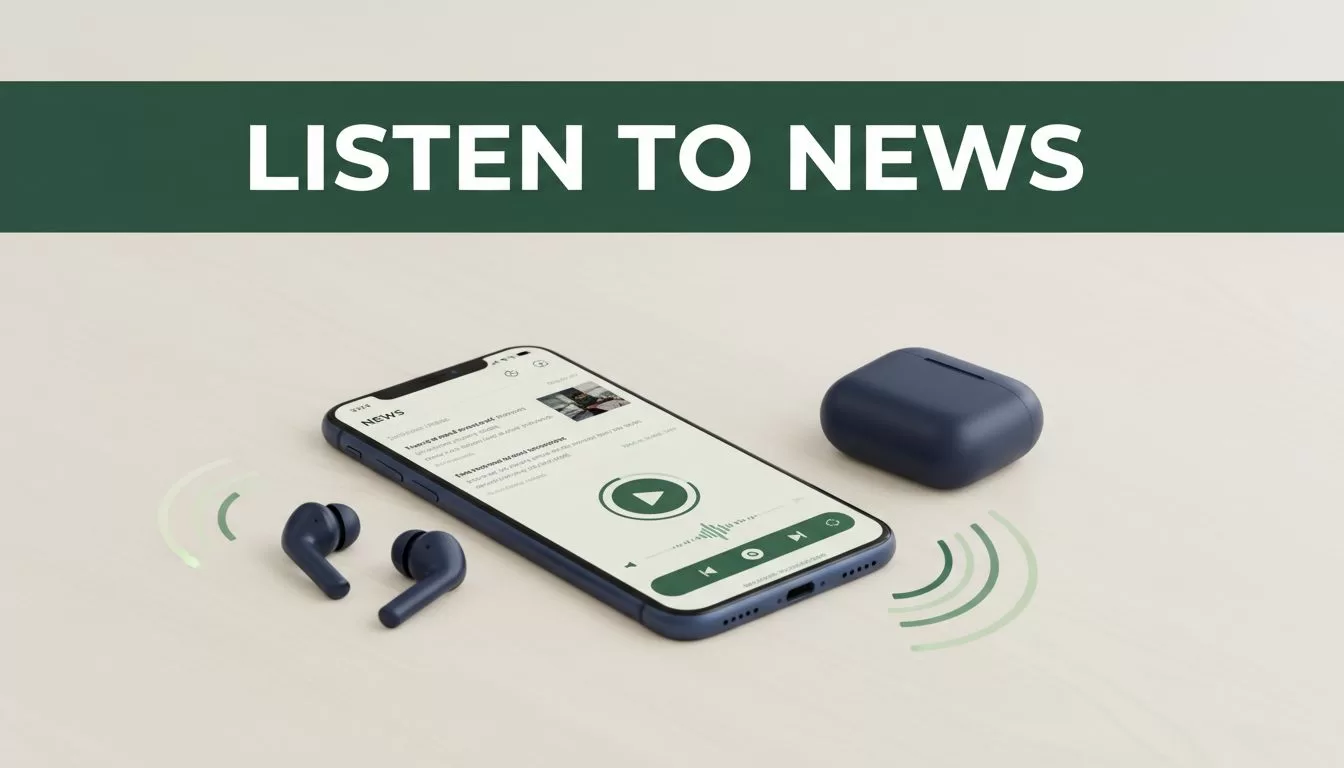
Your news queue can grow faster than your available reading time. Speechify helps you turn online articles into audio, so you can stay informed while commuting, walking, exercising, or taking a break from screens.
The process is simple. Choose a full article from a reputable publisher, open it in Speechify, adjust the voice and speed, then listen without keeping your eyes on a display. The important part is using audio to consume the article, not relying on headlines alone.
Key Takeaways
- Speechify converts online news text into spoken audio.
- You can use a browser, mobile device, copied text, or supported file import.
- Listening works well during commutes, workouts, and screen breaks.
- Audio can support readers with dyslexia, ADHD, or visual impairments.
- Always verify the publisher, article date, and important claims.
Why Listen to News Articles With Speechify?
Reading news requires constant visual attention. You need to open the page, scan the layout, dismiss pop-ups, and remain focused on the screen. That process is difficult when you’re traveling, exercising, or handling routine work.
Speechify changes the input format. Its text-to-speech system reads written content aloud through a selected voice. You can control playback speed, pause, restart, and move through the article without reading every line yourself.
Text-to-speech is also an established accessibility tool. It converts written content into speech for websites, documents, and applications. Recite Me’s explanation of text-to-speech technology covers its use for accessibility, productivity, and independent access to digital content.


Speechify is useful when the article contains detailed reporting, interviews, analysis, or background information. It isn’t a replacement for visual content in every situation. Charts, maps, photo captions, tables, and interactive graphics may need separate review.
Use audio when your goal is to understand the article’s written argument. Return to the page when the story depends on visual evidence or data.
How to Turn an Online News Article Into Speechify Audio
Speechify provides several ways to convert online news into audio. Your exact options can differ by device and app version, but the basic workflow stays the same.
- Choose the complete article. Open a story from a known publisher. Confirm the headline, byline, publication date, and article body. Avoid treating a search result, social post, or headline card as the full story.
- Open the article in a supported browser. On a computer, use the Speechify browser extension or web reader if it is available in your setup. Keep the article open in its own tab. This makes it easier to return to the original page when you need to check a quote or figure.
- Send the page to Speechify. Use the Speechify reading control provided by your browser setup. On a phone or tablet, open the device’s share menu and choose Speechify if the option appears. This normally sends the page to the reader for processing.
- Use copied text when page detection fails. News websites often include menus, advertisements, cookie notices, and related-story links. If Speechify reads the wrong content, switch to the publisher’s reader mode first. You can also copy the article text and paste it into Speechify when permitted.
- Clean the article before playback. Remove navigation labels, newsletter prompts, comments, and unrelated recommendations. A clean text input produces a better listening session. Don’t copy content that you aren’t allowed to access or redistribute.
- Set a practical voice speed. Start at the default speed for technical reporting or unfamiliar topics. Increase playback gradually for short news updates. A faster setting may save time, but it can reduce comprehension when the article includes names, numbers, or complex explanations.
- Start the article before you become busy. Begin playback while you’re still stationary. If you’re driving, set the volume and controls before leaving. Don’t handle your phone while operating a vehicle, cycling in traffic, or using exercise equipment.
A useful setup takes less than a minute once you know which input method works on your device. Test one article from your preferred publisher, then repeat the same process each morning. The same listening workflow works for long-form writing on Medium and other platforms, so you can listen to Medium stories using Speechify with the same setup.
Build a Daily News Listening Routine
A daily listening habit works better when you define the input before you press play. Choose a small group of publishers that cover your needs. A business reader may use a national newspaper, a financial publication, a technology publication, and a local news source.
Don’t add every interesting story to one long queue. Select two or three priority articles and keep background pieces separate. Priority articles deserve full attention and written notes. Background stories can fill a commute or a short walk.
Your routine can follow this pattern:
- Morning: Listen to one important news report while preparing for work.
- Commute: Play longer analysis or interviews after you confirm the route and controls.
- Midday: Use audio during a screen break instead of opening another feed.
- Exercise: Choose shorter articles that don’t require visual charts or references.
- Evening: Review the original page for claims you need to share or act on.
Screen fatigue is a practical reason to use audio. Your eyes get a break while your ears continue processing information. Speechify also lets you pause and resume, so you don’t need to finish an article in one session.
Keep a short note for articles that affect your work. Record the publisher, date, central claim, and any follow-up source. This prevents a useful report from becoming a vague memory after the commute ends.
Support for Dyslexia, ADHD, and Visual Impairments
Audio can reduce the effort required to process online text. That matters for people who find sustained reading difficult because of dyslexia, ADHD, low vision, or other access needs.
For readers with dyslexia, listening can reduce the pressure of decoding every word on the page. The reader can follow the spoken content at a controlled pace and replay a difficult sentence. Some users may prefer to listen while viewing the text, which connects pronunciation with the written form.
People with ADHD may benefit from removing the first barrier between opening an article and starting it. A voice reader creates a direct path into the content. Short sessions, clear article selection, and playback controls make it easier to stop and resume without losing the main thread.
For people with visual impairments, text-to-speech can provide access to news pages that are difficult to read visually. The iubenda guide to text-to-speech assistive technology describes how TTS can help blind and low-vision users access websites, documents, and applications.
Speechify doesn’t remove every accessibility problem. Poorly structured webpages, image-based charts, and inaccessible publisher controls can still interrupt the experience. Use the original page, screen reader settings, and device accessibility features together when needed.
The right speed is personal. Don’t choose a faster voice because it sounds efficient. Choose the setting that lets you retain names, dates, figures, and the article’s main conclusion.
Listen to Full Reporting, Not Headlines Alone
Speechify reads the content you provide. It doesn’t determine whether the source is accurate, current, or complete. Your source selection still controls the quality of the information you hear.
Start with the publisher’s original article. Check the date because news pages may be updated after publication. Note whether the story is reporting, opinion, analysis, sponsored content, or a live blog. These formats make different claims and require different levels of verification.
Headlines are useful for sorting stories. They aren’t enough for understanding them. A headline may simplify a study, omit a qualification, or describe an allegation before the article provides context. Listen to the body, including the relevant quotes, evidence, and limitations.
When a story affects a business decision, confirm important details through a second reputable source. Check official company statements, government pages, court records, research papers, or data cited by the publisher. Murf’s overview of text-to-speech benefits provides additional context on how spoken output supports productivity and access, but it doesn’t replace source verification.
Be careful with articles that make strong claims without naming evidence. Pause the audio when you hear a number, product announcement, legal development, or market prediction. Return to the page and save the source before sharing the information with colleagues.
Privacy also matters. Don’t paste confidential documents, private messages, or restricted company material into a consumer reading tool unless your organization has approved that use. For public news articles, keep your listening workflow personal and don’t redistribute the generated audio.
Conclusion
Speechify makes it practical to listen to news articles when reading isn’t convenient. Choose the full story, send it through a browser or mobile workflow, set a comfortable speed, and listen during a defined part of your day.
Audio supports commutes, workouts, screen breaks, and different reading needs. It works best when you treat it as a way to access complete reporting, not as a shortcut around verification. Listen for understanding, then check the source before you act on the information.

