Listen to Web Pages Faster With Speechify
Most people don’t need more articles. They need a faster way to process the articles already open in their browser. Speechify converts web pages into spoken audio, so you can read with your ears while walking, commuting, or handling r...
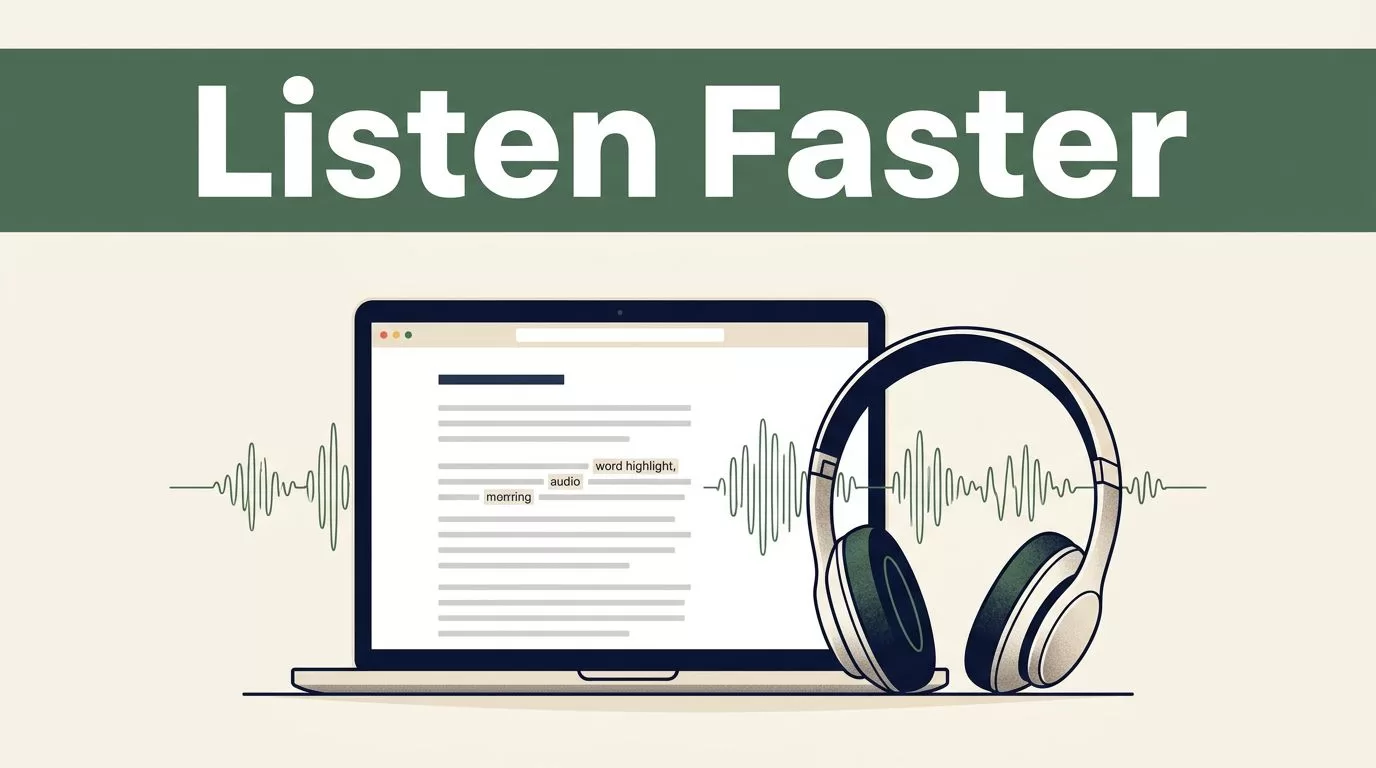
Most people don’t need more articles. They need a faster way to process the articles already open in their browser.
Speechify converts web pages into spoken audio, so you can read with your ears while walking, commuting, or handling routine work. It also highlights words, adjusts playback speed, and works with selected text, full pages, PDFs, and Google Docs.
The setup takes a few minutes. The main decision is choosing the right browser, speed, voice, and subscription for your workflow.
Key Takeaways
- Speechify reads selected text or full web pages through Chrome and Microsoft Edge.
- You can start, pause, change voices, and adjust speed without leaving the page.
- Speechify supports speeds of up to 4.5x, although available speeds depend on your plan.
- Word-by-word highlighting helps with comprehension, language learning, and focused reading.
- Features, voices, pricing, and downloads vary by device, browser, region, and subscription.
HOW SPEECHIFY READS WEB PAGES
Speechify uses text-to-speech technology to convert visible written content into audio. You open a web page, launch the browser extension, and press play. Speechify then reads the page through your selected voice.
You can highlight one paragraph, select several sections, or ask Speechify to read the full active page. This gives you control over long articles that contain menus, sidebars, advertisements, or unrelated links.
The extension works with Chrome and Microsoft Edge. It can read supported web pages, PDFs, and Google Docs directly in the browser. You don’t need to copy the article into a separate document first.
Word-by-word highlighting follows the audio as Speechify reads. This matters when you’re studying, reviewing technical material, or learning a language. Your eyes can track the sentence while your ears process the sound.
Speechify also supports voice and speed changes during playback. You can slow down a complex explanation, then increase the speed when the content becomes familiar. Current product information lists speeds of up to 4.5x and more than 1,000 voices across over 60 languages, but access depends on the plan and device.
Speechify works best when you treat the browser extension as a reading control panel, not as a replacement for every accessibility tool.
Speechify isn’t the only browser text-to-speech option. The Read Aloud Chrome extension is another tool that converts web page text into audio. Speechify has a broader product set, including mobile apps, OCR, summaries, and an AI assistant.

HOW TO LISTEN TO WEB PAGES WITH SPEECHIFY
Use the browser extension when you want to listen to a page without switching applications.
1. Install the browser extension
Open the Chrome Web Store if you’re using Chrome. Microsoft Edge users can install browser extensions through the Edge add-ons system. Search for Speechify’s text-to-speech extension and add it to the browser.
Check the permissions before installation. The extension needs access to page content so it can identify and read text. Follow your company’s browser and software policies if you’re using Speechify on work devices.
2. Pin Speechify to the toolbar
After installation, open the browser’s extensions menu and pin Speechify. The icon will remain visible beside the address bar.
This step removes friction. You won’t need to search through the extensions menu every time you want to hear an article.
3. Open the page you want to hear
Navigate to an article, online document, PDF, or Google Doc. Wait for the main content to load before starting playback.
You can use Speechify in two ways:
- Highlight the exact text you want to hear, then select the play option.
- Open the extension and start playback for the full active page.
Selecting text is better for focused work. Full-page reading is better when the page has a clean article layout.
4. Start and pause playback
Click the Speechify icon in the toolbar, then press play. Speechify begins reading the selected text or page.
The extension also supports keyboard controls. With text selected, use Alt+A to play and Alt+Q to pause. Keyboard shortcuts reduce the need to move between the article and browser toolbar.
5. Set the voice and reading speed
Open the playback controls and choose a voice. Start at a comfortable pace, such as 1.25x or 1.5x. Increase the speed after your comprehension remains stable.
Premium access can provide faster playback and a wider selection of voices. Free access is more limited. The exact controls can change by browser version, account, and region.
6. Keep the page open while listening
Leave the browser tab active while Speechify processes the page. If the article contains expandable sections, load the content before pressing play.
Some pages use scripts, paywalls, embedded viewers, or unusual layouts. Speechify may not capture every element in those cases. Select the readable section manually or import the content into Speechify when that option is available.
CONTROL SPEED WITHOUT LOSING COMPREHENSION
Playback speed is the main reason people listen to web pages instead of reading them line by line. It also creates the biggest usability problem. A speed that works for a familiar news article may fail on a legal document or technical guide.
Use a three-stage approach:
- Start at 1x or 1.25x for unfamiliar material.
- Move to 1.5x or 2x when the structure becomes clear.
- Test higher speeds only after you can recall the main points.
Speechify supports playback of up to 4.5x in available premium configurations. That doesn’t mean 4.5x is the right setting for every task. Fast playback is useful for scanning and review. It is less useful when you need to remember definitions, instructions, or numbers.
Voice choice also affects comprehension. A natural voice with clear pauses is easier to follow than a voice that sounds too fast or flat. Speechify lets you change voices while a page is playing, so test a few options before committing to one.
The highlighting feature gives you a second input channel. Use it when you need to stay focused on dense text or follow a foreign-language article. If the highlight moves faster than your eyes, lower the speed rather than ignoring the visual tracking.
The in-page Voice AI Assistant can answer questions about supported content without requiring you to leave the page. Use it to clarify a term, identify a central argument, or create a short review prompt. Treat generated answers as a reading aid, not as a substitute for checking the source.
PLATFORMS, PLANS, AND ACCESSIBILITY SUPPORT
Speechify’s browser reading workflow is strongest on Chrome and Microsoft Edge. The wider product also includes iOS and Android apps, a web experience, and an iOS Safari share extension that can import web pages into the Speechify app.
Cross-device sync can help if you start an article on a laptop and continue on a phone. Availability varies by product version. Check the current account screen before building a workflow around a particular feature.
On iOS, Safari users can send web pages into Speechify through the share extension. This is useful when you want to save an article for later instead of keeping the browser tab open.
Firefox users may need a different setup. Mozilla has an active discussion about native text-to-speech support, but browser support and extension behavior aren’t identical across platforms.
Free and premium access
Current Speechify plan information lists a free option with roughly 10 voices and playback at 1x. Premium access can add unlimited higher-quality voices, faster speeds, summaries, AI podcasts, quizzes, voice cloning, and MP3 downloads.
Listed premium pricing has been around $29 per month or $139 per year. Prices, trials, billing terms, available voices, and included features can change by region, device, browser, and subscription screen. Confirm the price before purchasing.
MP3 downloads also need a clear use case. Saving audio can help with offline review, but access may be restricted to premium accounts or certain content types. Don’t download or distribute copyrighted material unless your use complies with the owner’s terms.
Practical accessibility and work uses
Students can listen to assigned readings, review notes, and follow along with highlighted text. Professionals can process reports, product documentation, and long email threads while completing low-attention tasks.
People with dyslexia may prefer audio plus visual highlighting because the two formats support the same sentence at the same time. People with visual impairments may use Speechify alongside their existing screen reader and operating system accessibility settings.
OCR adds another option. Speechify can scan printed pages or book photos and convert the captured text into audio. Review the scan before listening because poor lighting, unusual fonts, and damaged pages can create recognition errors.
For business documents, start with non-sensitive content. Review your organization’s privacy requirements before uploading customer records, internal reports, contracts, or other restricted material. A convenient reading workflow still needs access controls.
Use a simple test before adopting Speechify across a team. Read one article, one PDF, and one Google Doc. Check voice quality, page capture, highlighting, keyboard control, and account restrictions. A community discussion about text-to-speech for web pages and PDFs can show how other Chrome users compare tools, but test each option with your own documents.
Conclusion
Speechify gives you a practical way to listen to web pages without copying content into another tool. Install the Chrome or Edge extension, select the text or page, choose a clear voice, and set a speed you can follow.
Use slower playback for learning and faster playback for review. Check plan limits before relying on premium voices, downloads, summaries, or cross-device features.
The best setup is the one that lets you keep the meaning while removing the need to stare at every line.
