Extract PDF Data with Twin.so: My No-Code Guide
You know the drill. A client emails a PDF packed with invoice details or report tables. Manual copying takes hours, and errors creep in. I faced this weekly until I started using Twin.so. This no-code platform builds AI agents that handle P...

You know the drill. A client emails a PDF packed with invoice details or report tables. Manual copying takes hours, and errors creep in. I faced this weekly until I started using Twin.so. This no-code platform builds AI agents that handle PDF data extraction through smart browser automation.
Twin.so turns messy PDFs into clean data like JSON or CSV. No scripts needed. You chat with an AI orchestrator, and it creates agents that browse, scroll, and pull info. I save time on sales reports and finance docs this way. Let’s walk through how I set it up and run extractions.
Why Twin.so Beats Manual PDF Work
I tried spreadsheets and basic OCR tools before. They falter on scanned pages or weird layouts. Twin.so agents act like a human in a browser. They open PDFs hosted online or in cloud drives, spot fields, and export data.
The platform shines because agents self-heal. Sites update? The agent adapts without recoding. Plus, triggers like emails or schedules run it automatically. For business teams, this means data flows to Google Sheets or CRMs without babysitting.
Costs stay low after setup. Build mode tests ideas; run mode handles production cheaply. I link it to OAuth apps like Google Drive for local PDFs. Check the Twin.so quickstart guide for basics.
Setting Up PDF Extraction in Twin.so
I start at twin.so. Sign up, create a workspace, and open the Orchestrator chat. That’s your command center.
Describe the task plainly. I type: “Open this PDF URL, extract invoice number, date, total, and table rows as JSON. Save to Airtable.” The AI generates instructions and builds the agent. Edit them if needed via the panel.
Connect tools next. For a Drive PDF, OAuth into Google. The agent logs in, navigates folders, and views the file. Test in build mode to watch it scroll and highlight.

This setup took me 10 minutes first time. Agents remember contexts across runs. For frequent PDFs, set email triggers: New attachment arrives, agent extracts, outputs data.
The PDF Extraction Workflow Step by Step
My workflow follows a simple path. First, host the PDF. Upload to Drive or a shareable link. Direct local files won’t work; agents need browser access.
Step 1: Trigger fires. Email with PDF? Agent grabs the link.
Step 2: Agent opens it in a cloud browser. It scrolls pages, zooms tables.
Step 3: Extraction happens visually. Agent identifies fields by description: “Find bold total at bottom.” For tables, “Copy all rows from vendor list.”
Step 4: Output formats. I get JSON: {“invoice”: “123”, “total”: 4500, “items”: [{“name”: “Widget”, “qty”: 10}]}. Send to Sheets via integration.

Test small. Run on one PDF, check output. Scale to batches with schedules. I process 50 reports weekly this way.
Handling Complex Layouts and Pitfalls
Complex PDFs trip up tools. Multi-column tables, handwritten notes, or faded scans challenge agents. Twin.so handles most via browser smarts, but tweaks help.
For tables, instruct precisely: “Scroll to page 3, select entire grid, parse into rows.” Agents copy-paste accurately. Scanned docs? Pair with top OCR apps for PDFs first, then feed clean text to Twin.so.
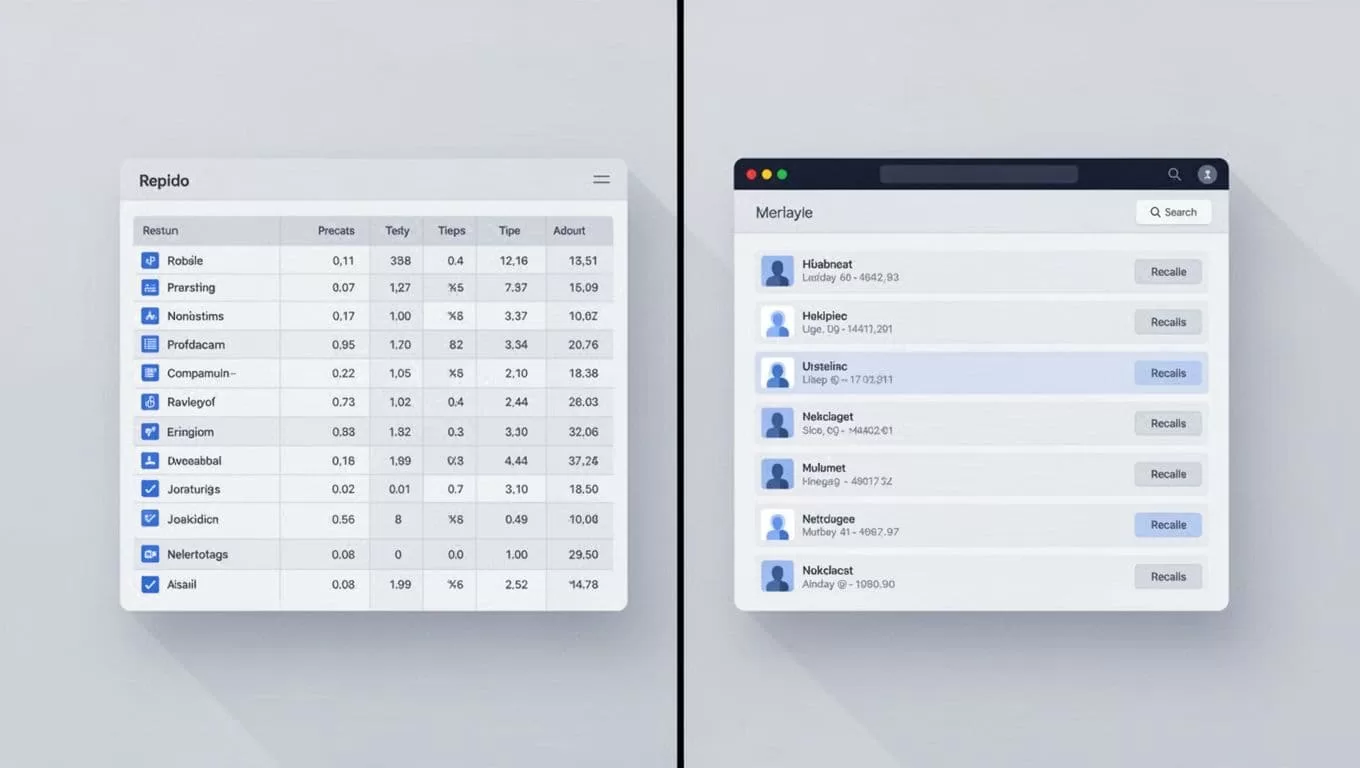
Pitfalls I hit: Site changes break logins (self-healing fixes 80%). No native OCR means pre-process scans. Rate limits? Run mode avoids them. Offline PDFs force uploads.
Troubleshoot by watching replays. Agent logs show scrolls and clicks. Refine instructions: “Ignore headers, start from data row.” See Twin.so instructions docs for edits.
Resume PDFs? I route to AI resume parsing tools after extraction. Keeps data structured.
Conclusion
Twin.so simplifies PDF data extraction for me. Agents turn browser views into usable data fast. I cut hours from reports and avoid copy errors.
Stick to web-hosted files, test instructions, and use run mode. Your ops or sales team gains reliable automation. Try it on your next PDF batch; results stack up quick.
