A bad PDF editor costs me time twice. First, I wait on the tool. Then I clean up the mess it leaves behind.
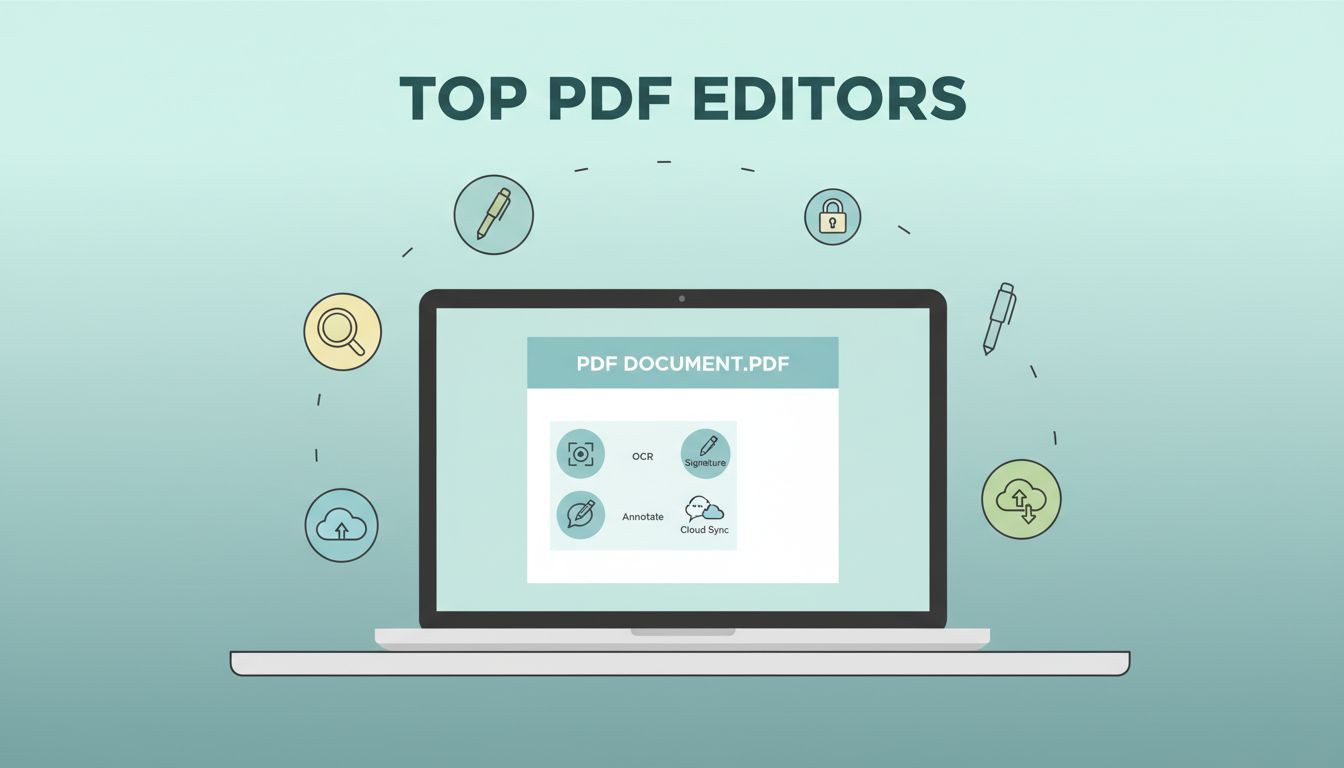
When I test pdf editors freelancers can actually use without friction, I look for OCR, e-signatures, annotation, form handling, cloud sync, and solid security. As of April 2026, the market is split between low-cost browser tools and heavier desktop suites, and that split shows up clearly in Guideflow’s 2026 PDF editor comparison and pdfFiller’s affordable editor guide.
I want the right tool for the job, not the biggest feature list. That matters when a contract is waiting, a scan needs OCR, or a client wants a clean sign-off by lunch.
What I look for before I buy
For me, a PDF editor has to do more than open files. It should let me edit text, annotate quickly, and sign documents without a clumsy detour.
OCR matters because scans should behave like text. I treat that cleanup step the same way I treat resume parsing software in Recruit CRM, since both turn messy files into usable data. I also care about cloud storage links, because I move files through Google Drive and Dropbox all day.
Security is the other big filter. If a tool can’t password-protect, redact, or handle sensitive client files well, I pass on it fast.
I pay for depth when contracts matter, and I stay free when the task is simple.
My shortlist at a glance
Here is the quick version of what I would choose in 2026.
| Tool | Platforms | Price in 2026 | Best fit |
|---|---|---|---|
| Adobe Acrobat Pro | Windows, Mac, mobile, web | About $12.99/mo or $155/yr, 7-day trial | Contract-heavy client work |
| Foxit PDF Editor | Windows, Mac, mobile, cloud | About $149.99/yr, 14-day trial | Power users who want value |
| Smallpdf | Web, Windows, Mac, mobile | Free tier, Pro about $12/mo | Quick solo edits |
| PDF-XChange Editor | Windows | About $56/yr, free with watermark | Windows freelancers who mark up a lot |
| OnlyOffice | Windows, Mac, Linux, web | Free | Budget-conscious cross-platform users |
| PDF24 Creator | Windows | Free | Offline utility work |
The table makes one thing clear. I would not buy the same editor for a one-person side hustle and a contract-heavy client business.
Adobe Acrobat Pro feels like the safest all-around pick
Adobe Acrobat Pro gives me the deepest toolset. It runs on Windows, Mac, mobile, and web, so I can move from desk to phone without changing habits.
Its strengths are editing, OCR, annotation, forms, e-signatures, redaction, and cloud storage integrations with tools like Microsoft 365, Dropbox, and Google Drive. The 7-day trial helps, but the subscription cost, about $12.99 per month or $155 per year, is the part I notice most.
I reach for Adobe when I handle polished proposals, legal forms, or client-facing contracts. It is best for client-facing work, and it feels expensive for casual solo use. If consistency matters as much as speed, this one earns its place.
I also like the way Adobe keeps final files clean. That matters to me the same way Recruit CRM resume formatting keeps branded documents tidy before they reach a client.
Foxit PDF Editor gives me strong features for less
Foxit PDF Editor is the tool I compare to Adobe most often. It runs on Windows, Mac, mobile, and cloud, and it opens large files fast.
I get OCR, comments, e-signatures, security tools, and Office-style integrations without the same price tag as Adobe. The tradeoff is the interface, which can feel busy at first. Foxit offers a free Reader and a 14-day trial, so I can test it before I commit.
For solo freelancers, Foxit is a strong middle ground. For client-facing work, it is still solid because it handles contracts and markups with confidence. I would choose it when I need serious editing power but don’t want to overpay.
Smallpdf is my quick-turnaround choice
Smallpdf is the tool I open when I need a fast fix. It is web-first, but it also works on desktop and mobile, which makes it handy when I am away from my main machine.
It handles editing, conversion, compression, OCR, and signatures with little setup. The free tier gives me a couple of tasks a day, while Pro sits around $12 per month. That makes it easy to try, but the free plan is too tight for heavy use.
I like Smallpdf for solo freelancers who need speed and simplicity. It is less ideal for deep contract workflows, yet it shines when I just need to clean up a file, sign something, or send a document back quickly.
PDF-XChange Editor is my Windows value pick
PDF-XChange Editor is a favorite when I want strong tools without a big bill. It is Windows only, which is a real limitation, but it gives me a lot for the price.
I use it for annotations, OCR, forms, and redaction. The free version adds a watermark to some output, and the paid plan sits around $56 per year. That is hard to beat for Windows users who live inside PDFs.
This one fits solo freelancers best, especially if markup and document review are part of the job. It is less convenient for client-facing teams that need a cross-platform setup.
OnlyOffice and PDF24 Creator cover the free end of the market
OnlyOffice is the free option I point to when I want broad support and no subscription. It runs on Windows, Mac, Linux, and web, and it supports PDF editing, protection, forms, redaction, e-signatures, and cloud workflows.
It feels less polished than Adobe or Foxit, but it gets the job done. That makes it a good fit for budget-conscious freelancers and lighter client work. If I want a browser-based free tool, I also look at Parchment’s free browser tools, but I would not choose that path for scan-heavy work because I need stronger OCR.
PDF24 Creator is even simpler. It is Windows only and free, and I use it for merge, split, compress, sign, protect, and basic OCR tasks. It works offline too, which I like when I do not want files moving through cloud servers.
For solo freelancers on Windows, PDF24 is a practical utility kit. It is not built for rich collaboration, yet it solves the day-to-day basics without asking for money.
My recommendation by workflow
- If budget is the main issue, I start with OnlyOffice or PDF24 Creator.
- If I want the easiest path, I pick Smallpdf.
- If I need advanced editing, I choose Adobe Acrobat Pro or Foxit PDF Editor.
- If contracts run my week, I lean toward Acrobat Pro, with Foxit as the value pick.
A PDF editor should feel like a quiet assistant. It should get out of the way, keep files clean, and help me move faster.
In 2026, the best choice depends on how I work. If I live in contracts, I buy depth. If I only need quick edits, I stay light. That balance saves more time than any flashy feature list.