Photography Business Automation With Twin.so
Photography business automation starts where most studio owners lose time: repeated client coordination. A lead arrives during a shoot, a contract waits for a signature, or a gallery is ready while three follow-up emails remain unfinished....
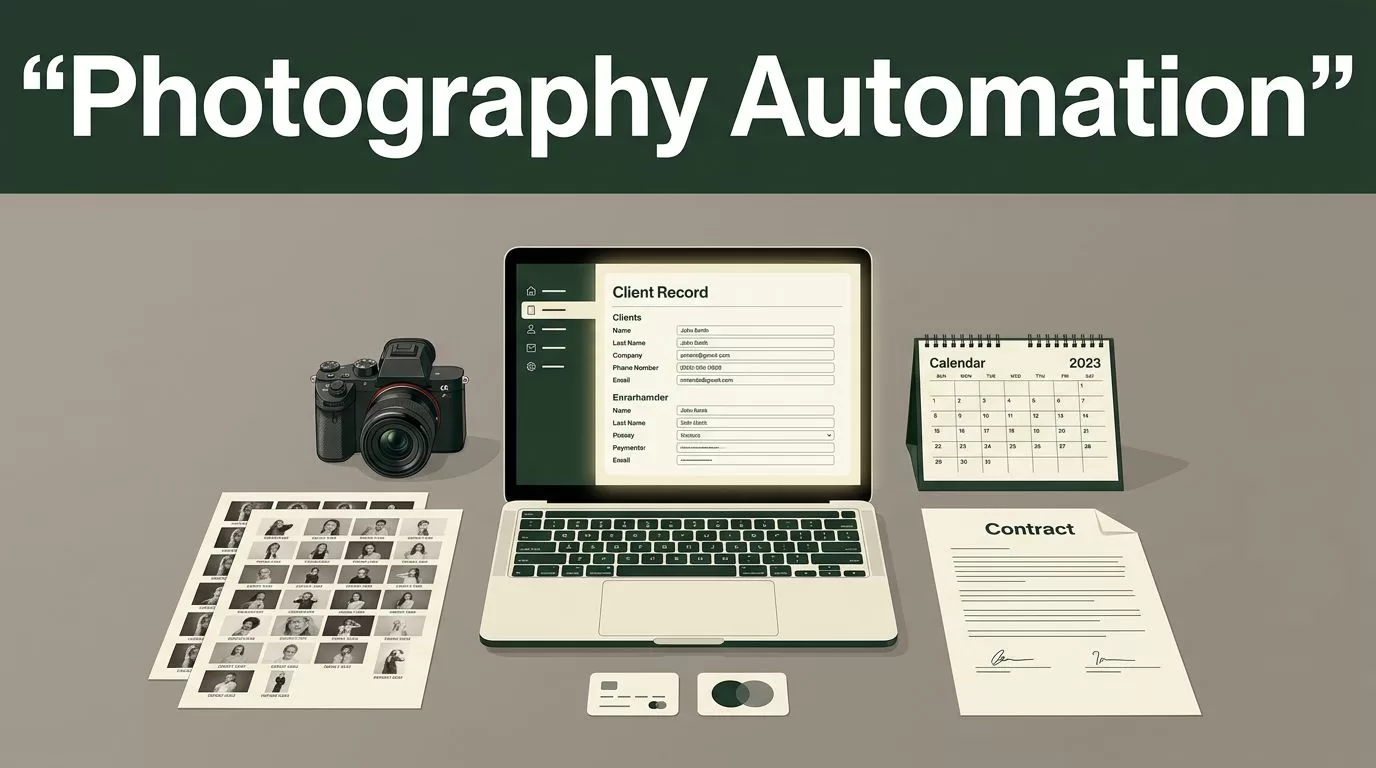
Photography business automation starts where most studio owners lose time: repeated client coordination. A lead arrives during a shoot, a contract waits for a signature, or a gallery is ready while three follow-up emails remain unfinished.
Twin.so can act as the central workflow layer. It can connect client activity with the next approved action, while your existing tools continue handling calendars, contracts, payments, email, and galleries. The goal is not to remove personal service. The goal is to remove avoidable delays.
BUILD PHOTOGRAPHY BUSINESS AUTOMATION AROUND ONE CLIENT RECORD
Start with the client record, not the individual task.
A photography workflow becomes difficult to manage when lead details sit in email, session dates sit in a calendar, contracts sit in a separate platform, and payment status lives somewhere else. Twin.so needs a consistent record to read before it takes action.
Create a standard set of fields for every inquiry:
- Client name and email address
- Session type, such as wedding, portrait, commercial, or product
- Preferred date and location
- Lead source
- Estimated budget
- Current workflow stage
- Contract status
- Invoice status
- Gallery delivery status
- Communication preferences and consent
Use clear stages such as New Lead, Qualified, Proposal Sent, Booked, Shoot Complete, Gallery Delivered, and Closed. Each stage should have a defined entry condition and a defined next action.
For example, a new form submission can create a client record in Twin.so, assign the inquiry to the correct pipeline, and send an acknowledgment. The workflow can also create a review task for you when the lead includes a large commercial project or an unusual request.
That last step matters. Automation should identify the work that needs judgment, not hide it.
Organize connected files by client, project, or service type. Consistent naming helps your team find contracts, questionnaires, invoices, and delivery links without switching between unrelated folders. Clean preparation reduces errors before any automation runs.
| Workflow stage | Trigger | Twin.so action | Human checkpoint |
|---|---|---|---|
| New inquiry | Contact form submission | Create record and send acknowledgment | Review unusual requests |
| Qualified lead | Required details completed | Send next-step message or proposal task | Approve pricing |
| Booked session | Contract and payment confirmed | Send confirmation and preparation details | Check special requirements |
| Gallery ready | Delivery status updated | Send file delivery notification | Confirm gallery access |
| Completed project | Delivery and waiting period complete | Send review request | Handle complaints personally |
| Past client | Referral condition met | Add to referral follow-up | Personalize the message |
The workflow only works when each system reports reliable status. A message that says a client paid is not enough to change an invoice record. Use the payment platform’s confirmed status where possible.

CAPTURE LEADS WITHOUT LOSING THE PERSONAL RESPONSE
Lead capture is the first practical use case for photography business automation.
Connect your website form, booking form, or inquiry inbox to Twin.so. When a prospect submits the required details, Twin.so can create the record, apply a lead source, assign a session category, and start the correct workflow.
A portrait inquiry needs a different response from a commercial production request. Use conditions to separate them.
A portrait lead might receive a short message with your availability process, preparation guide, and booking link. A commercial lead might receive a confirmation email while Twin.so creates a task for you to review usage rights, production scope, licensing, and budget.
Keep the first response short. Confirm that the inquiry arrived. Set a realistic response expectation. Avoid sending a long sales message before you understand the project.
You can also create a follow-up rule for leads that receive a proposal but don’t respond. The first reminder can arrive after two business days. A second reminder can arrive later with a simple question about timing or project fit.
Don’t send the same message to every lead. Store the session type, lead source, and project status so each follow-up has useful context.
A photography software comparison from Wild Connections Photography shows how client management platforms are often used to track inquiries and booked clients through automated workflows. Twin.so can sit above those systems as the process layer, provided the required connection and permissions are available in your account.
AUTOMATE ONBOARDING, BOOKING, AND INVOICING
Once a prospect agrees to work with you, the workflow should move in a fixed order.
Twin.so can trigger a client onboarding sequence after the booking event. That sequence may include:
- Send the contract or agreement for signature.
- Create or issue the invoice through your payment system.
- Send a questionnaire for project details.
- Add the confirmed session to the correct calendar.
- Send preparation instructions.
- Create internal production tasks.
Don’t treat a client as fully booked when they only sent a verbal confirmation. Use the conditions that define a real booking, such as a signed contract and recorded deposit. If your systems report those events separately, wait until both conditions are complete before sending the final confirmation.
Booking reminders should follow the actual session date. A common setup includes a preparation message seven days before the shoot and a short reminder 24 hours before it. Adjust the timing for weddings, commercial productions, and multi-day assignments.
Use the client’s time zone when the connected tools provide it. A reminder sent at the wrong hour looks careless, even when the workflow technically ran correctly.
Invoicing needs tighter controls than ordinary email follow-up. Twin.so can create an invoice task, send a payment reminder, or notify you when a payment is overdue. It shouldn’t mark an invoice as paid based on a client message or an unverified transfer claim.
Sensitive information also needs limits. Store only the client data required for the workflow. Restrict access to payment details, identification documents, private addresses, and signed legal documents. Keep financial records in the payment system whenever possible, and pass status information into Twin.so instead of copying full payment data.
Automation should move a client to the next safe step. It shouldn’t make a financial or legal decision without a verified status.
KEEP POST-SHOOT FOLLOW-UP MOVING
The post-shoot period contains several tasks that are easy to delay. You need to track editing, approvals, gallery preparation, delivery, feedback, and future opportunities.
Create a post-shoot status in Twin.so when the session is complete. The workflow can then create an editing task, record the expected delivery date, and notify you if the project sits without an update.
When the gallery is ready, confirm the delivery link before sending the notification. The message should state where the files are located, what the client needs to do, and who to contact if access fails. Don’t send a delivery message based only on an internal editing status if the gallery hasn’t been published.
After delivery, schedule a follow-up that matches the project. A wedding client may need an album or print discussion. A commercial client may need licensing confirmation or additional formats. A portrait client may want information about future sessions.
Review requests should also use timing rules. Send the request after the client has had enough time to access the files. Add a condition that prevents repeated requests if the client already responded.
Keep complaint handling outside the automatic path. If a client reports missing files, dissatisfaction, or a billing problem, Twin.so should alert you and pause promotional follow-ups. A review request sent during an unresolved issue creates a second problem.
Photography workflow automation can cover more than inbox management. Imagen’s guide to photography workflow automation describes the wider process across inquiry, production, delivery, and file management. Use that broader view when mapping your own workflow, but automate only the actions your connected systems can verify.
USE REFERRAL NURTURING WITHOUT SPAMMING PAST CLIENTS
Past clients are valuable, but referral messages need context.
Add a referral path after a completed project, positive feedback, or a confirmed repeat booking. Twin.so can place the client into a referral segment, create a reminder for a personal message, or send a carefully timed email when consent and communication preferences allow it.
Separate referral audiences by relationship. A wedding client may know engaged couples. A commercial client may refer a marketing manager. A family portrait client may respond to seasonal session information.
A useful referral workflow can look like this:
- Delivery is confirmed.
- The client receives a support and feedback message.
- Positive feedback creates a referral follow-up task.
- Twin.so waits for the selected interval.
- You review the message and approve it.
- The client receives a personal referral request.
- Any response creates a task for direct follow-up.
Don’t send referral requests to every past client on the same schedule. Check recent contact history, open complaints, opt-out status, and the type of service completed.
The human review is part of the value. A personal photographer-client relationship should not become a sequence of unrelated automated messages.
KEEP HUMAN REVIEW IN THE WORKFLOW
The best photography business automation has controlled handoffs.
Leave human review in place for custom quotes, legal terms, sensitive data, complaints, unusual deadlines, large commercial projects, and any message involving a personal recommendation. Twin.so can prepare the record and create the task. You make the decision.
Use approval checkpoints for external messages that carry risk. A workflow can draft a response, populate client details, and place it in a review queue. You then check the recipient, price, dates, attachments, and tone before sending.
Run a pilot before deploying the workflow across every service. Choose one common pipeline, such as portrait bookings or standard event inquiries. Test it with real process variations, including incomplete forms, duplicate leads, unpaid invoices, rescheduled sessions, bounced emails, and canceled projects.
Track a small set of operating metrics:
- Average first-response time
- Lead-to-booking rate
- Number of overdue follow-ups
- Time between booking and signed contract
- Invoice payment delay
- Gallery delivery delay
- Review response rate
- Administrative hours per booked session
Review the workflow weekly during the pilot. Remove steps that create duplicate work. Add conditions where the workflow takes action too early. Confirm that every automated message has an owner and a stop condition.
Twin.so should become the central system for coordinating the process, not another place where unfinished tasks accumulate.
CONCLUSION
Photography business automation works when the workflow has clean data, clear stages, verified triggers, and human approval where judgment matters. Twin.so can coordinate lead capture, onboarding, booking reminders, invoicing tasks, delivery notifications, follow-ups, review requests, and referral nurturing across your existing tools.
Start with one service and one client journey. Define the states, connect the systems, test the exceptions, and measure the delays that disappear. The result is a studio that spends less time chasing administrative details and more time handling the work clients hired you to produce.
