How to Scrape Weather Data Routinely With Twin.so
Weather conditions change faster than most operational spreadsheets. If your team checks several locations manually, the process creates delays, inconsistent records, and missed updates. You can scrape weather data with Twin.so on a recurri...


Weather conditions change faster than most operational spreadsheets. If your team checks several locations manually, the process creates delays, inconsistent records, and missed updates.
You can scrape weather data with Twin.so on a recurring schedule, then route the results to a spreadsheet, database, or alert workflow. The reliable setup starts with a narrow source, a fixed list of fields, and a clear destination.
Why Collect Weather Data on a Schedule?
A single weather lookup helps with one decision. A recurring dataset helps you compare conditions over time.
Operations teams can use scheduled weather records to plan field work, adjust delivery routes, prepare outdoor campaigns, monitor energy demand, or notify staff about severe conditions. Developers can use the same data to test location-based applications or populate internal dashboards.
The collection task needs more structure than “get the weather for New York.” Define the location, forecast type, units, time zone, and output fields before you build the workflow.
Useful fields include:
- The location name and source URL.
- Collection timestamp and forecast timestamp.
- Temperature, humidity, wind speed, and wind direction.
- Precipitation probability or rainfall amount.
- General conditions, such as clear, cloudy, or rainy.
- Forecast high and low temperatures.
- Severe weather notices when the source provides them.
Keep observed conditions separate from forecasts. A current temperature and tomorrow’s predicted high answer different operational questions.
A weather value without a timestamp, unit, time zone, and source is difficult to use safely.
Scraping is a practical choice when the required information appears on a public webpage and you need a quick internal workflow. It isn’t automatically the right choice for high-volume production data. Weather websites can change layouts, restrict automated access, or publish information under terms that limit reuse.

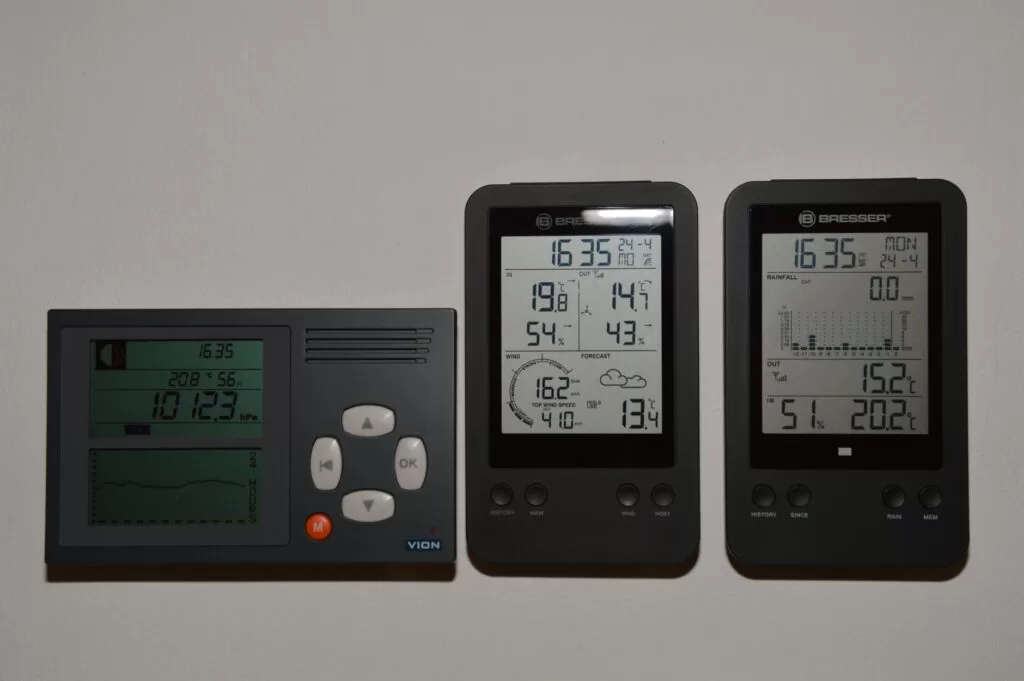
Photo by Ulrick Trappschuh
How to scrape weather data with Twin.so
Use Twin.so as the browser automation layer. Give the workflow a clear source, an extraction instruction, a schedule, and a destination. The exact controls available can vary by workspace, so build around the options shown in your account.


1. Select a stable public source
Choose one weather page that displays the required information without a login. Avoid sources that open pop-ups, require repeated scrolling, or hide key values behind interactive maps.
Use a location-specific page whenever possible. A page for “Chicago weather” is easier to automate than a general weather homepage with several cities.
Record the source URL in your workflow output. This gives your team a way to verify a value when the page changes or a forecast looks unusual.
2. Define the extraction instruction
Create a Twin.so task that opens the source and returns only the fields you need. Use direct instructions such as:
“Open the public forecast page for Chicago. Extract the current temperature, condition, wind speed, today’s high, today’s low, and precipitation probability. Return one structured record with the field names provided. Keep the displayed units. If a field is missing, return null. Do not estimate or infer values.”
This instruction separates collection from interpretation. Twin.so should capture what the page shows. It shouldn’t fill gaps with guesses.
Use consistent field names across every run. If one run returns temp and another returns temperature_now, your spreadsheet and downstream automation will need extra cleanup.
3. Add the recurring schedule
Set the frequency according to the decision the data supports.
A daily run works for morning planning and routine reporting. An hourly run fits short-term monitoring for outdoor work or delivery operations. Severe weather alerts need a faster and more authoritative source than a page checked only a few times each day.
Set the schedule in the location’s local time when the workflow supports time zone selection. Store the time zone with the record. Daylight saving changes can otherwise make a 7:00 a.m. collection appear at the wrong time.
Don’t poll a public page every few minutes unless the site allows that activity and your use case requires it. A lower request rate reduces load and produces enough data for most planning workflows.
4. Test before turning on recurrence
Run the task manually and compare each returned value with the source page. Check the unit, location, forecast date, and timestamp.
Test a missing value as well. A robust workflow returns an empty field or a failed run instead of inventing a temperature.
Once the result matches the page, send it to the intended destination and inspect the final record. Fix formatting before adding more locations.
A practical Twin.so workflow for one location
Use a fixed workflow first. Expand it only after the one-location version produces clean records.
For a daily Phoenix operations report, the configuration could look like this:
- Twin.so opens the selected public forecast page at 6:00 a.m. Phoenix time.
- The task extracts the location, collection time, current temperature, forecast high, forecast low, wind speed, precipitation probability, and condition.
- The workflow adds the source URL and a
forecast_datefield. - It sends one row to the selected spreadsheet or data destination.
- A separate condition checks whether the precipitation probability or severe weather field meets the team’s alert threshold.
The extraction instruction should state whether you need current conditions, hourly forecasts, daily forecasts, or alerts. Don’t combine all four into one vague request.
To support another location, replace the source URL, location name, time zone, and any local unit preference. If your Twin.so workspace supports task variables, pass the location as an input. Otherwise, duplicate the tested task and change only the location-specific values.
For multiple locations, choose between one task per location and one parameterized task. Separate tasks are easier to audit. A parameterized task is easier to maintain when the source page structure stays consistent.
Forecast type also changes the output shape. Current conditions usually produce one record per run. Hourly forecasts produce several records with different forecast times. Daily forecasts need one row per date. Choose the structure before connecting a destination.
Route weather results to spreadsheets, databases, or alerts
Twin.so can collect the data, but the destination determines how useful the workflow becomes. Choose a storage pattern that matches the way your team will read the results.

Spreadsheets
Use a spreadsheet when people need to review records manually or build lightweight reports.
Create stable columns before the first scheduled run. Keep one row per location and collection time for historical tracking. If you only need the latest snapshot, update a fixed row for each location instead.
Use a unique key such as location + forecast_date + forecast_hour when duplicate rows would create reporting errors. Store raw text only when it helps with later verification. Convert numeric temperatures and percentages into numeric columns when the destination supports type control.
Databases
Use a database when several systems need the same weather records. Create separate fields for location, observed time, forecast time, metric values, units, and source URL.
A database workflow should handle duplicate records. Use a unique key or upsert process when the same location and forecast period can appear in multiple runs.
Store the collection timestamp separately from the weather timestamp. The first tells you when Twin.so collected the page. The second tells you when the observation or forecast applies.
Alerts
Alerts should contain only the information needed for a decision. A message can include the location, condition, forecast time, threshold, and source URL.
Don’t send every scheduled result to a chat channel. Route only exceptions, such as a high precipitation probability, strong wind value, missing forecast, or severe weather notice.
If your Twin.so workspace provides an alert or outgoing request destination, map the extracted fields to that destination. If it doesn’t, store the record first and let your existing automation platform evaluate the threshold.
The takeaway is simple: append for history, update for snapshots, and alert for exceptions.
When an official weather API is the better choice
Browser scraping is useful for a narrow workflow. An official API is usually better when you need stable schemas, many locations, historical records, strict uptime requirements, or severe weather alerts.
For United States forecasts, observations, and alerts, review the National Weather Service API documentation. It provides machine-readable access to several types of official weather data.
For global current conditions, forecasts, and historical datasets, compare OpenWeather API options. Commercial teams may also evaluate The Weather Company’s weather APIs when they need business-focused coverage and historical or forecast feeds.
APIs normally require credentials, usage limits, and compliance with provider terms. They also reduce the risk of a page redesign breaking your workflow.
You can still use Twin.so around an API-based process when the available workspace supports the required connection. For example, Twin.so may handle a browser-based internal report while the official API supplies the production dataset. Keep those roles separate. Use the source with the strongest reliability for decisions that affect safety, compliance, or customer commitments.
Keep recurring weather collection reliable
Treat the workflow like a small production system. Review it after the source page changes, and don’t assume a successful run produced a correct value.
Add basic validation to every record:
- Confirm the location matches the requested place.
- Check that numeric fields contain numbers and expected units.
- Reject stale timestamps or missing forecast dates.
- Flag empty results instead of sending them to reports.
- Keep the source URL and collection time for audit checks.
Respect the weather site’s terms of use, robots instructions, request limits, and licensing rules. Public access doesn’t mean unlimited automated collection. Don’t bypass a login, CAPTCHA, paywall, or technical restriction.
Use the slowest schedule that meets the business need. Cache results when your workflow permits it. If the data supports safety decisions, compare the scraped value with an official source before taking action.
Review the workflow after several runs. Look for duplicate rows, timezone shifts, changed labels, missing fields, and forecast dates stored as plain text. These errors are easier to fix before the dataset becomes part of a larger reporting system.
Conclusion
Twin.so gives developers and operations teams a practical way to scrape weather data from public pages on a recurring schedule. The strongest setup defines exact fields, records timestamps and sources, tests one location, and then expands carefully.
Use spreadsheets for review, databases for shared history, and alerts for exceptions. Choose an official weather API when you need high-volume, machine-readable, or safety-critical data. A reliable weather workflow starts with a narrow task and improves through validation, not guesswork.

